How to configure the antispam filter?
Hashtags: #Email #Business #Spam #Assassin #block #whitelist
The Antispam filter is called SpamAssassin and is configured from the control panel.
Configuring the antispam filter from the control panel:
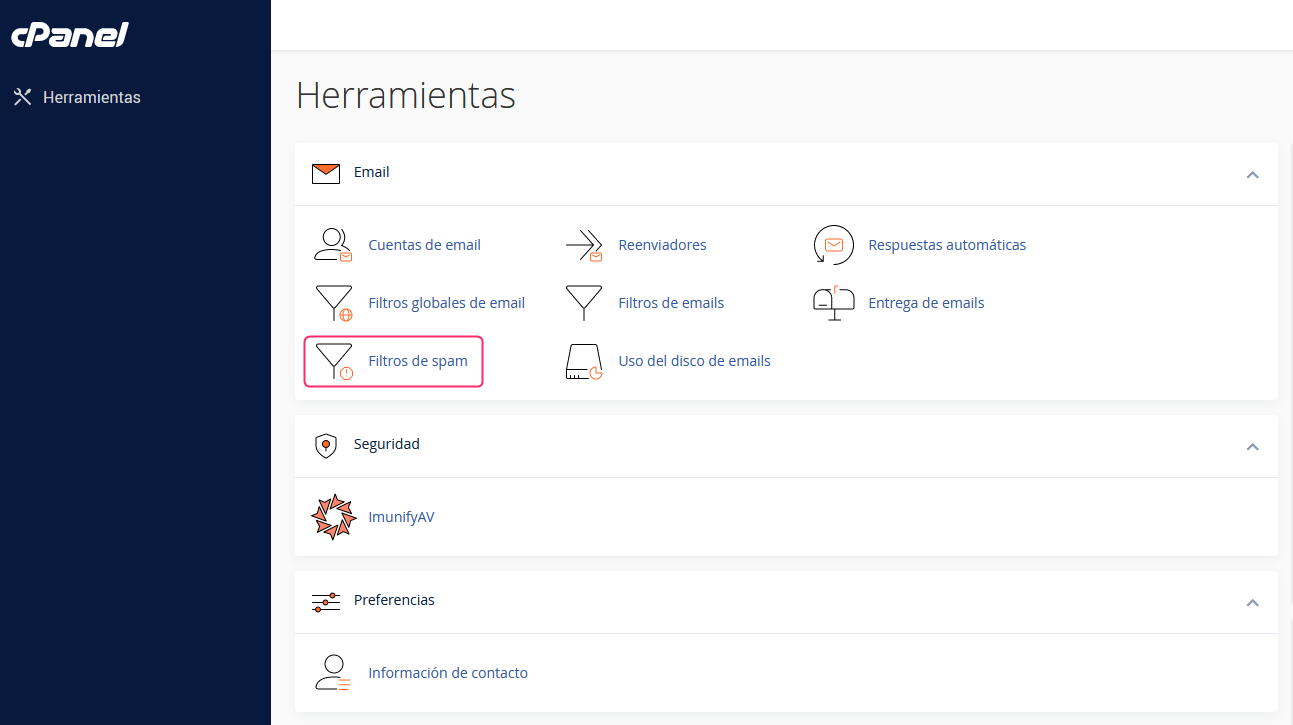
- In the cPanel control panel, go to Spam Filters, in the Email section.
-
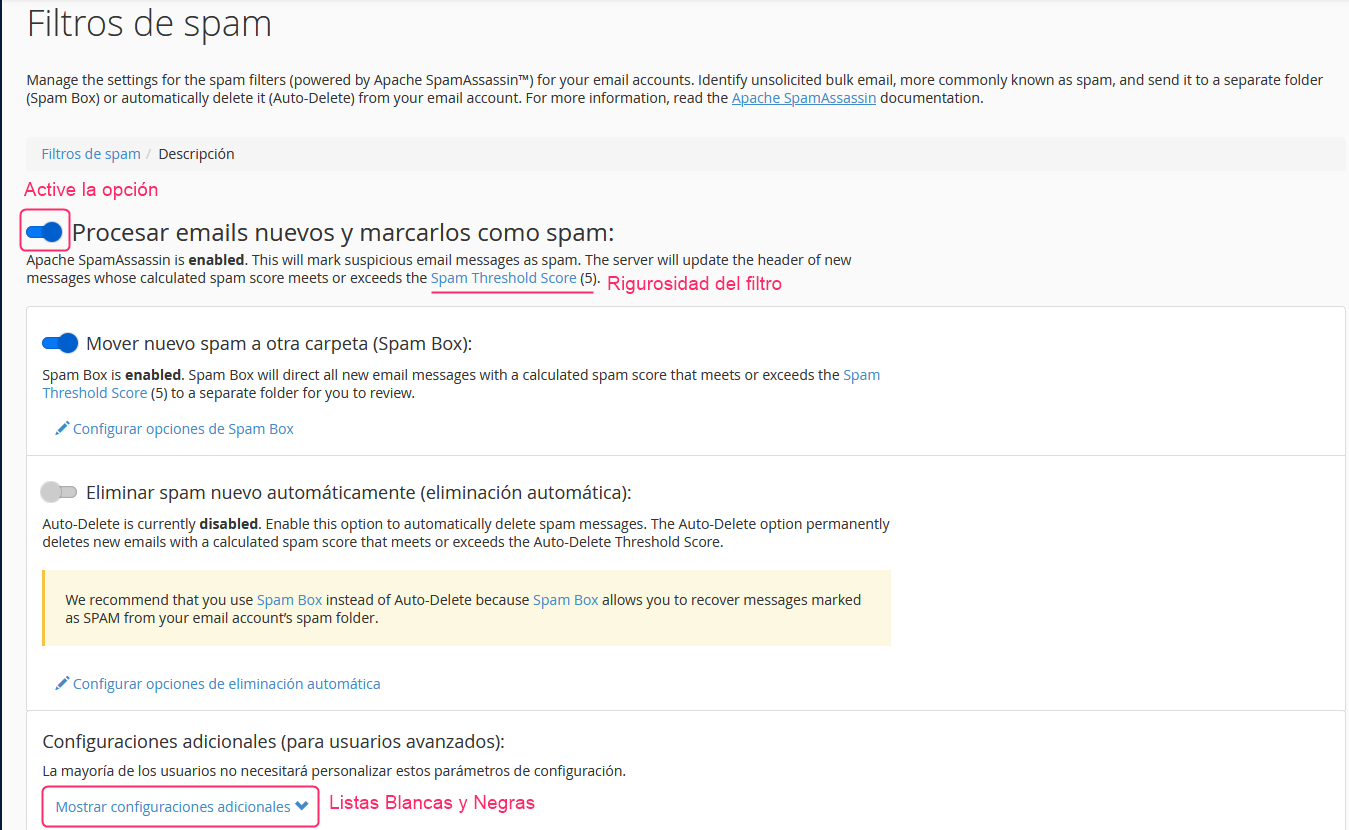
First, enable the options that interest you for your filter. You will see three options:
Process new emails and mark them as spam:
This option is the filter itself. You must enable it for the other options to be processed.
Spam Threshold ScoreYou will notice that the Spam Threshold Score has a certain value.
This is the strictness of the filter. It is recommended to set a value of 8 for a not-too-strict filter or a value of 5, which will make it a bit stricter. It is not recommended to lower it below 4 or it could filter legitimate emails.
Move new spam to another folder (Spam Box):
This option will create a spam mailbox in your mailboxes. Detected spam will be moved to this mailbox automatically.
Automatically delete new spam (automatic deletion):
This option will automatically delete emails detected as spam. It is recommended to set a higher strictness here than that given to the normal filter.
Manage Whitelists and Blacklists
Below the main Antispam Filter options you will find an option called Show Additional Settings.
This option will open the manager for Whitelists and Blacklists.
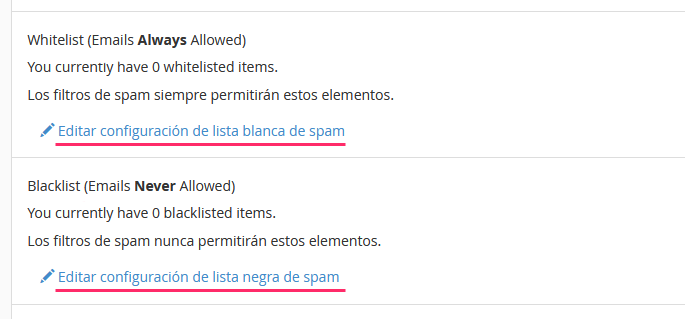
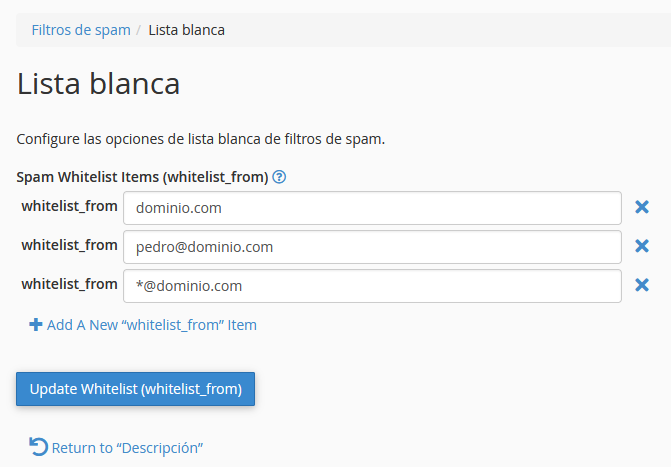
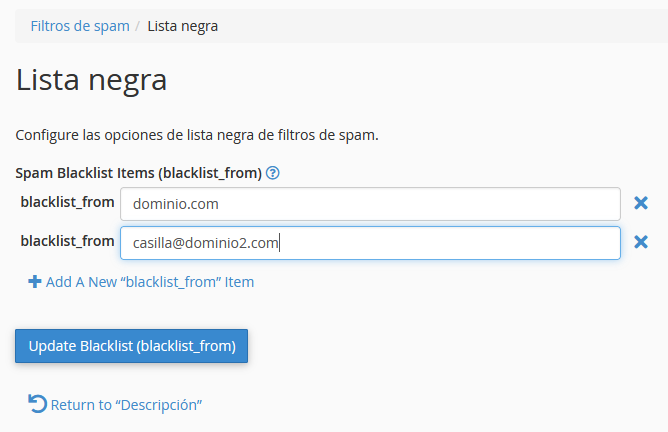
Within each list type you can define domains or mailboxes that you always want to accept or block. This way, you ensure that certain emails always arrive or are always blocked by the Antispam Filter.