How to create Scheduled Tasks (Cron Jobs) in cPanel?
Hashtags: #cPanel
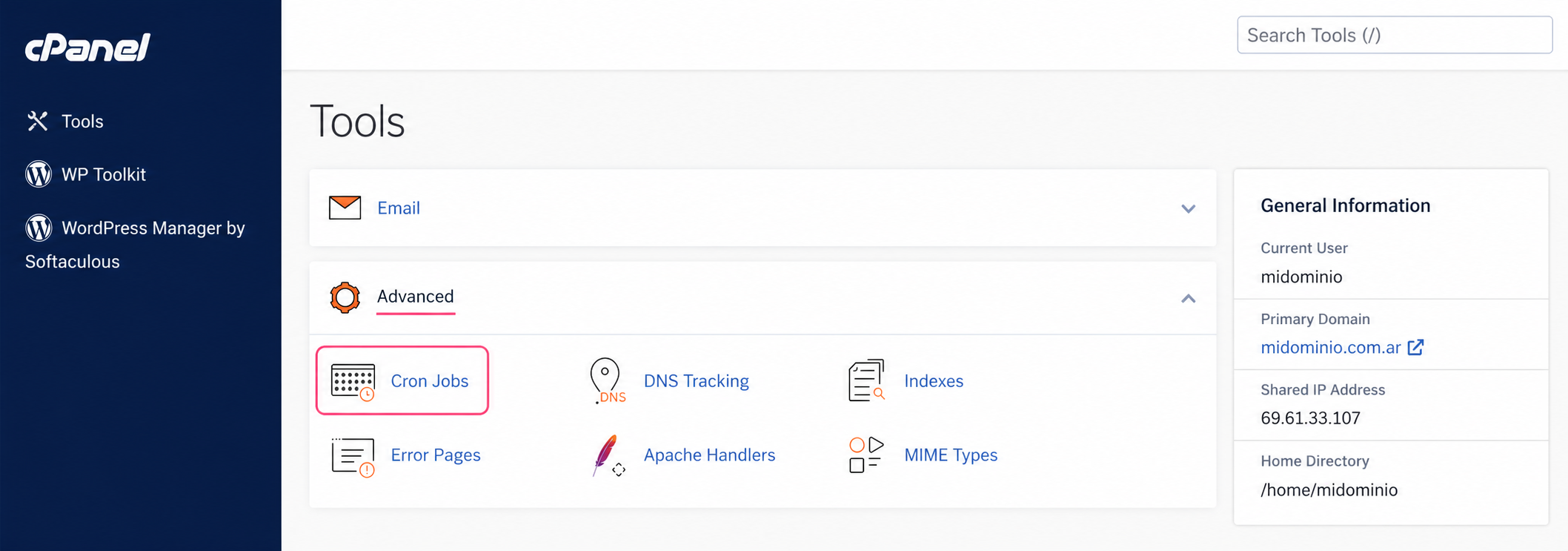
To create a scheduled task, access your control panel and then, in the Advanced box, go to Cron Jobs.
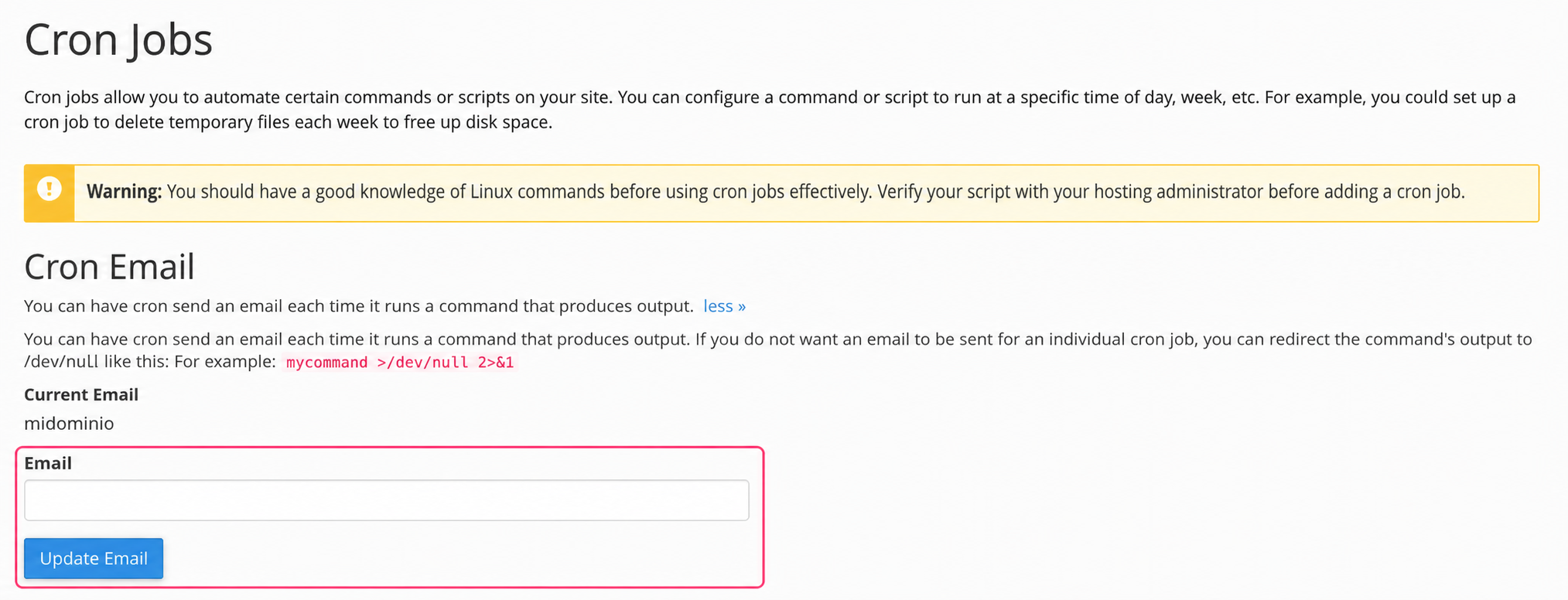
The Cron Jobs screen has several sections. First it will ask for an optional email address to report the execution of the scheduled task. If you do not configure an email account the server will send the report to the mailbox that cPanel creates by default.
In the second section we will see example information to create the command for the task that will be executed. It is very important to pay attention to those examples. Let’s look at each point:
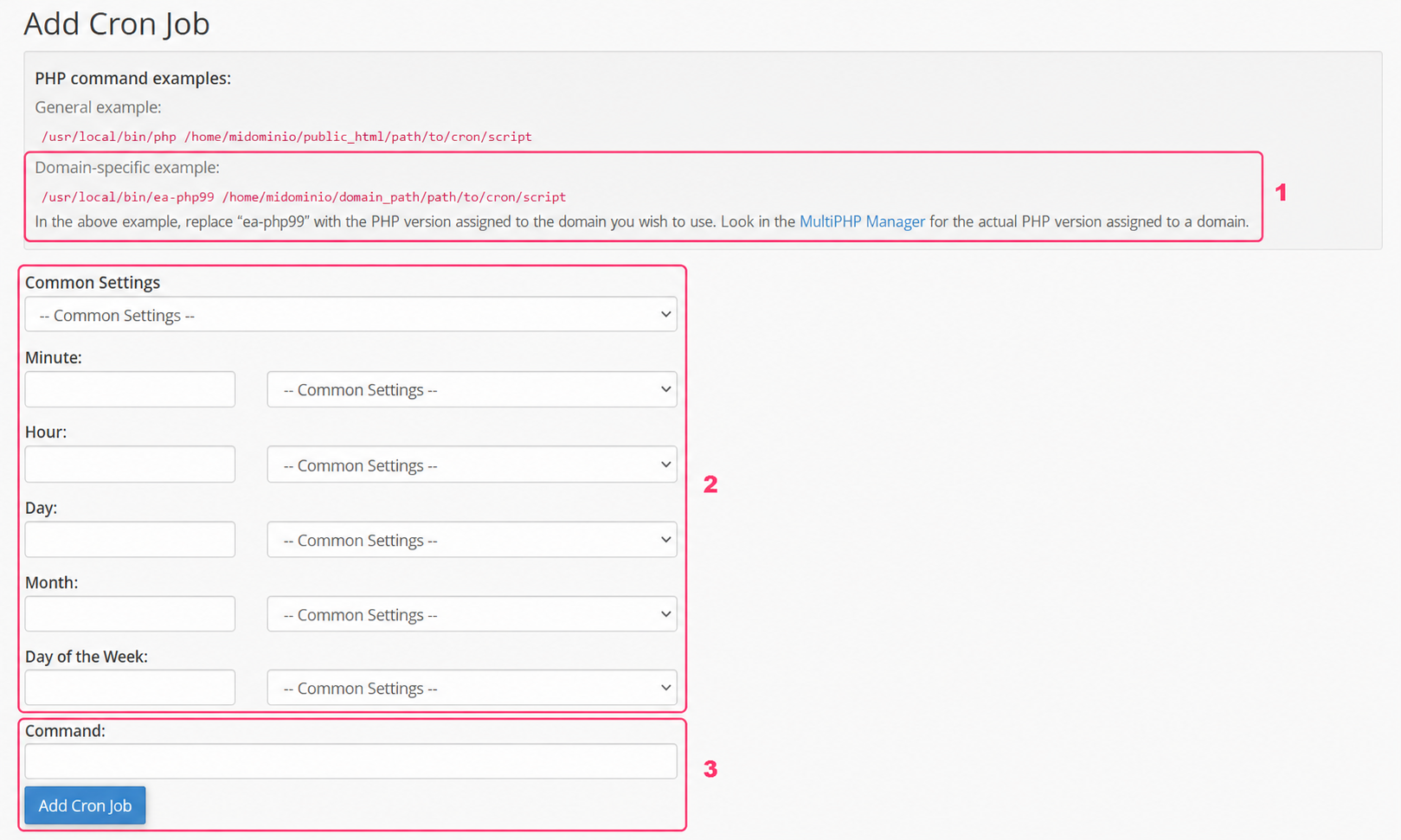
- The example indicates that, depending on your PHP version you should write the command
/usr/local/bin/ea-php99according to the number of the PHP version you have. If your account uses PHP 8.0 you should write:/usr/local/bin/ea-php80
- In this section you must define how often your scheduled task will run. Use each dropdown menu to complete this.
- Finally you will see the box where you must write the execution command for the scheduled task. This is where you should write the
/usr/local/bin/ea-phpcommand we saw in point 1.
- An example would be:
/usr/local/bin/ea-php80 /home/miUsuarioCpanel/public_html/miscript.php
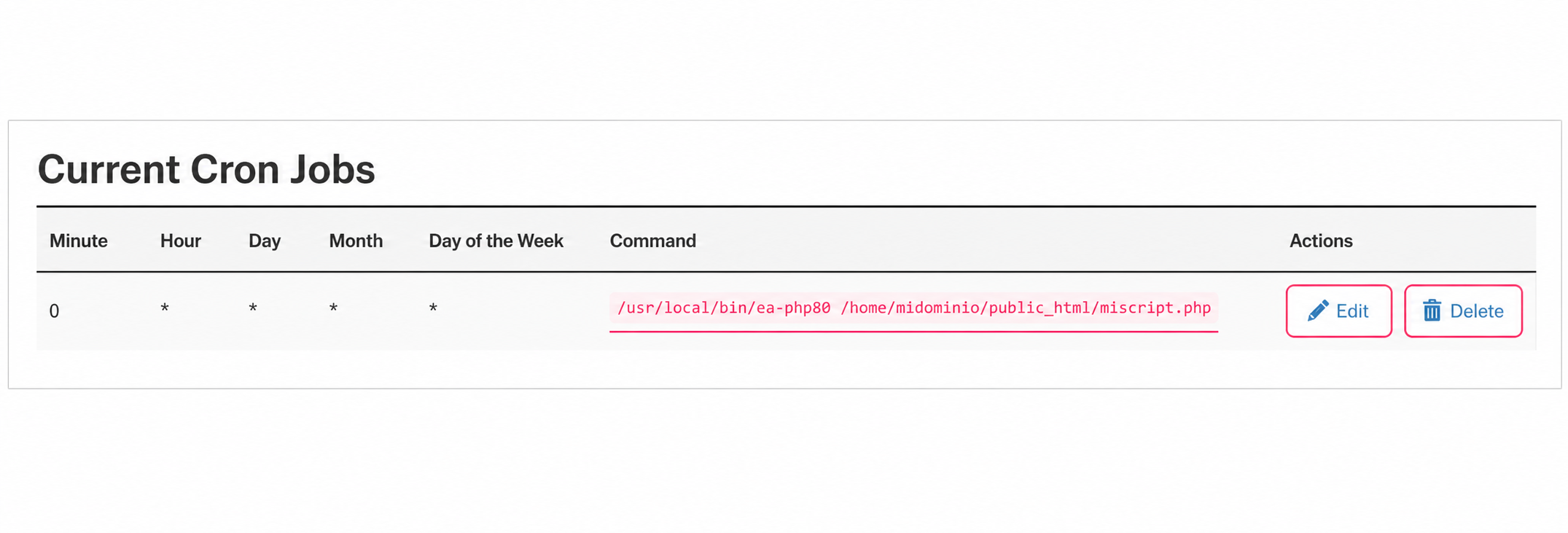
The last section of Cron Jobs will show all the scheduled tasks you have created. You can edit or delete an existing task.