
How to access mailboxes via Webmail with Plesk?
Below we will show you how to check your mailboxes using Plesk’s Webmail.
Below, we detail the different ways to access Webmail:
Access from the Control Panel
- Enter the following web address in your browser to access the Plesk Control Panel:
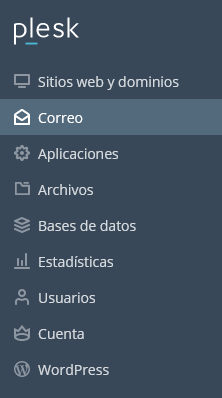
https://windows10.webhosting-network-services.com:8443 - Once in the Plesk Control Panel, look in the left menu for the Mail option and enter it
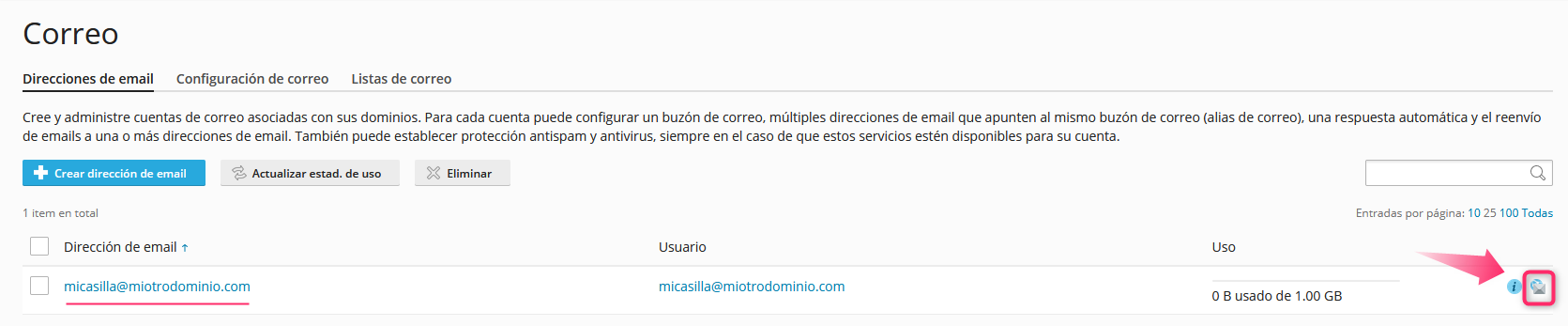
- On this screen you will find the list of created mailboxes. Go to the Mail Settings tab.
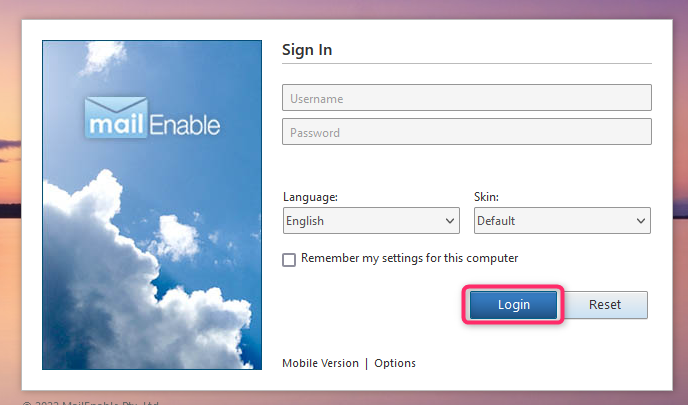
- Finally, enter your mailbox credentials on the Login screen.
Access from my Client Area
- In your Client Area, go to Services, then My Services
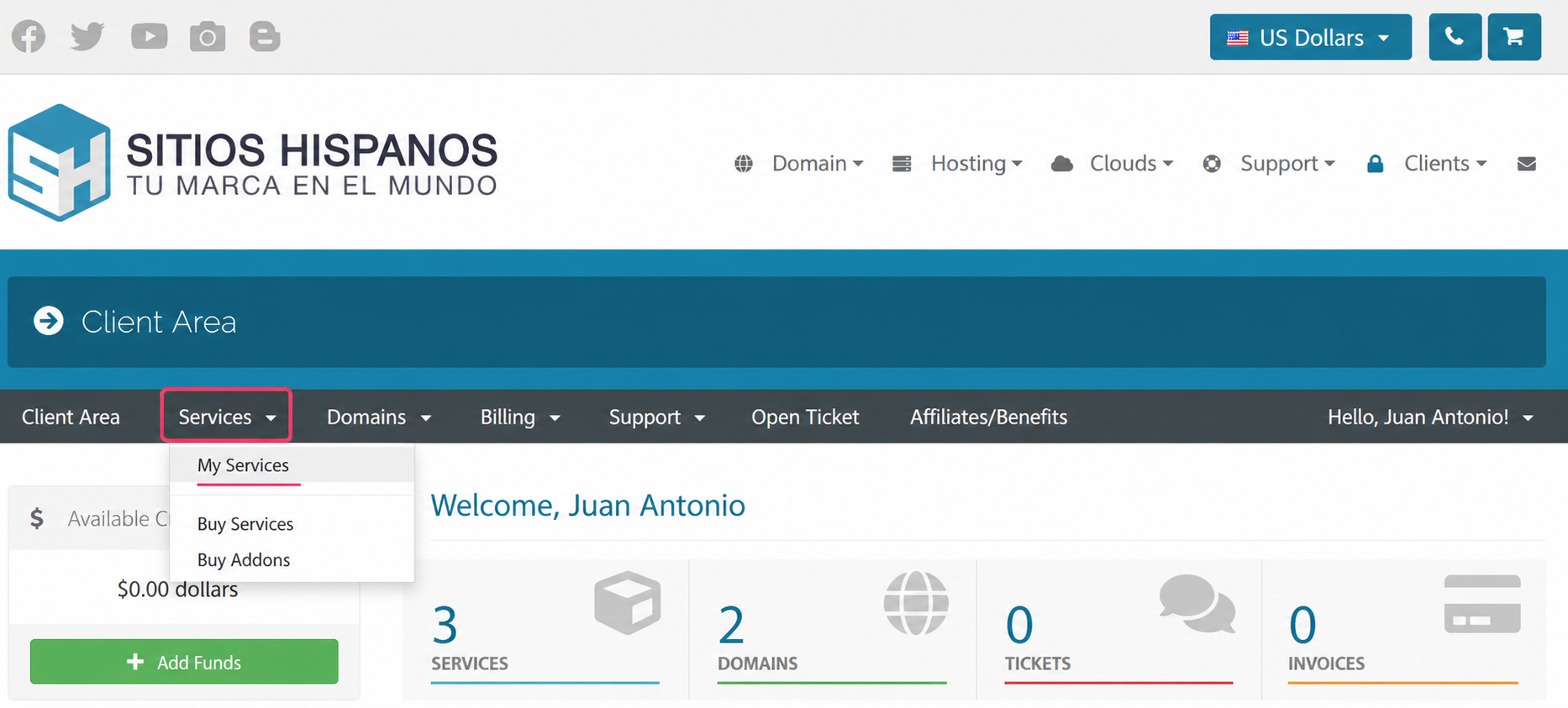
- From the list of hosting plans, select the one for which you want to check the mailbox
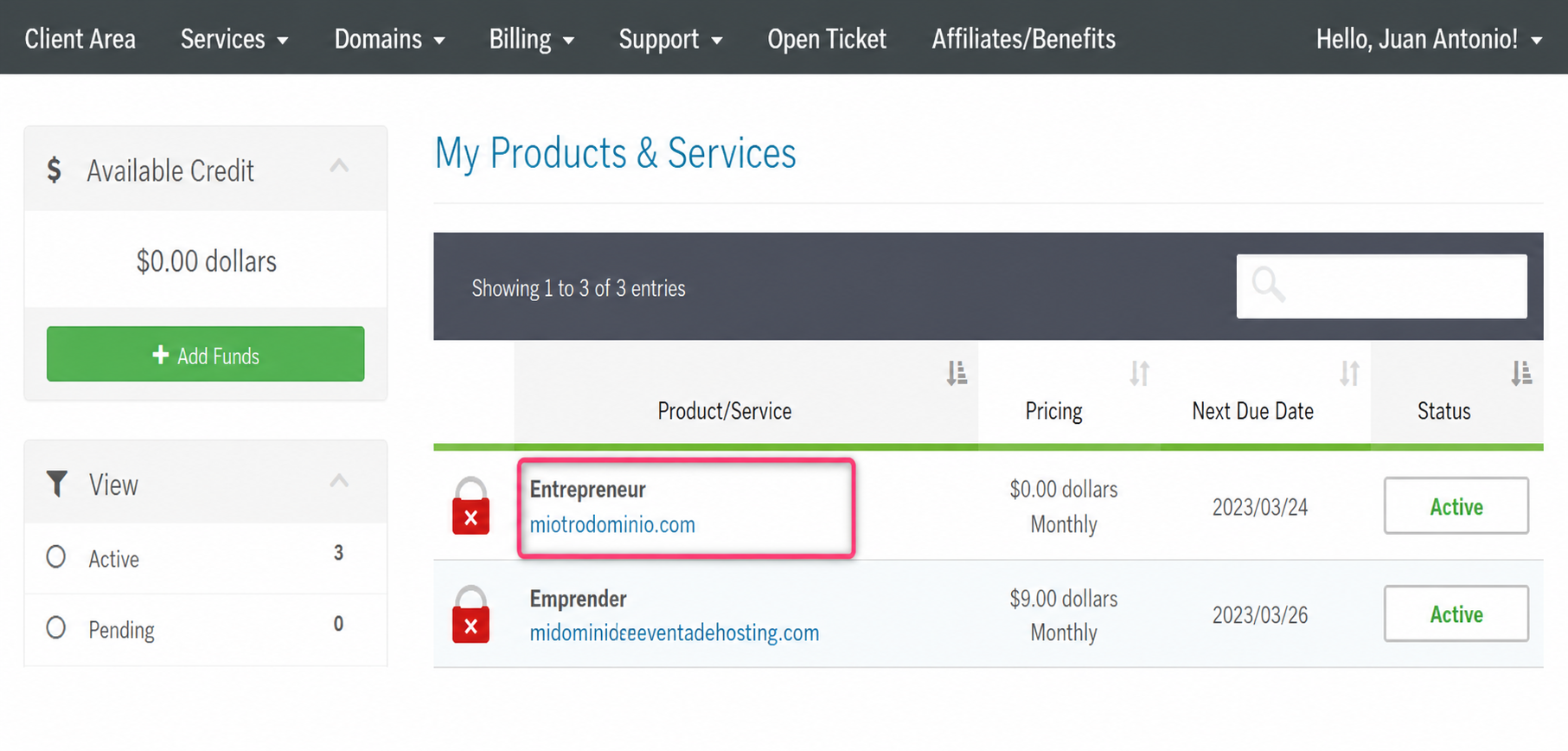
- On the new screen you will find the Quick Shortcuts option. Go to your mailboxes
.png)
- Enter the Plesk Control Panel. Look in the left menu for the Mail option and enter it.
- On this screen you will find the list of created mailboxes. Go to the Mail Settings tab.
- Finally, enter your mailbox credentials on the Login screen