
HTML Template Editor
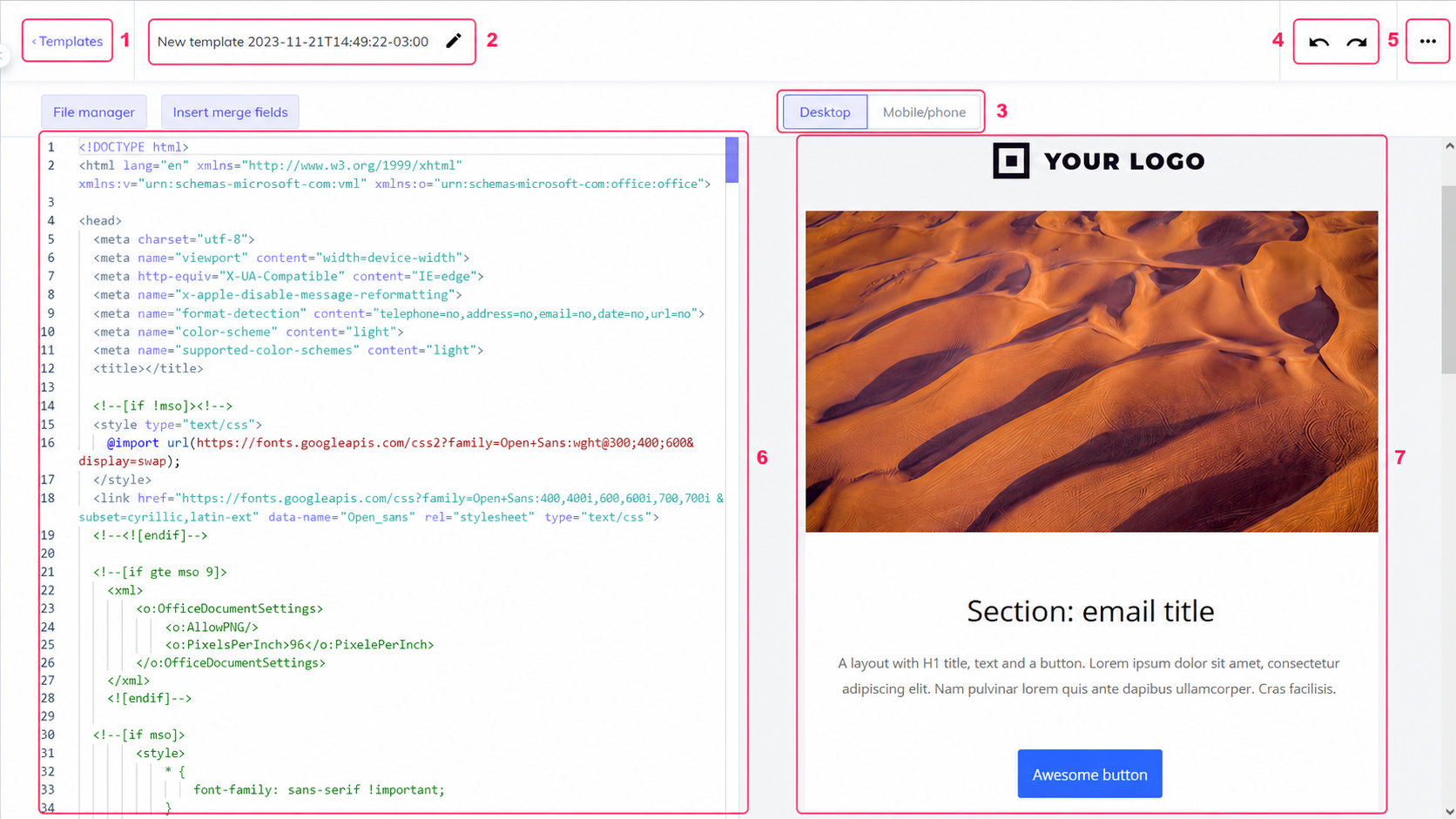
The HTML template editor consists of the following areas:
- The Templates link will take you to the main screen where created templates are listed.
- Here you can give the template a name.
- The Desktop/Mobile/Phone selector will show your design in desktop or mobile device modes.
- These two arrows will allow you to undo or redo a change.
- The three-dots button will open a menu with these options:
- Send test: used to send a test with the template being edited.
- Add tags: you can add tags to the template.
- Default options: you can save a default Sender and Subject to use with this template.
- Edit text body: you can create a default message body if you don’t define one when using this template in a campaign.
- Edit AMP body: you can create a default AMP if you don’t define one when using this template in a campaign.
- In the center of the screen you’ll see the HTML code that shapes your template.
- On the right you’ll see your template as it’s being created by the HTML code.
Any change you make to your template will be saved automatically when you exit.