
How to view my domain as HTTPS in my browser in Plesk?
Hashtags: #htaccess #SSL #secure #redirection
This guide assumes that the SSL Certificate has already been installed on the hosting account.
If you have not yet enabled the SSL Certificate on your account, you can do so by following the steps in this guide: How to install an SSL Certificate in Plesk?
If you have already installed the SSL Certificate, it is recommended that your domain always displays the secure version (https) in the browser. This automatic redirection to https can be done in two ways:
- From your account control panel.
- By editing the htaccess file in the website’s root directory.
Redirect to HTTPS from the cPanel Control Panel:
- Log in to your control panel and then go to Domains.
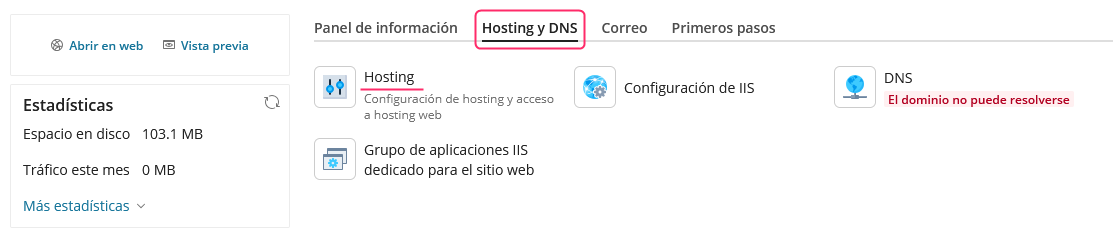
- In the new screen, you will see the domains associated with your hosting account.
By activating the switch on “Force HTTPS redirection”, the domain will always display the secure mode https.
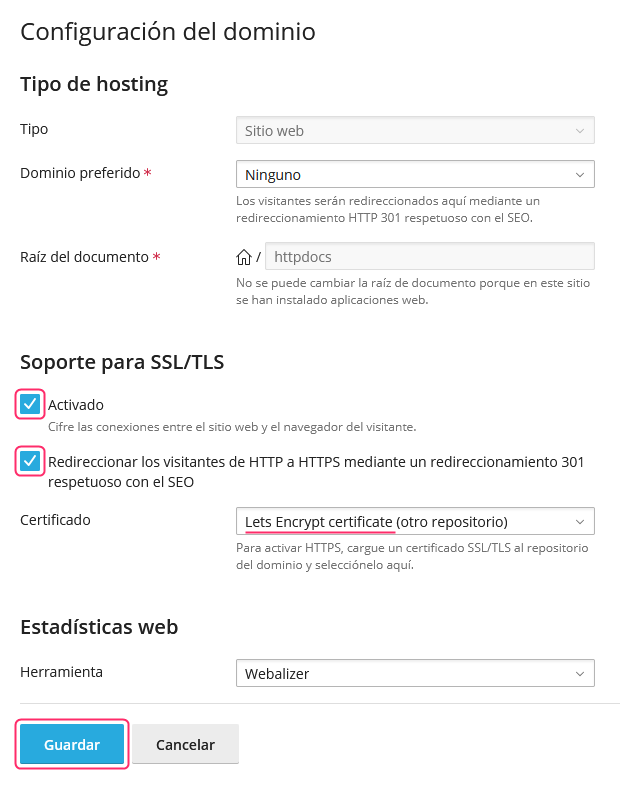
Redirect to HTTPS from the htaccess file:
It may happen that the method from the control panel does not work for some reason.
Another possible method to generate an automatic redirection to https is by adding a line to the htaccess file that you will find in the /public_html directory or the root directory of your website.
The code you will need to add, usually at the top of the file, is this:
RewriteEngine On
RewriteCond %{HTTPS} off
RewriteRule ^(.*)$ https://%{HTTP_HOST}%{REQUEST_URI} [L,R=301]
To edit the htaccess file you can use the File Manager of your control panel or an FTP Client. Below you will see how to access the htaccess file from both methods.
Access from the File Manager:
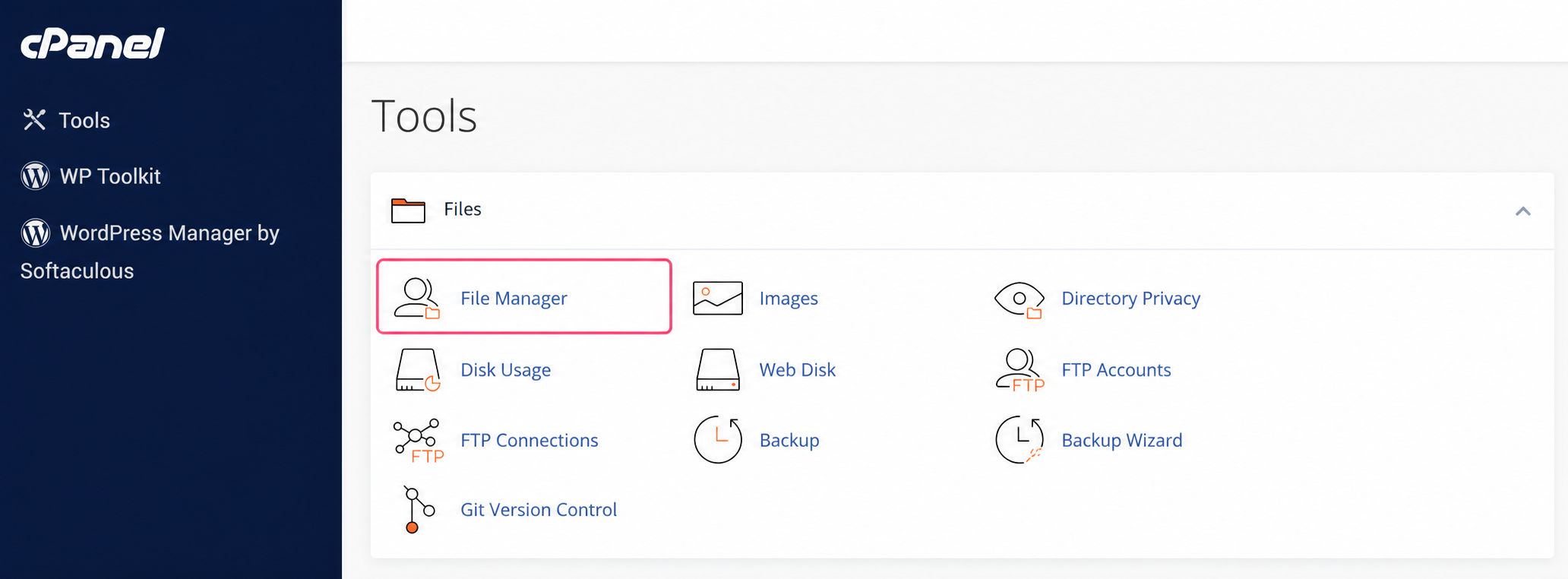
- Inside the cPanel control panel, go to File Manager.
- In your account directories, look for the public_html directory or the root directory where your website is installed.
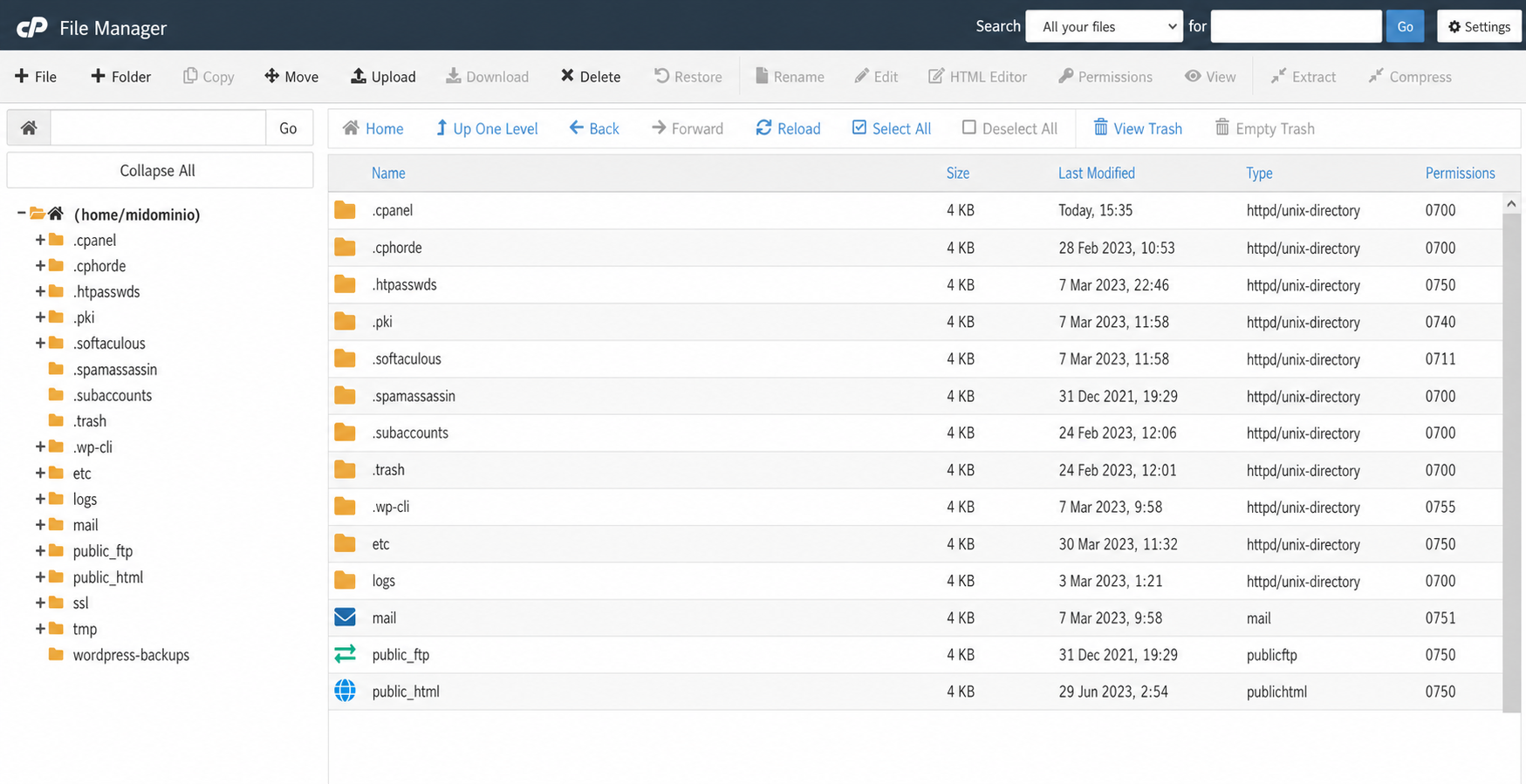
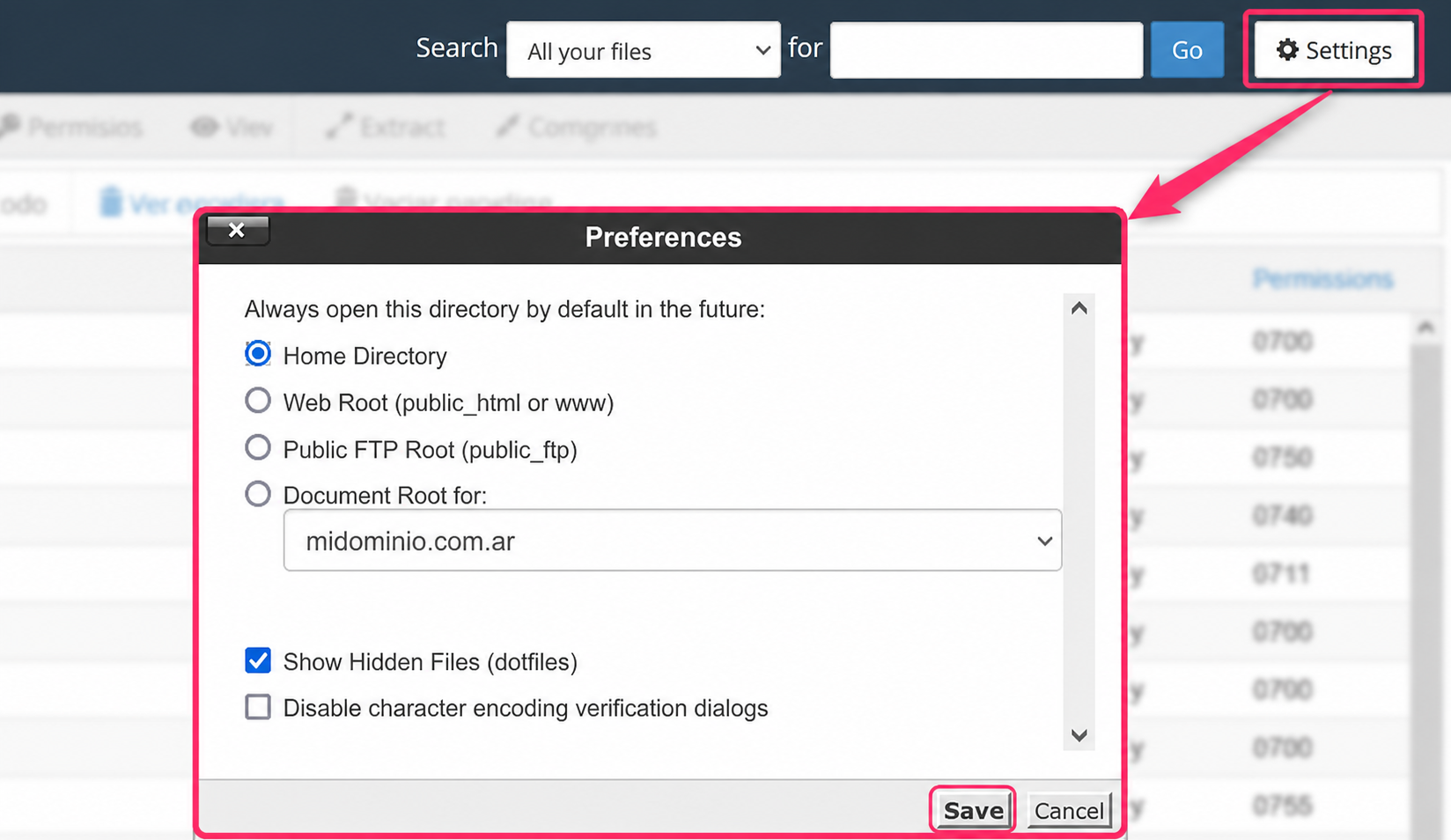
- Remember to enable the option to view hidden files or you will not see the htaccess file.
You can do this by pressing the Settings button and then enabling the Show hidden files option. Finally, save the changes with the Save button.
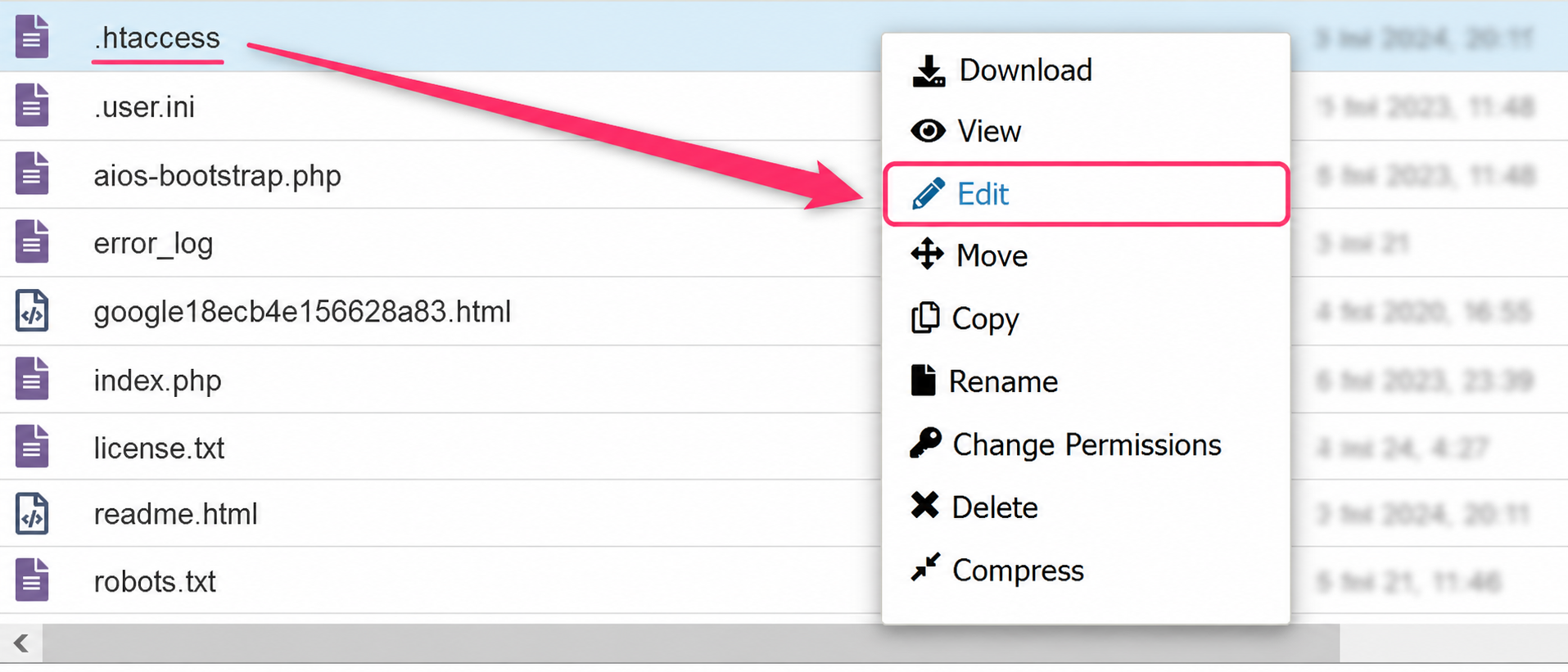
- When you find the htaccess file in your root directory, right-click the file and select Edit from the menu.
- In the code of this file, at the top, you must add the lines shown below:
RewriteEngine On
RewriteCond %{HTTPS} off
RewriteRule ^(.*)$ https://%{HTTP_HOST}%{REQUEST_URI} [L,R=301]
- That’s it. You should see your domain in secure mode https in your browser.
Access from an FTP Client:
Editing this file is very similar to what is shown with the File Manager, only in this case you will use the file manager of your FTP Client. The link below will show you how to connect via FTP to edit the htaccess file.
FTP sessions in cPanel