
How to move emails in Webmail
If you access your email accounts through Webmail, you can create directories to organize your emails according to your own criteria.
In the following guide we’ll show you how to do it:
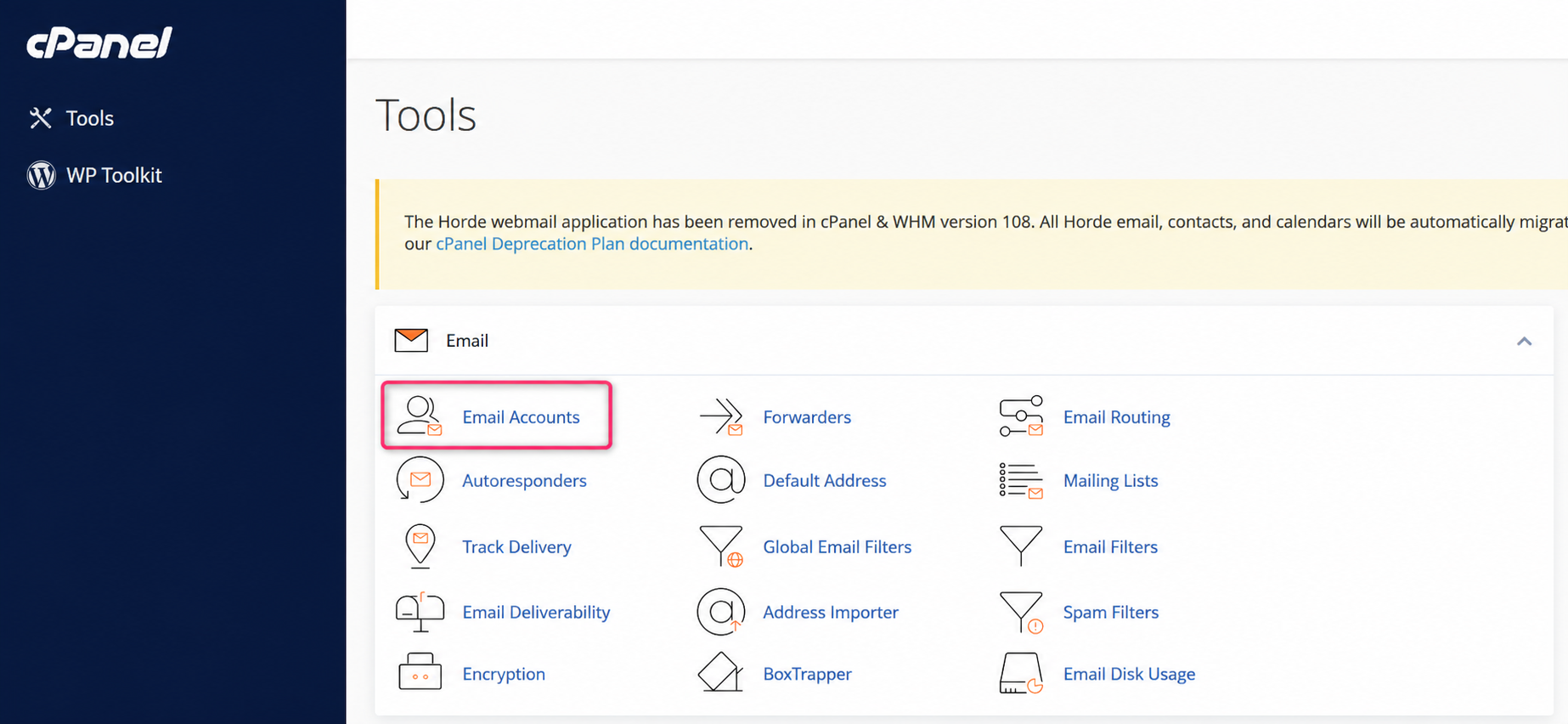
- In the cPanel control panel, go to Email Accounts, in the Email box.
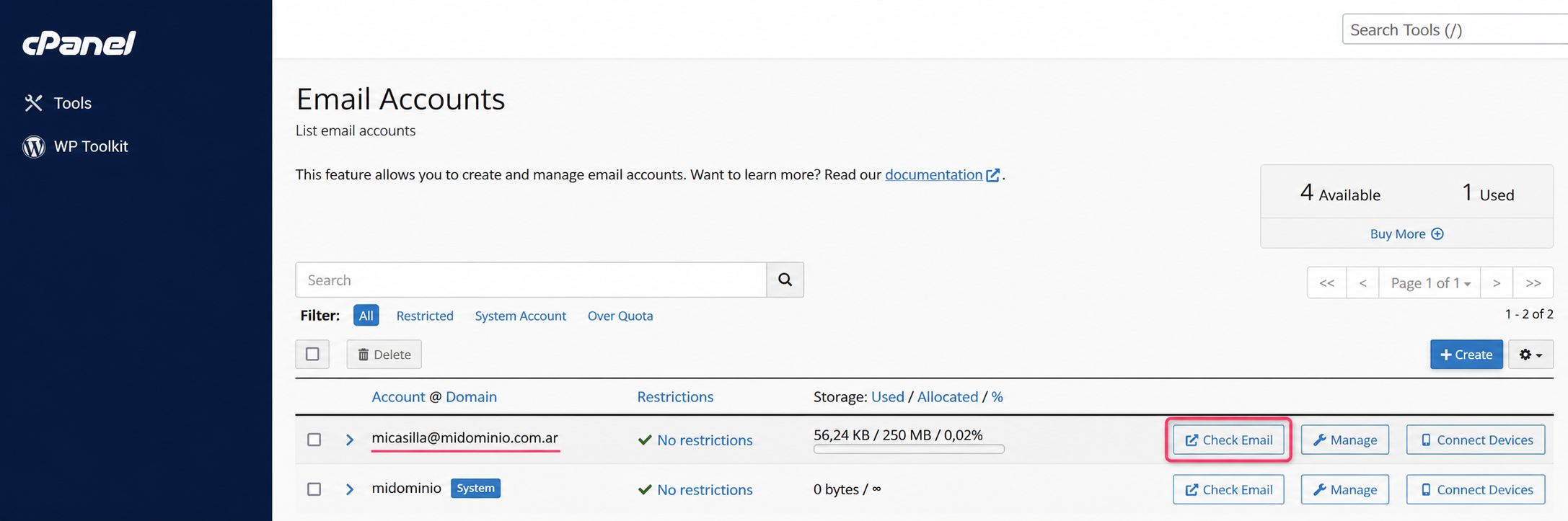
- On the new screen you will see the area where email accounts are created and reviewed. Press the Check Email button to review your mailbox in Webmail.
- You will arrive at the screen where you should choose roundcube to access your mailbox.
How to create directories within Webmail
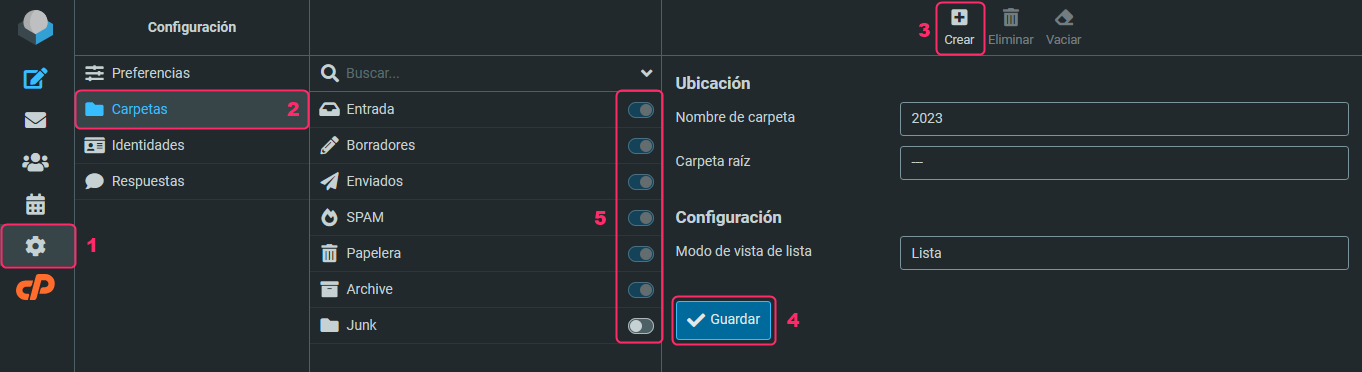
- Inside Webmail, click Settings.
- Then select Folders.
- At the top right, you’ll see the Create button to create the new directory or folder.
You’ll also see a button to delete the folder when you no longer need it. - Choose a name for the new directory or folder and press the Save button.
If you want your new directory to be inside an existing folder, select that folder in Root folder. - In the center, you will see all the directories or folders created. Each one functions as an email mailbox.
To the right of each folder, there is a switch that allows synchronizing the folder with external mail clients such as Outlook, Thunderbird, Apple Mail, etc.
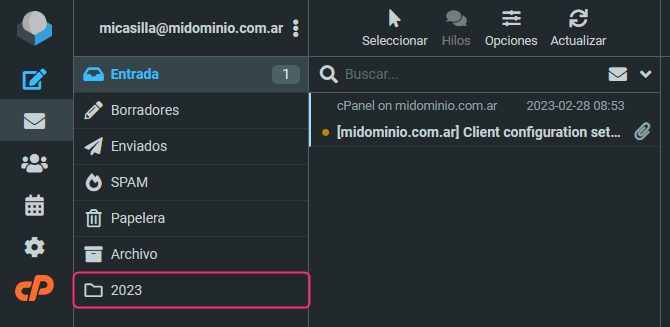
When you create your new folder you will see it as another mailbox in your email account.
How to archive emails in the Archive mailbox
It is not recommended to keep too many emails in the inbox of an account, whether you review it in Webmail or in external mail clients such as Outlook, Thunderbird, Apple Mail, etc.
Now, we’ll show you how to archive emails quickly and easily:
- Select the email you want to archive.
- At the top right, you will find the Archive option.
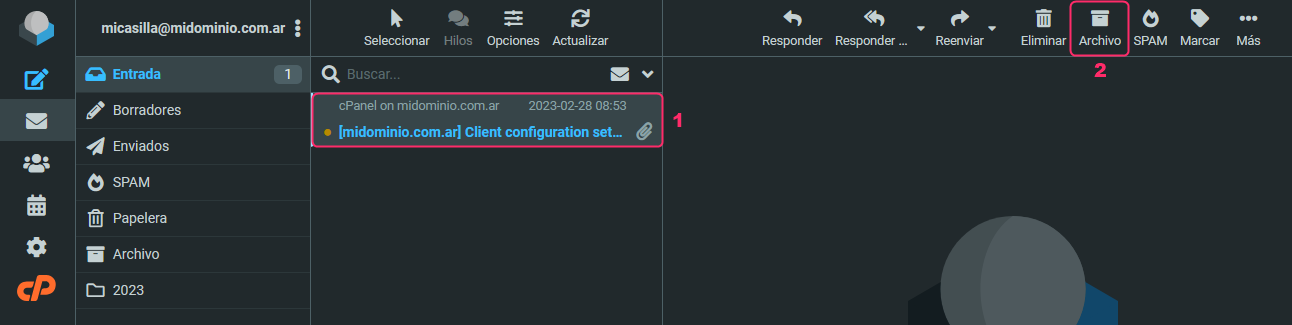
Any email you archive will be moved to the Archive mailbox. This mailbox is not synchronized continuously like the inbox, so it is very useful to move infrequently consulted emails to this mailbox.
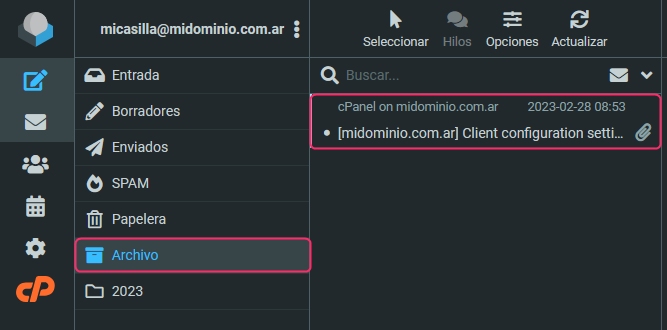
At the beginning of this guide we showed you how to create folders where you can save emails according to your own criteria. This is very similar to how emails are archived.
Now, we’ll show you how to move emails to a specific mailbox.
- Select the email you want to move to another mailbox.
- Open the three-dot menu located at the top right.
- Select the Move to… option in the menu.
- Choose the mailbox or folder where you want to move the email.
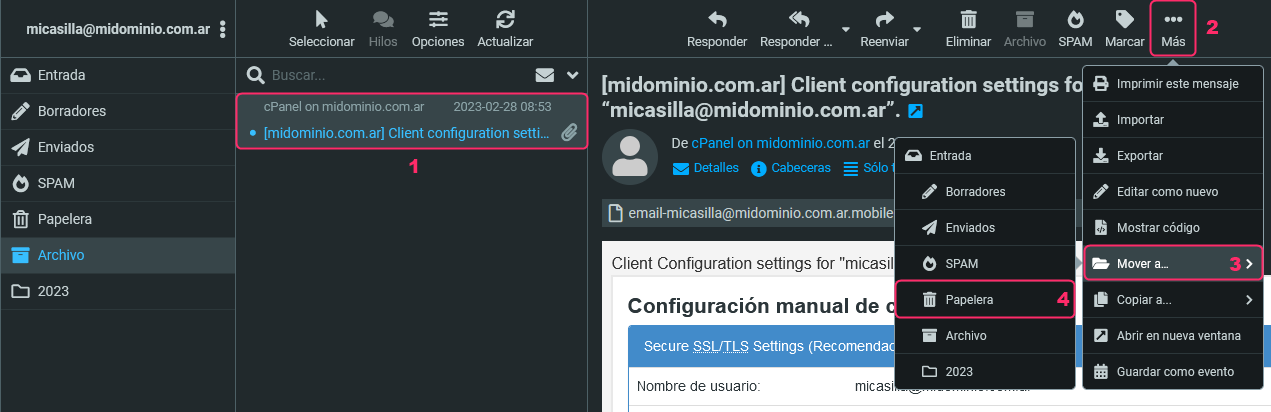
With these three methods you can manage the emails in your accounts efficiently, organizing them as you like and improving performance by reducing the load of emails in each mailbox.
Below, we leave you one last guide that may be very useful to continue managing your mailboxes:
how-to-empty-mailboxes-and-delete-emails-in-mail-accounts-in-cpanel.md