How do I enable the anti-spam filter in Plesk?
Hashtags: #spam #assassin #block
To enable the anti-spam filter in your control panel, follow these steps:
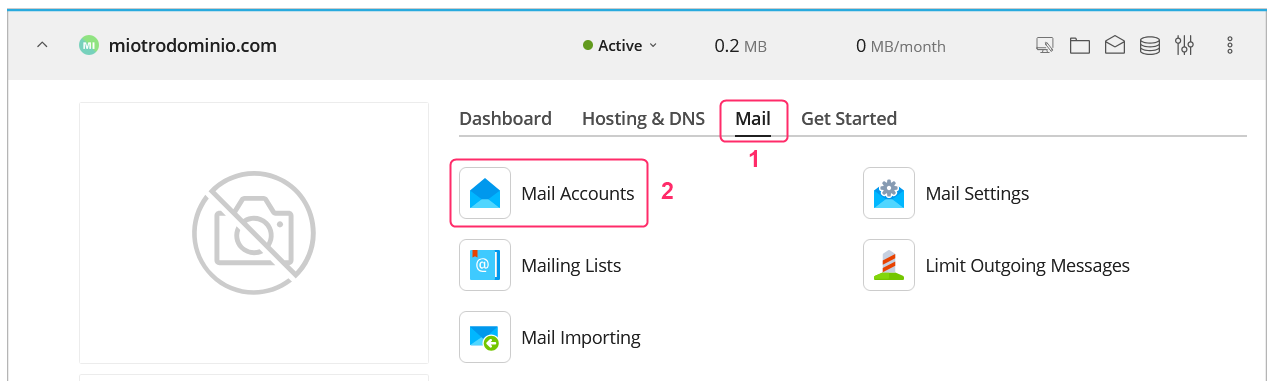
- Go to the Mail section located in the center of the control panel.
- Then, access the Mail Accounts option.
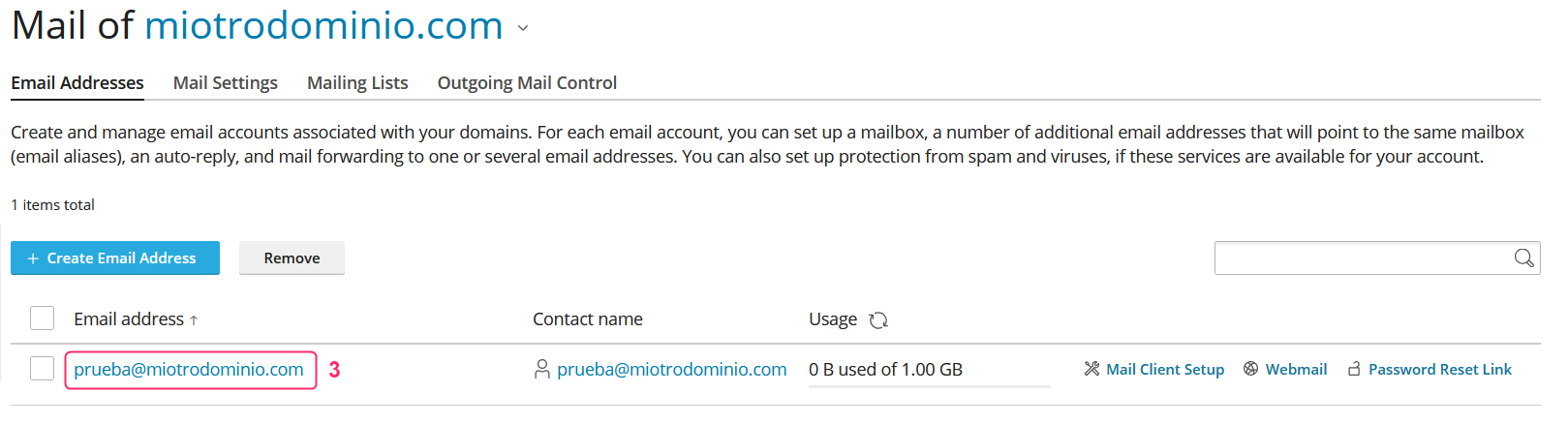
- On the next screen all created mailboxes will be displayed. Click on the one you want to configure.
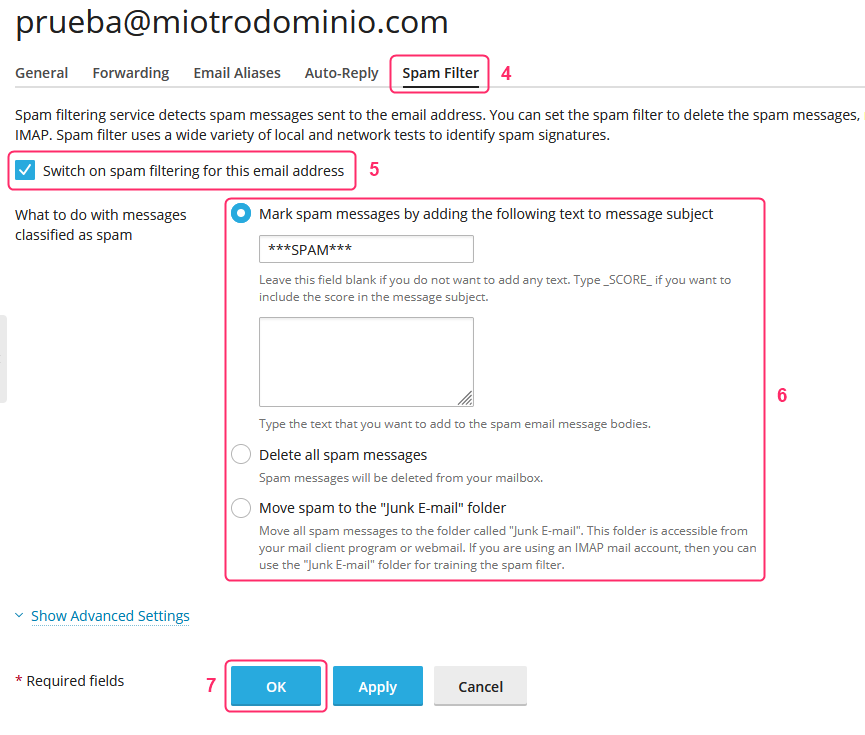
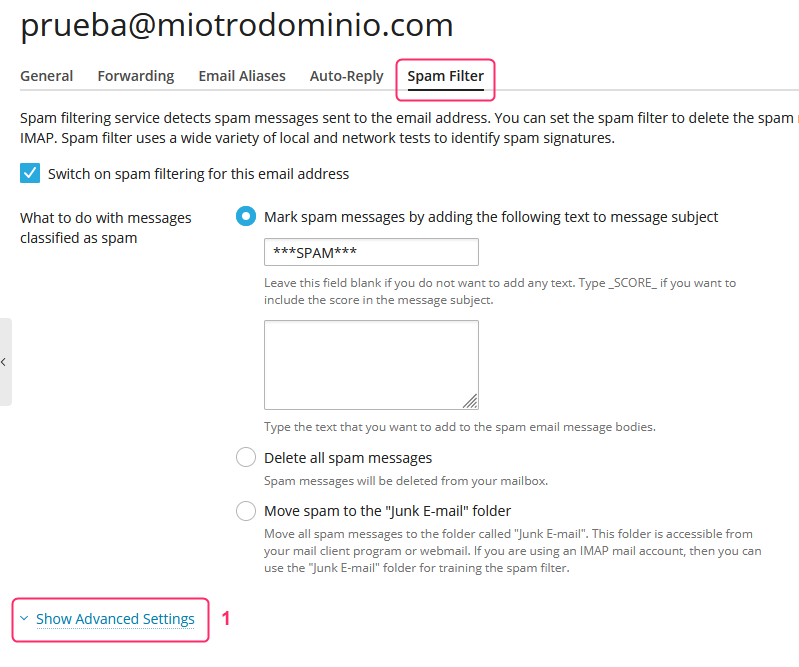
- Within the options for the selected mailbox, go to the Spam Filter tab.
- The first option you will see is the Anti-Spam Filter. You can enable or disable it by checking its corresponding box.
- When a possible unwanted message is detected, the anti-spam filter allows you to perform one of the following actions:
- Mark the message with the label SPAM in the subject, keeping the email visible.
- Delete the message identified as spam.
- Move the mail to the Junk E-mail folder (Junk E-mail). - Once you have selected the desired action, save the changes by pressing the OK button.
The Anti-Spam Filter detects unwanted emails by applying a standard level of strictness.
If you consider that the filter should be more strict or more lenient, you can modify that parameter by following these steps:
- Repeat the previous steps up to step 4, where you access the Spam Filter tab…
Below the anti-spam filter actions, click Show Advanced Settings.
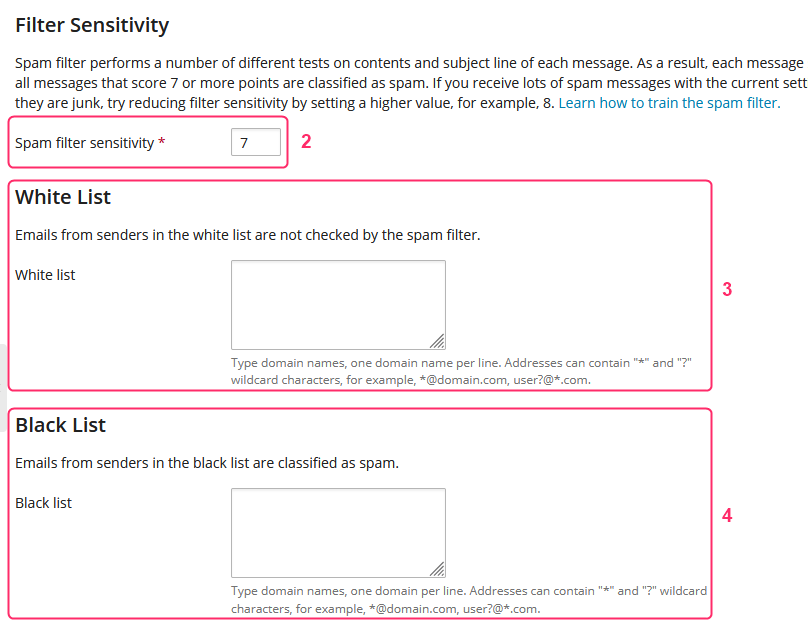
- The first option you will find is Spam filter Sensitivity. This value defines the degree of strictness of the filter:
- A value greater than 7 will make the filter less strict, allowing more emails to reach the inbox.
- A value less than 7 will make it more strict, filtering more messages.
It is not recommended to lower the value below 3 or you could block legitimate emails. - To ensure that certain addresses are never blocked by the filter, you can add them to the White List field. There you can include specific mailboxes or entire domains. For example:
administracion@dominio.com
*@otrodominio.com - Conversely, if you want to block messages from certain addresses or domains, add them to the Black List field. These addresses will be blocked regardless of the filter analysis.
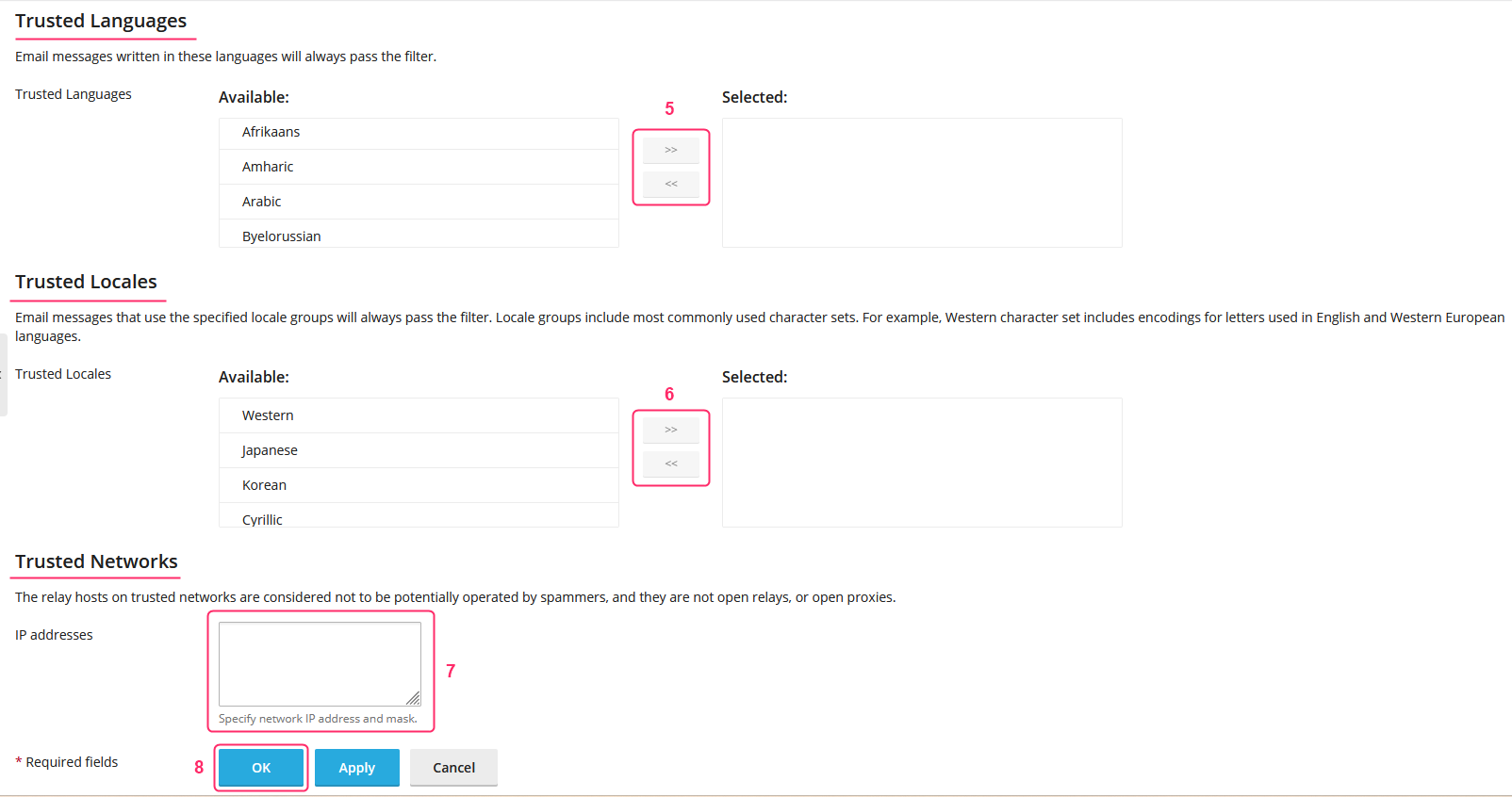
Normally, these options are enough to modify the behavior of the anti-spam filter. If you want an even more precise configuration, you can modify the following parameters:
- Trusted Languages: This option allows you to exclude from filtering messages written in certain languages. To add them: select the language from the left menu and press the arrow to the right. The languages shown in the right panel will be excluded from the filter.
- Trusted Locales: Similar to the previous option, this setting uses character sets (for example, the Spanish alphabet or Chinese characters). Selections that appear in the right panel will not be blocked by the filter.
- Trusted Networks: Allows you to include remote IP addresses to exclude them from the anti-spam analysis. This option may require assistance from technical support to configure it correctly.
- Finally, after adjusting all options, save the changes by pressing the OK button.