
How do I purchase a service without being registered?
Hashtags: #registration #plans #order #new #plan
If you want to purchase a plan or service from our website, and you are not yet registered, follow these steps:
- Go to https://www.sitioshispanos.com
- Choose the currency in which you want to receive your invoices and the language in which you prefer to view our website.

- Select the plan or service of your interest in the top menu.
If you change the billing cycle you will see the price reflected in each plan. - Under each plan, you will find the “Order Now” button. Press this button on the plan you want to acquire to start the purchase process.
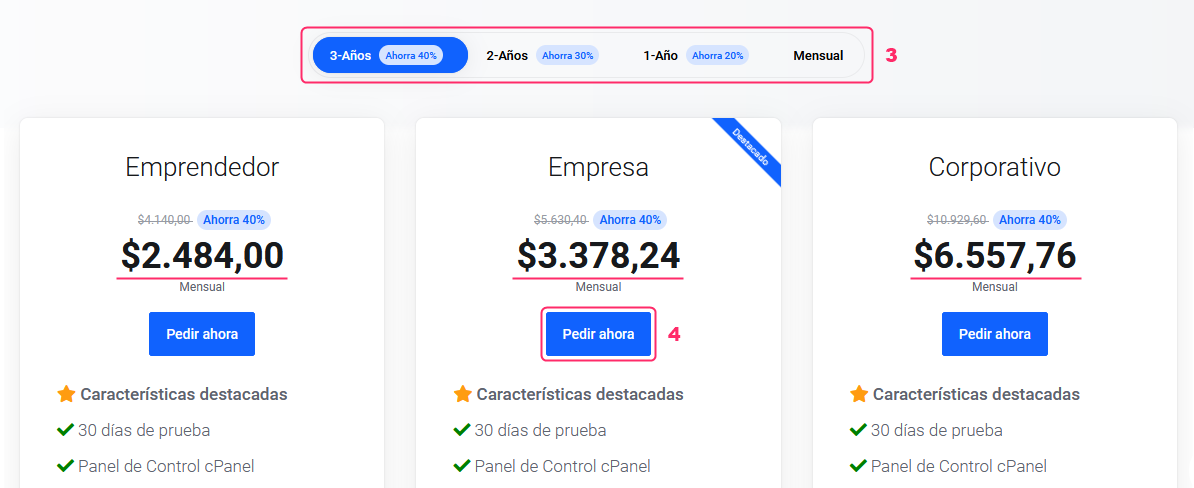
From this step, you will begin the purchase process for your plan. These are the steps to follow:
If you chose a Hosting Plan, the system will ask you to define how you will handle your domain. You will have to select one of the following options:
- Register Domains: The domain will be added as a product to your order.
- Domain Transfer: A domain you are currently using will be transferred from your provider to ours.
- Use Own Domain: An already registered domain will be used and you will have to change the DNS later.
Once you choose how to proceed with the domain, type it into the search box and press the “Check” button.
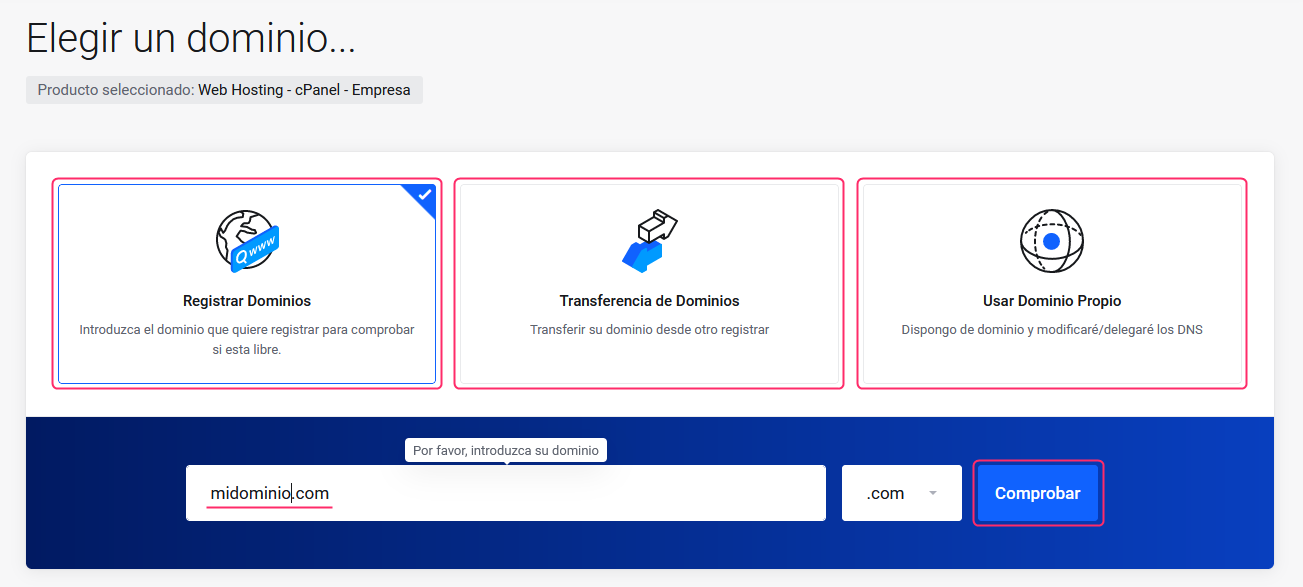
If the domain check is valid you will see below the price for the registration or transfer of the domain. Press the “Add to Cart” button to continue.
If you are going to use an already registered domain the process will continue automatically.

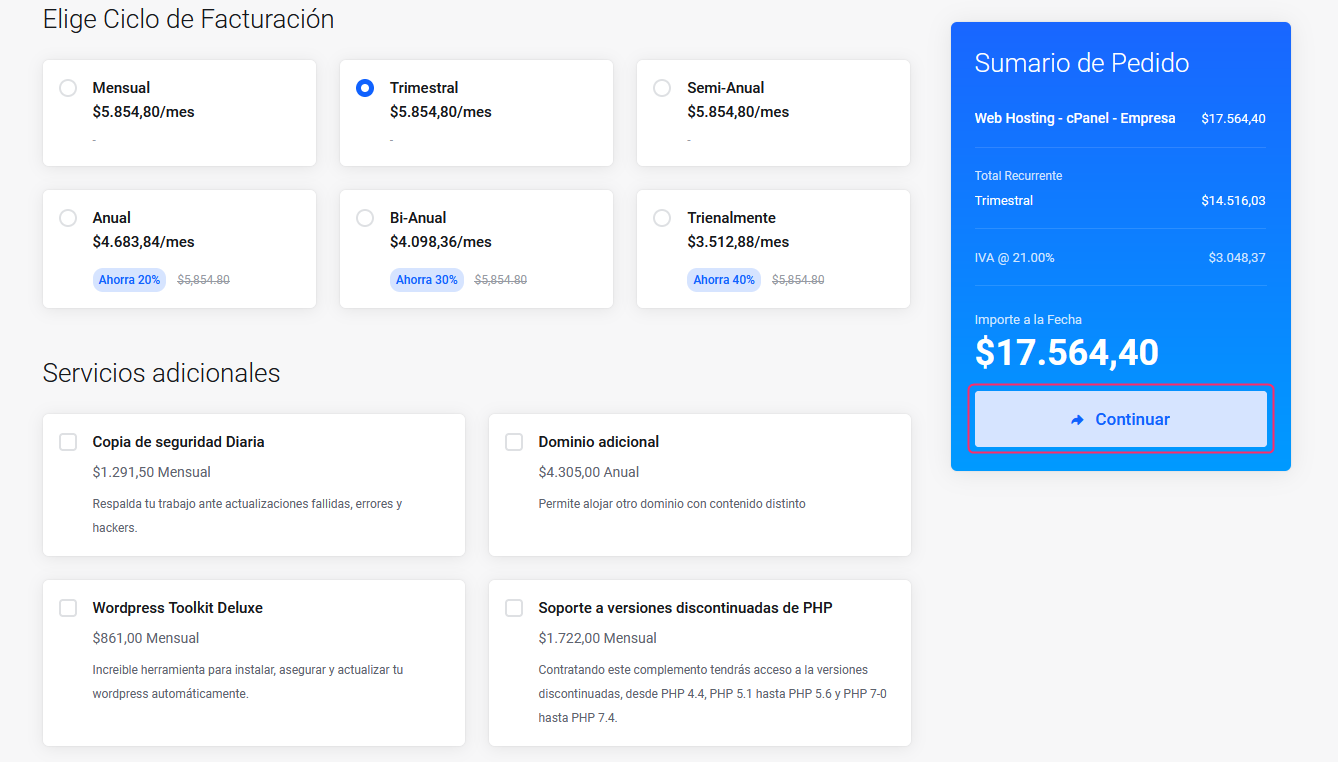
On the new screen you will see the description of the chosen product and the detailed price.
Below, you will see the different billing cycles to pay for the service.
By choosing a billing cycle the price breakdown on the right will be updated.
On this same screen you will find the Add-ons or Additional Services that you can add to your service. If you are interested in any, check the box of the add-on you want to add.
Once you have your product ready press the “Continue” button in the Order Summary box.
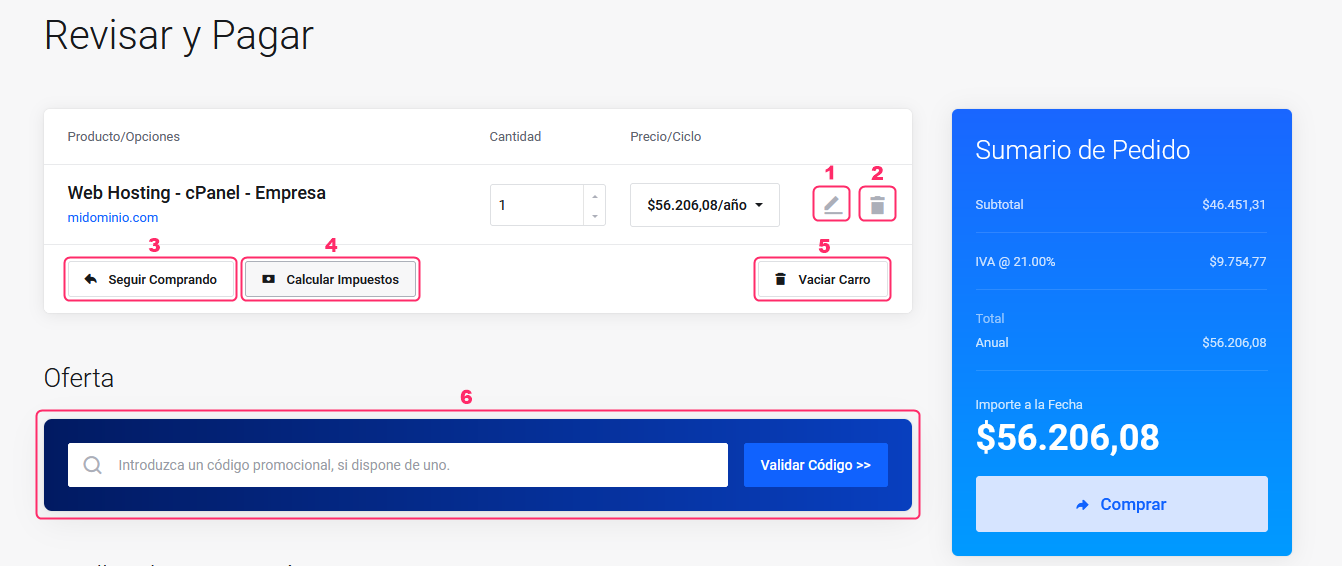
On this final screen you will see again your chosen product or service and the detailed price.
Also, you will see these important options:
- Edit Button: You will return to the previous screen to modify your order.
- Delete Button: If you have more than one product you can remove it from your order.
- Continue Shopping: You will repeat the entire purchase process adding the new product to the one you are currently choosing.
- Calculate Taxes: You can modify the final price by calculating specific taxes of a country. Prices in Argentina already include VAT in their details.
- Empty Cart: empty all orders made up to this point.
- Offer: If you received a promo code you can validate it in this box.
Press “Validate Code” to activate it.
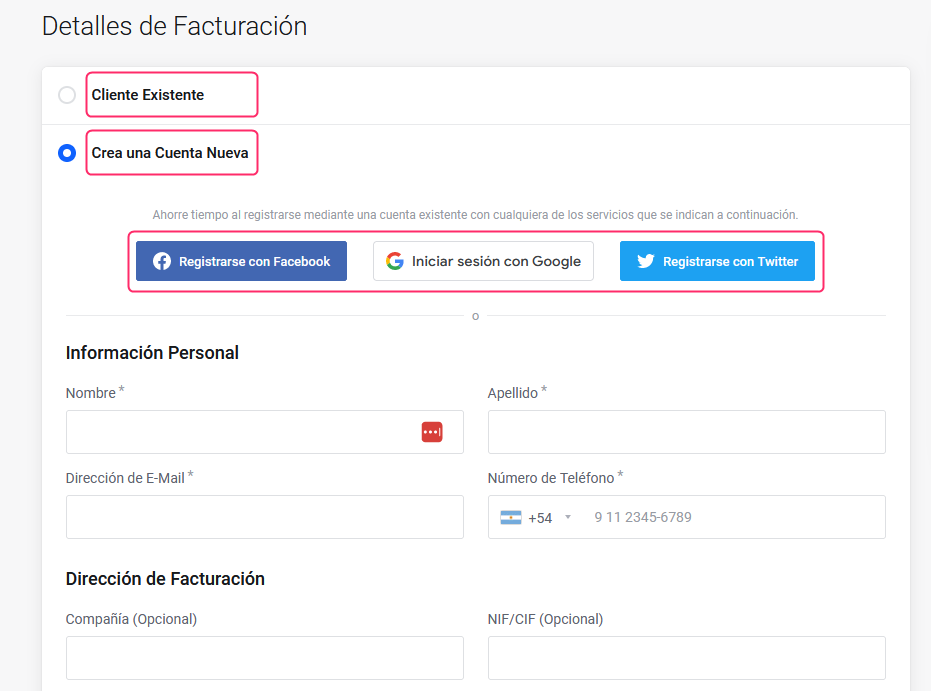
Below these options you will find the Billing Details.
At this step, you will have to register with your details or choose an existing account if you have previously registered.
You will see a form to fill out with your personal information, billing details and access password to your Área de Cliente.
Finally, you will find the last options to complete your order:
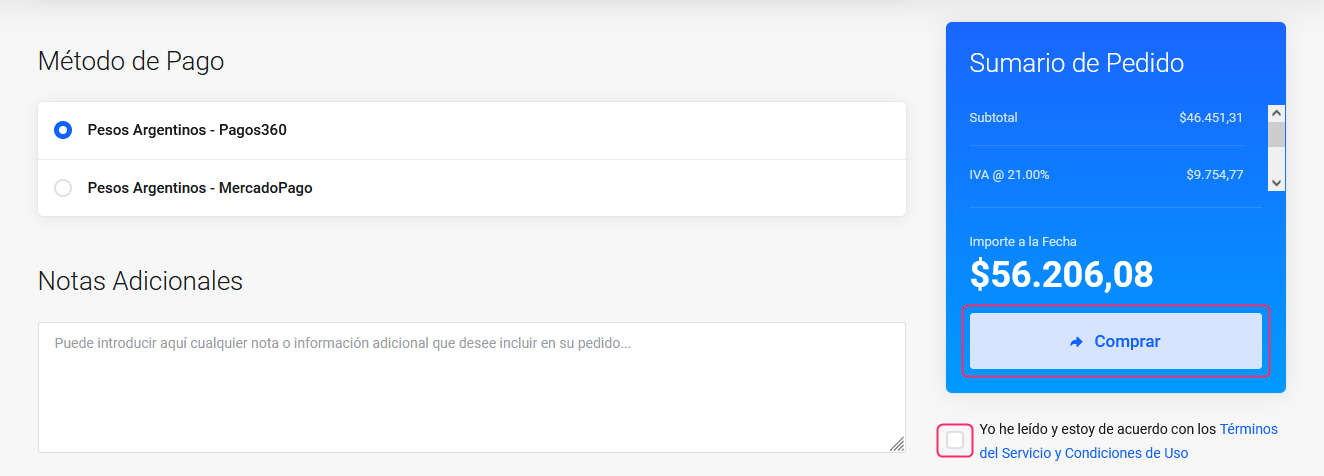
- Payment Method: Depending on the chosen currency or country, you will see different payment methods available.
- Additional Notes: You can leave us a note related to your order.
- Terms of Service and Conditions of Use: You must check the box to accept the terms and conditions.
- Buy Button: When you have everything ready, press the “Buy” button in the Order Summary to complete your signup as a customer and place the order for your service.
That’s all. With your Área de Cliente created you will be able to review all your contracted services, acquire new services or open support tickets if you have any questions.
If you need help accessing your Área de Cliente follow this guide:
Contenido relacionado https://ayuda.sitioshispanos.com/menu-principal/guias/area-de-cliente/acceso-al-area-de-clientes