
How to add a logo in SiteJet Builder
Change the website logo
To modify the existing logo:
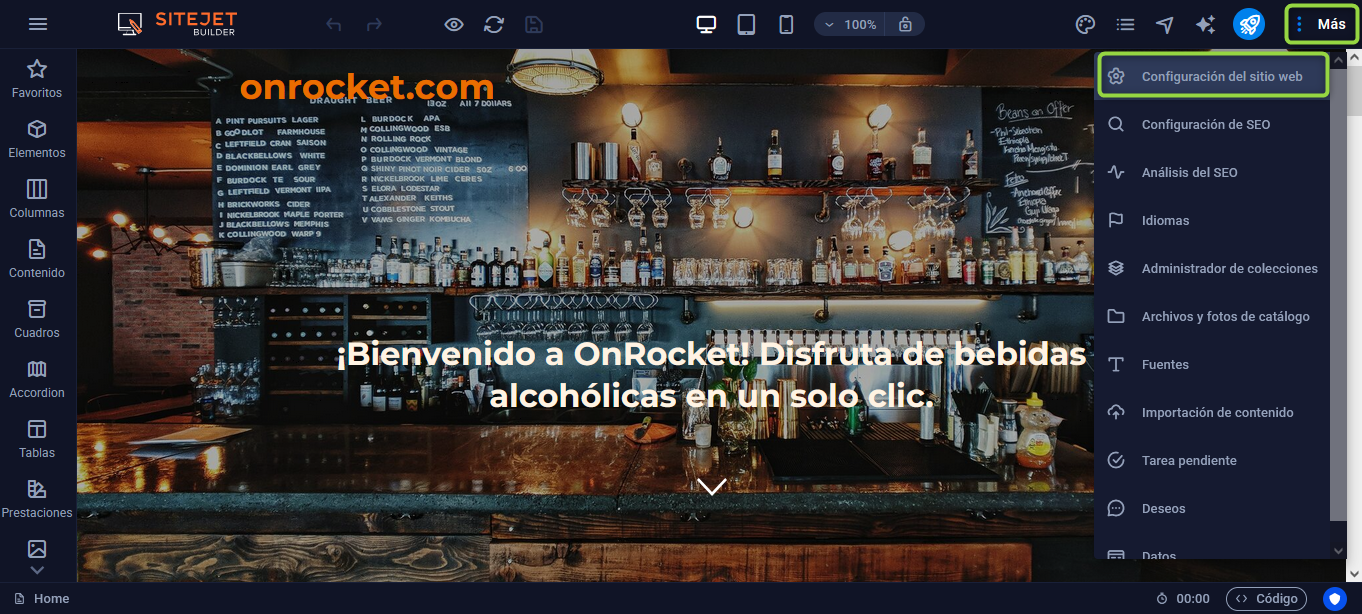
Click More, located at the top right of the editor.
Select Website Settings.
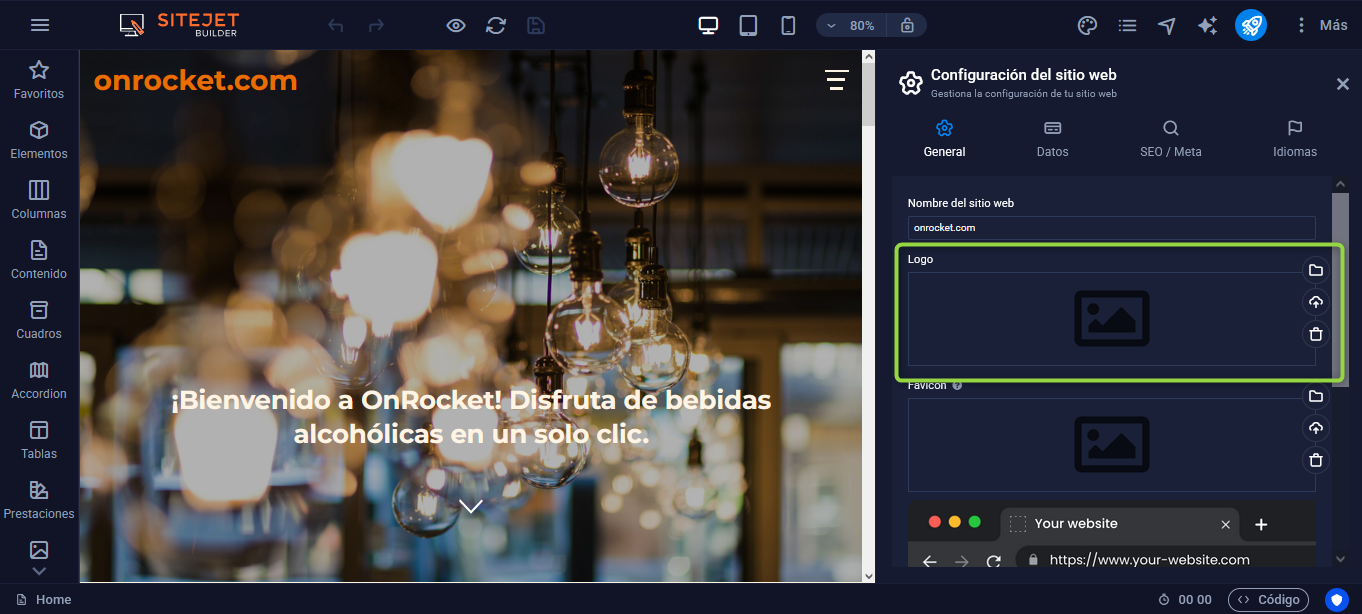
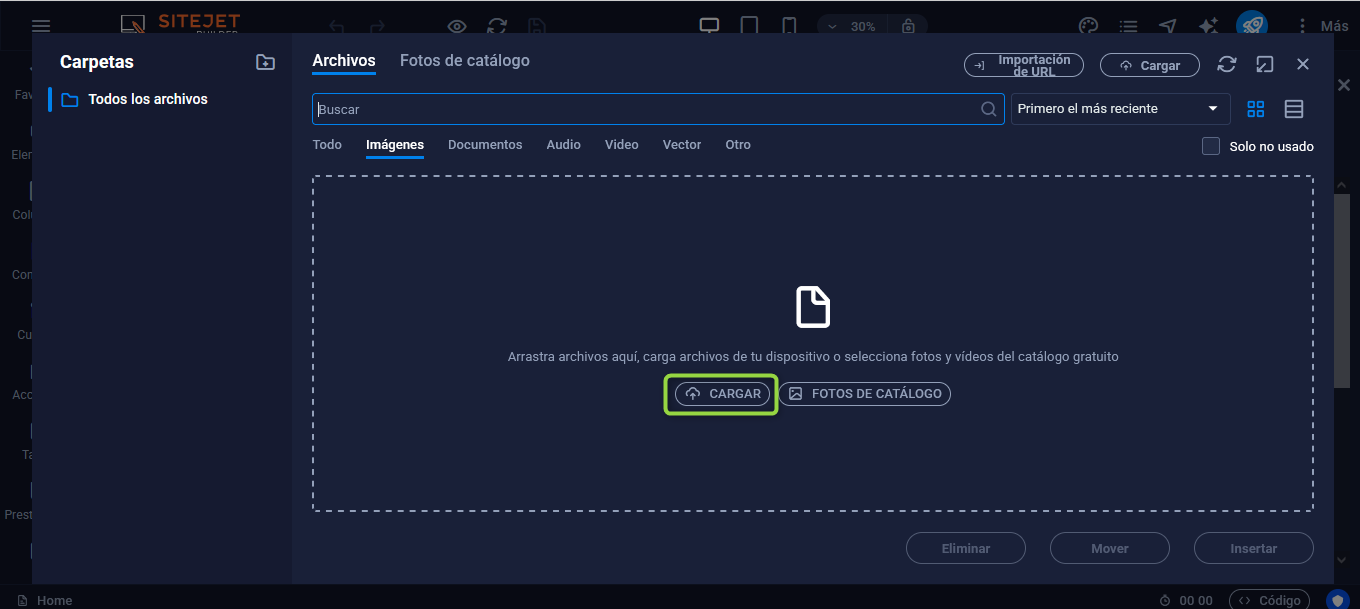
In the right sidebar panel, replace the current logo with the new one.
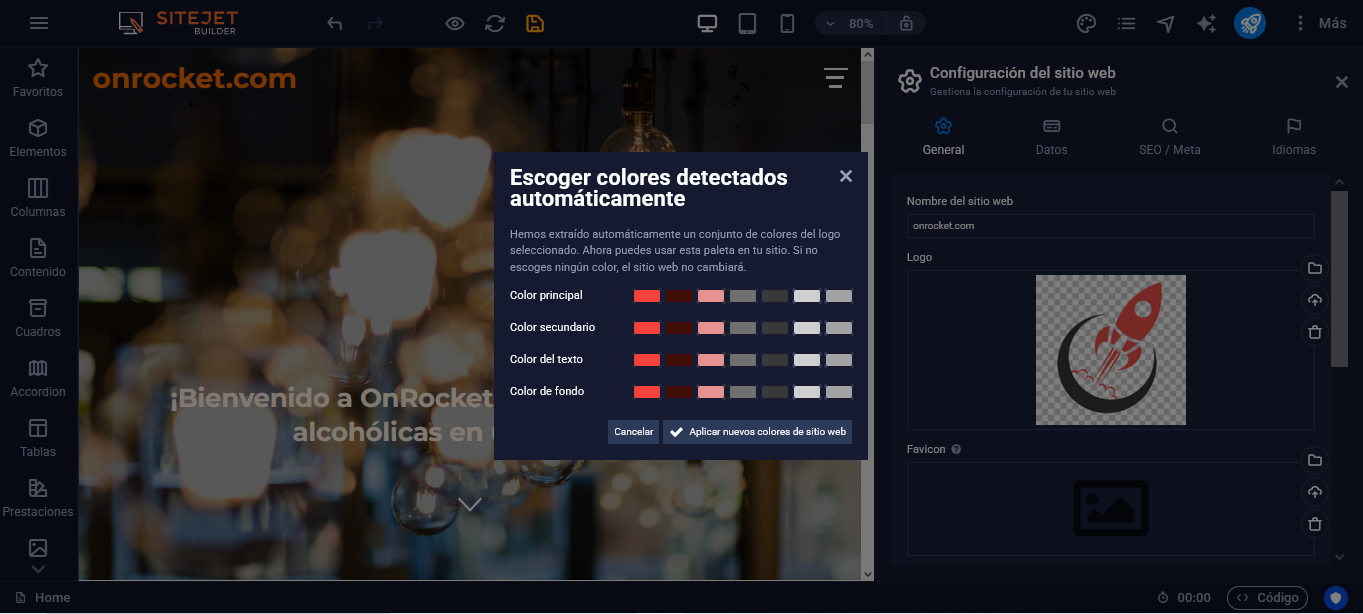
You can choose the color palette to use, if desired.
Add a logo to the site
If you don’t have one on the page yet:
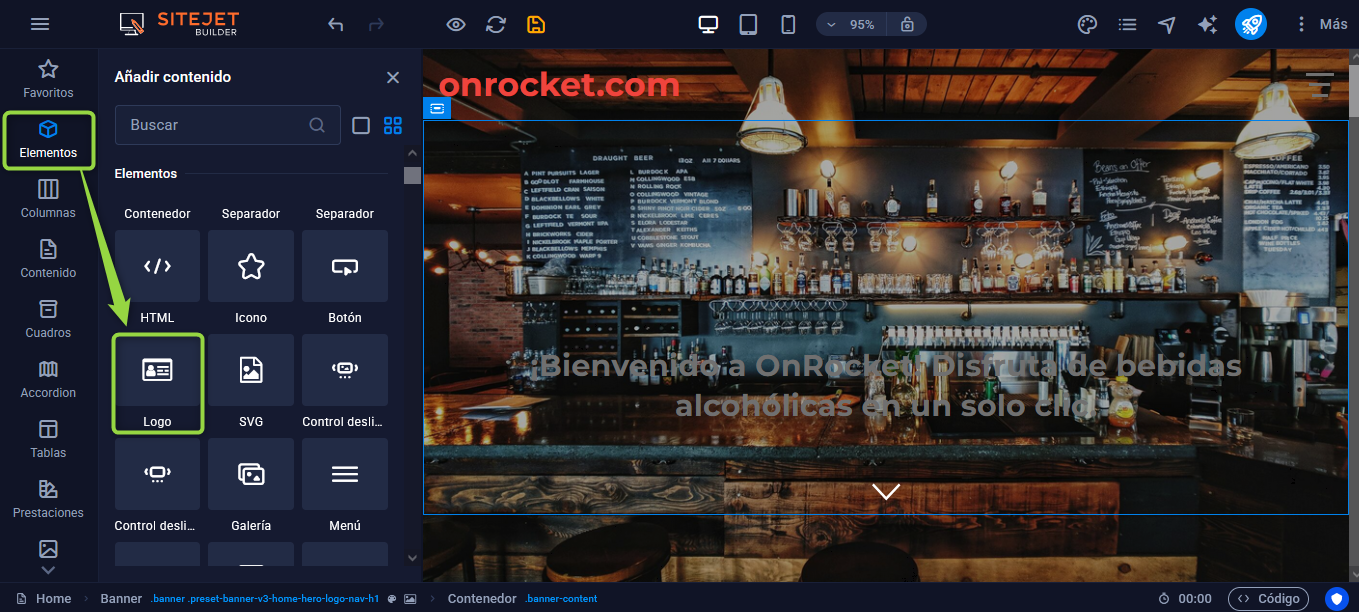
Go to the Elements section from the left sidebar. Find the Logo element and drag it to where you want it to appear.
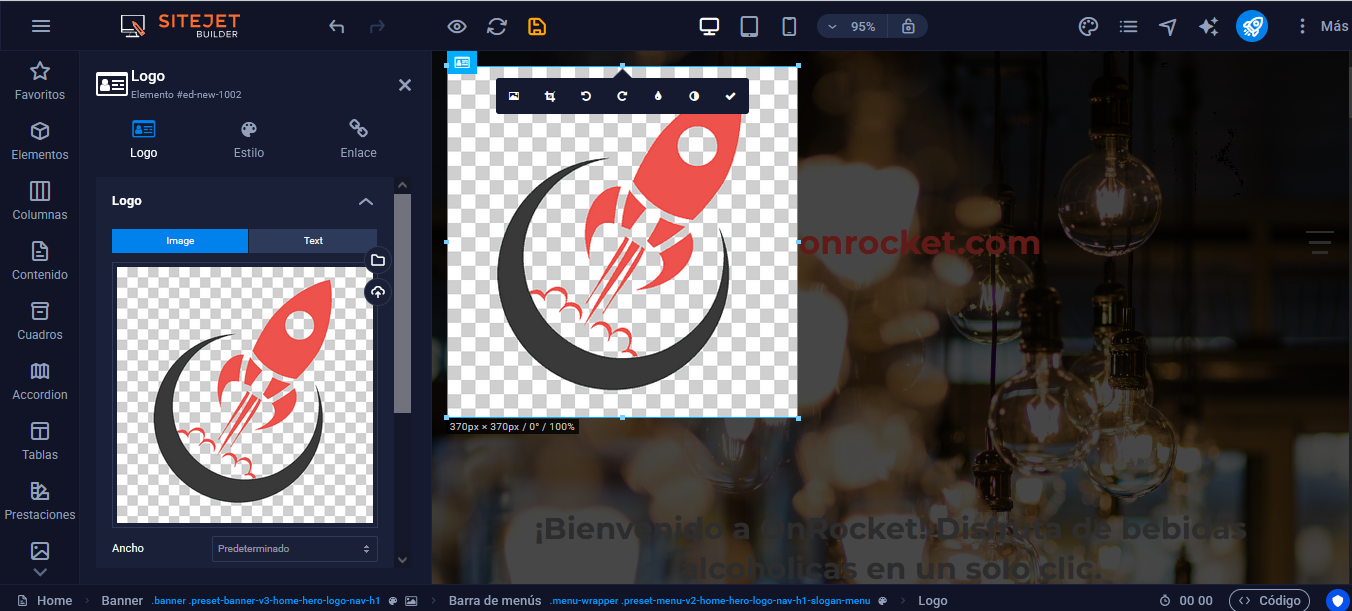
Whenever you update the logo from the settings, the change will be applied automatically across the entire site.
Use the logo’s colors in the site’s design
The editor includes an automatic color detection feature. When you upload a logo, its main tones are extracted and you are offered the option to apply them to the site’s color scheme. If you choose to update the colors, the system will replace the current palette defined in Design > Colors.