How to create FTP Sessions in Plesk?
To connect via FTP to your account you will need an FTP client. There are several programs of this type and you can use any of them to connect. A popular FTP client is FileZilla.
With your FTP client open, the data to connect are:
- Host: [midominio.com] or 69.61.28.146
- User: Plesk user
- Password: Plesk password
- Port: 21.
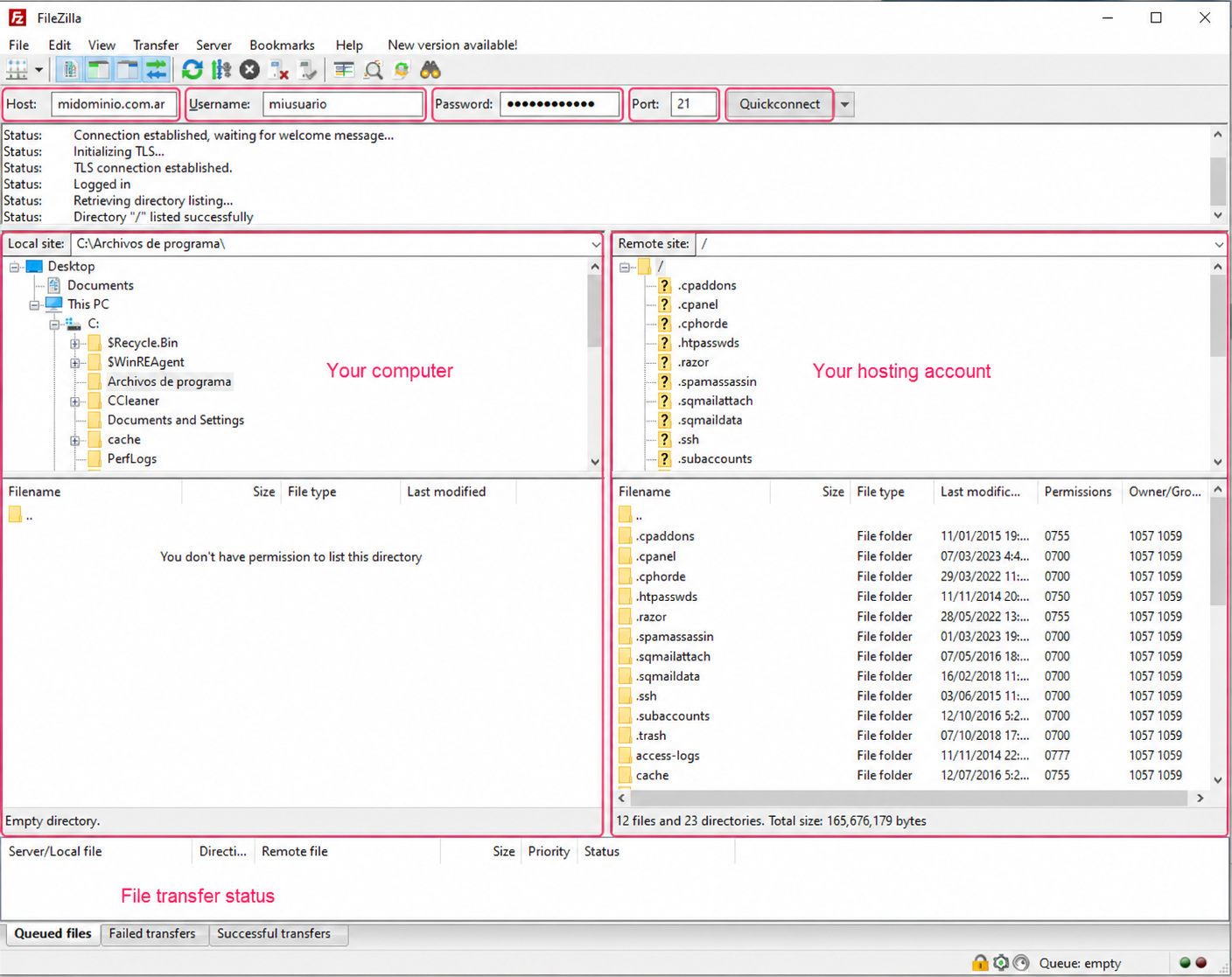
Example of connection in FileZilla
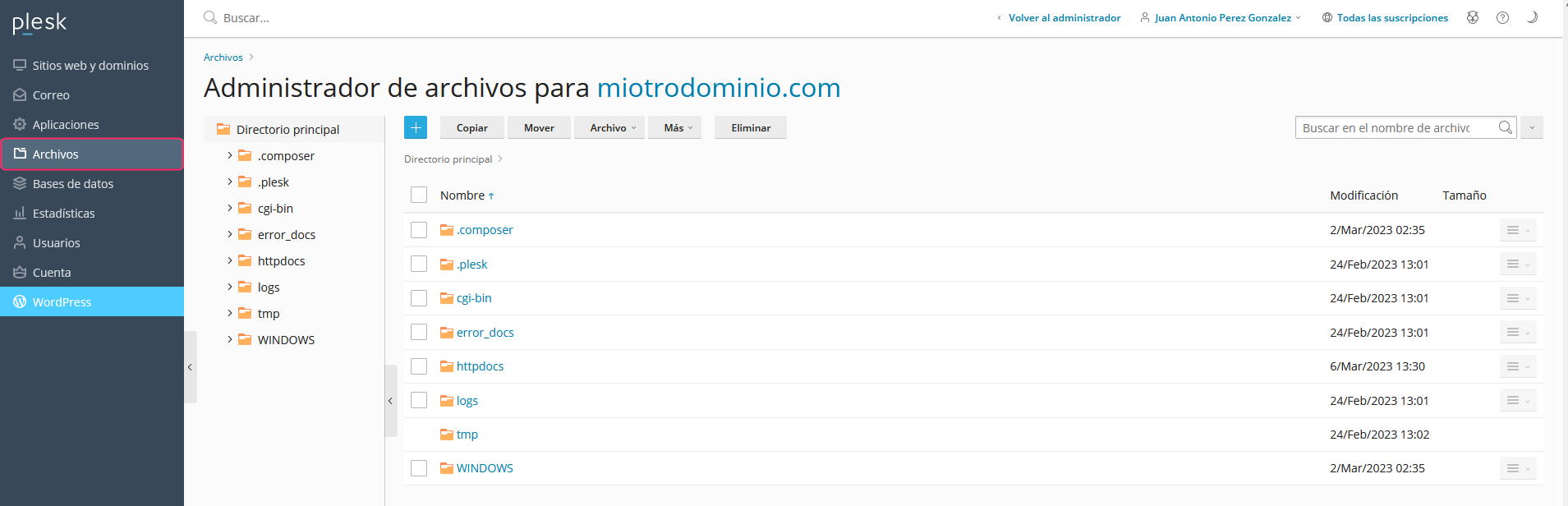
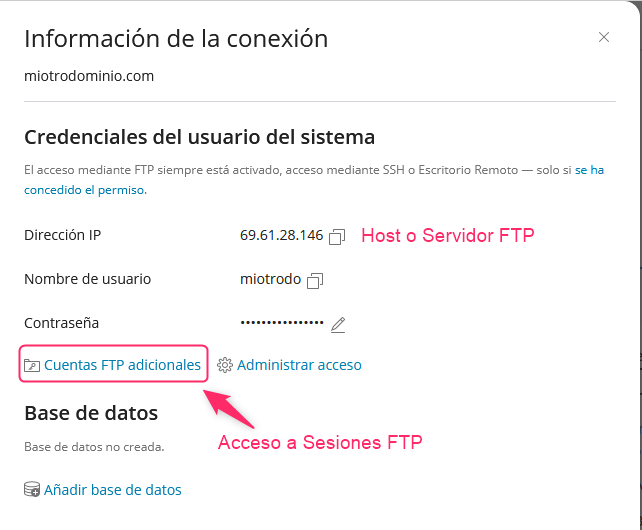
You will find the FTP connection details in your control panel, option Connection Information.
Below you’ll see the option FTP Access, from which you can create FTP Sessions for different users.
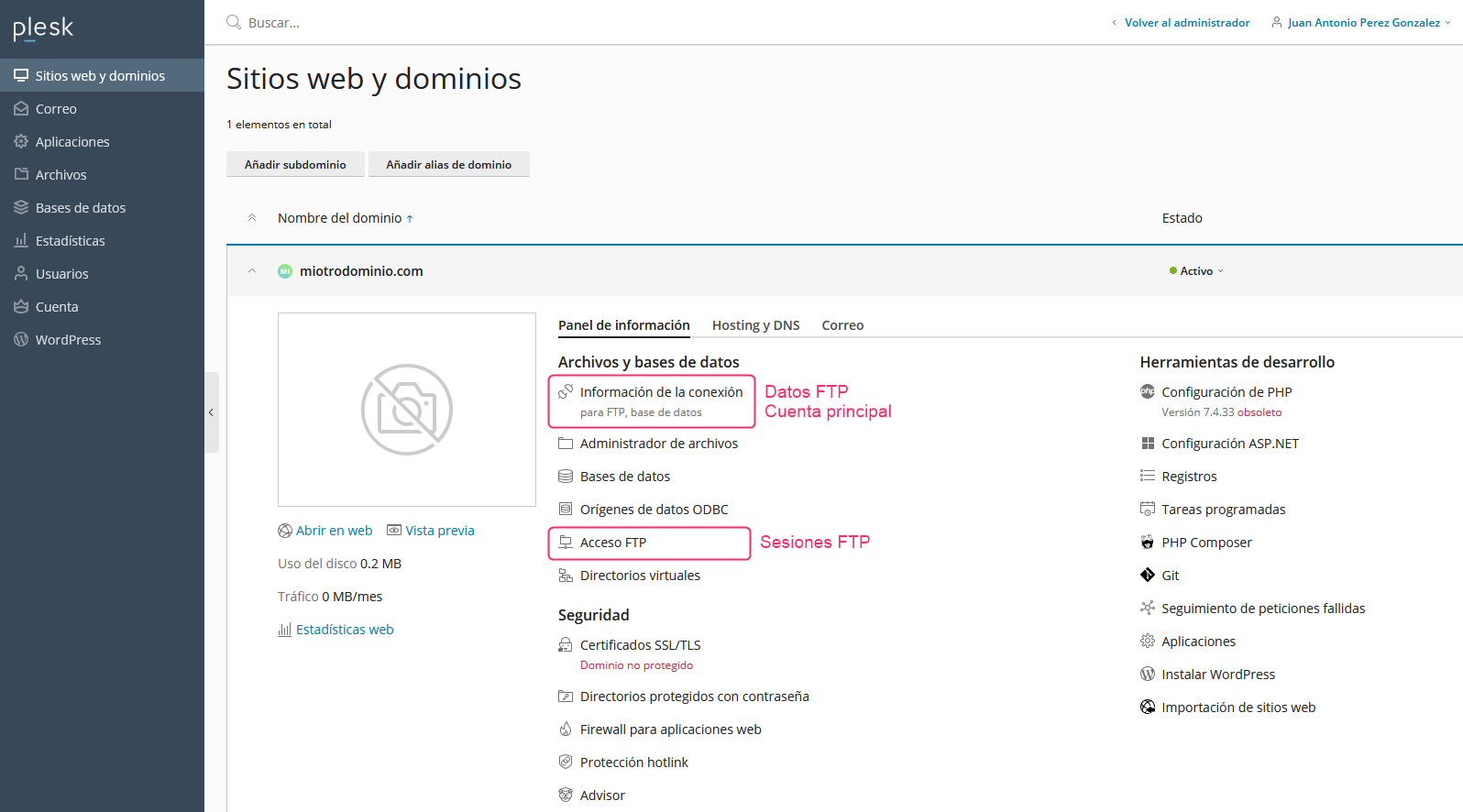
When entering Connection Information you’ll see a screen with the FTP connection details.
FTP Sessions
In cases where you don’t want to use your control panel credentials to connect via FTP, or you want to give other people access to specific directories, you can create FTP Sessions to provide individualized access.
In a previous image we showed where to find the FTP Access option. Go to that option to create FTP Sessions.
The first screen you’ll see will show the created FTP sessions. To create a new session press the Add an FTP account button.
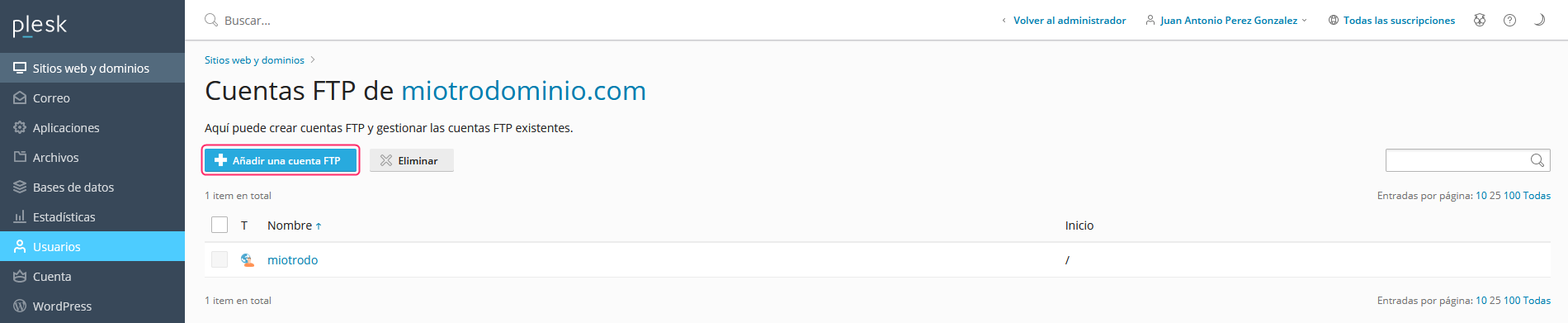
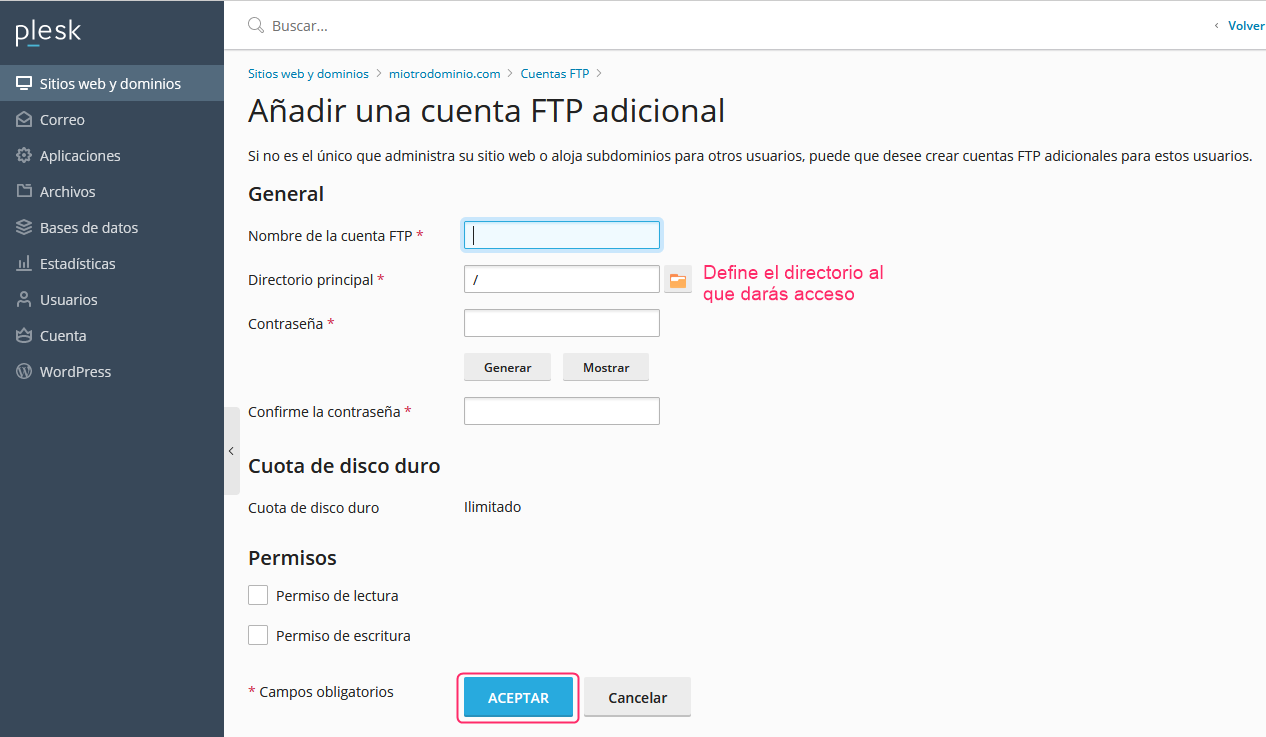
The form to create the FTP session is quite simple; it will ask for a username, a password and a directory to give this new user access to. Then, you must save the session with the OK button.