
How to validate a domain in Google Workspace/G Suite in cPanel?
To use Google Workspace, formerly G Suite, the service will ask you to verify your domain.
This is a security step to prevent other people from using your domain with Google Workspace.
Steps to follow to verify your domain:
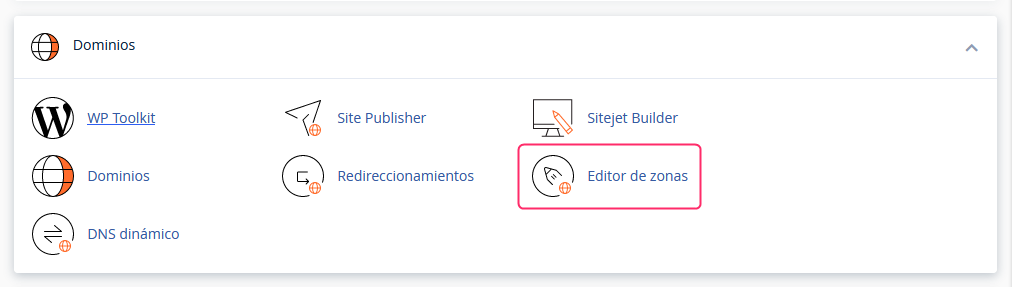
Log in to the cPanel control panel and then go to the Zone Editor option in the Domains box.
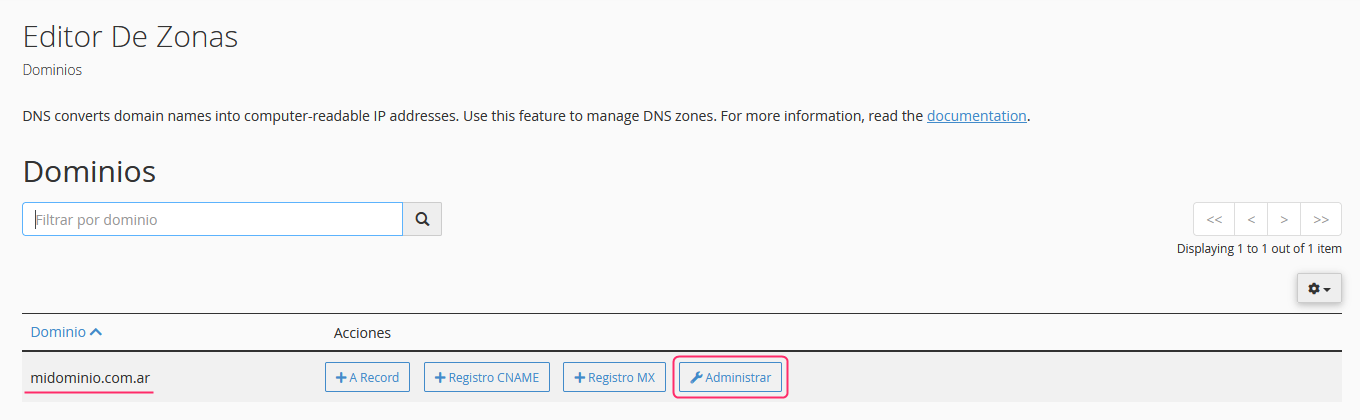
Press the Manage button on the domain you want to validate.
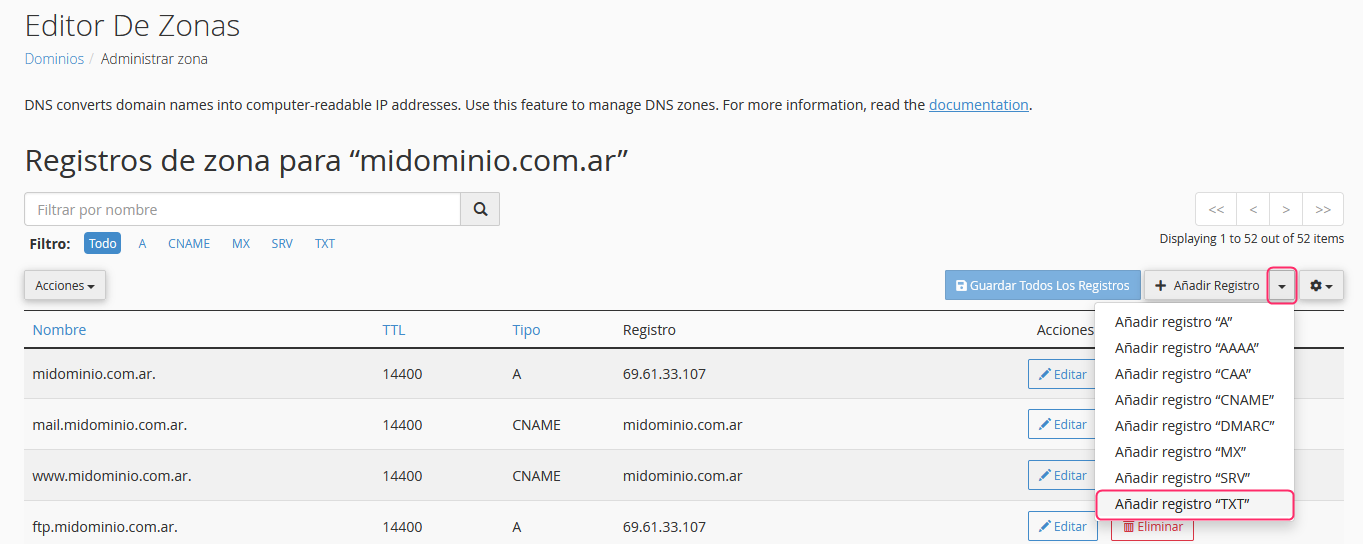
You will see your domain’s DNS Zone. Press the arrow button to the right of Add Record, and select Add “TXT” record.
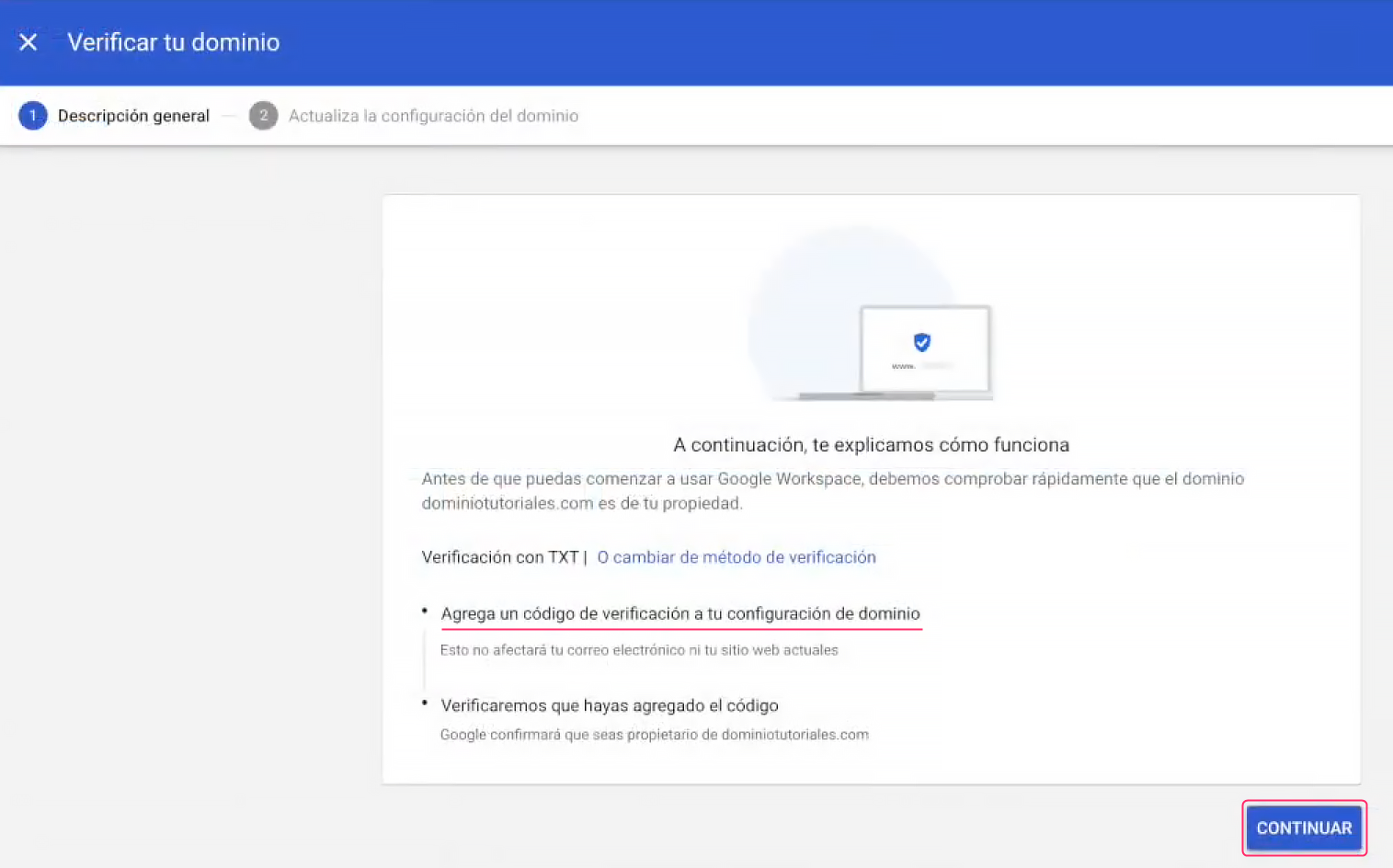
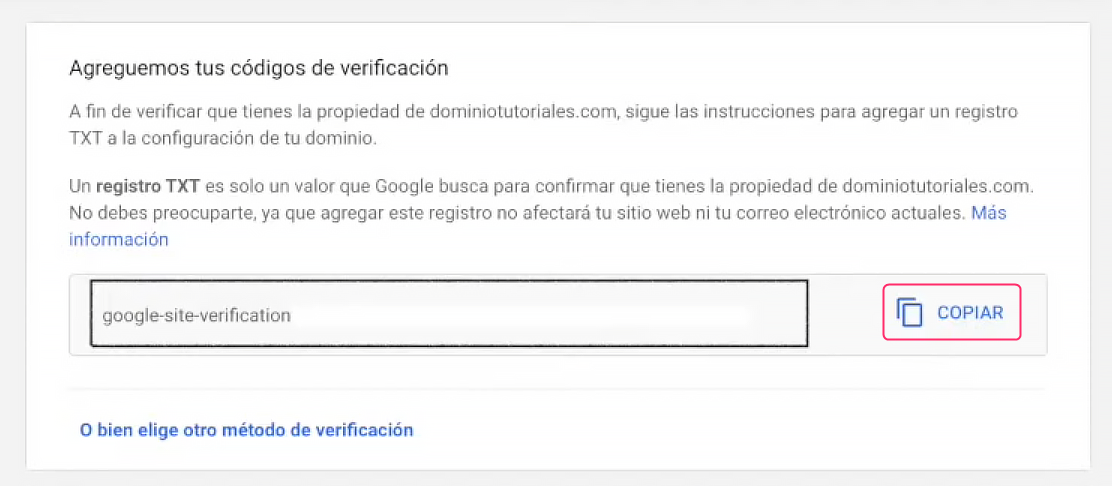
In the Google Workspace admin console look for the verification code for your domain.
You should see a screen similar to the image. Press CONTINUE.
You will see the code to verify your domain. Copy the code with the COPY button.
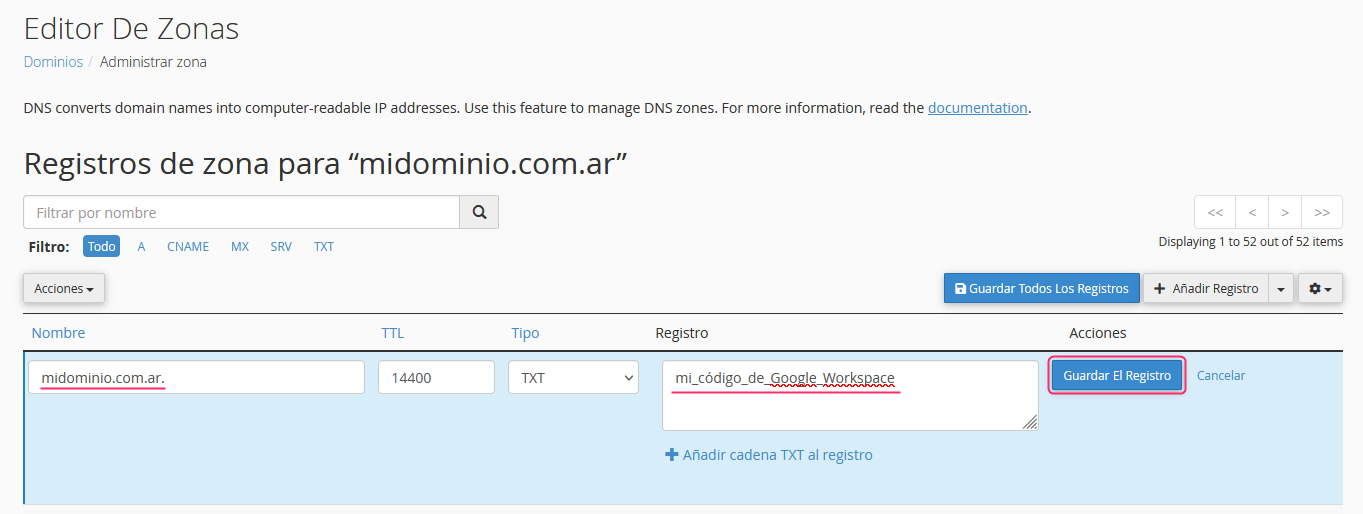
Back on the screen where you created the TXT record in cPanel, you must configure the record as follows:\
- Fill the first field with your domain, adding a dot at the end.\
- In the Record field paste the verification code provided by Google Workspace in its admin console.\
- Save the TXT record by pressing the Save Record button.
This domain verification record can take up to 72 hours to apply. However, while you finish configuring the following steps in the Google Workspace admin console, Google will begin looking for your new verification record.
You will find the same steps in this video on our YouTube channel:
These steps and the subsequent steps are available in Google’s guide to set up the service in their admin console:
https://support.google.com/a/answer/60216?hl=es&ref_topic=9196&sjid=21619422865989428-SA