
Sitejet Builder User Guide
Initial setup and Access.
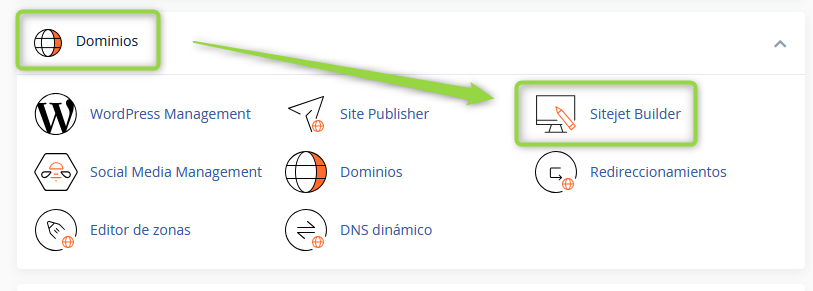
To enter the tool, simply go to cPanel and then head to Domains ⇒ Sitejet Builder.
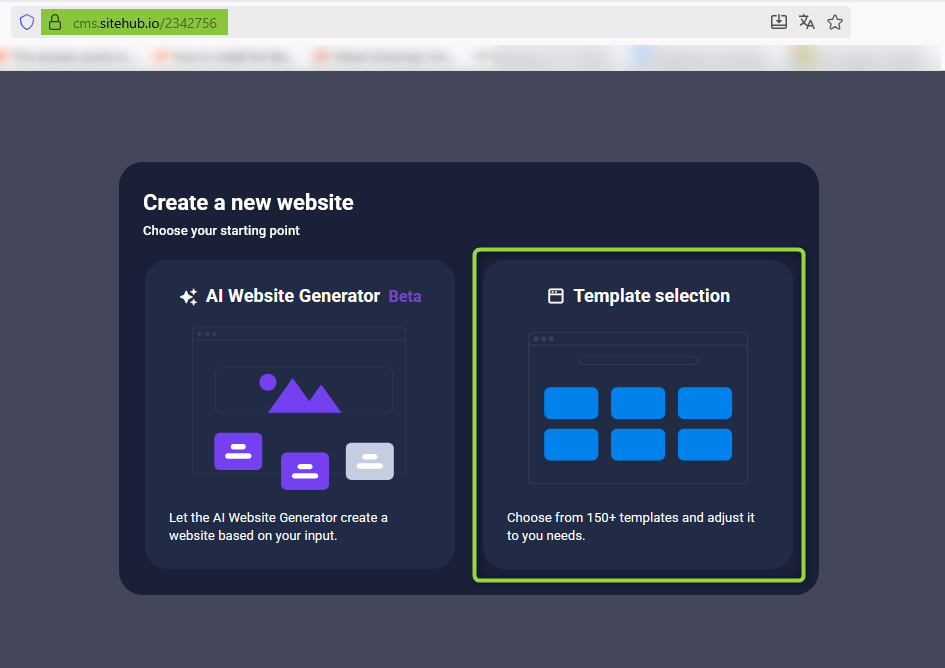
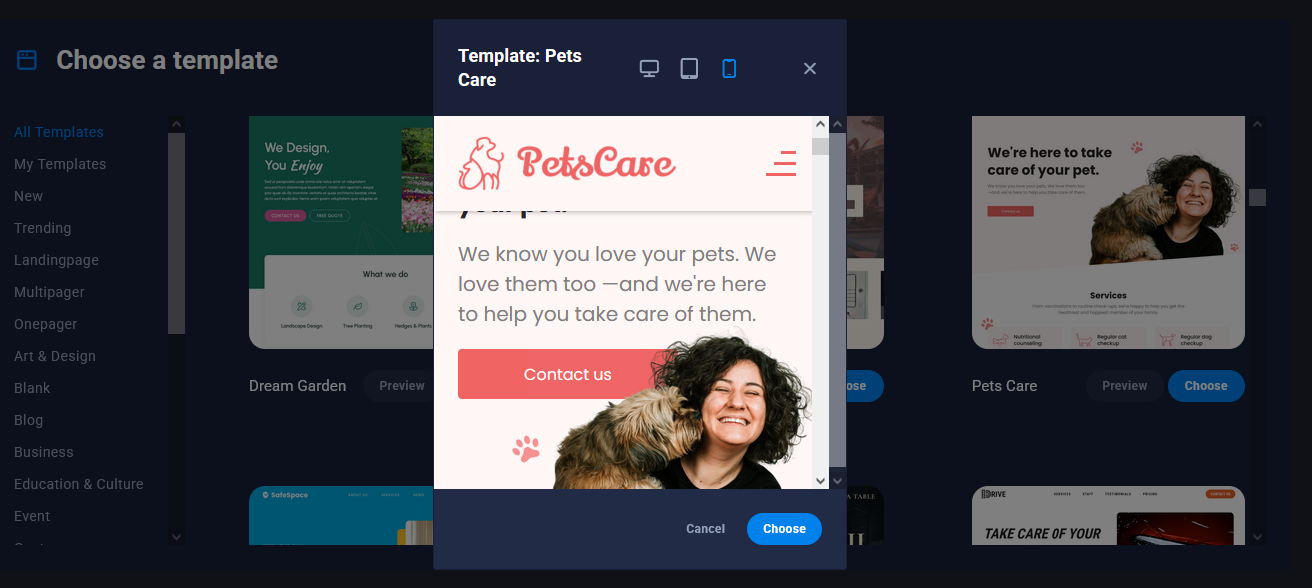
This will redirect us to a temporary URL. We’ll start by selecting the option “Template Selection”, where we can choose the base template for the website design to create.
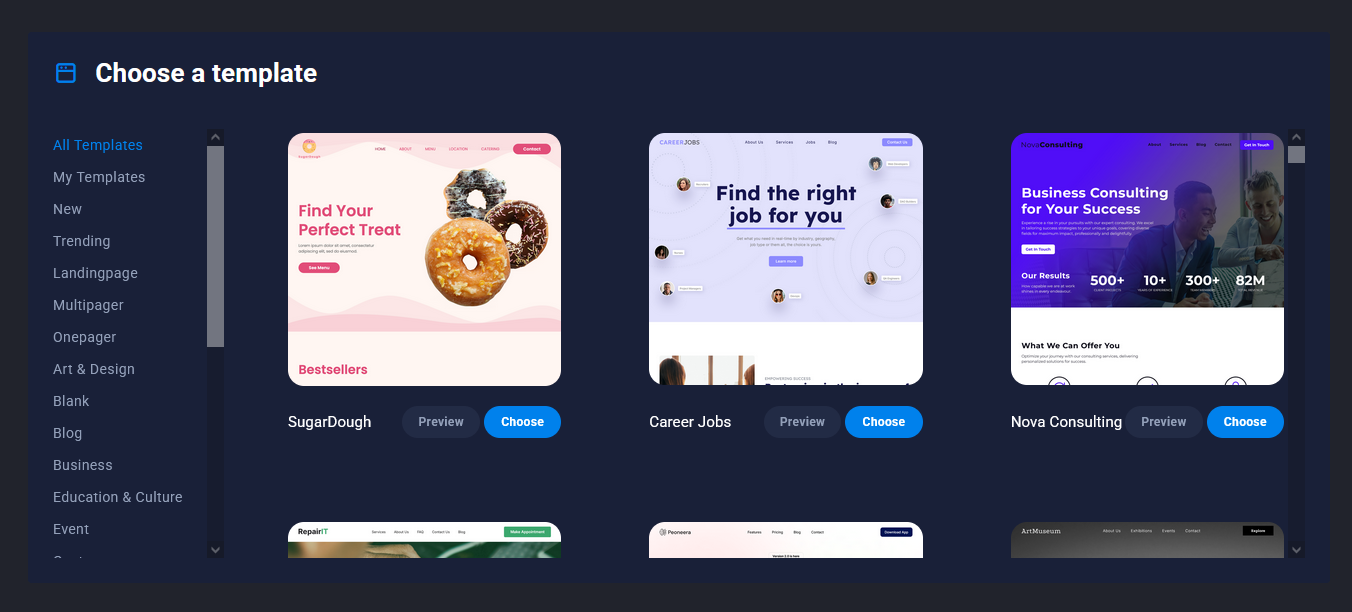
Below each template you’ll see two options: “View” to see a demo and simulate different formats (PC, Tablet and Mobile), and “Choose” to select it as the template to work on.
PC
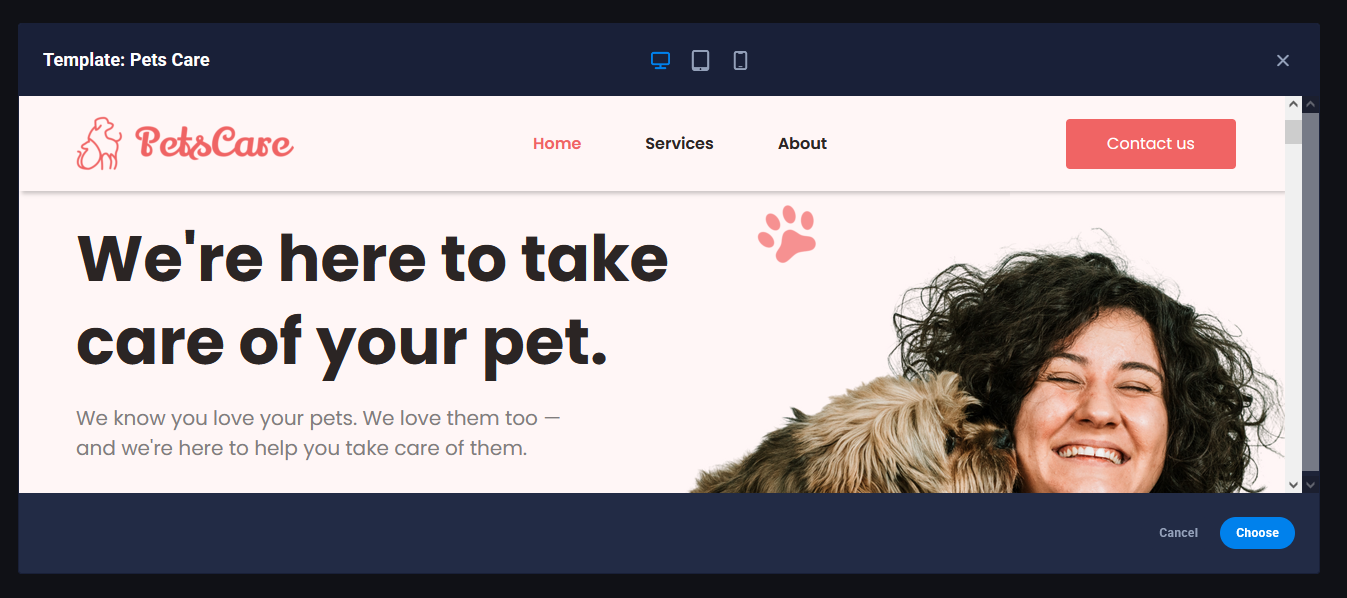
Tablet

Mobile
After choosing a template, you access the editor, where you’ll find multiple tools to adjust, configure and style your website. Although the number of options may seem extensive at first, it’s very easy to use: all design is done via the “drag and drop” function and customization through different panels and settings.

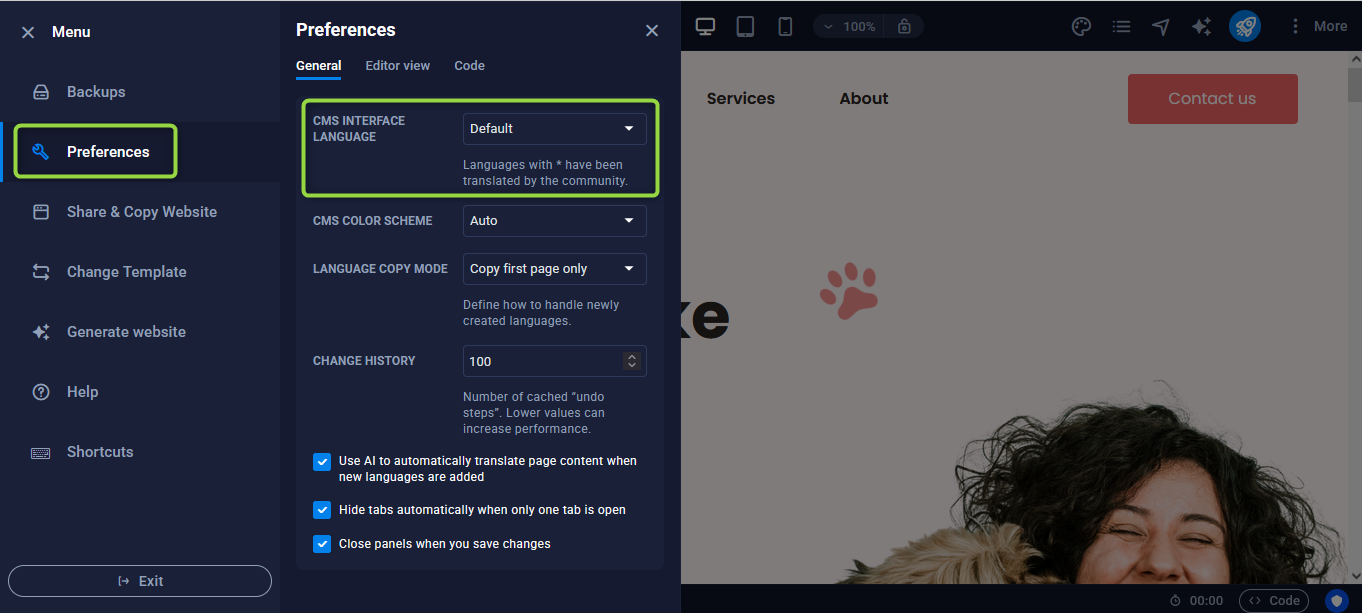
At the top, on the far left of the screen you’ll see the Menu symbol (Three horizontal lines).
Among the options that appear there, we can highlight:
- Backups: before applying any publication, the system automatically creates a backup, which allows you to revert to a previous version if necessary.
- Preferences: in this section you can adjust different editor options, such as selecting Spanish or other settings according to your needs.
The sidebar concentrates the main tools of the editor; from there you can search and drag different predesigned elements to build the structure of your site.
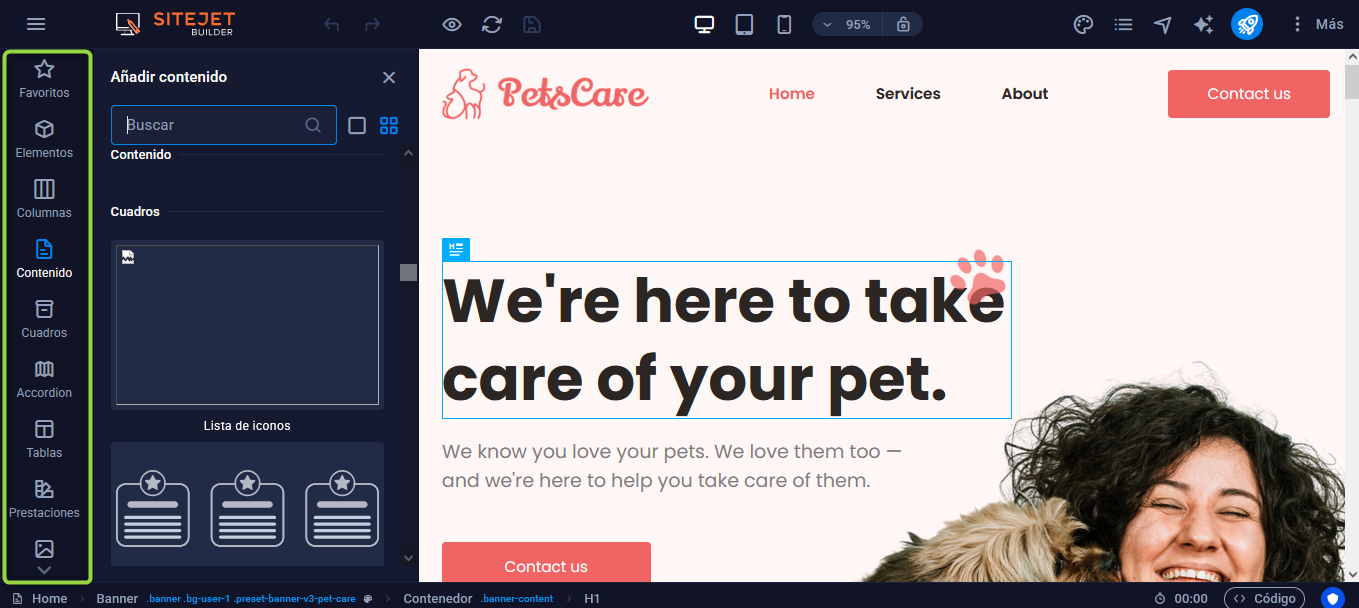
Among the available options you will find accordions, tables, forms, headers, texts, columns, images, carousels, videos and audios, among many others.
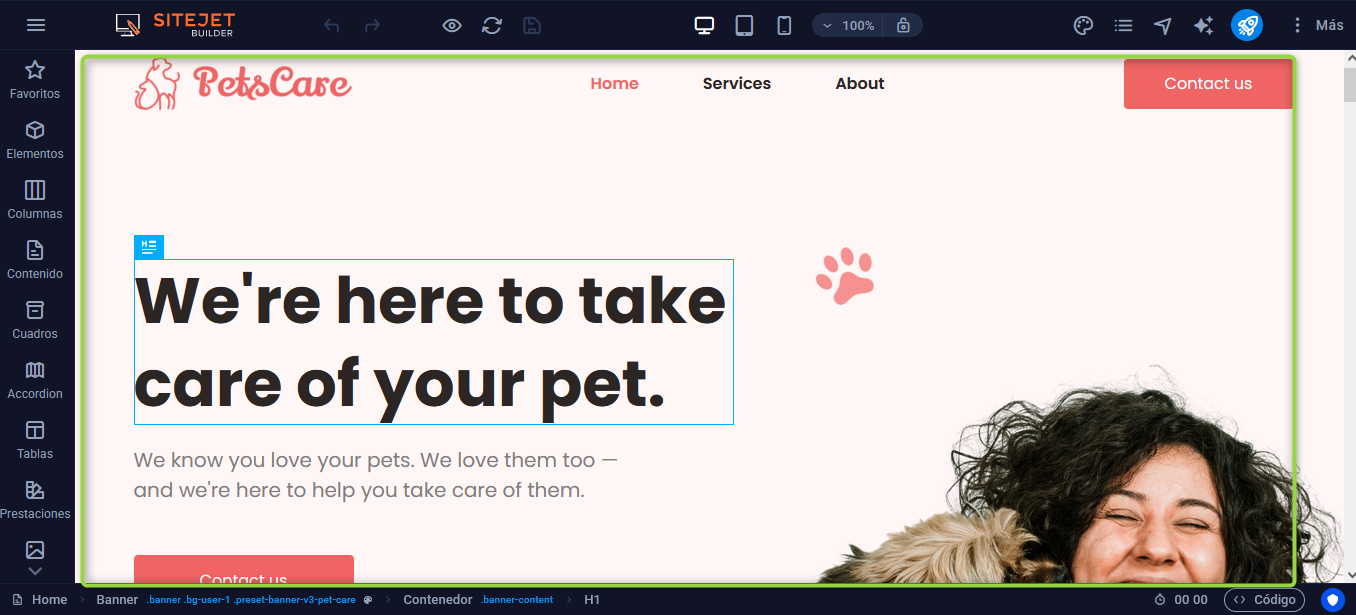
In the central area is where all the design takes place: you add, move or adjust each component. With just a click on a block, you’ll access its customization options.
In the top of the editor there are tools such as undo and redo actions, adjust the view type to check how the site displays on mobile devices or tablets, and modify the zoom level.
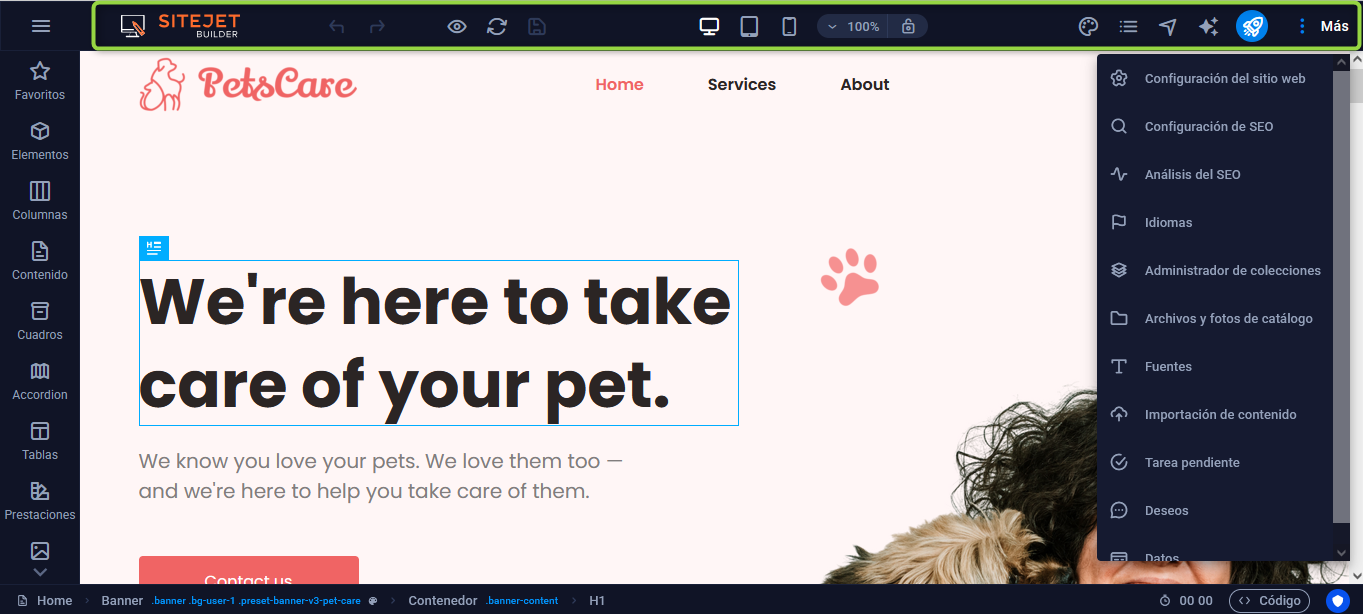
On the far right of that bar several key sections are grouped:
- Design: allows defining the overall style and appearance of the site.
- Pages: from here you manage the site structure, creating subpages, modifying friendly URLs, SEO titles and keywords.
- Navigator: offers a hierarchical view of all the elements present on the page.
- Text Generator: uses artificial intelligence to produce content optimized for the web.
- Publish: essential function to apply the changes made; when publishing, the system updates the project directory with the latest version of the site.
- More: includes additional settings, such as language management, SEO settings, fonts, collections, files, stock images and global site options, like the logo.
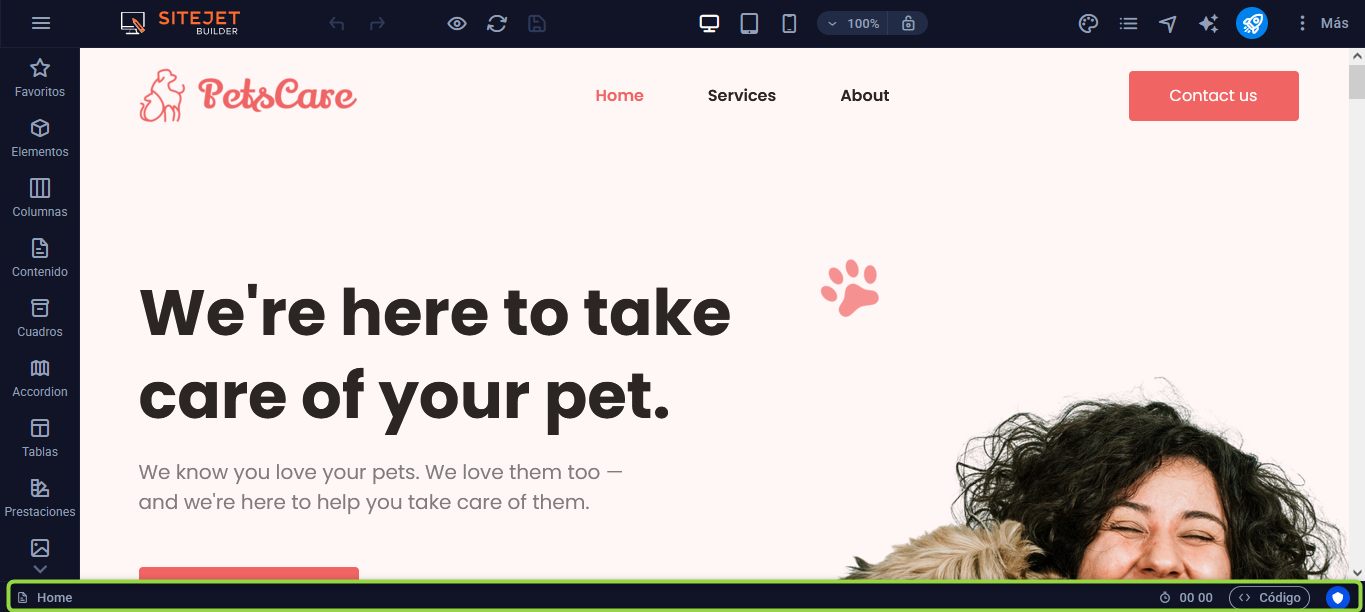
The bottom bar, though discreet, performs useful functions: it shows the path of the block you are editing and also offers the possibility to view the code that the system generates automatically in real time.
The functions and tools of Sitejet Builder are constantly expanding, so it’s difficult to cover everything in a single guide. Its applications are virtually unlimited and vary by project. We recommend exploring it and trying its different options to make the most of its potential.