¿Cómo vaciar bandejas y borrar mails en las casillas de correo en cPanel?
Hashtags: #space #full #free
Using email accounts can consume a lot of space on the hosting account.
Below we will show you how to empty mailboxes and delete emails in your email accounts based on certain criteria.
There are two main methods to quickly delete emails and empty mailboxes. Access the method you want to use below:
Delete emails from the cPanel control panel
- This method requires accessing the cPanel control panel. If you don’t know how to log in, you will find the steps in this link.
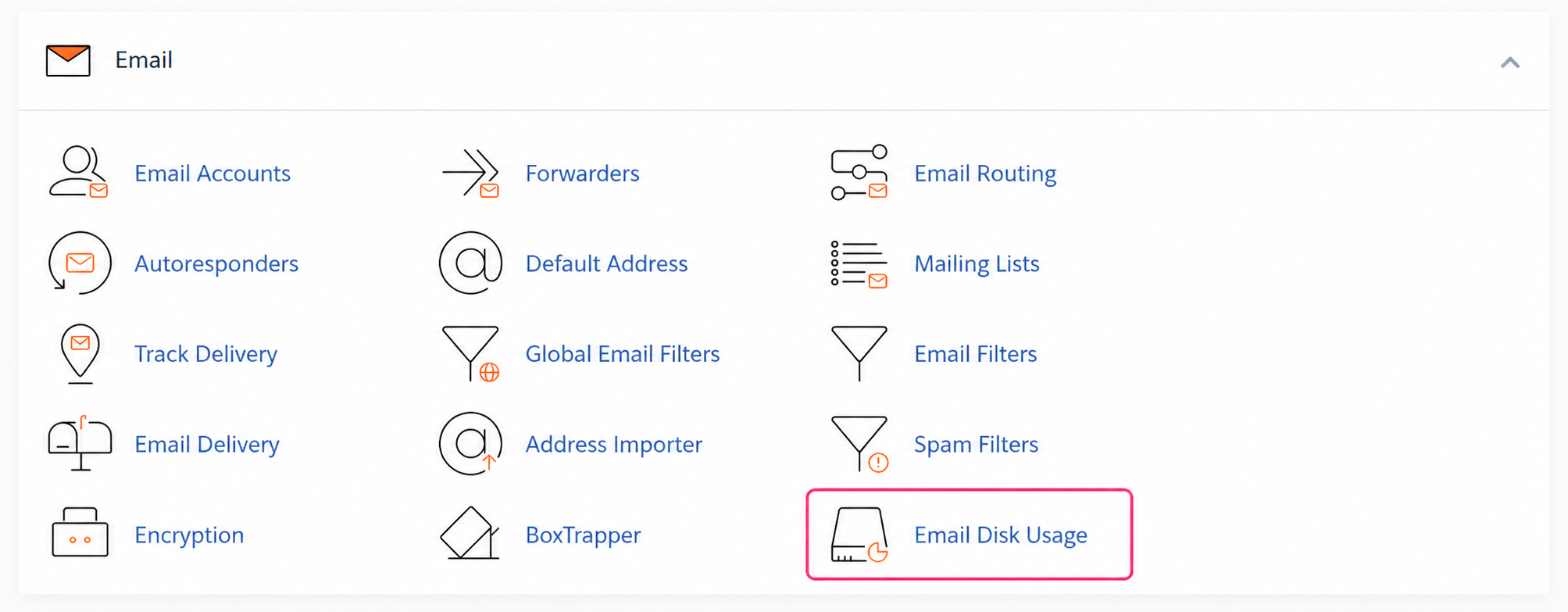
- Once in the control panel you must go to the Email Disk Usage option, inside the Email box.
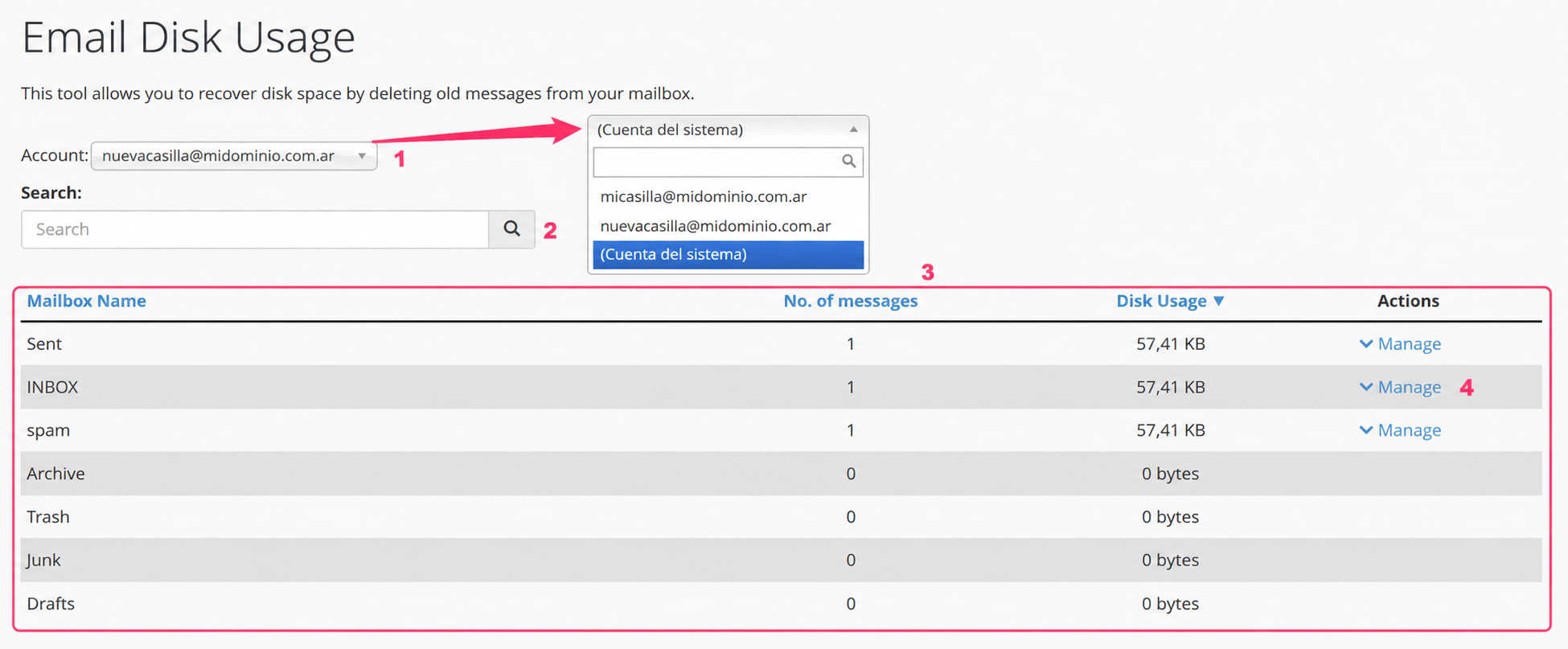
- In the Email Disk Usage interface you will find:
- A dropdown menu with all your mailboxes. You will also see the system mailbox or Catch All.
- Below you will see a search box. It is used to search for specific folders within a chosen mailbox.
- Then you will see the information box with the folders, number of messages and space used by the selected mailbox.
- In the Actions column you will see the Manage link for each folder of the selected mailbox that has content.
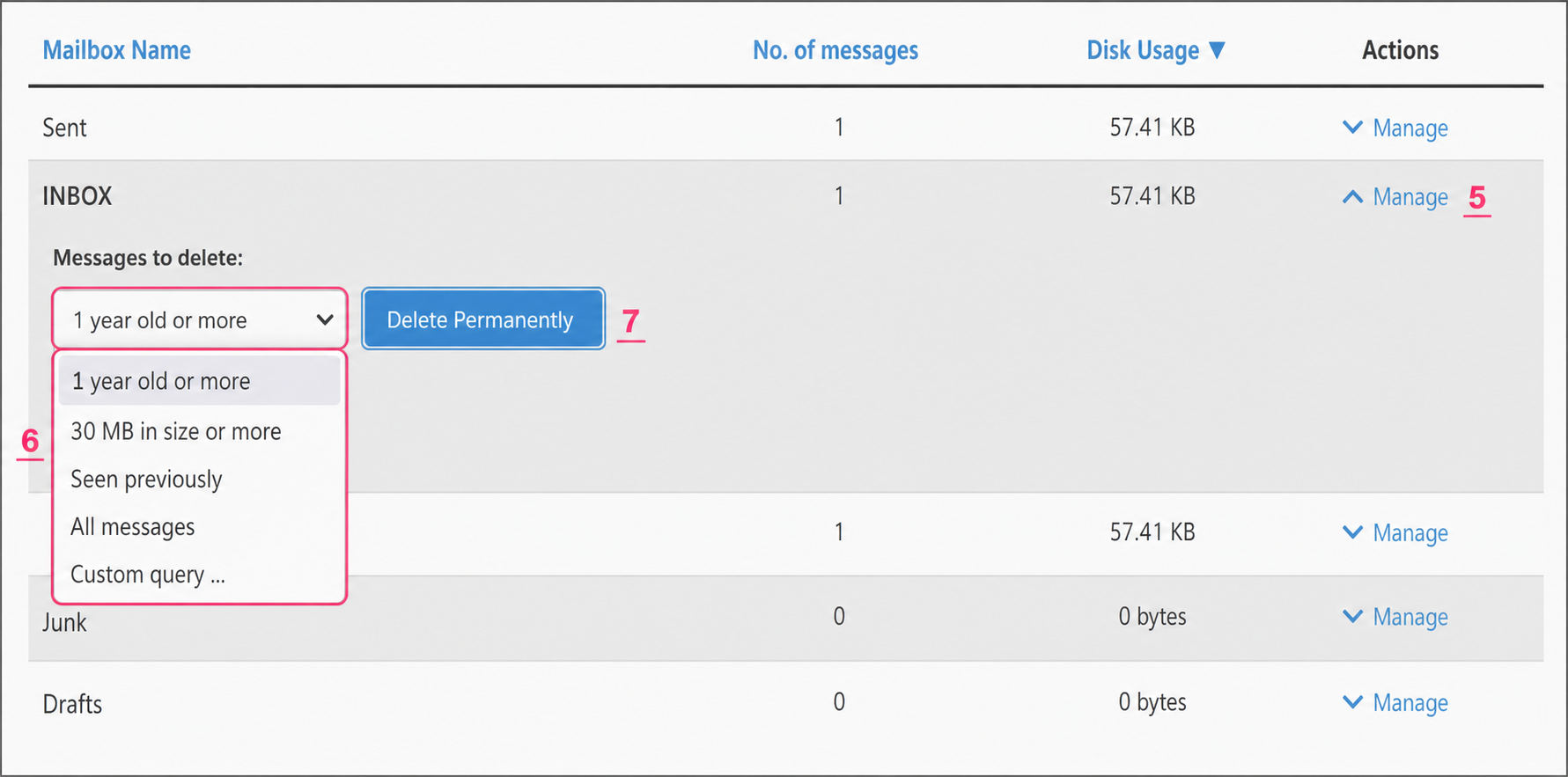
- Click Manage on the folder from which you want to delete emails. Options with criteria for deleting its contents will be displayed.
- You will see a dropdown menu with criteria for deleting content. For example, you can delete emails older than 1 year.
- By pressing the Delete Permanently button you will delete the emails from the folder according to the chosen criteria. Emails from other mailboxes or folders will not be deleted.
Delete emails from Webmail
- This method requires accessing the Webmail of the mailbox you want to clean. If you don’t know how to log in, you will find the steps in this link.
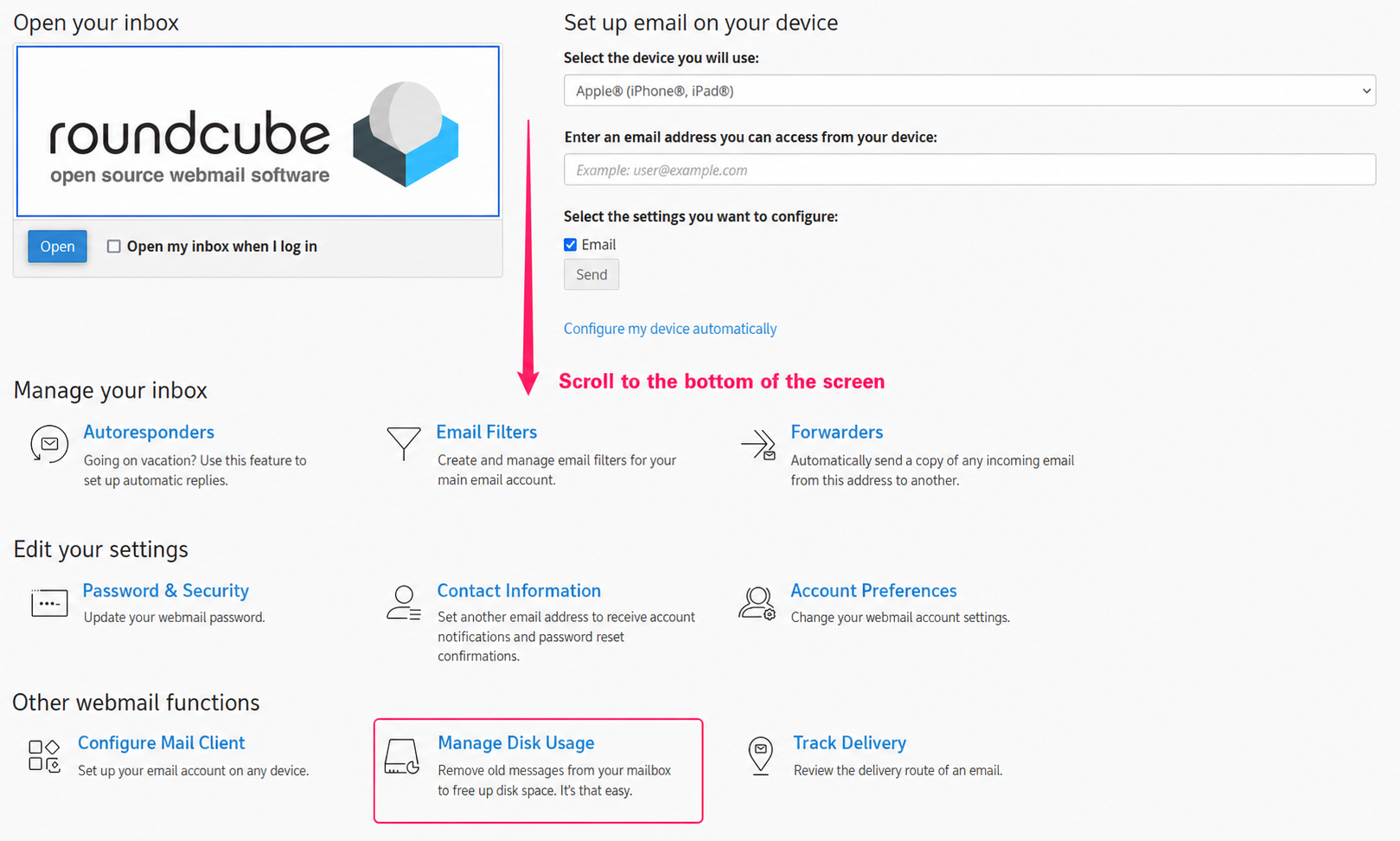
- Once in the Webmail panel of the specific mailbox you must go to the Manage Disk Usage option, at the bottom of this screen.
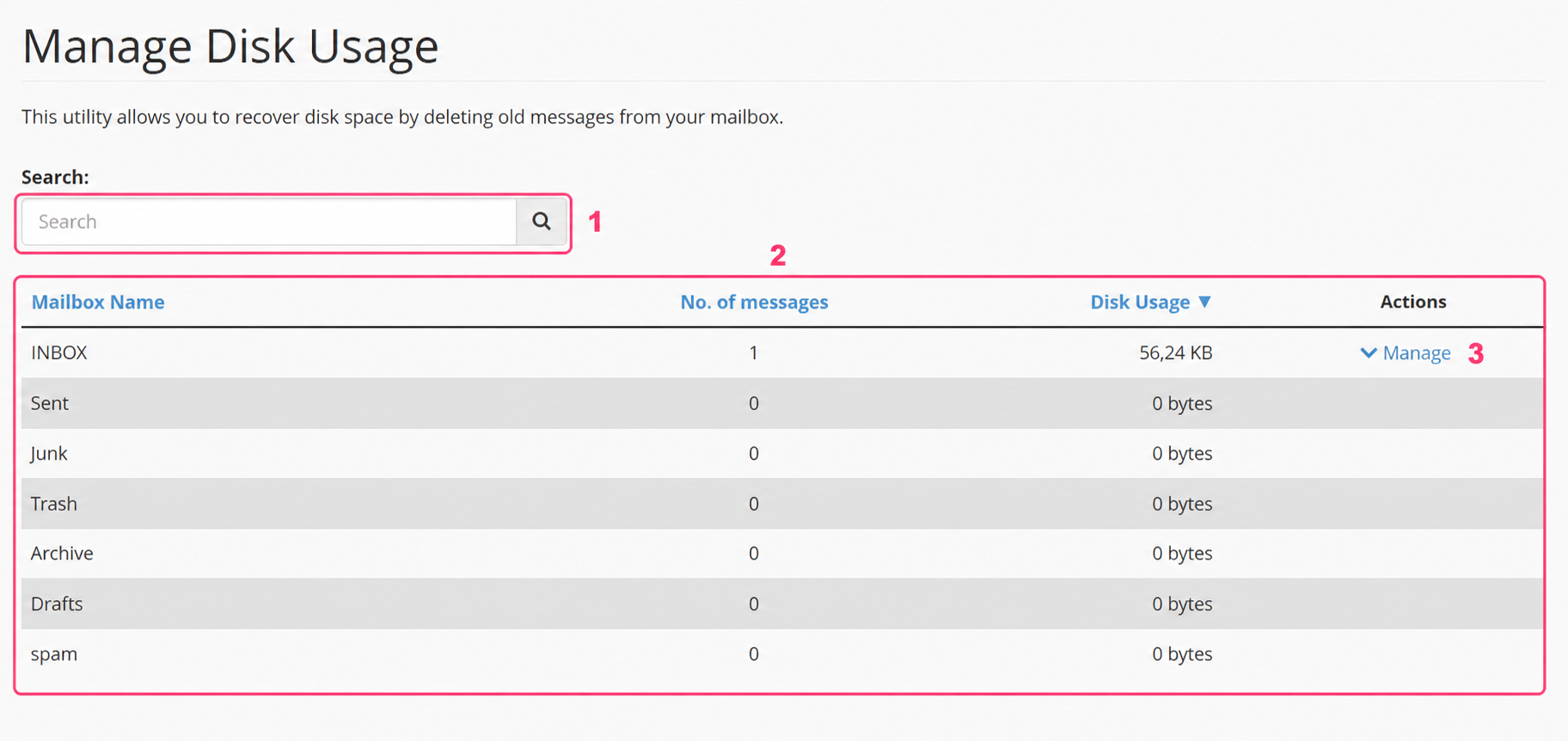
- In the Manage Disk Usage interface you will find:
- A search box to filter specific folders of the mailbox.
- The information box with folders, number of emails and the space each occupies.
- For folders that have content you will see the Manage link. You must click it to open the email deletion options.
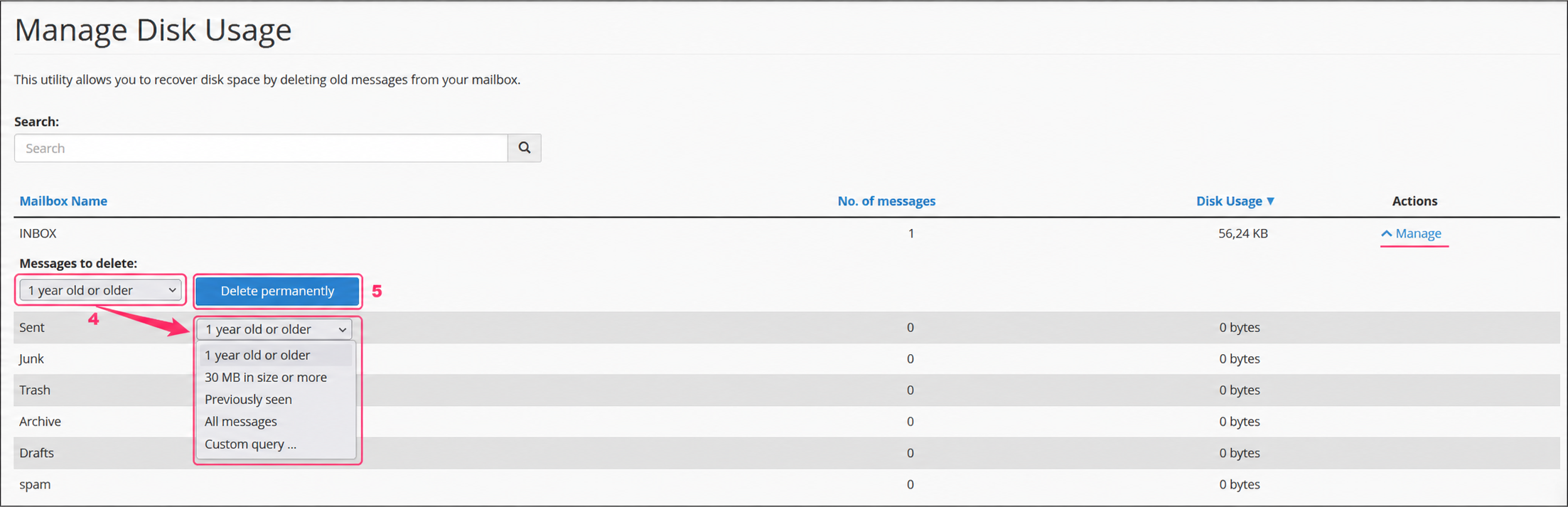
- You will see a dropdown menu with criteria to delete emails from the selected folder. For example, you can delete emails older than 1 year.
- By pressing the Delete Permanently button you will delete the emails in the folder that meet the selected criteria. Emails from other mailboxes or folders will not be deleted.
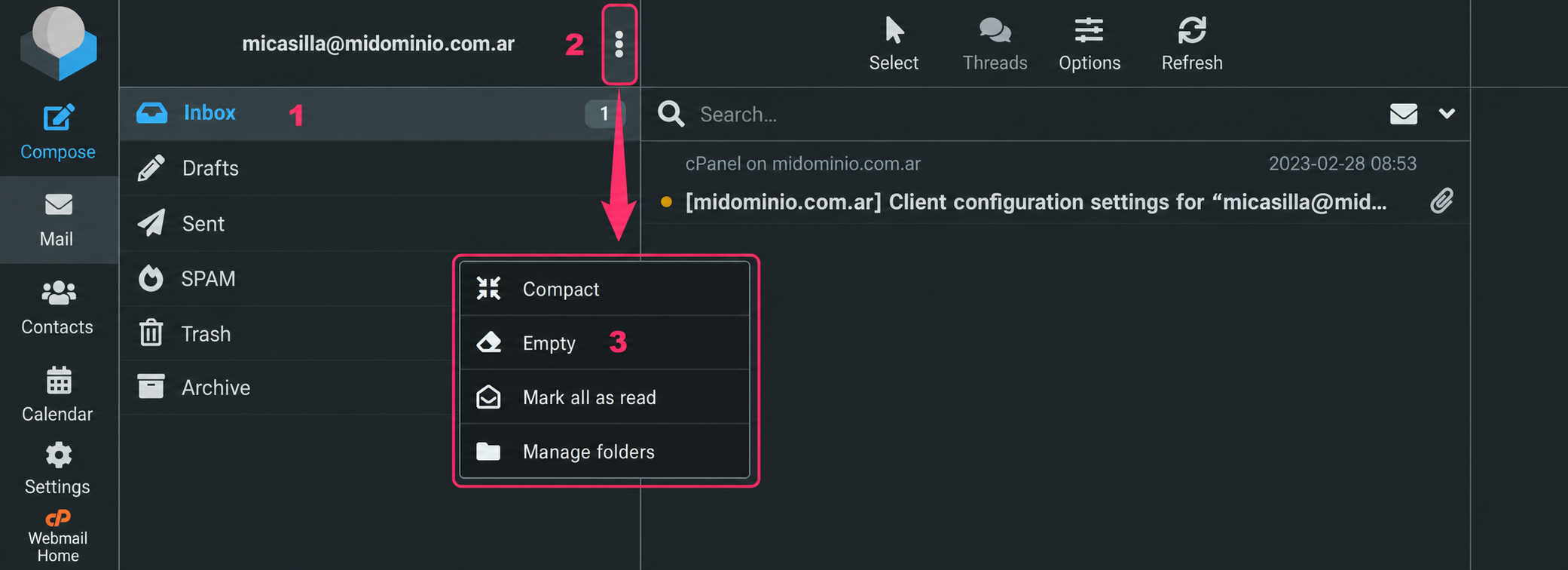
There is one last method to delete emails via Webmail, although this method will delete all emails in the selected folder. These are the steps:
- When entering an email account via Webmail select the folder whose entire contents you want to delete.
- Then, press the three vertical dots button that is to the right of the mailbox name.
- In the options menu select Empty.