How do I change the password for my service’s control panel?
To change the password for your control panel, from your Client Area, follow these steps:
- Log in to your Client Area.
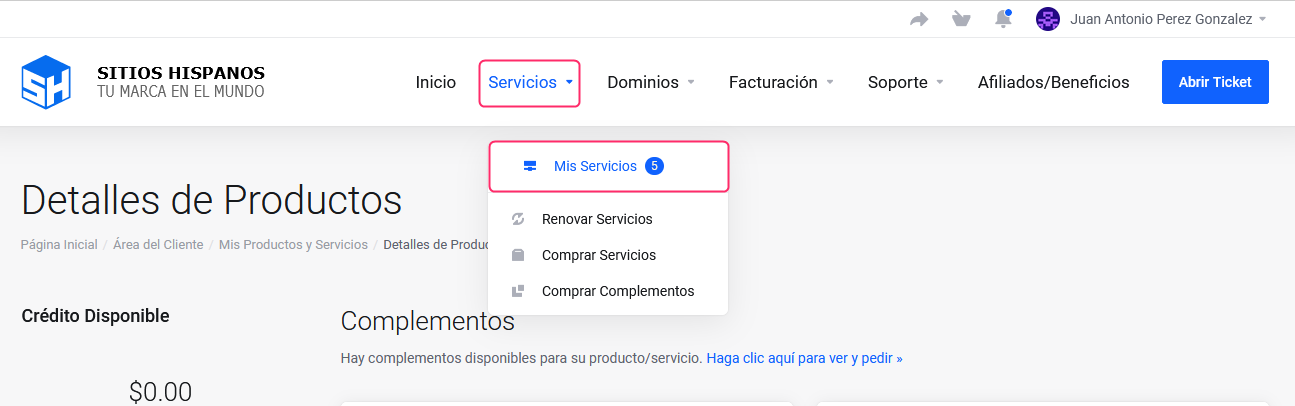
If you don’t remember how to log in follow this link: How to access the Client Area - In your Client Area click “Services” in the menu and select “My Services”.
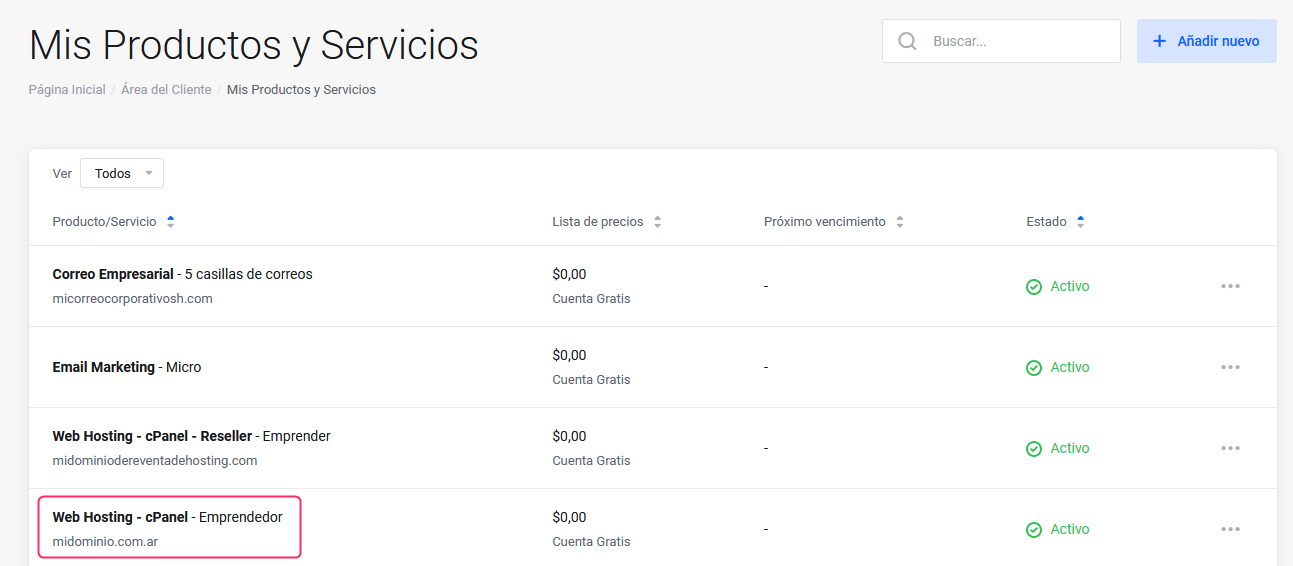
- Click the hosting plan or service for which you want to change the access password.
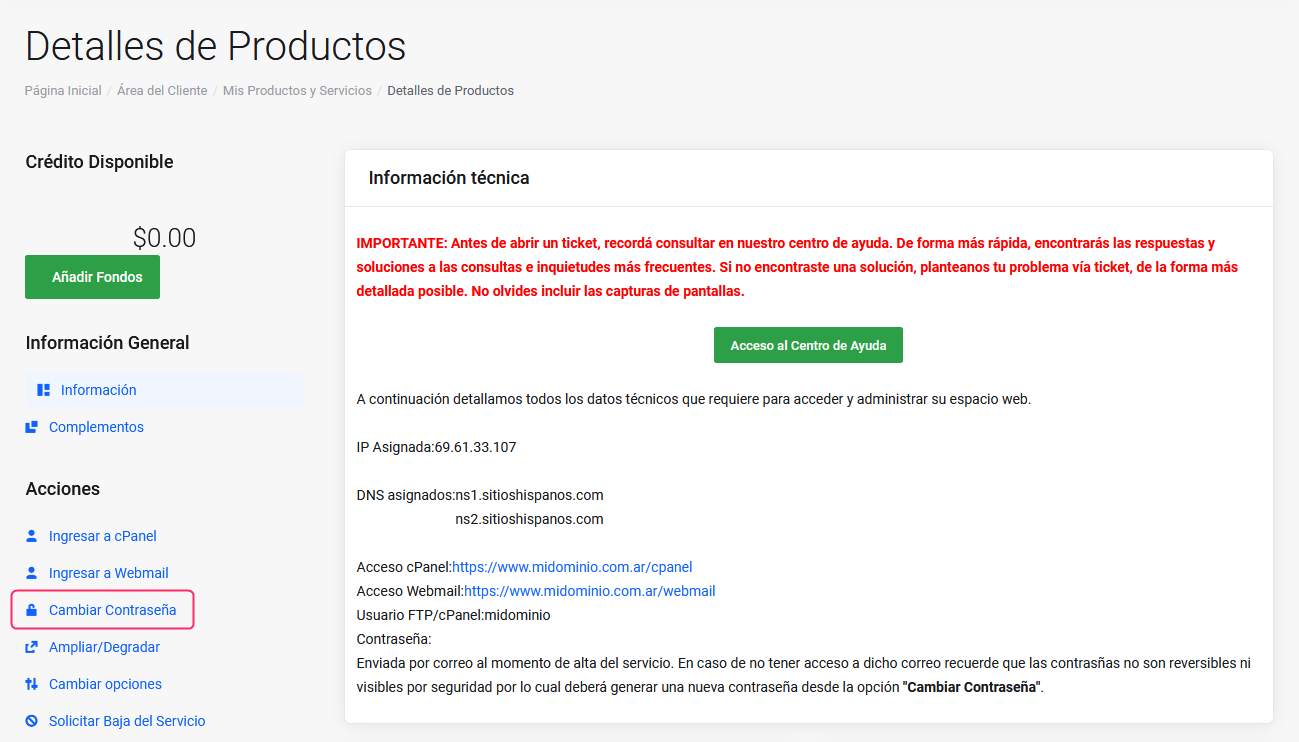
- Select the option Change Password that you will see in the Actions section of the left menu, on the Product Details screen.
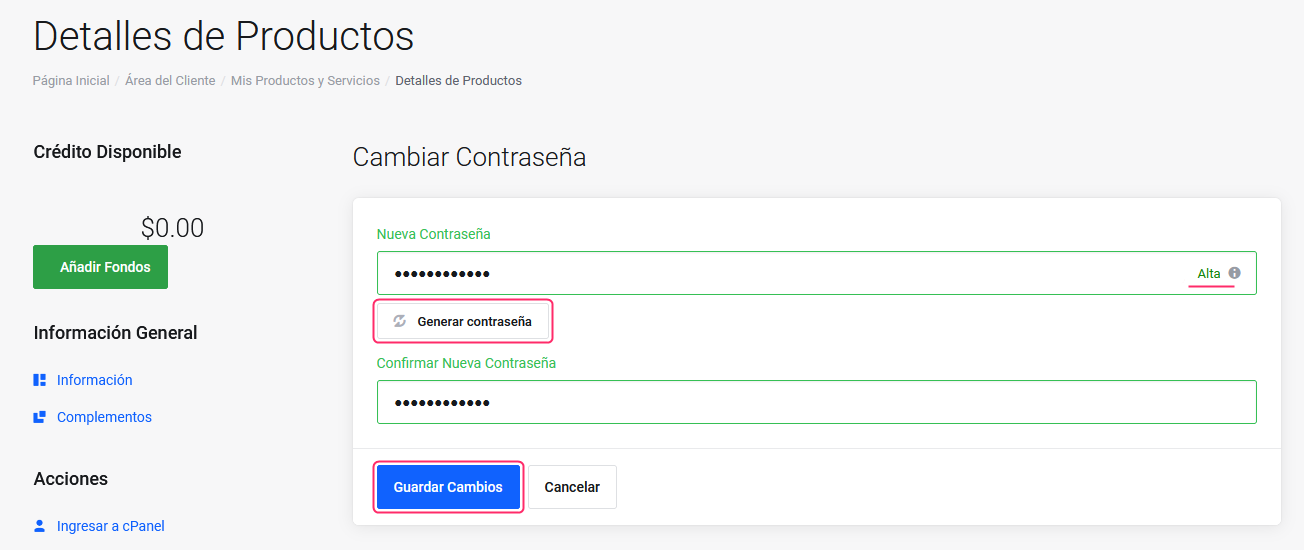
- In the new screen, enter a new complex password and confirm it by typing it again in the confirmation field.
You can also generate a password automatically by pressing the button “Generate Password”. - If the new password is sufficiently strong it will indicate this with a green color and you’ll see its strength on the right.
Save the password by pressing the button “Save Changes”.