
How do I renew my domain?
Hashtags: #Renewal #Expired #Expiration #Reactivate #Reactivation
Below we will show you how to renew a domain from your Client Area.
- Log in to your Client Area.
If you don’t remember how to log in follow this link: How to access the Client Area - In your Client Area click Domains in the menu and select Domain Renewal.
.png)
- On the new screen you will find all your registered domains. You will see important data such as:
- Their expiration date
- How many days remain until that expiration date.
- The annual renewal price. - The renewal selector allows you to renew the domain for a different number of years. The more years selected, the greater the discount applied to its price.
- When you have chosen how many years to renew your domain for, press the Add to Cart button.
- You will see the final price in the blue box on the right. Press the Buy button to continue with the renewal process.
.png)
From this step, you will begin the billing process for this renewal.
- You will see the domain you are renewing, the number of years to renew and the price.
If there is any error in the domain renewal process, you can press the Empty Cart button.
.png)
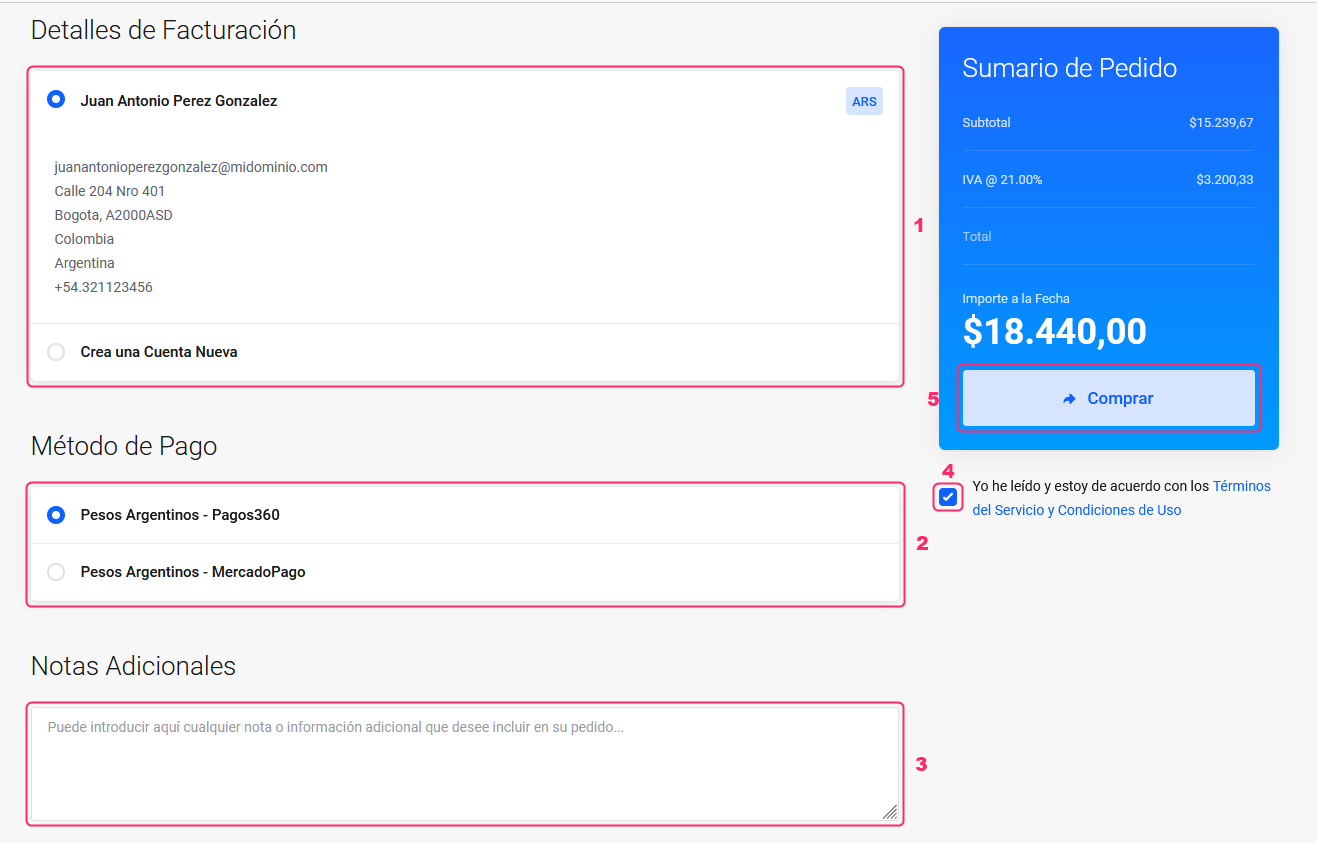
- Below, under Billing Details, you will see your account information. If you do not have an account already created, you can create one by choosing the Create a New Account option.
- Then, you will see the Payment Method with which you will pay the invoice. Depending on your billing information you will see different payment methods.
- In Additional Notes you can write us an informative comment relevant to the domain renewal.
- Don’t forget to check the acceptance box for our Terms of Service.
- Finally, when you have everything ready, press the Buy button in the blue box to complete your order. In this blue box you will see the final price of the domain renewal.
That’s all, an invoice will be generated for the domain renewal. As soon as it is paid, the domain will be renewed with the domain provider.