
How do I acquire a new service?
If you want to purchase a plan or service, follow these steps:
- Log in to your Client Area.
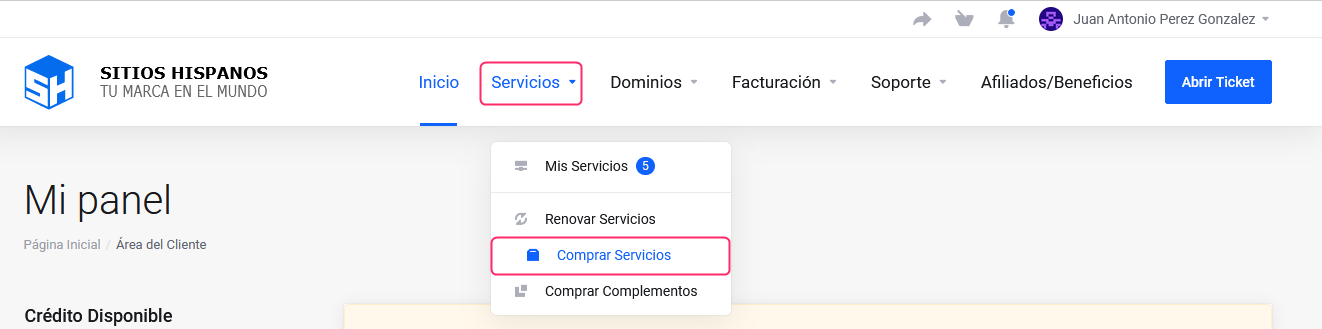
If you don’t remember how to access it follow this link: How to access the Client Area - In your Client Area click on “Services” in the menu and select “Buy Services”.
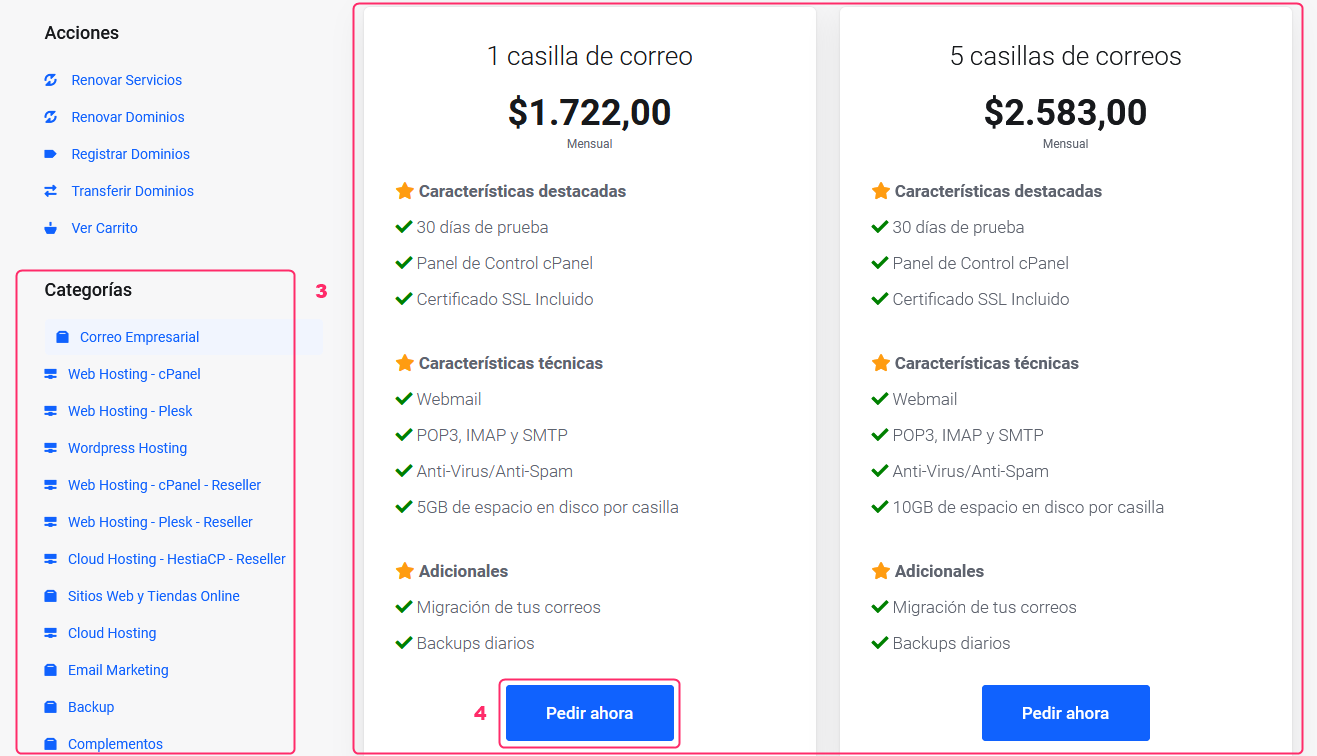
- In the Categories menu on the left, choose the service you are interested in.
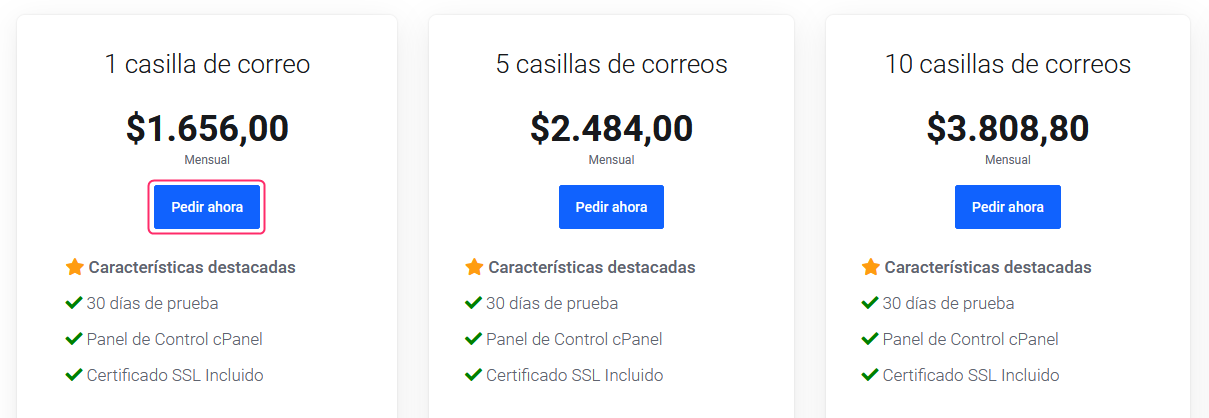
- You will see the available plans for that service in the center of the screen. Click the “Order Now” button on the plan you want to purchase.
From this step, you will begin the purchase process for your plan. These are the steps to follow:
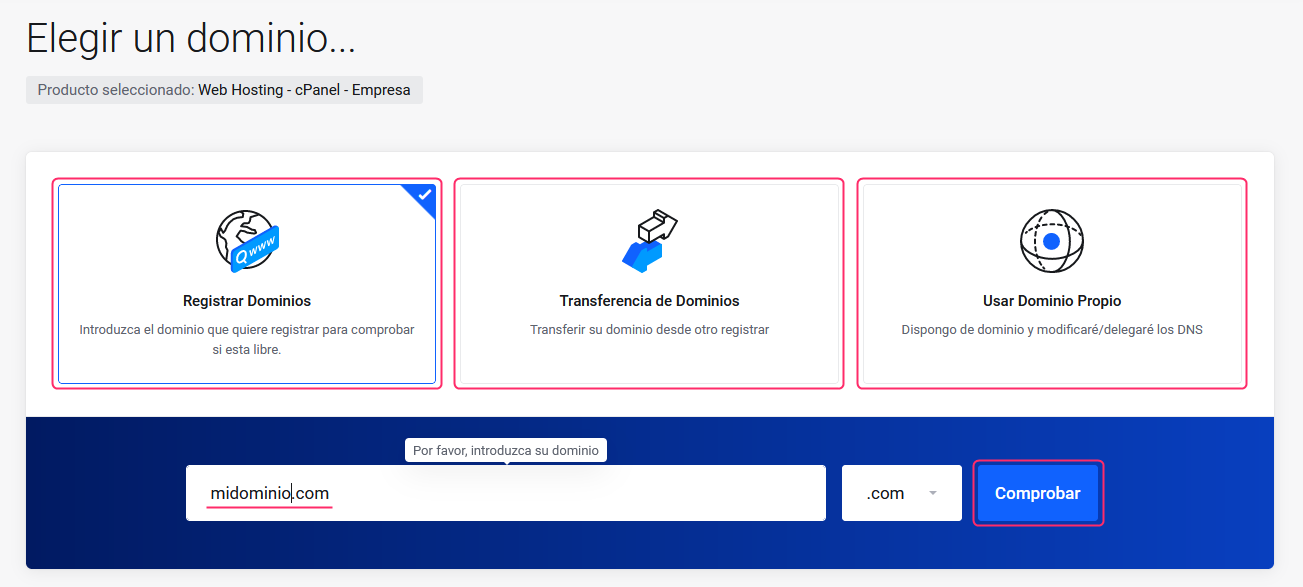
If you chose a Hosting Plan, the system will ask you to define how you will handle your domain. You will need to select one of the following options:
- Register Domains: The domain will be added as a product to your order.
- Transfer Domains: A domain that you are currently using will be transferred from your provider to ours.
- Use Own Domain: An already-registered domain will be used, and you will need to change the DNS later.
Once you choose how to proceed with the domain, enter it in the search field and press the “Check” button.
If the domain check is valid you will see below the price for registering or transferring the domain. Click the “Add to Cart” button to continue.
If you are going to use an already-registered domain the process will continue automatically.

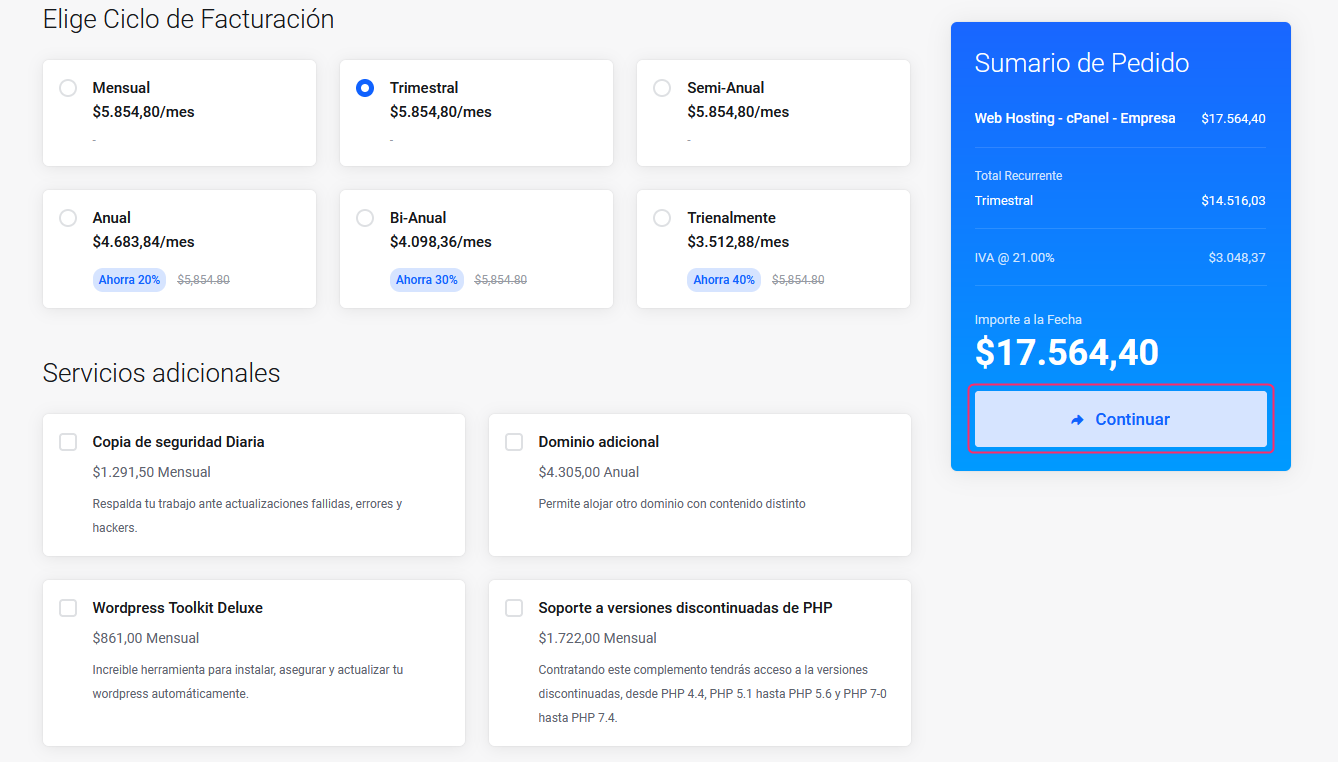
On the new screen you will see the description of the chosen product and the detailed price.
Below, you will see the different billing cycles to pay for the service.
Choosing a billing cycle will modify the price breakdown on the right.
On this same screen you will find the Add-ons or Additional Services that you can add to your service. If you are interested in any, check the box of the add-on you want to add.
Once your product is ready, click the “Continue” button in the Order Summary box.
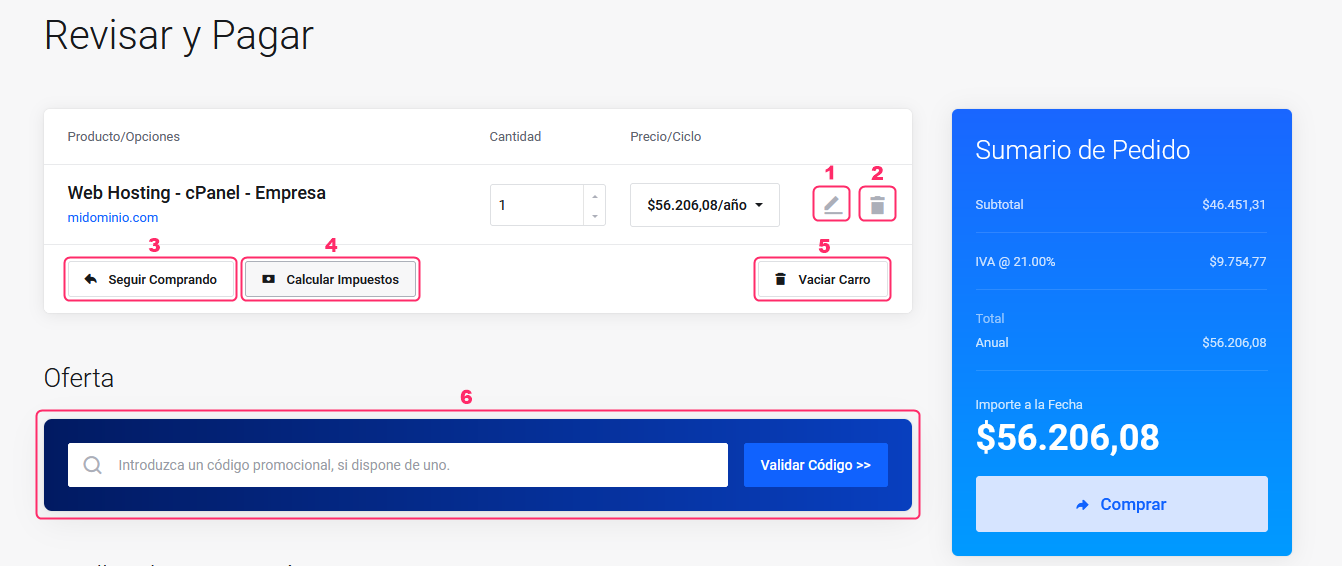
On this final screen you will again see your selected product or service and the detailed price.
You will also see these important options:
- Edit Button: You will return to the previous screen to modify your order.
- Delete Button: If you have more than one product you can remove it from your order.
- Continue Shopping: You will repeat the entire purchase process adding the new product to the one you are choosing now.
- Calculate Taxes: You can modify the final price by calculating specific taxes for a country. Prices in Argentina already include VAT in their breakdown.
- Empty Cart: You will cancel all orders made so far.
- Offer: If you received a promotion code you can validate it in this box.
Click “Validate Code” to activate it.
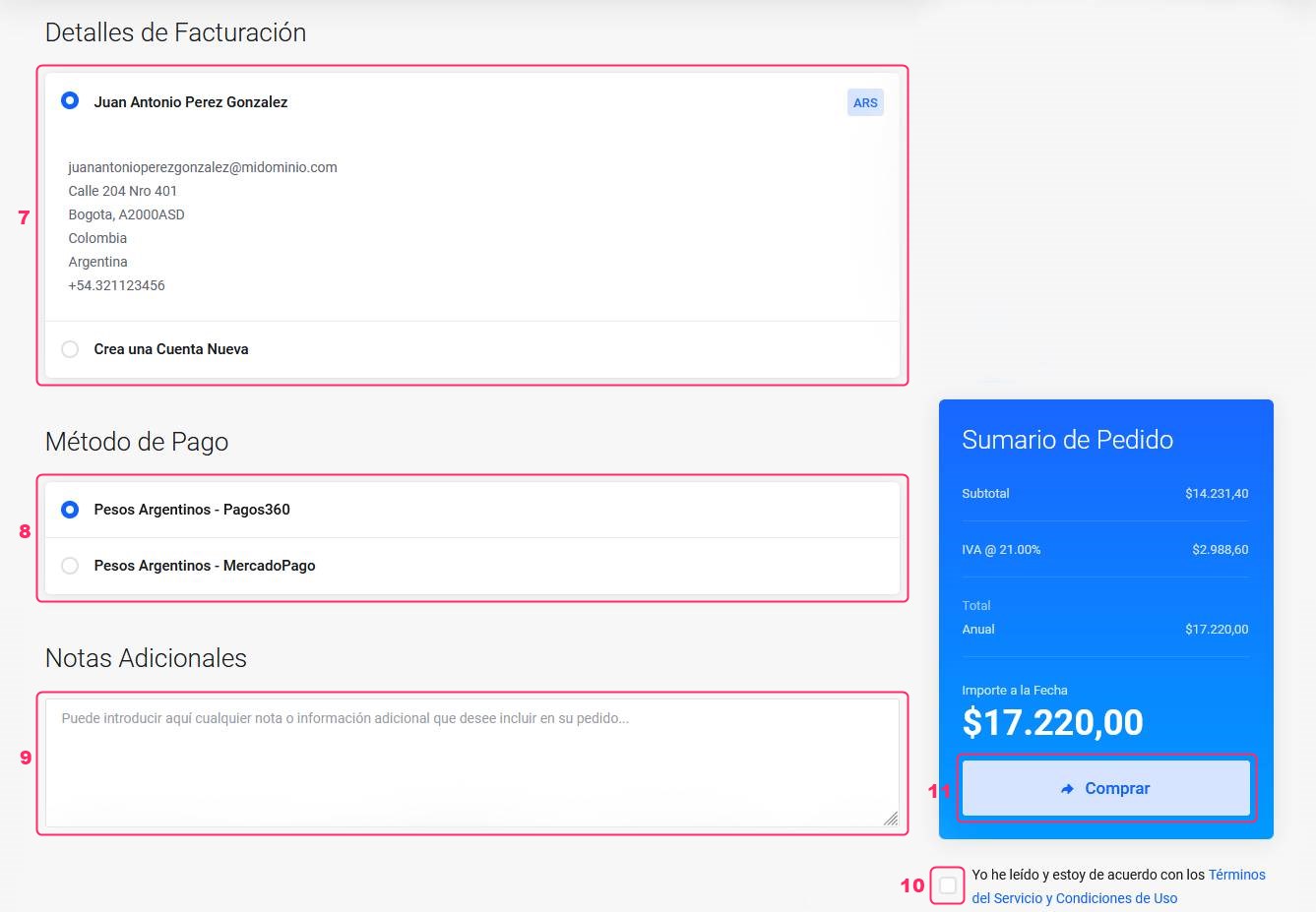
- Below, you will find the Billing Details. You will see the information you entered when registering.
- Depending on the selected currency or country, you will see different payment methods available.
- At the bottom you will find Additional Notes, where you can leave us a note related to your order.
- You must check the box to accept the terms and conditions of our service.
- When everything is ready, click the “Buy” button in the Order Summary to complete your order.
That’s all. We will receive your order and a proforma invoice for the contracted service will be generated.