How do I view and pay my invoices?
If you want to pay an invoice for a plan or service, follow these steps:
- Log in to your Client Area.
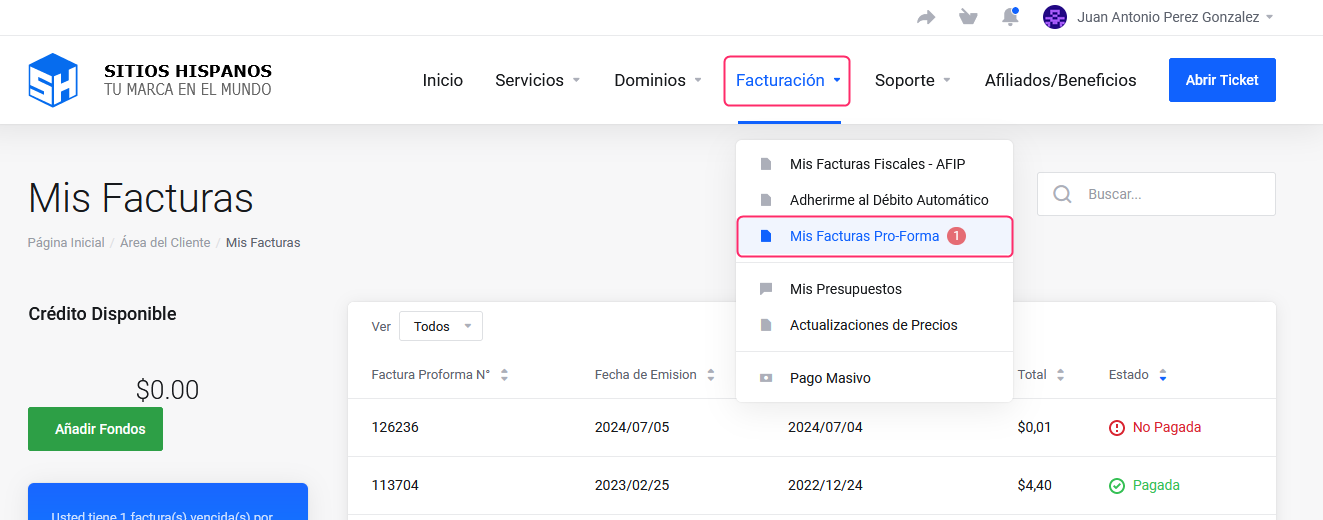
If you don’t remember how to log in follow this link: How to access the Client Area - In your Client Area click on “Billing” in the menu and select “My Pro-Forma Invoices”.
If you have an unpaid invoice you will see a red indicator.
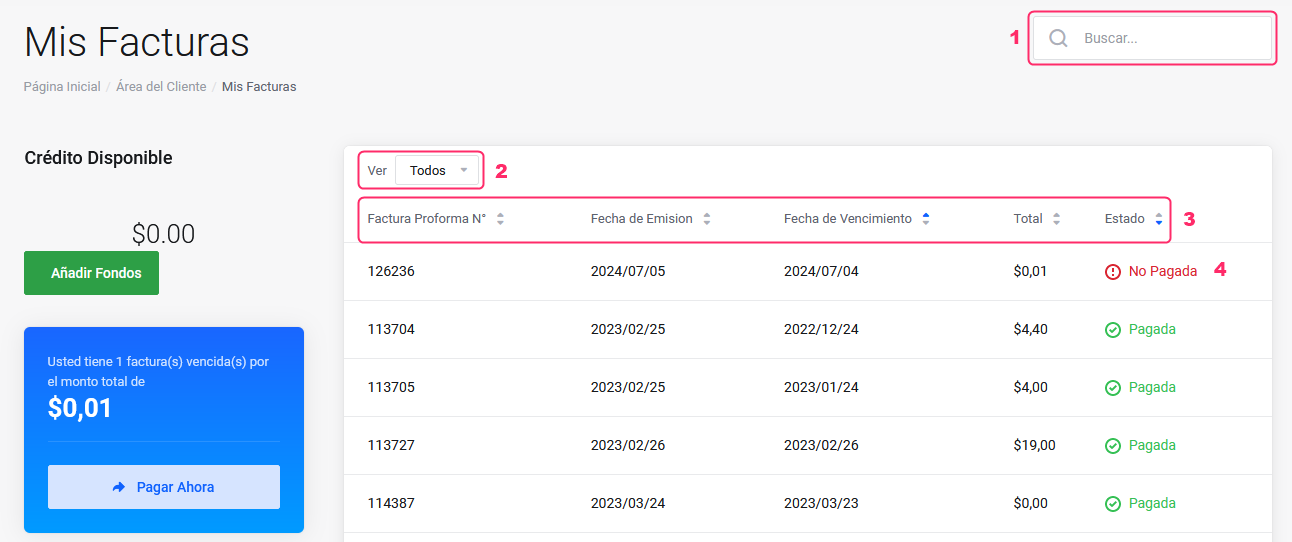
- On the screen you will find all generated pro-forma invoices and several options to filter and sort them.
1. At the top right, you’ll find a search field that will allow you to find a specific invoice by typing some of its details.
2. From the “View” dropdown menu, you can filter the list by status, such as showing only unpaid invoices, canceled, etc.
3. You can also sort the list by different criteria.
For example, to sort invoices by due date click the “Due Date” column.
4. If you click on an invoice, you can access its details and proceed with payment if it is unpaid.
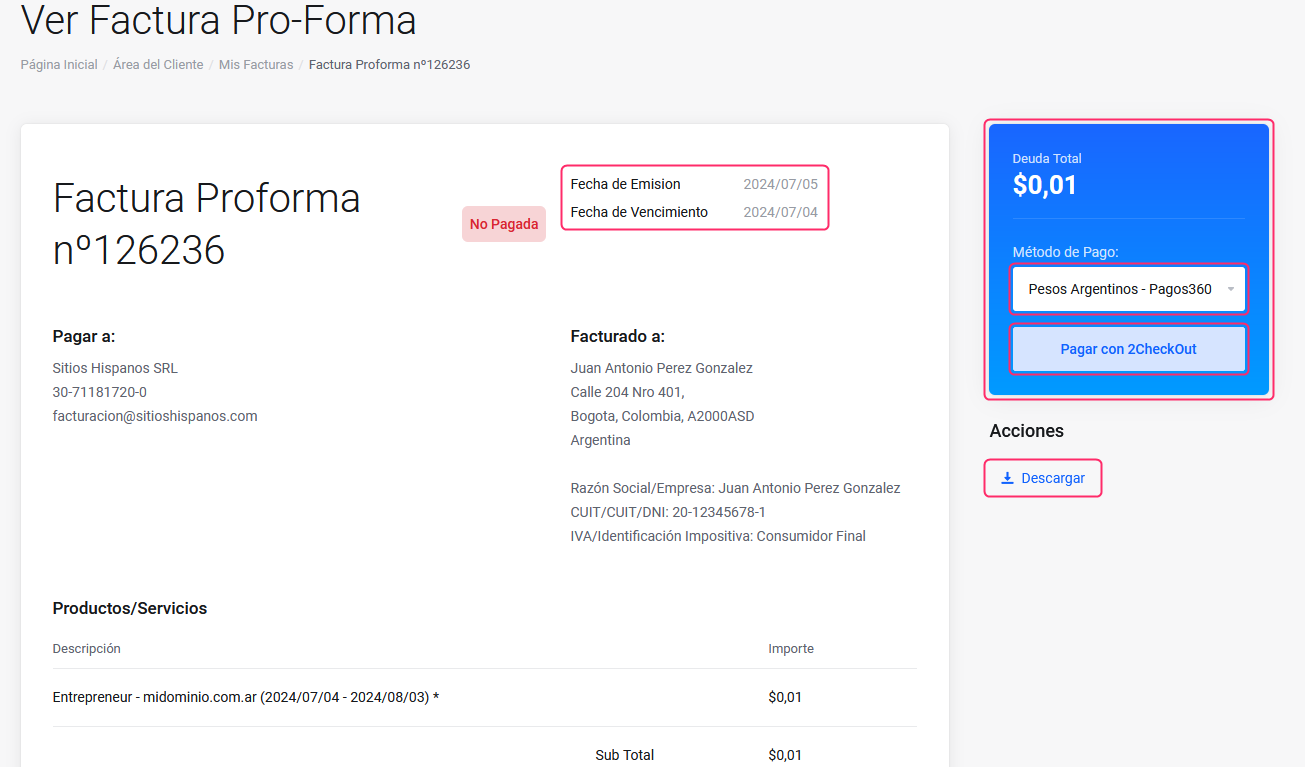
- When opening an invoice, you’ll see its details and can download it as a PDF file.
If the invoice is unpaid, you’ll see a selector for the Payment Gateway.
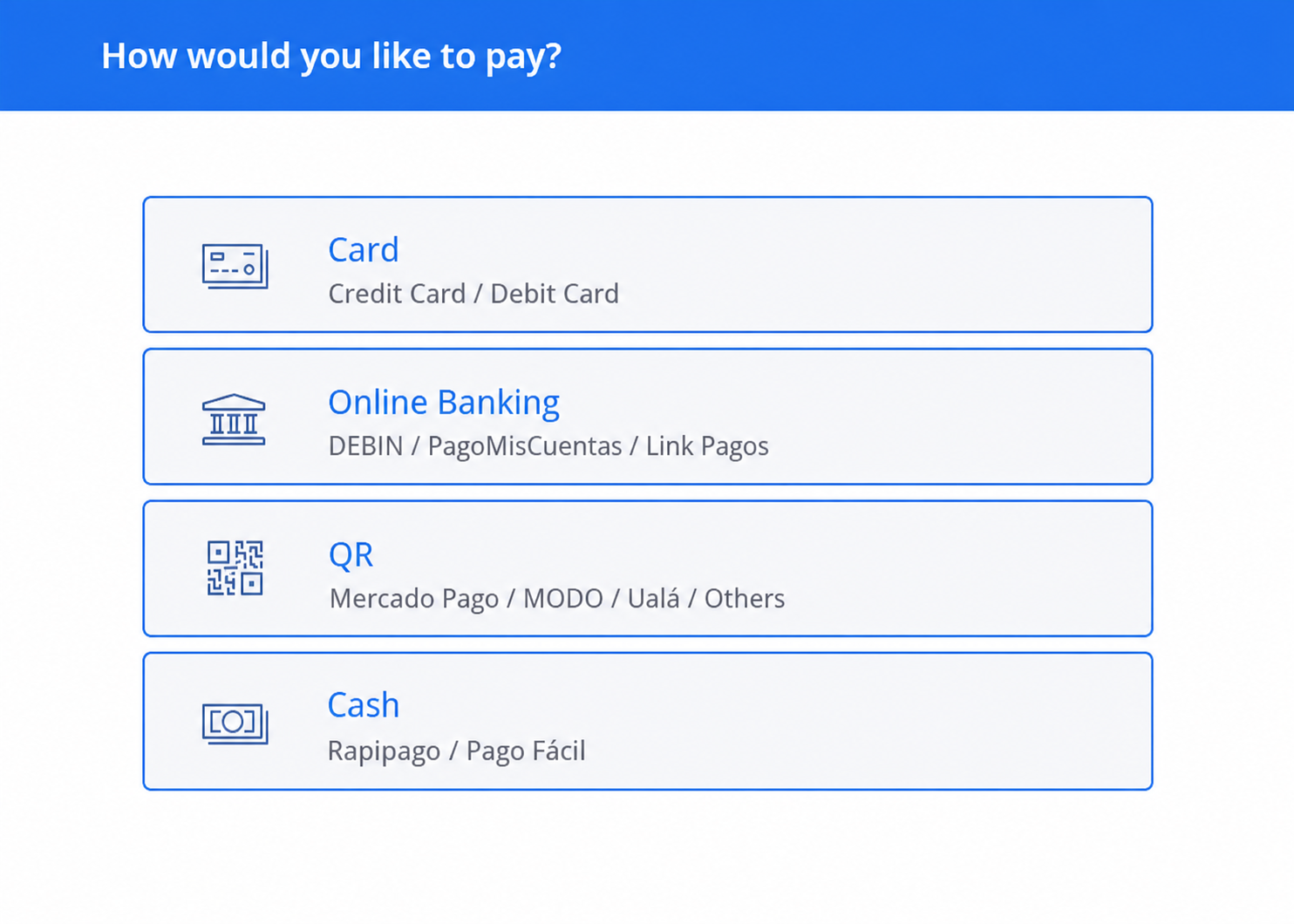
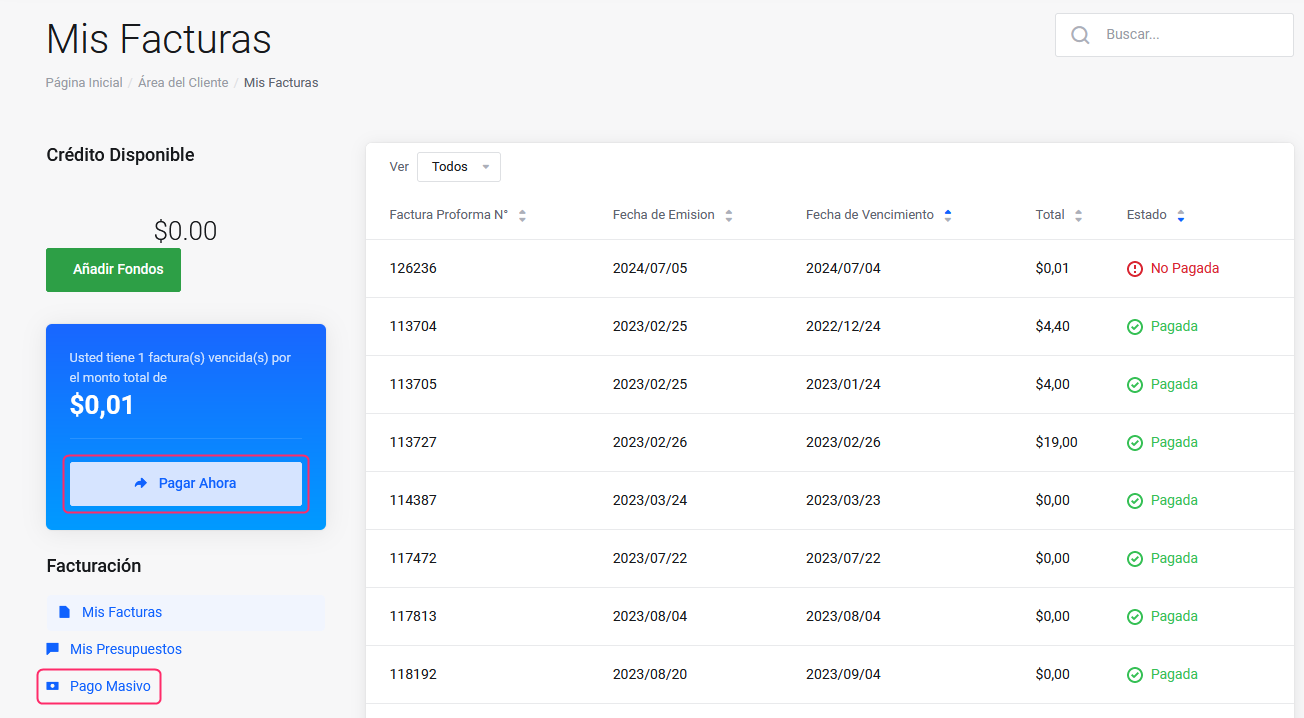
If you want to pay all invoices that appear as unpaid in a single payment, you can do so by pressing the “Pay now” button located in the blue box on the left, or from the “Bulk Payment” option that you will find in the Billing menu on the left.