How do I upgrade or downgrade a contracted service?
If you want to upgrade or downgrade a contracted plan or service, follow these steps:
- Log in to your Client Area. If you don’t remember how to log in follow this link: How to access the Client Area
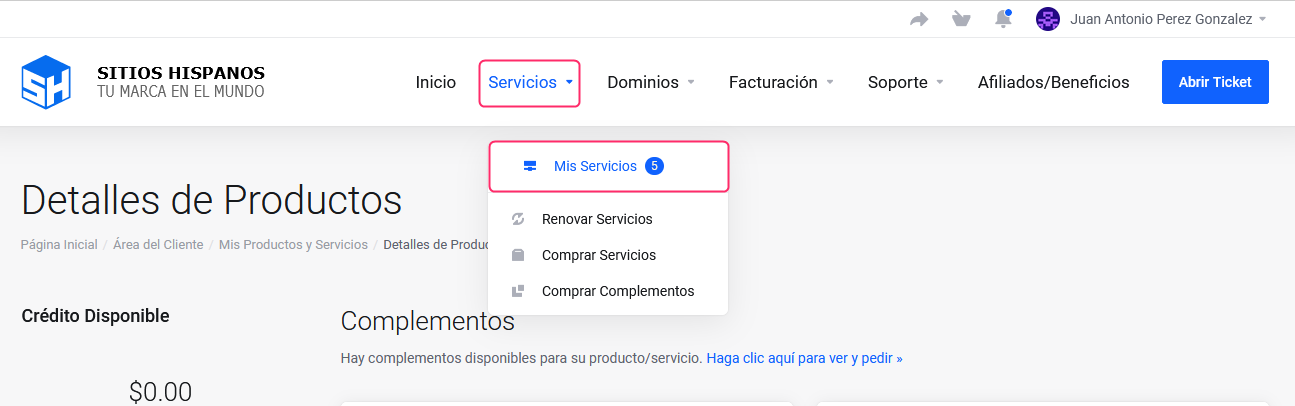
- In your Client Area click on “Services” in the menu and select “My Services”.
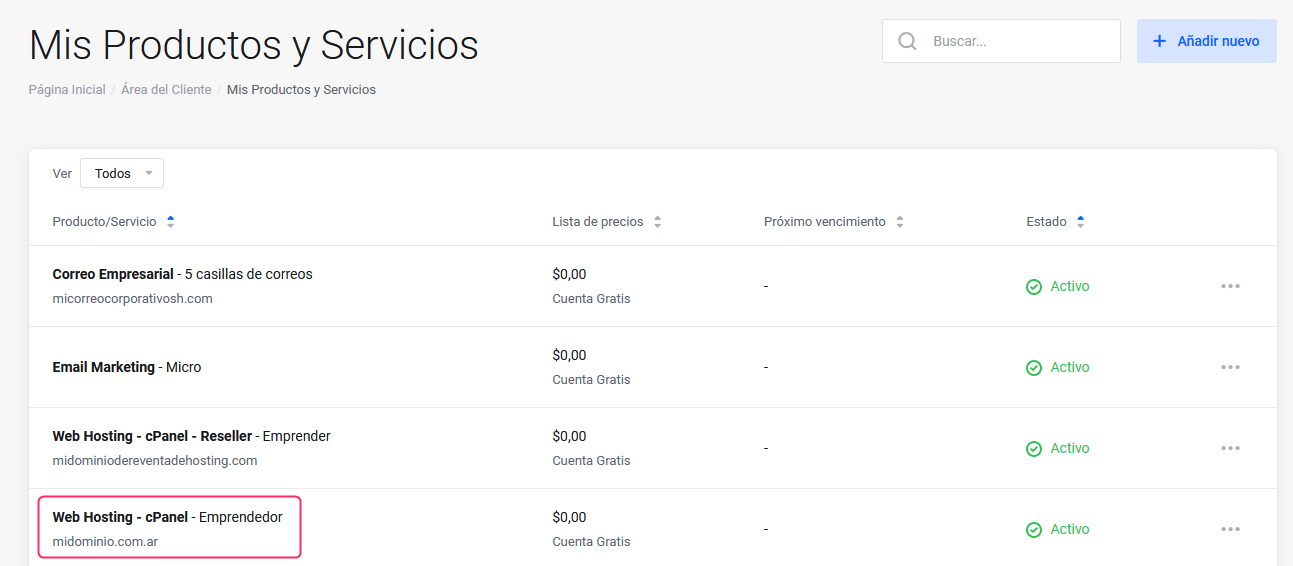
- Click on the plan or service you want to modify.
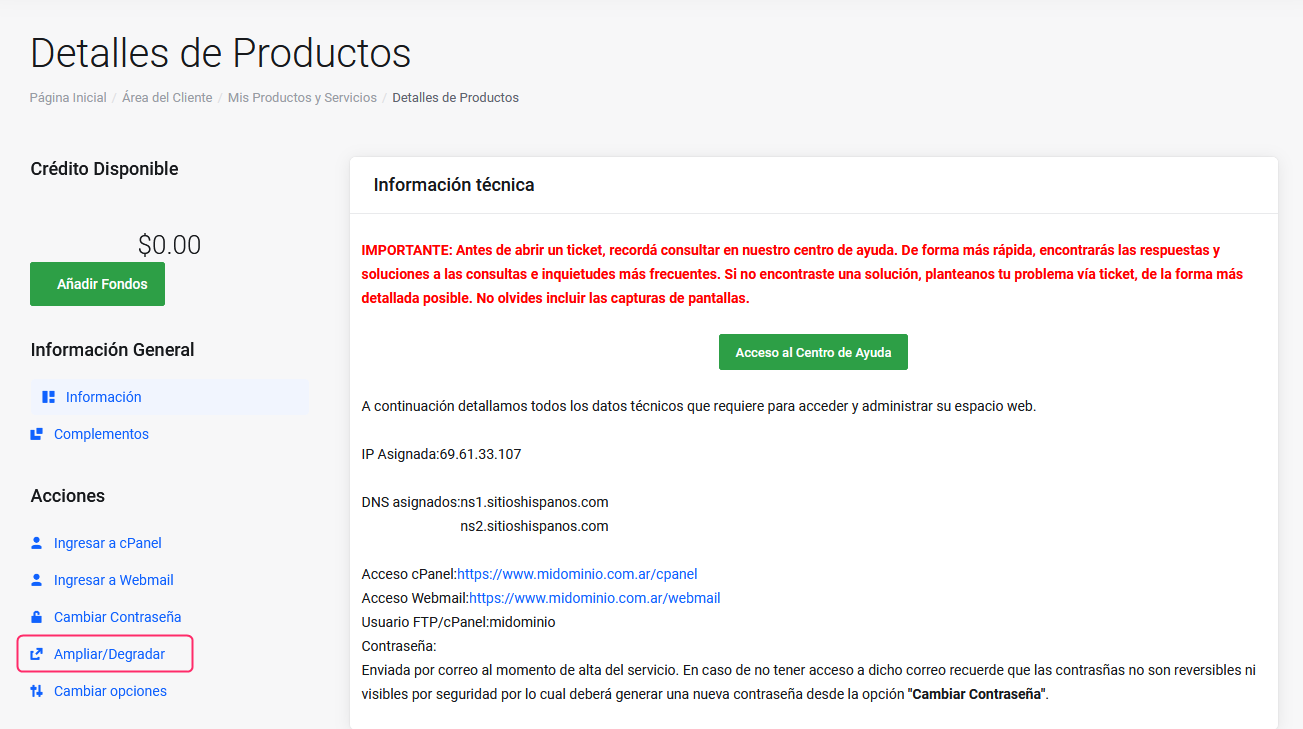
- Select the option “Upgrade/Downgrade” that you will see in the “Actions” section of the left menu, on the “Product Details” screen.
- On the new screen, you will see your current service and the plans or services to which you can upgrade. Each plan has a selector from where you can change the billing cycle (monthly, annual, etc.).
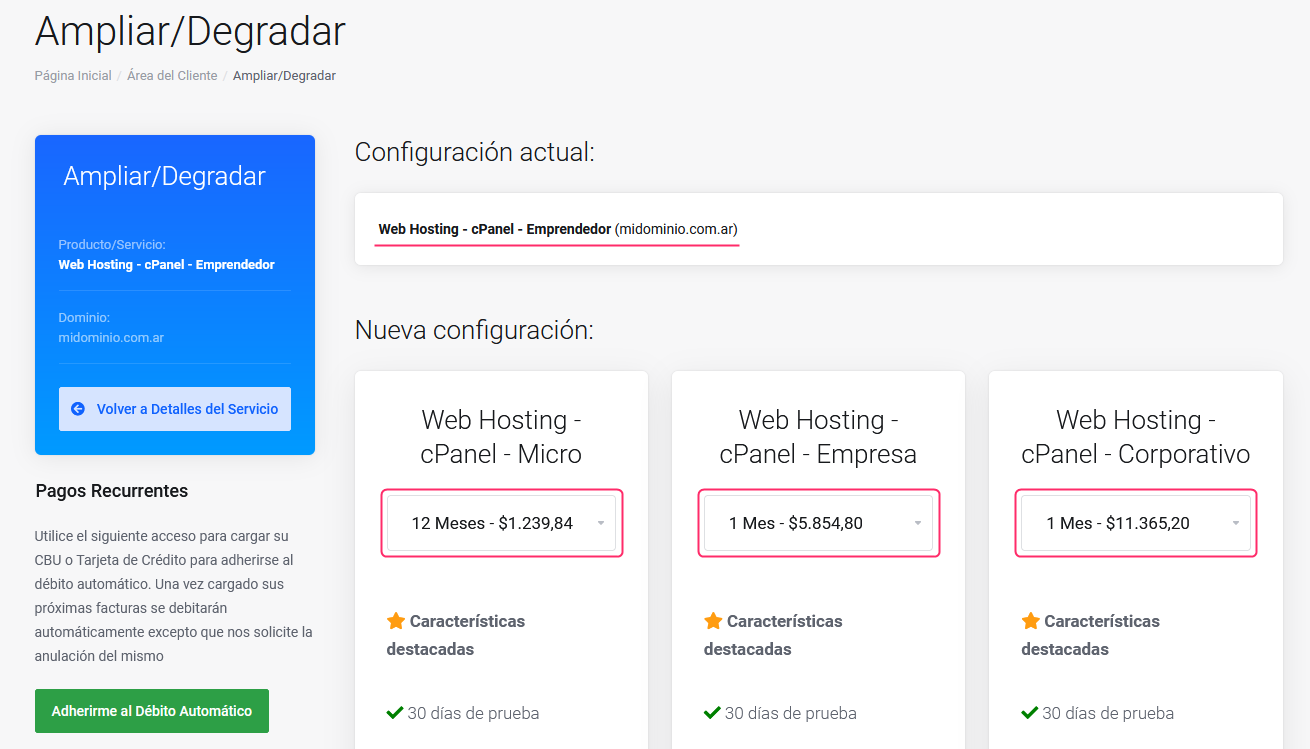
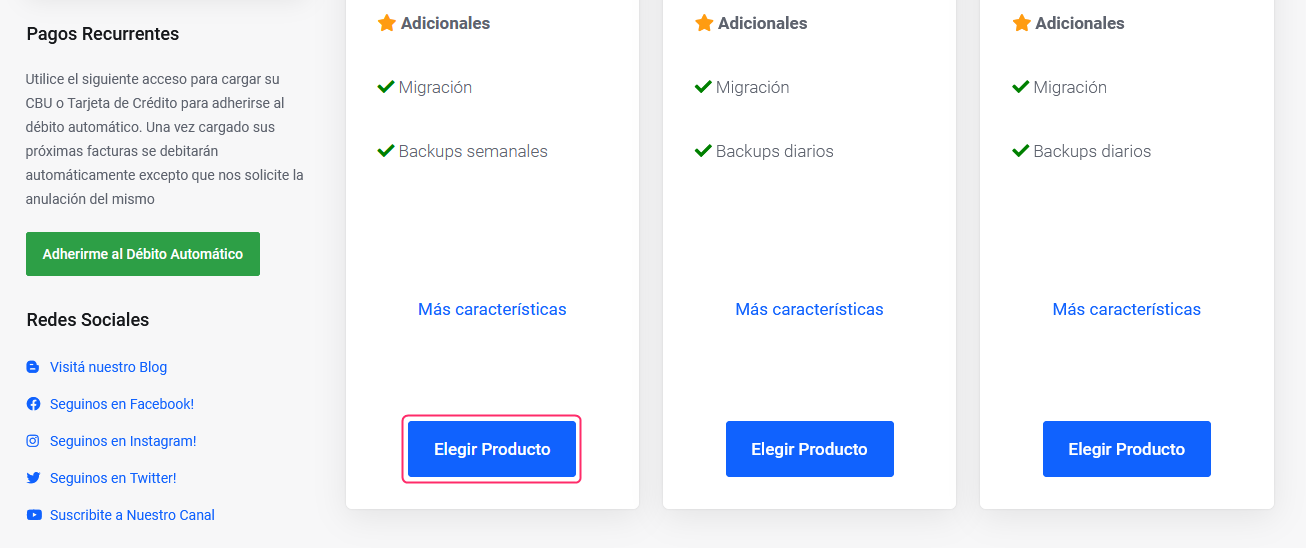
- To choose the plan you want to upgrade to, press the “Choose Product” button located under each plan.
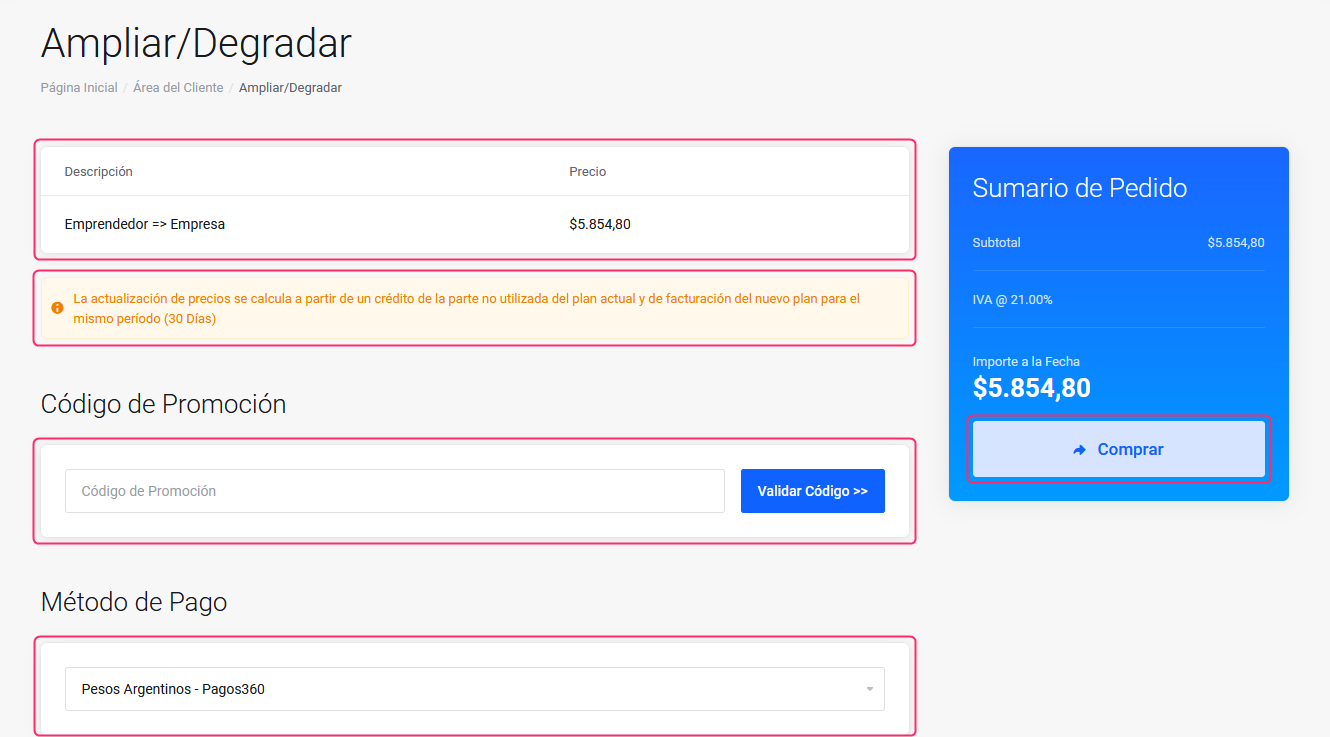
- On the new screen you will see the following data and options:
- The details of the plan change and the price.
- If you were provided a promotion code, you can validate it in the corresponding field. The price will automatically adjust according to the applied promotion.
- Below, you will find a selector to choose the payment method.
- Press the “Purchase” button to complete the order to upgrade your service.