How to change the control panel password?
To change your control panel password from your Client Area, follow these steps:
- Go to the Services=>My Services option.
- Click on the hosting plan for which you want to change the password.
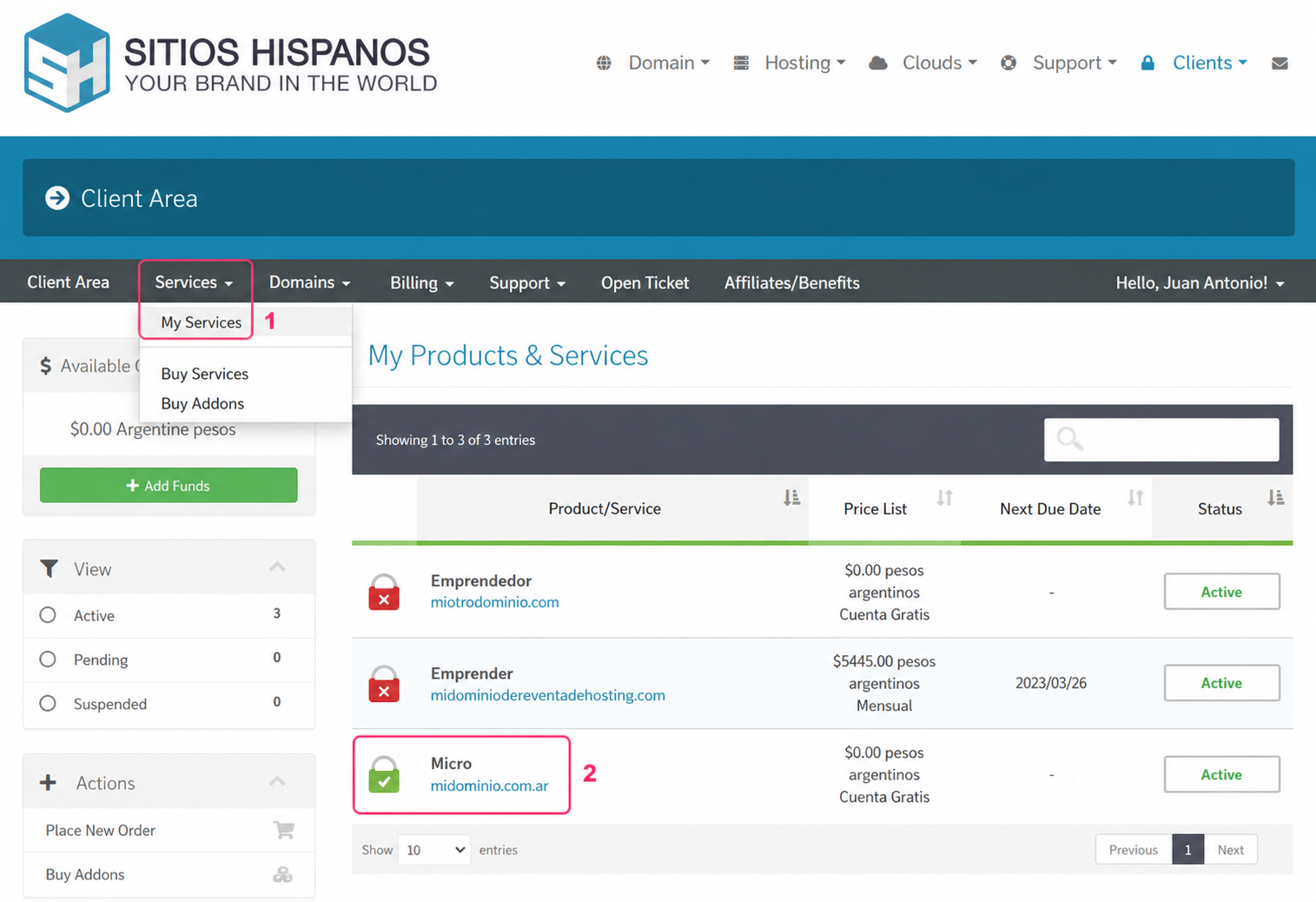
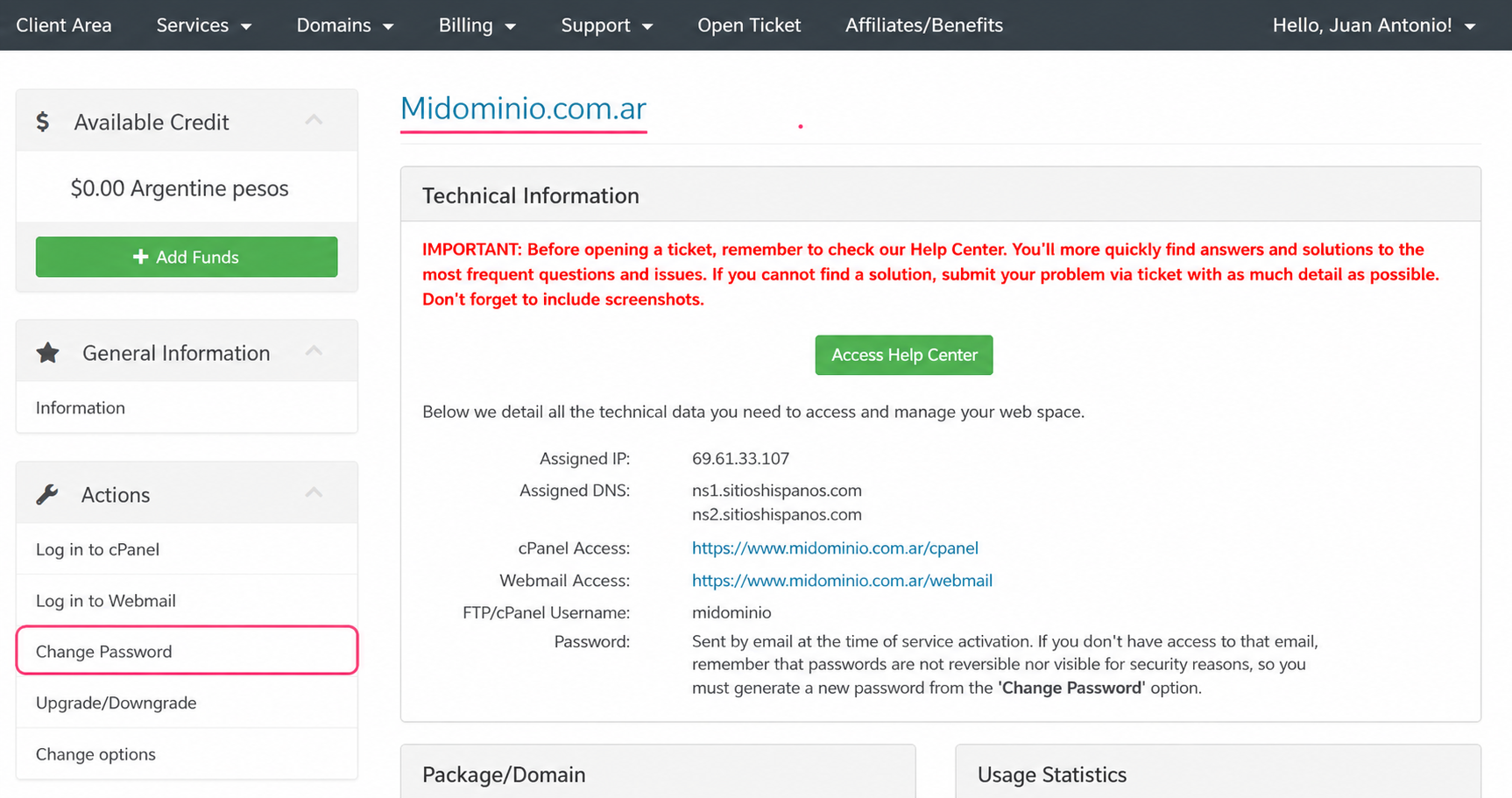
- On the options screen for the chosen hosting plan you will see the Actions menu on the left.
- Go to the Change Password option in that menu.
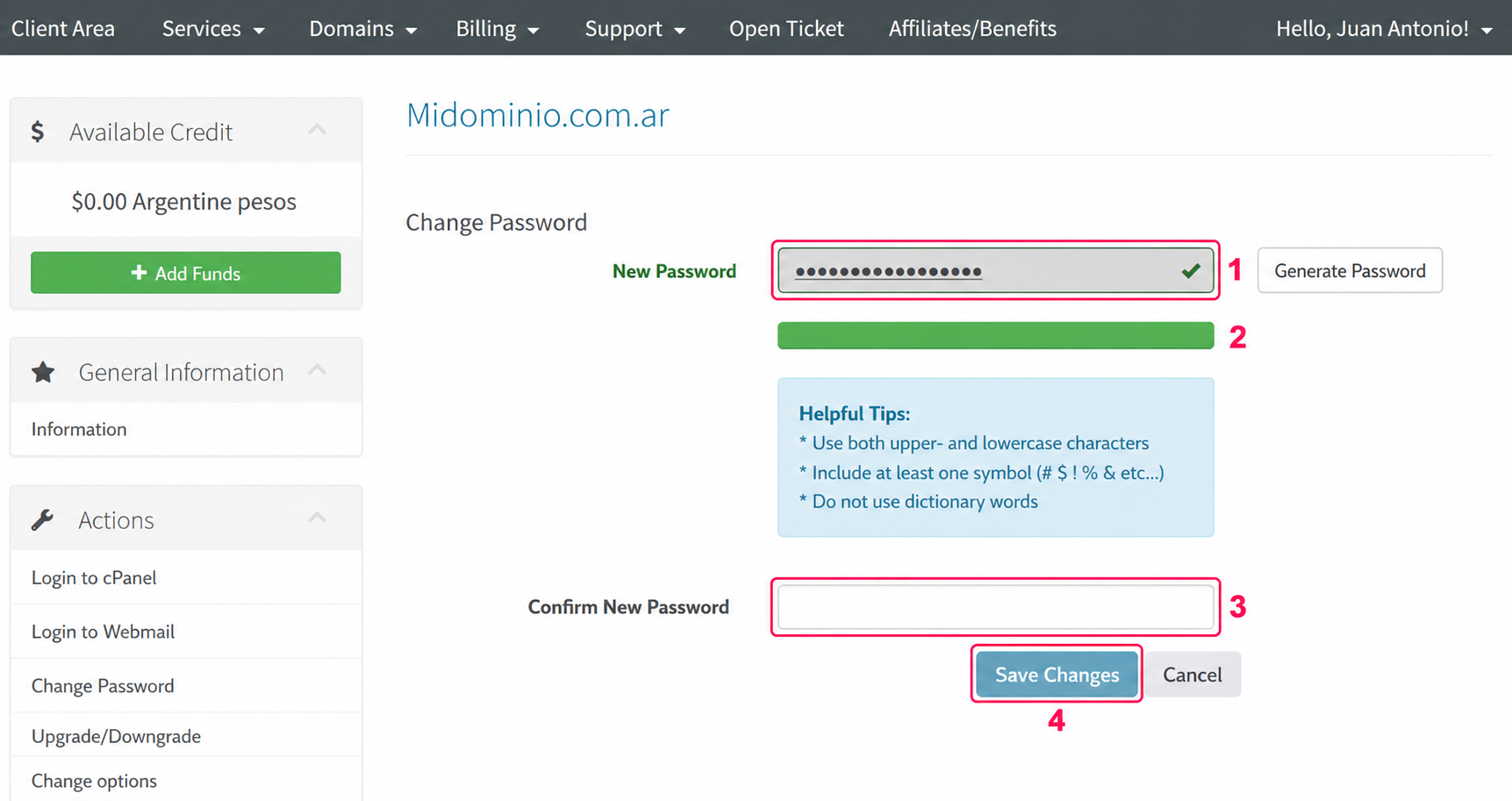
- On the new screen, follow these steps to finish setting the password:
- Enter the new password you want to use to access the control panel.
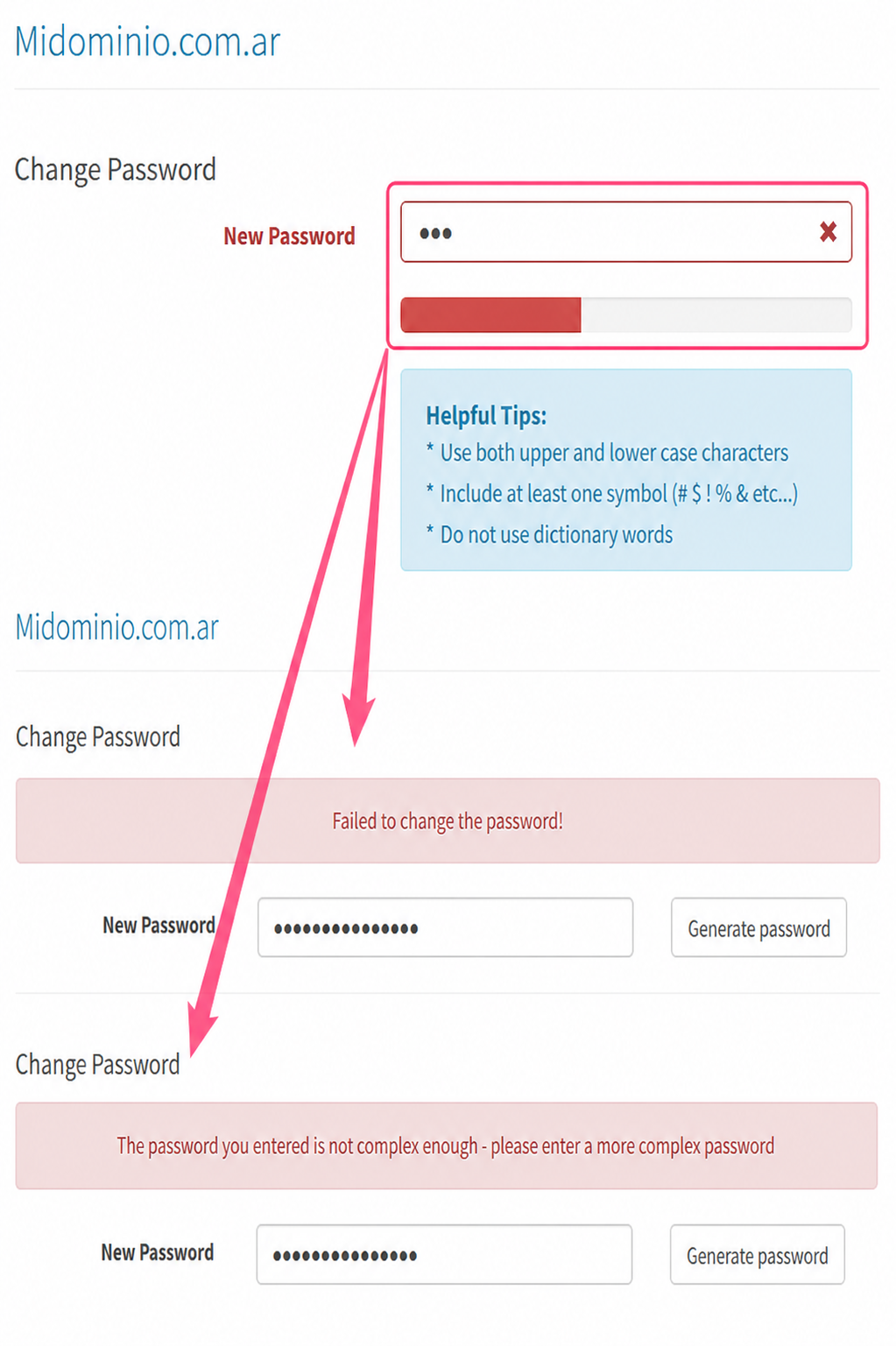
- Make sure the password strength indicator bar is green.
- Enter the same password again to confirm it.
- Press the Save Changes button to save it.
- If you try to save a password before the password strength indicator bar is green, the system will generate an error and you will need to create a new, more complex password.
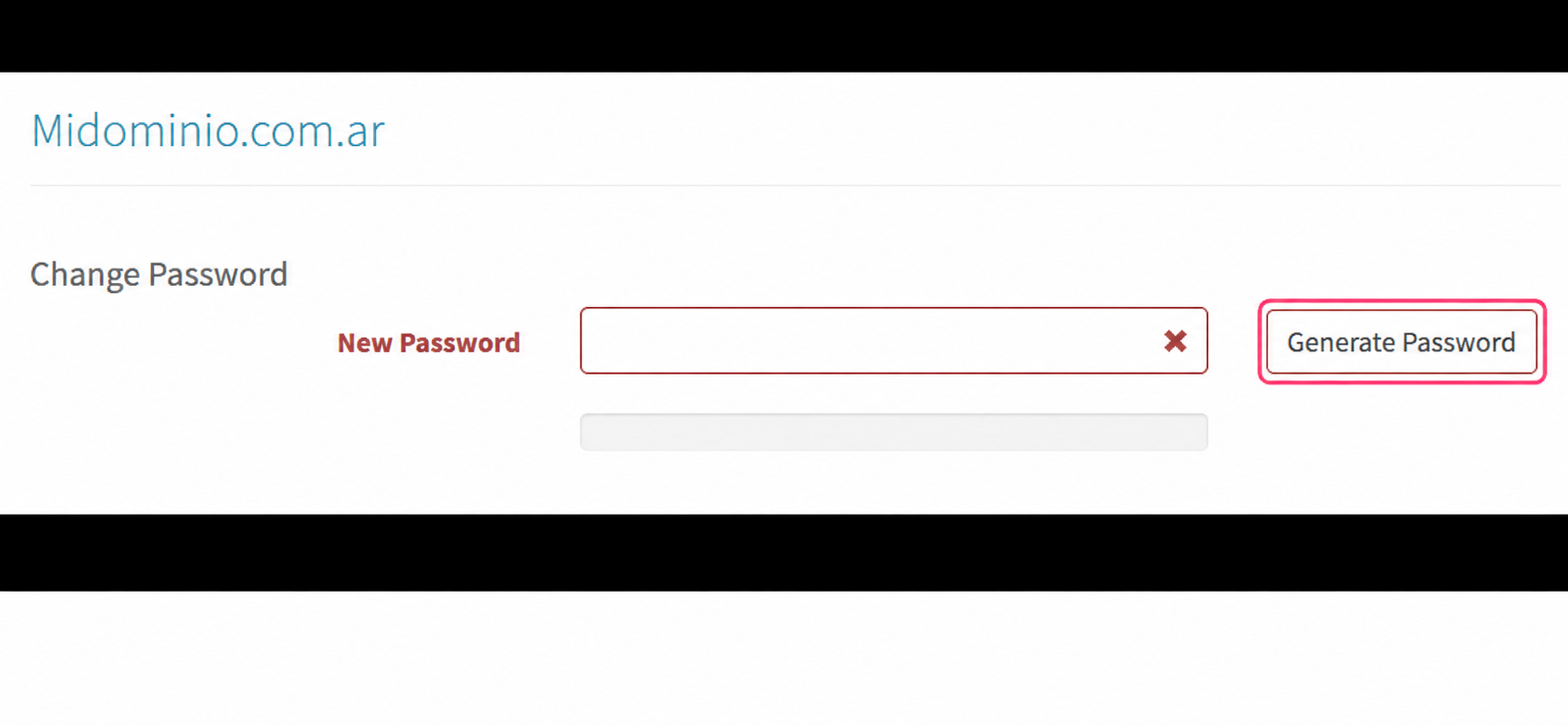
- To make sure the chosen password is sufficiently complex, you can click the Generate Password button.
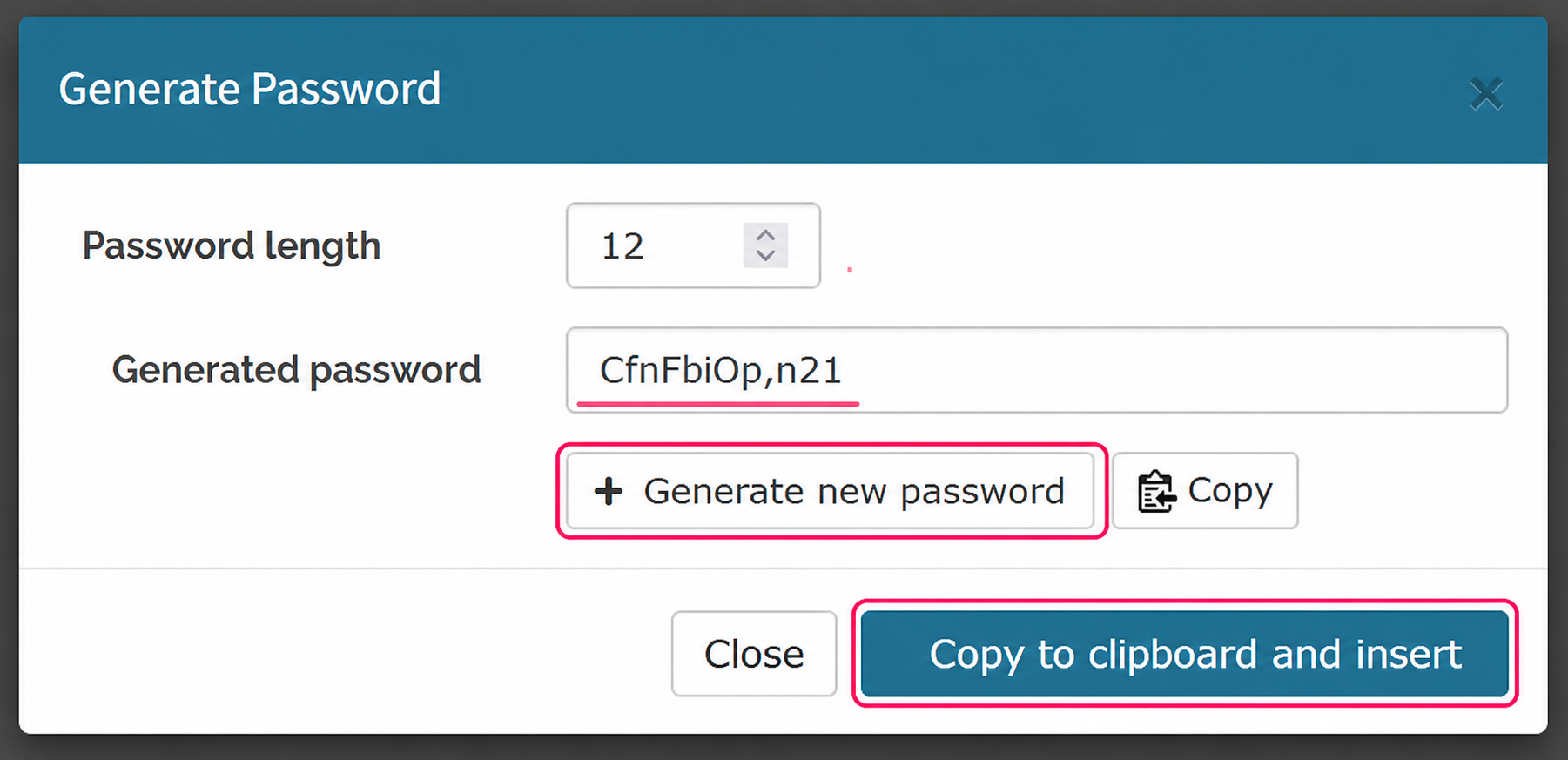
- You will see a window with options that will generate a random password with different levels of complexity.
Use the Generate new password button to change the generated password until you find one you like.
When you have chosen a password you can save it with the blue Copy to clipboard and insert button. It will already be selected as the new password.