
How to acquire a new service?
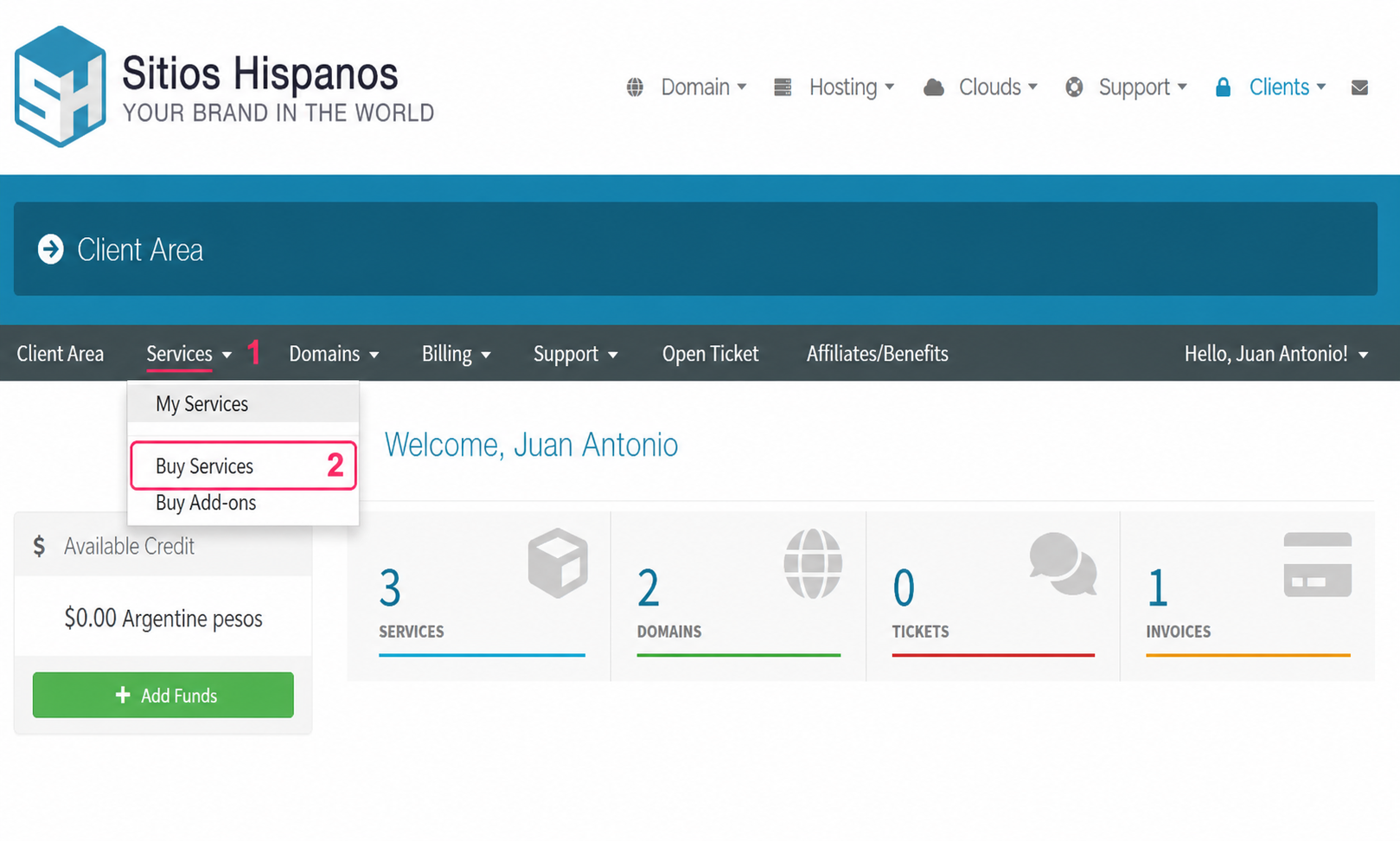
Once inside the Client Area go to the section Services=>Buy Services.
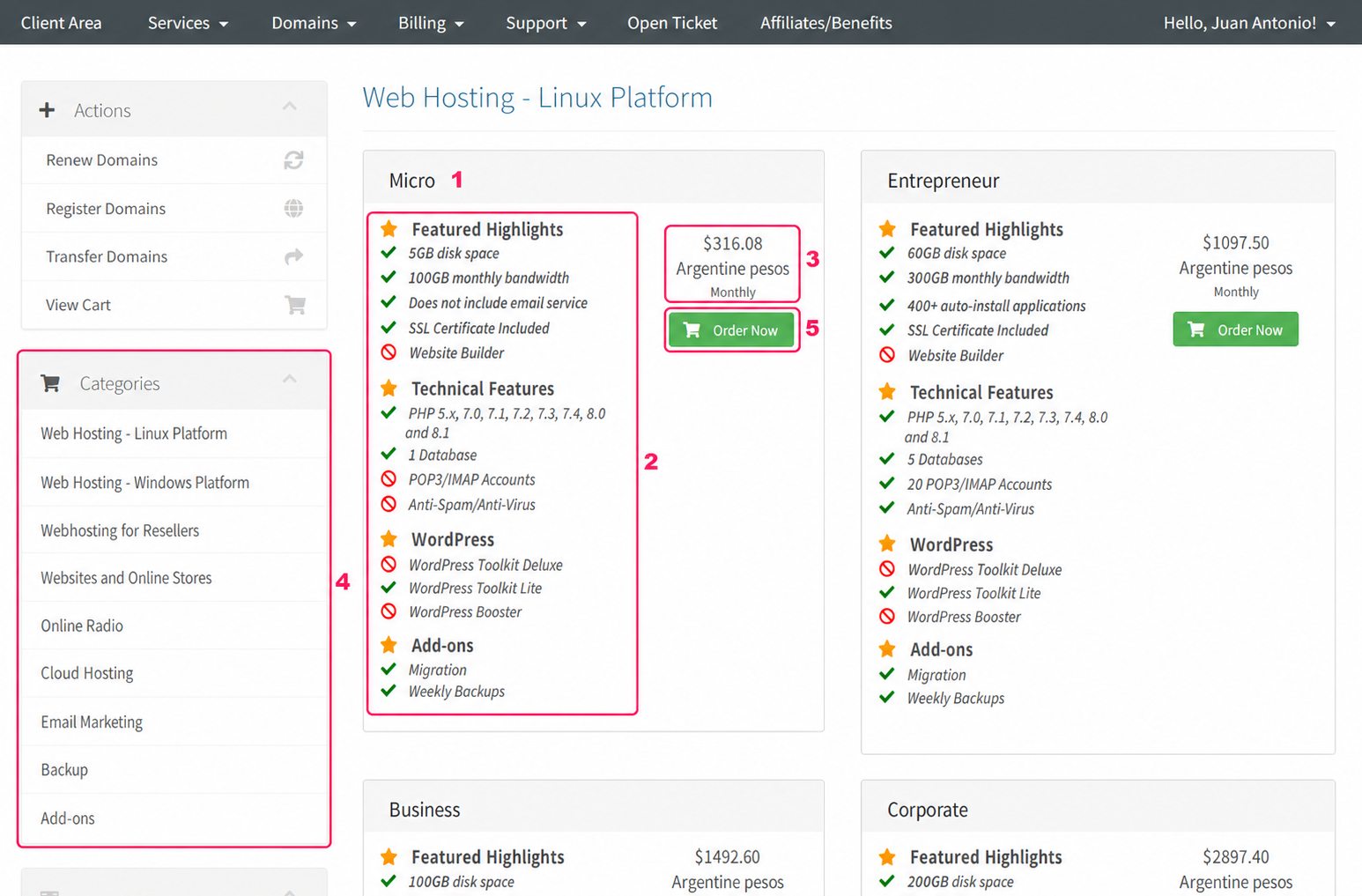
On the new screen you will see the following information:
- The name of each hosting plan.
- The features of the plan.
- The monthly price of the plan (you will be able to change the billing cycle in a later step).
- The “Categories” panel, from where you can choose other types of plans and services.
- The “Order Now” button will take you to the next screen to continue your order.
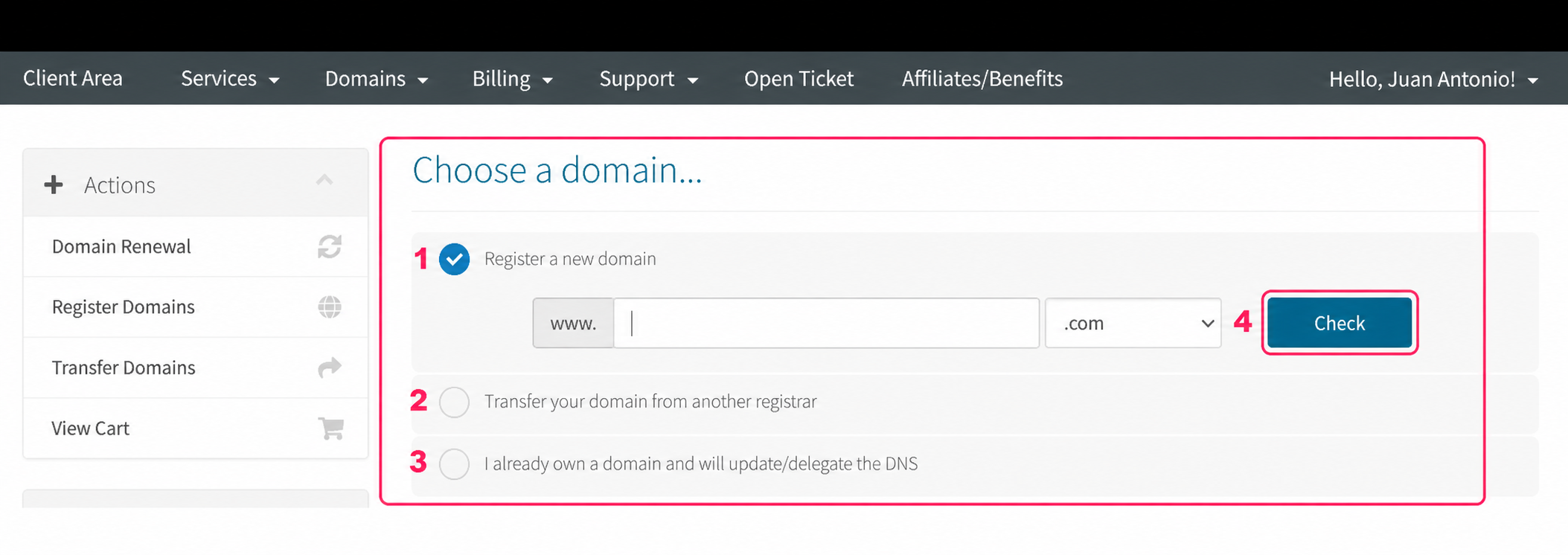
If the product you are ordering is a Hosting Plan the system will ask you to define how you will handle the Domain.
The options are:
- Register a domain with us. This domain will be added as a product to your order.
- Transfer a domain you are currently using from your provider to ours.
- Keep a domain with your current provider. You will need to change the DNS later.
- With the button to the right of any option you will continue your order.
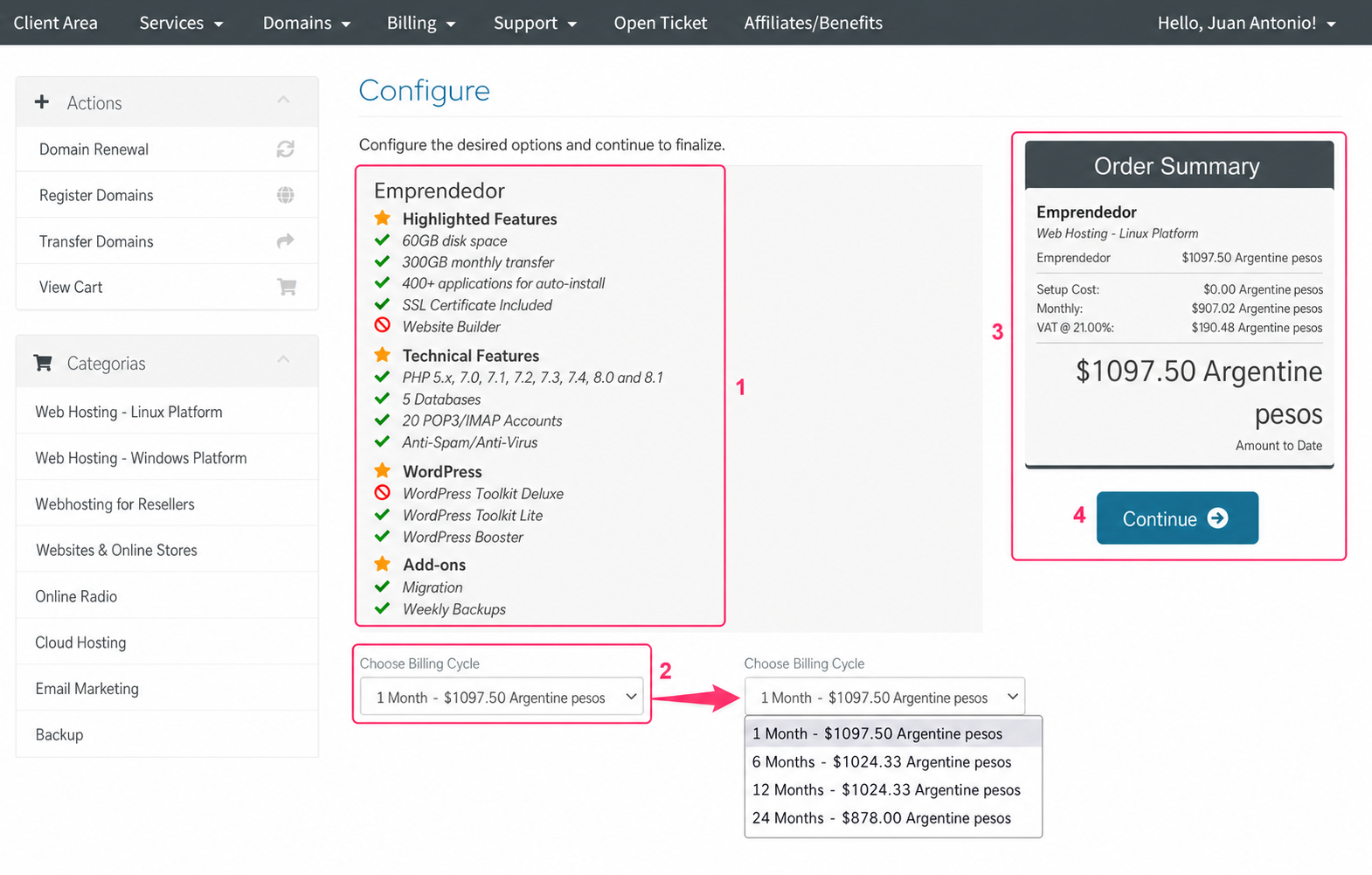
Continuing the steps of your order you will see a new screen with the following information:
- The features of the chosen hosting plan.
- The billing cycle you want to use to pay for the service. There are discounts for longer billing cycles.
- The detail of your ordered products with the sum of the final price.
- The “Continue” button will take you to the next screen to continue your order.
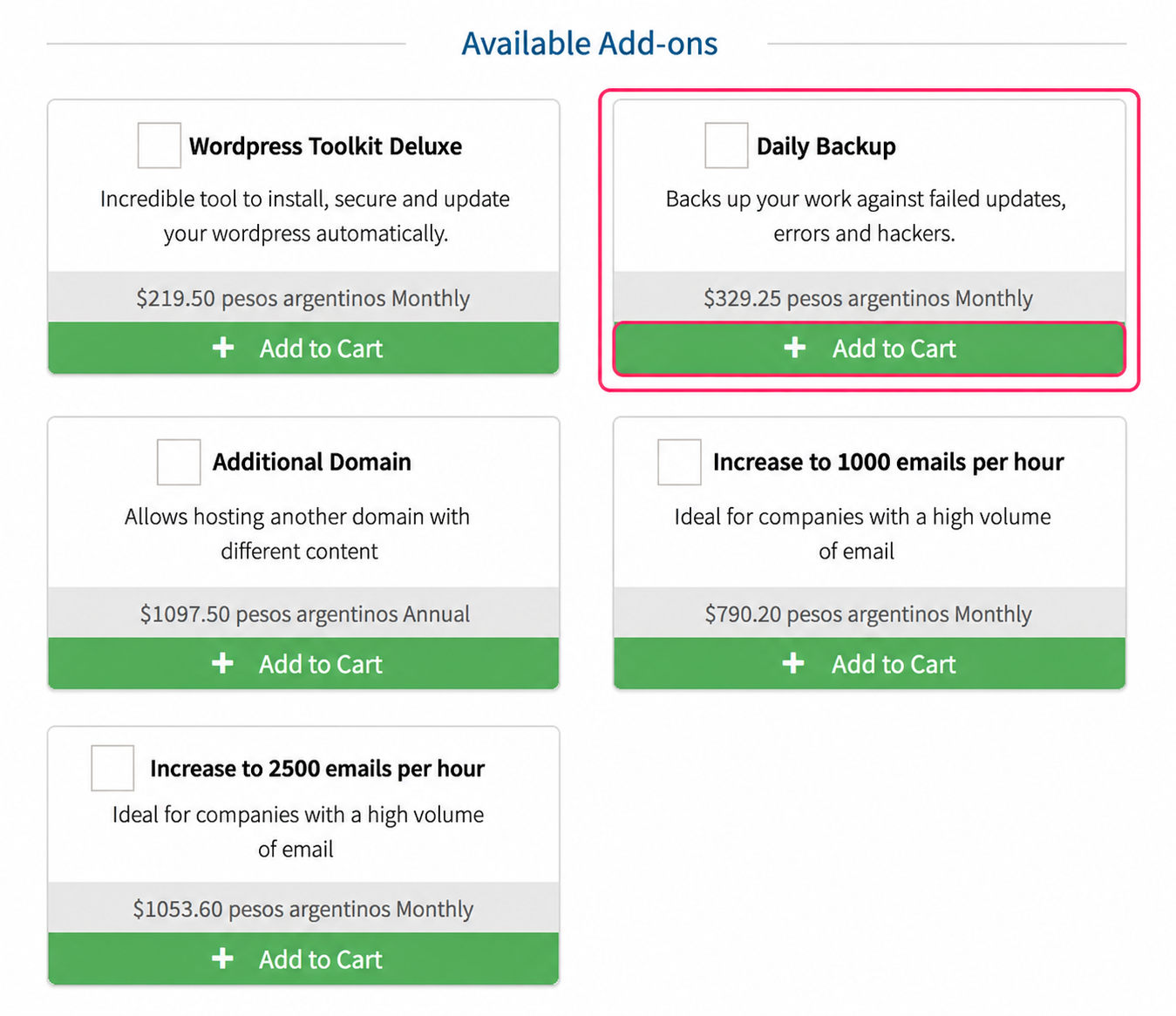
The add-ons you can add depend on the type of service ordered. By checking the box of the add-on you want and pressing the “Add to Cart” button you will add it to your order.
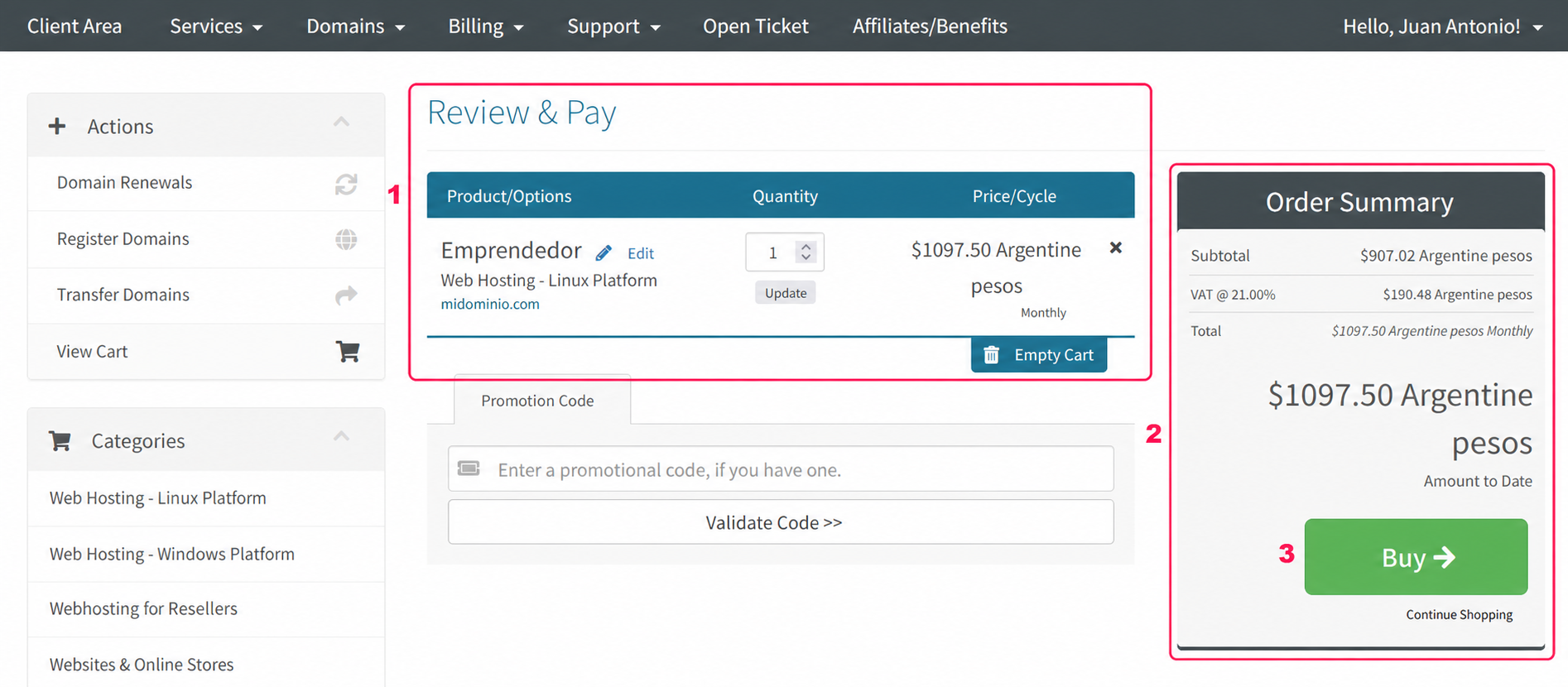
With all your products ordered you will see the following screen. It will show you:
- The product you have ordered with its price and chosen billing cycle.
- The breakdown with the final calculated price.
- The “Buy” button will take you to the last screen to process your order.
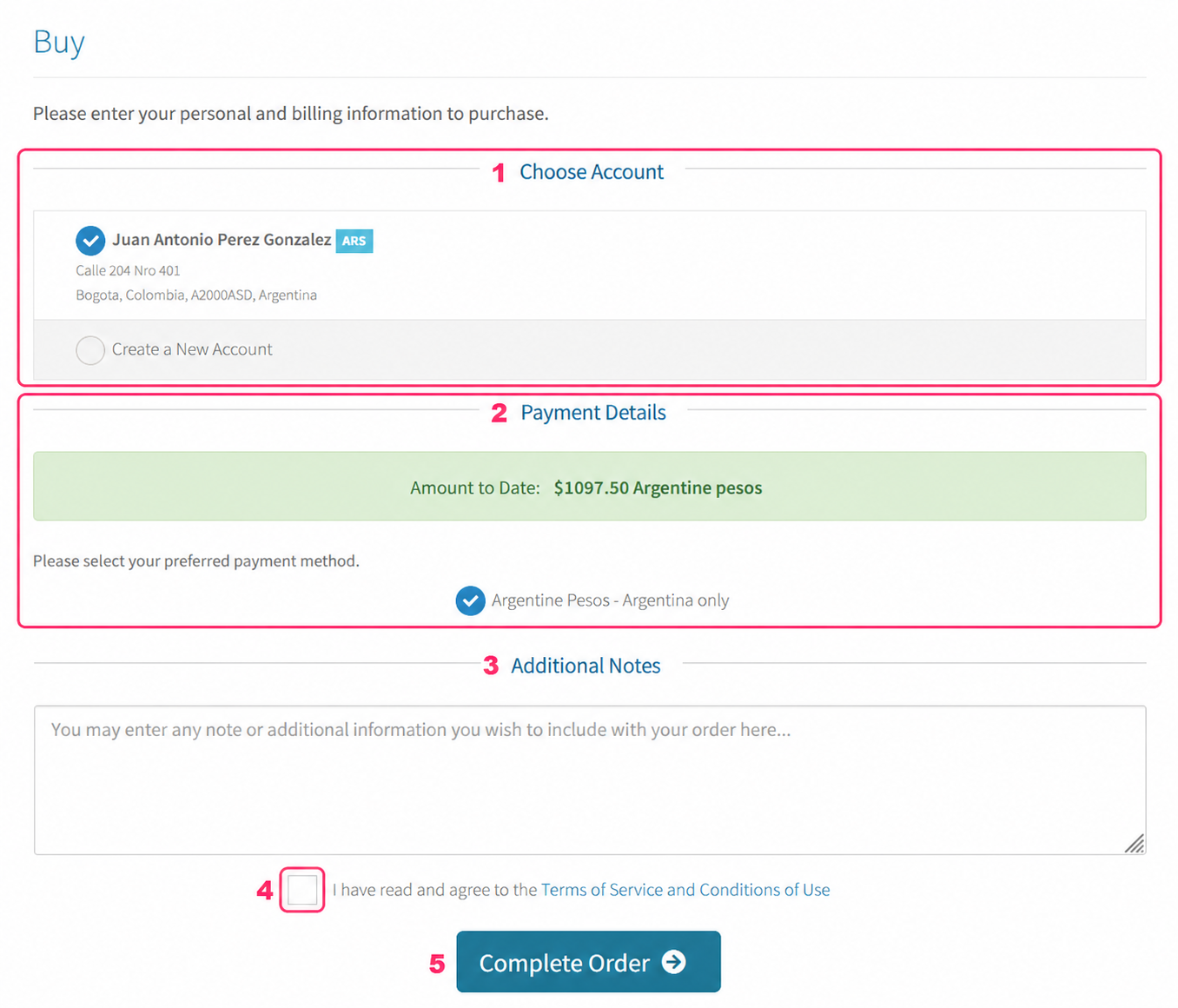
The last screen of the purchase process will show you these details:
- The system will ask you to choose the account you will use to pay for your order.
- You will see the breakdown of the final price to pay.
- You can add a note to your order for us to see when activating it.
- You must check the acceptance box for our “Terms and Conditions of Use”.
- Finally, with the “Complete Order” button, you will have completed your order.
That’s all. Once the generated proforma invoice is paid your order will be activated.