
How to register my domain?
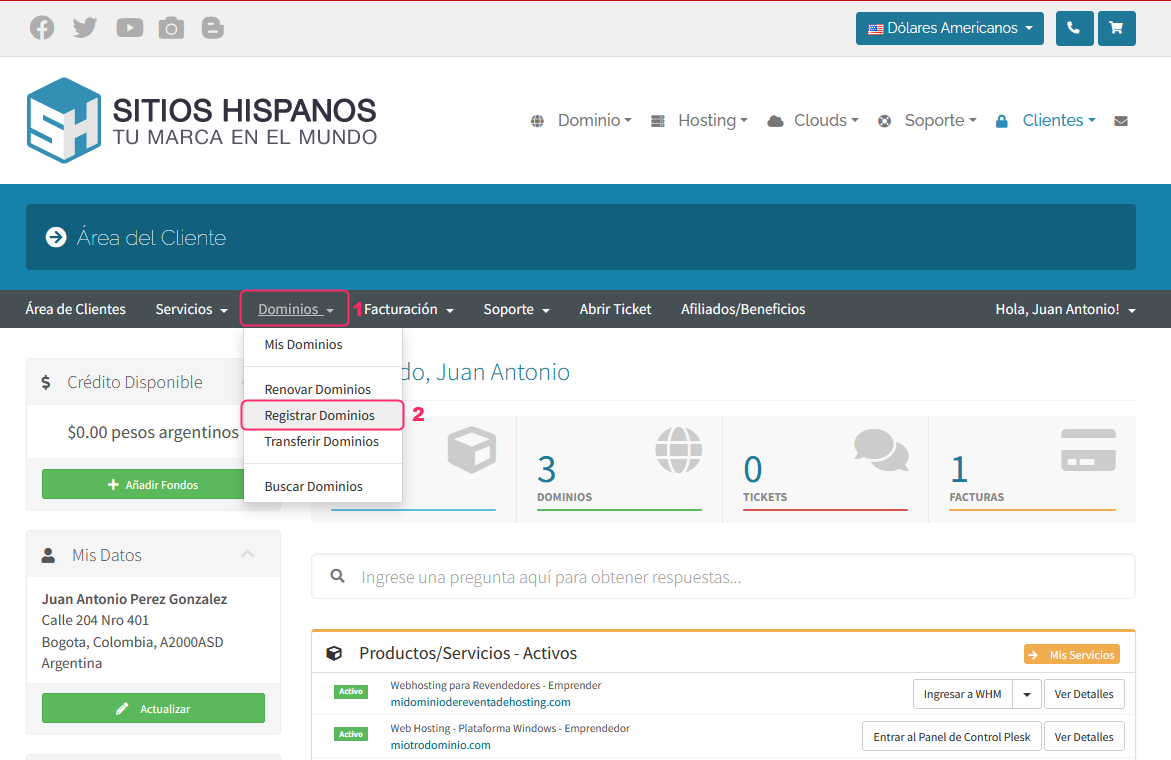
To register a domain, go to your Client Area, then open the Domains menu and select Register Domains.
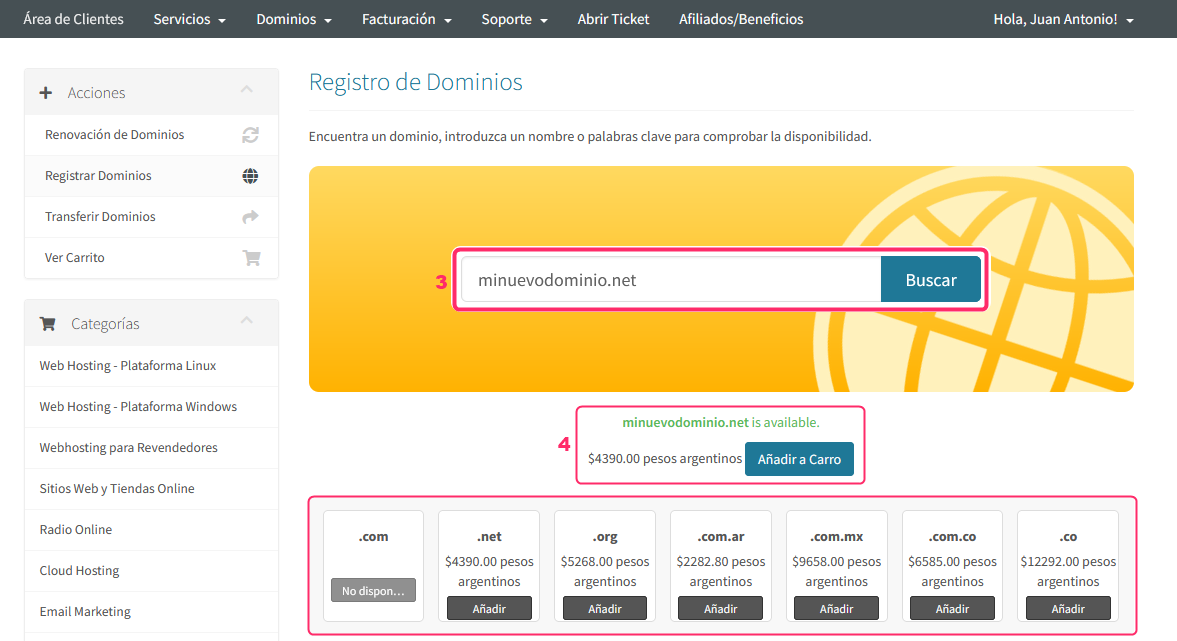
On the domain registration screen you will see a search field where you must enter the desired domain.
If the domain is available you will see the message “is available” in green, along with the domain price.
Below, you will see different options in case the domain you searched for is already registered.
With your chosen domain, press the Add to Cart button.
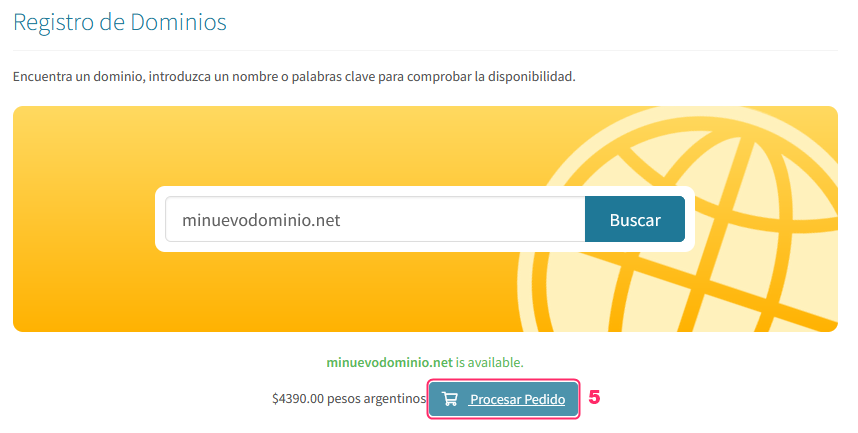
You will see that the Add to Cart button changes to Process Order. Press that button.
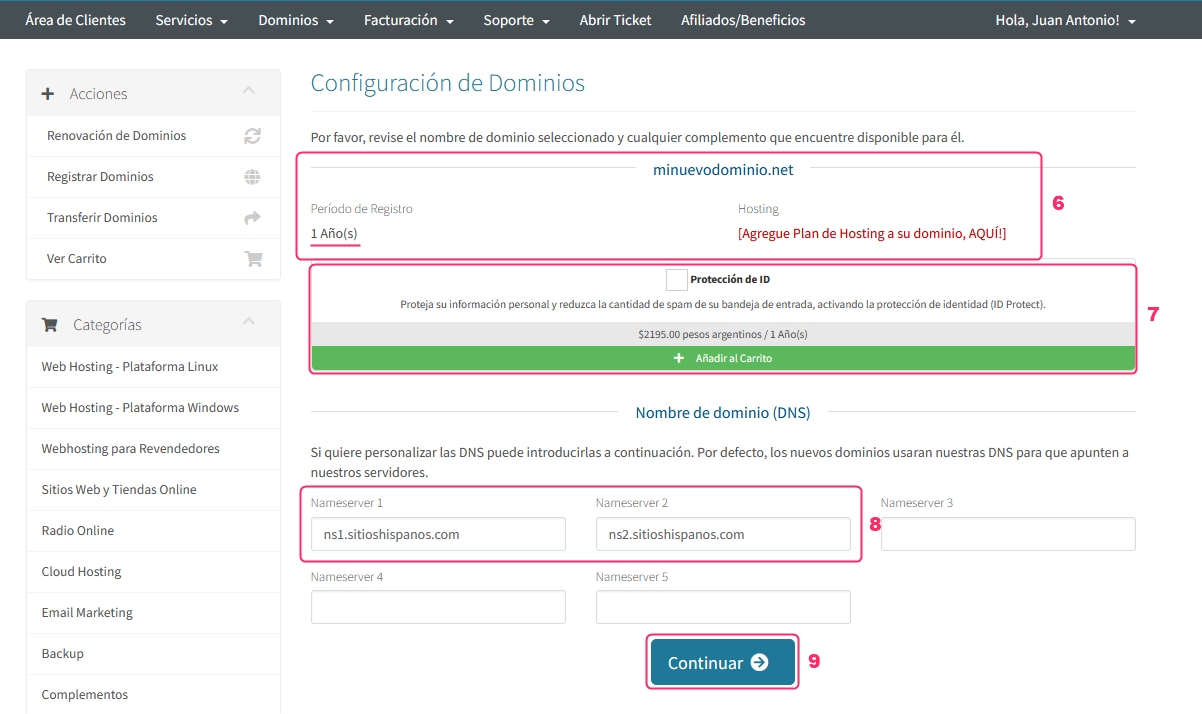
On the new screen you will find the following information:
- In this section you will see the registration period (the minimum is 1 year), and the option to purchase a hosting plan for your domain.
- Below, you will see an option called ID Protection. This option will hide your domain’s contact details, which can be queried from services like who.is.
This option has a cost and must be added with the green Add to Cart button. - Then you will see the DNS configuration section. Here you will need to delegate the DNS provided by your hosting company.
We will inform you which DNS to delegate according to the hosting plan you purchase. - Once you have configured the DNS, press the Continue button.
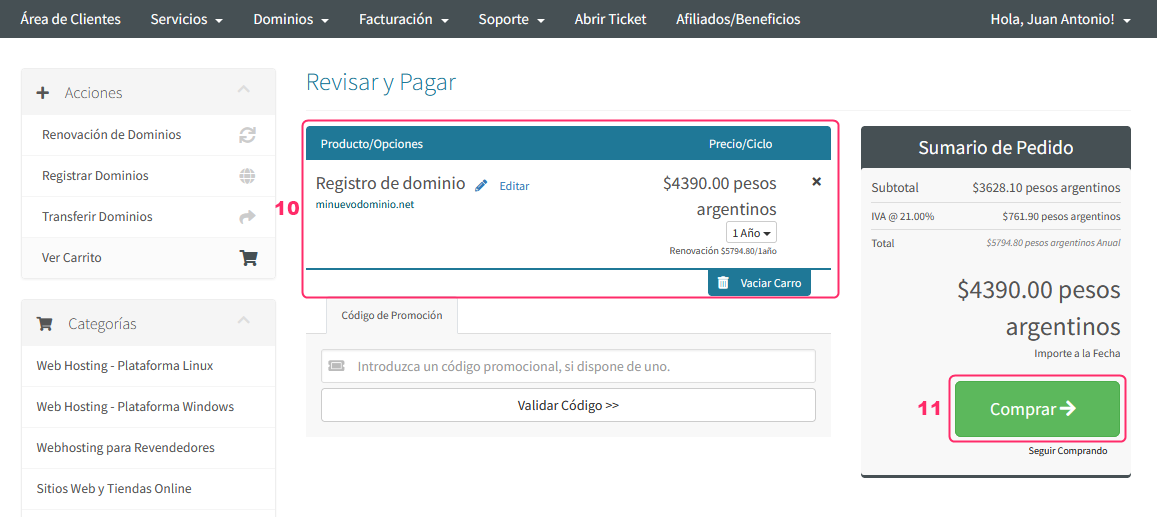
On the last screen of the process you will see the details of the chosen domain, the price, and you will also see a selector to register your domain for more than 1 year.
Once you have everything ready you can complete your order by pressing the Buy button.
Once the generated invoice is paid, the domain registration will be activated.
Keep in mind that registering a new domain will take several hours for its DNS to propagate across networks. When the DNS propagation is complete you will see your domain online.