
How to access my email account in cPanel Webmail?
Below, we will show you how to check your mailboxes from cPanel Webmail.
You can access cPanel Webmail from your Client Area, directly from your browser, or from the control panel itself.
Sign in from my Client Area
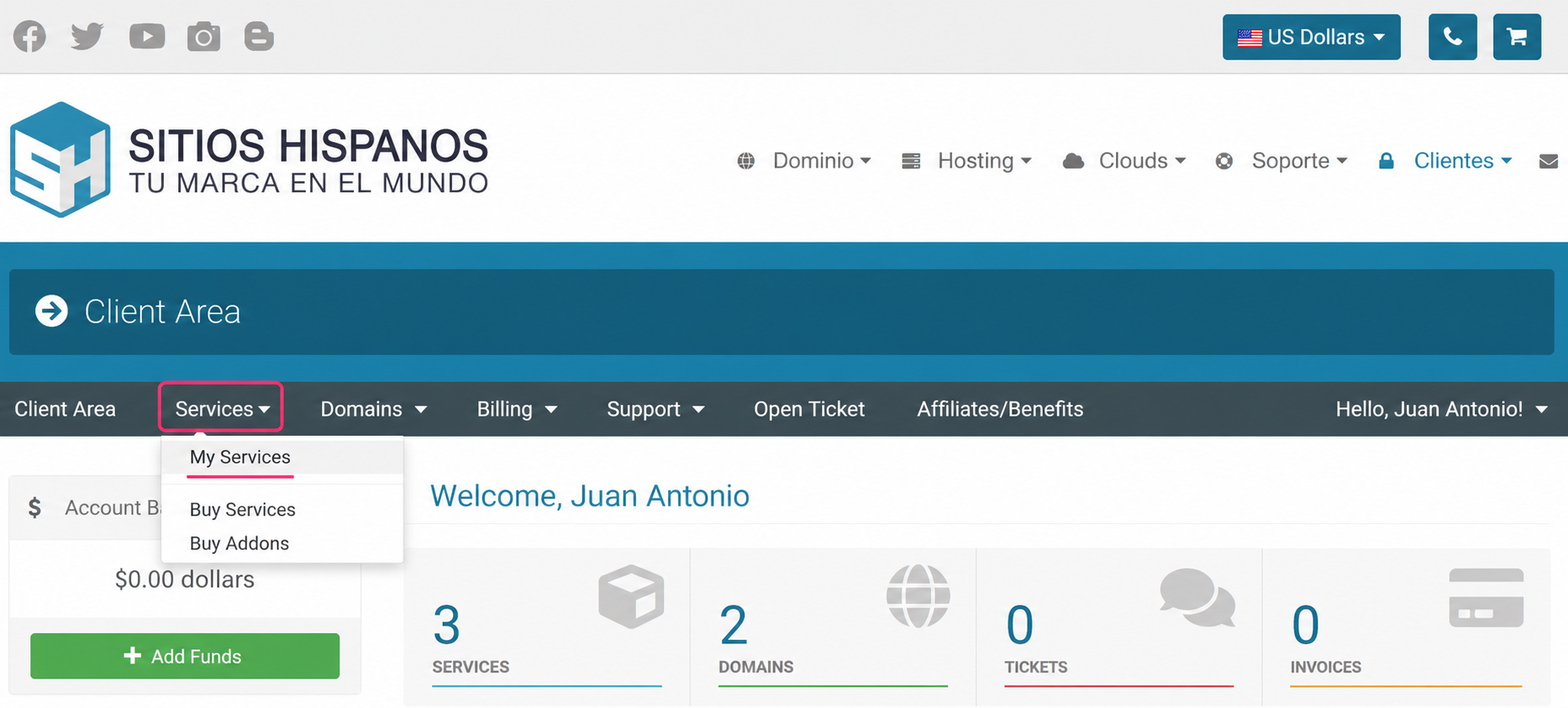
- In your Client Area go to Services and then to My Services.
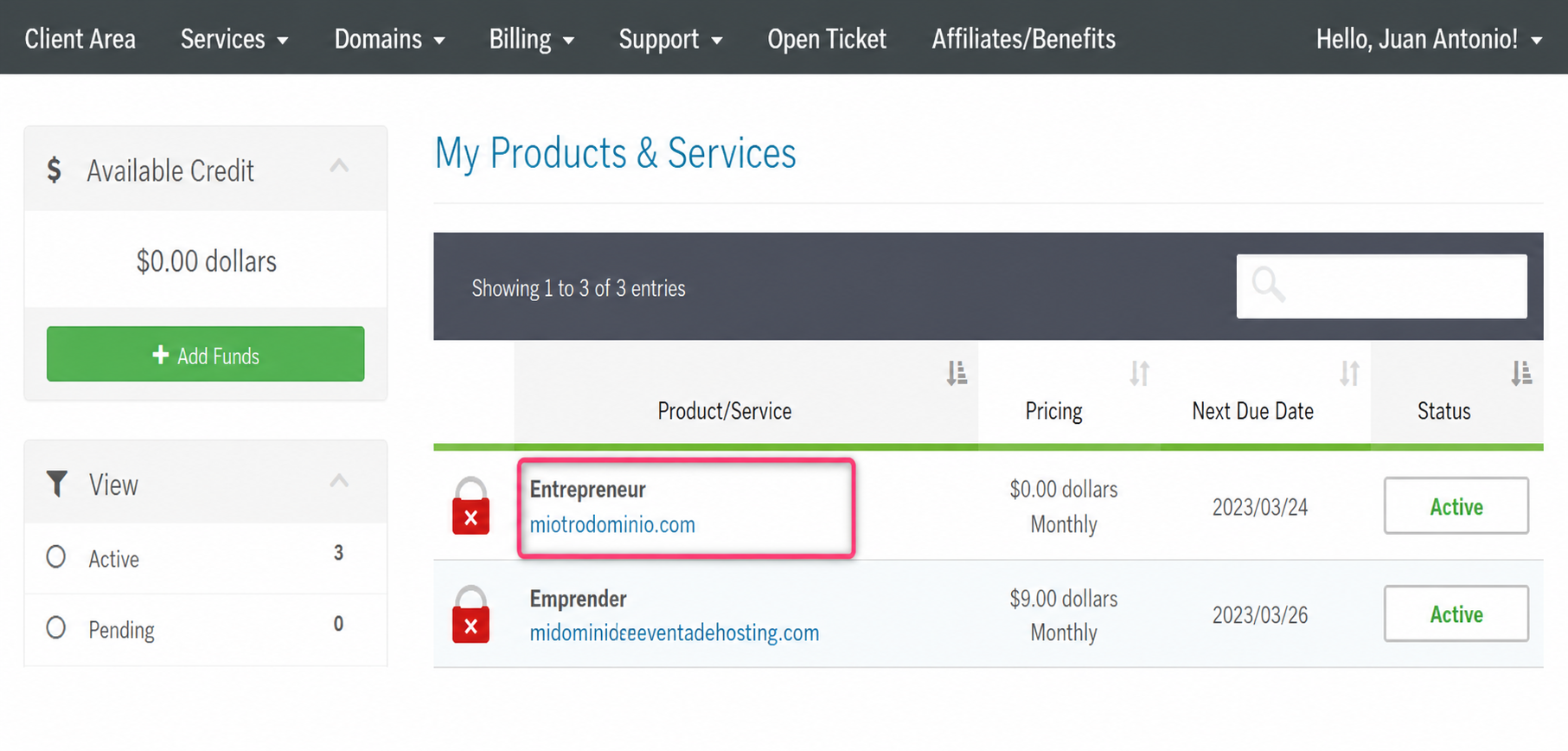
- From the list of hosting plans you have, enter the one whose mailbox you want to check.
- On the new screen, if you scroll down, you will find the Quick Shortcuts option and access to your mailboxes.
.png)
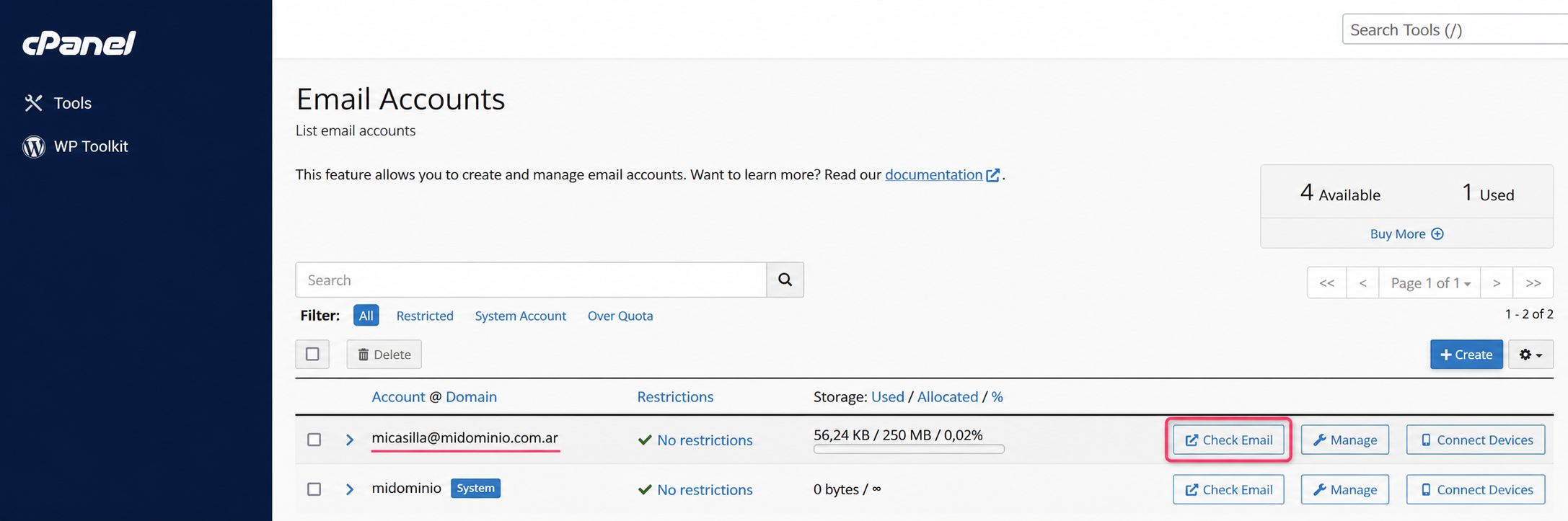
- Enter the cPanel control panel, directly to the area where mailboxes are created and reviewed. Press the Check Email button to view your mailbox in Webmail.
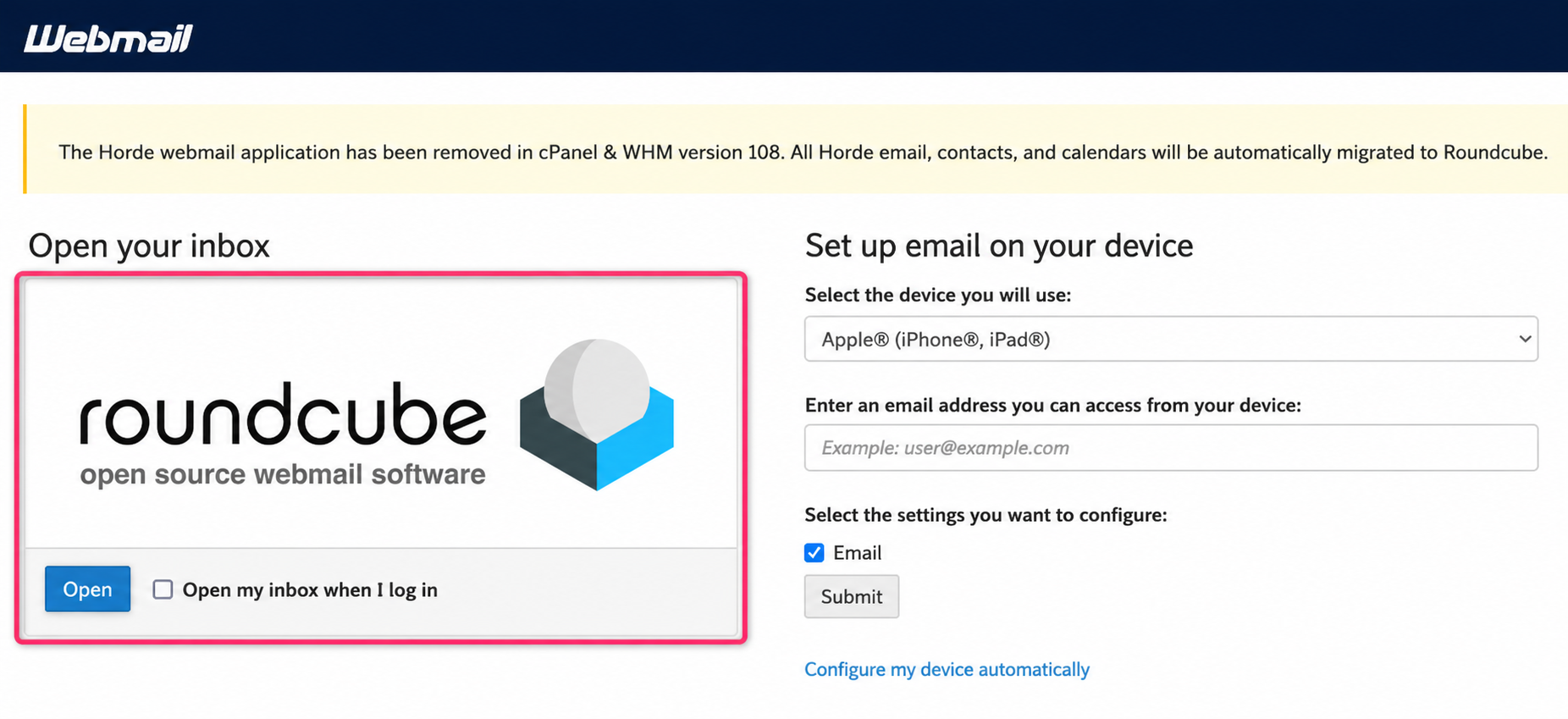
- Finally, click on roundcube to open your mailbox in Webmail.
Sign in from the browser
-
In your browser enter the web address sudominio.com/webmail
-
A screen will appear where you must enter your email address and password.
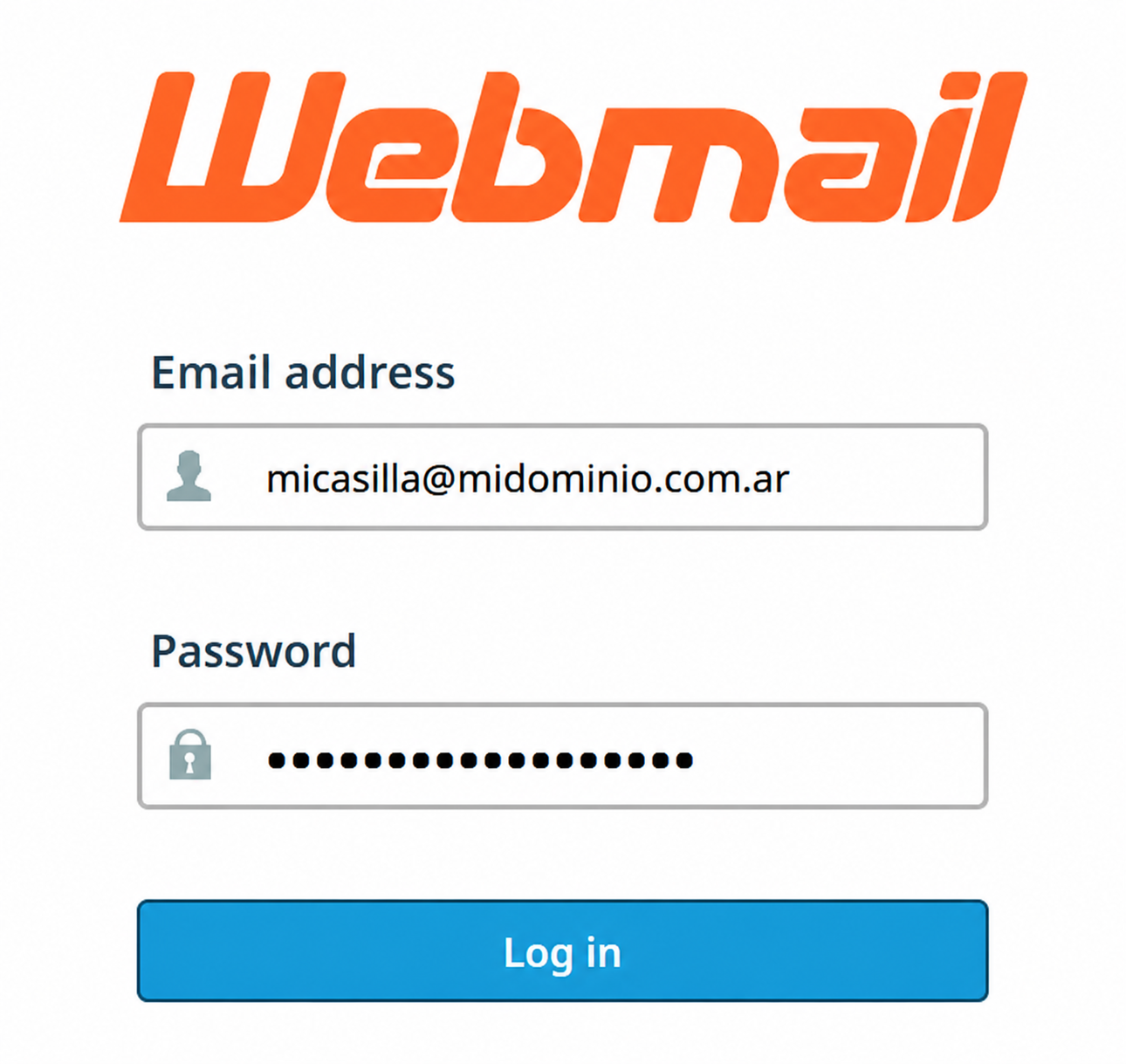
- You will arrive at the screen where you must choose roundcube to access your mailbox.
Sign in from the cPanel control panel
- In your browser enter the web address sudominio.com/cpanel and log in with your username and password.
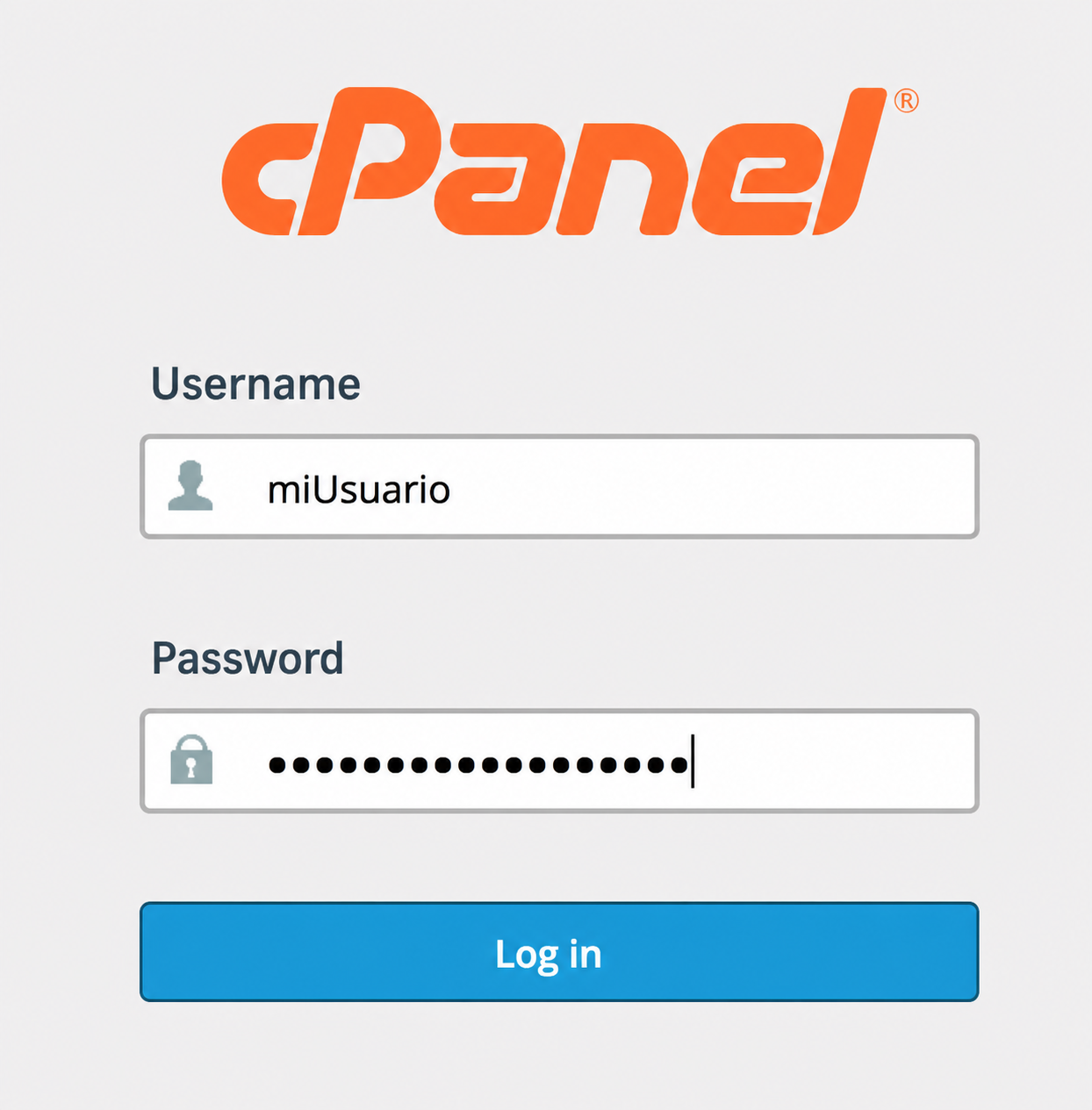
- Once you have logged into your cPanel control panel, you will find the Email box. Go to Email Accounts.
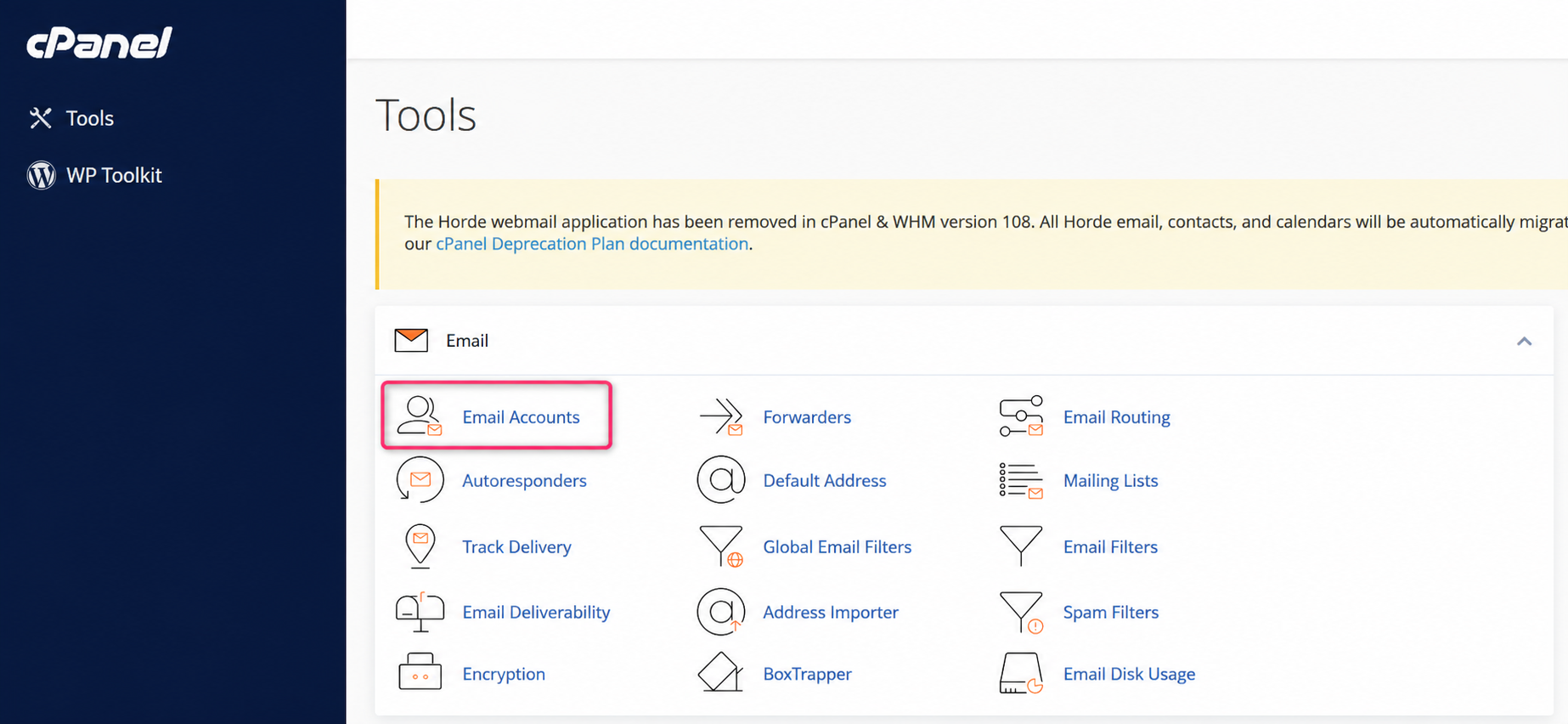
- On the new screen you will see the area from where mailboxes are created and reviewed. Press the Check Email button to view your mailbox in Webmail.
- You will reach the screen where you must choose roundcube to access your mailbox.