
How do I access my email account in Plesk Webmail?
Below, we will show you how to check your mailboxes from Plesk Webmail.
You can access Plesk Webmail from your Client Area or from the control panel itself.
Access from my Client Area
1) In your Client Area go to Services and then to My Services.
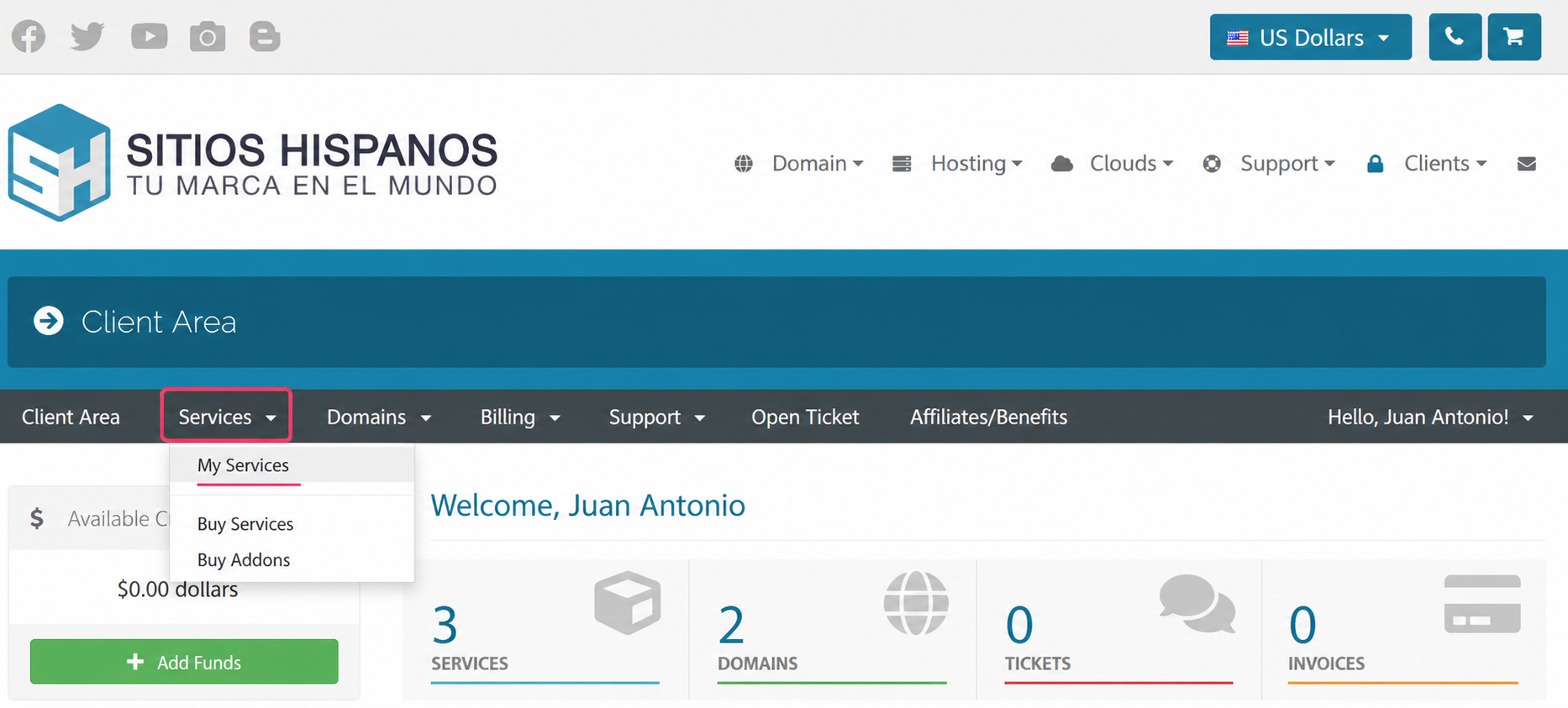
2) From the list of hosting plans you have, enter the one for which you want to check the mailbox.
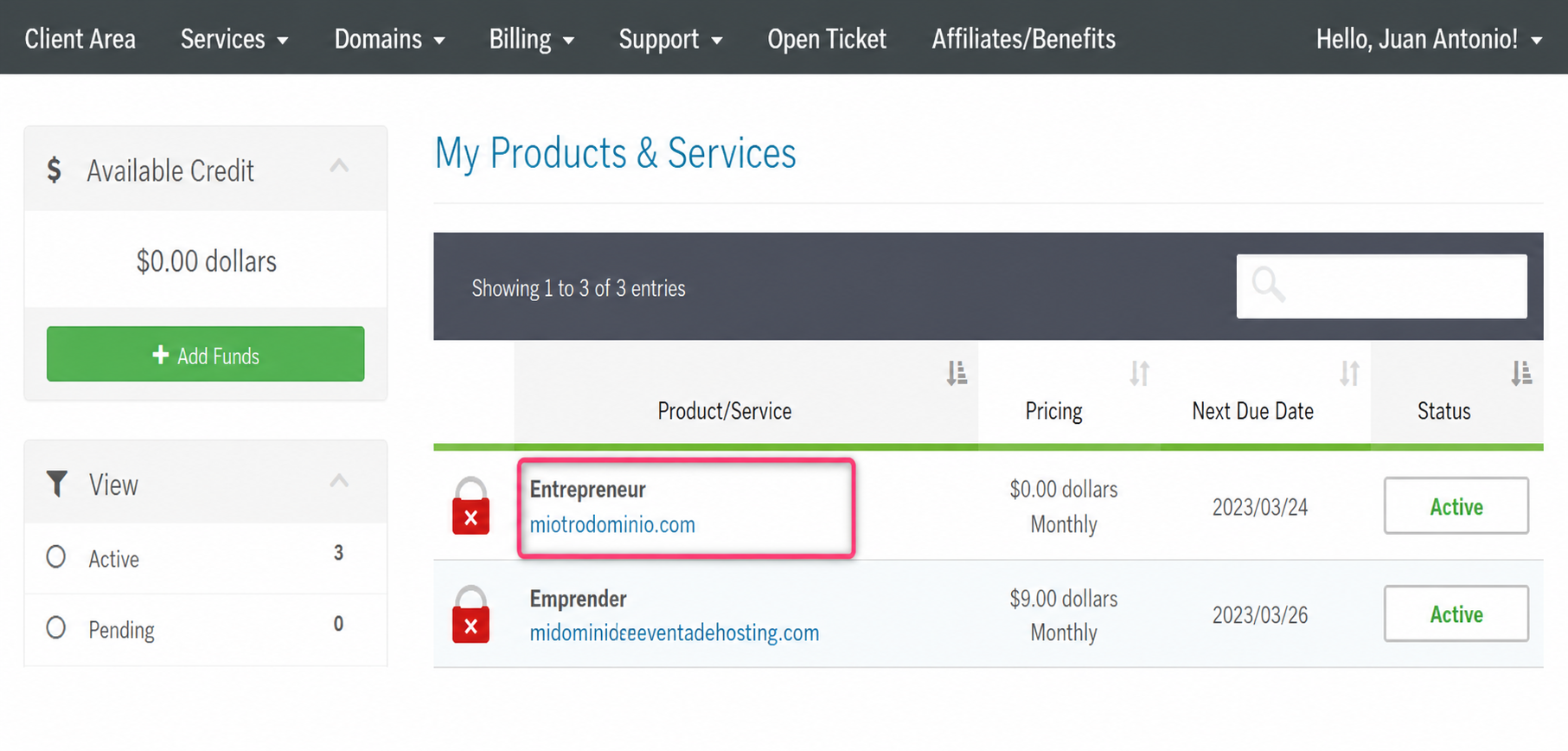
3) On the new screen, if you scroll down, you will find the Quick Shortcuts option and access to your mailboxes.
.png)
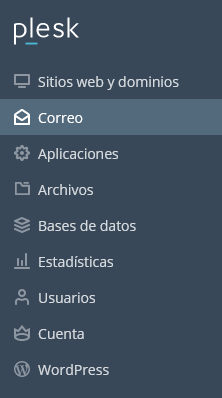
4) Enter the Plesk control panel. Look in the left menu for the Mail option and select it.
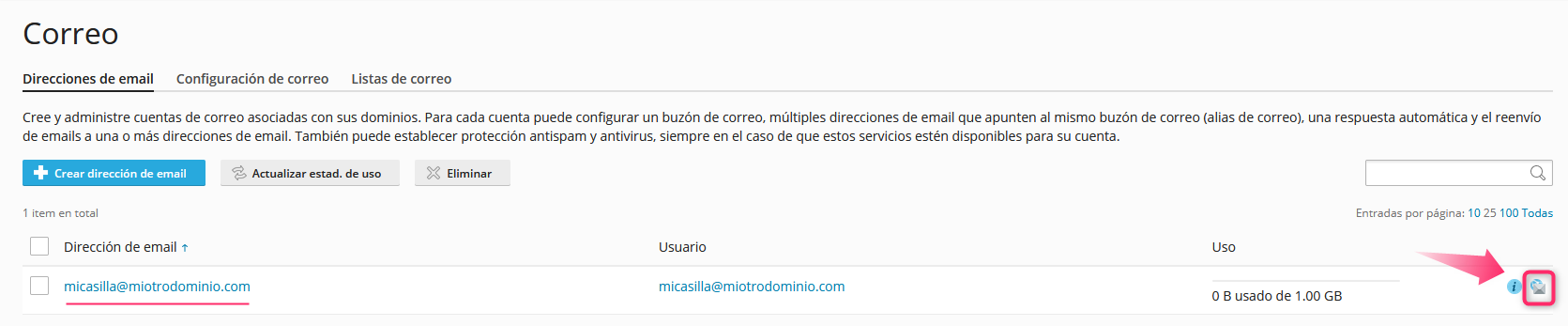
2) On this screen you will see the list of created mailboxes. Go to the Mail Settings tab.
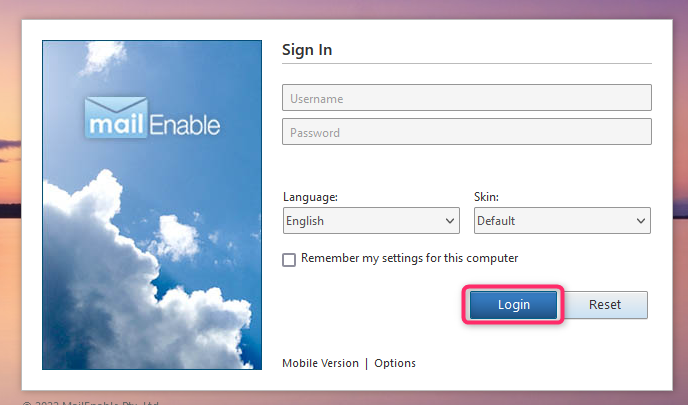
6) Finally, enter your mailbox details on the Login screen
Access from the Plesk control panel
1) Enter this web address in your browser to access the Plesk control panel: https://windows10.webhosting-network-services.com:8443
2) Once in the Plesk control panel, look in the left menu for the Mail option and select it.
3) On this screen you will see the list of created mailboxes. On the right, you will see an icon to access Webmail.
4) Finally, enter your mailbox details on the Login screen