
How to configure automatic email forwarding?
Below we will show you how to configure automatic email forwarding.
By configuring an email forwarder you can automatically forward emails that arrive to one mailbox to another mailbox.
Accessing the Forwarders tool
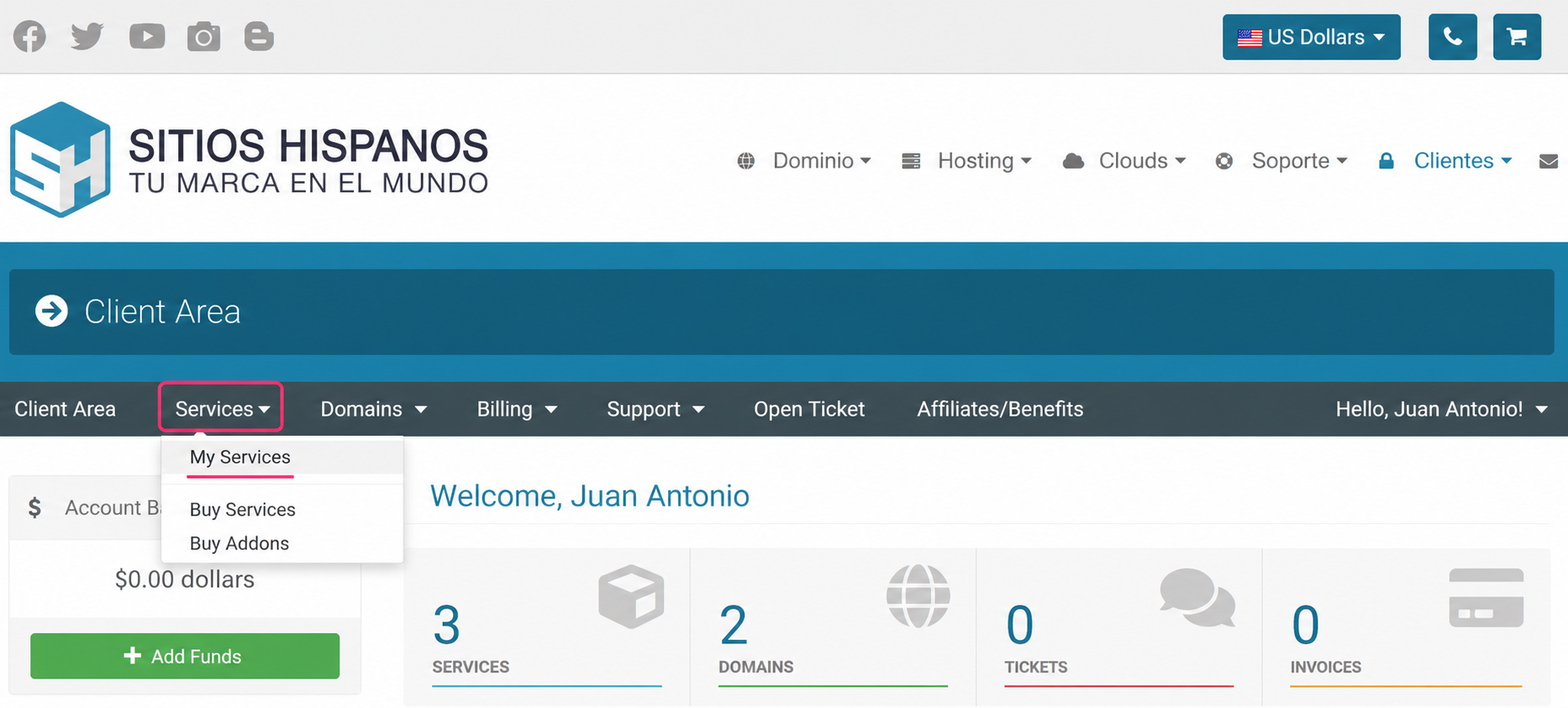
1) Log in to your Client Area and click on Services, then My Services.
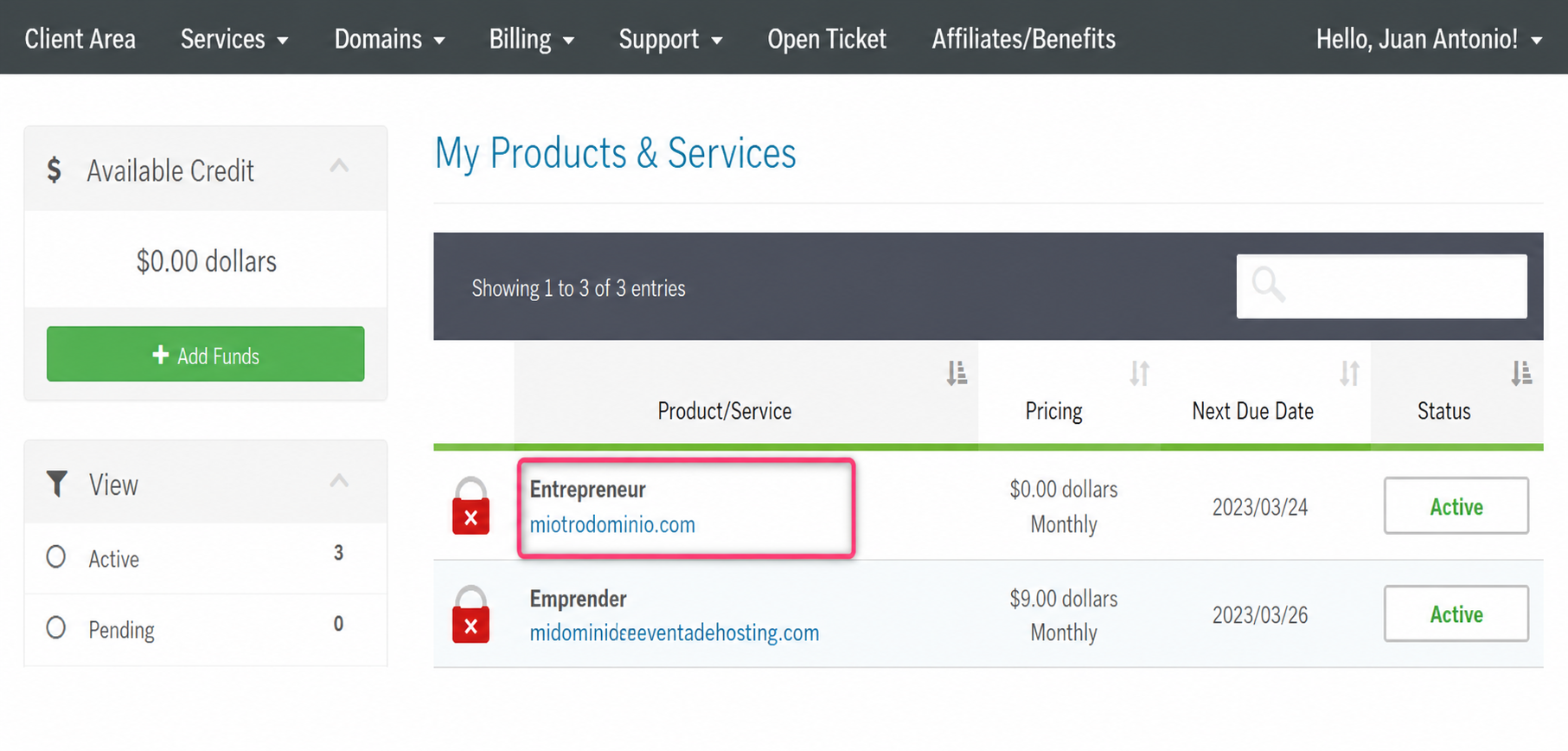
2) From the list of hosting plans you have, enter the one where you want to activate a Forwarder.
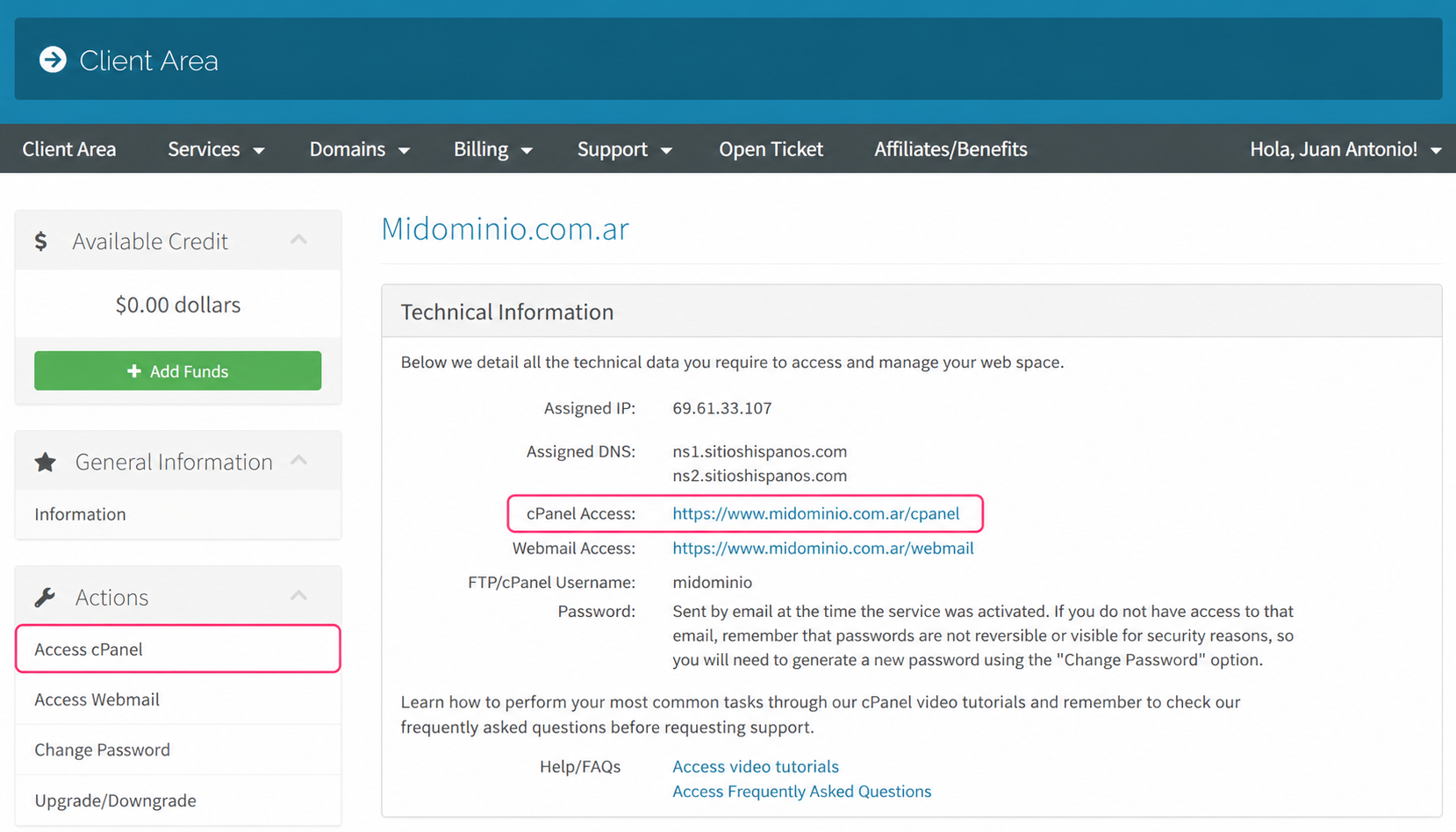
3) On the new screen you will see, in the Actions box on the left, the option to access the cPanel control panel.
You will also see, in the central Technical Information box, the direct link to the panel from your browser.
4) Once in the cPanel control panel, go to Forwarders, in the Email box.
.png)
5) On the configuration screen define the domain that will generate your forwarders.
Then choose to create an individual forwarder for a mailbox or a forwarder for all mailboxes of a domain.
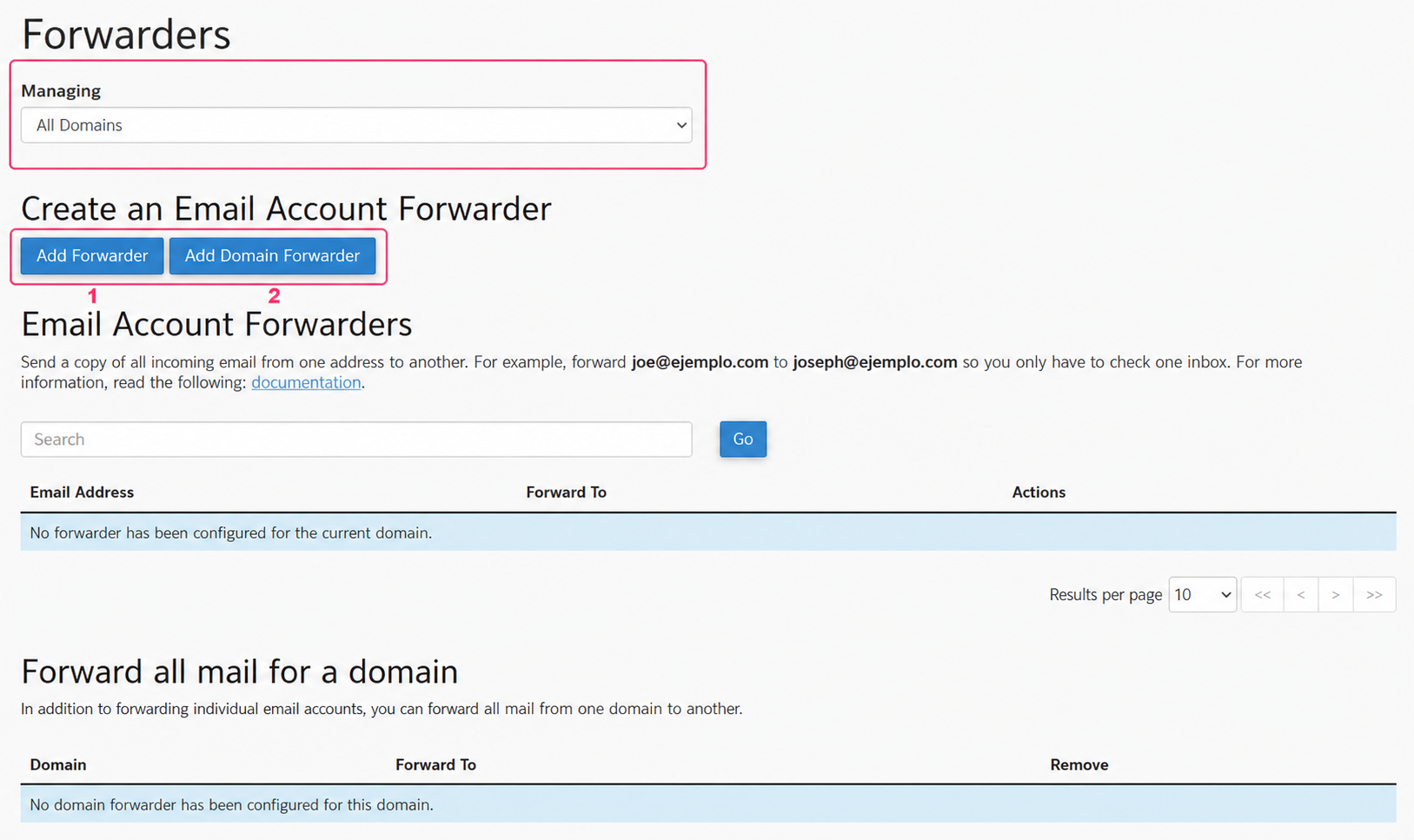
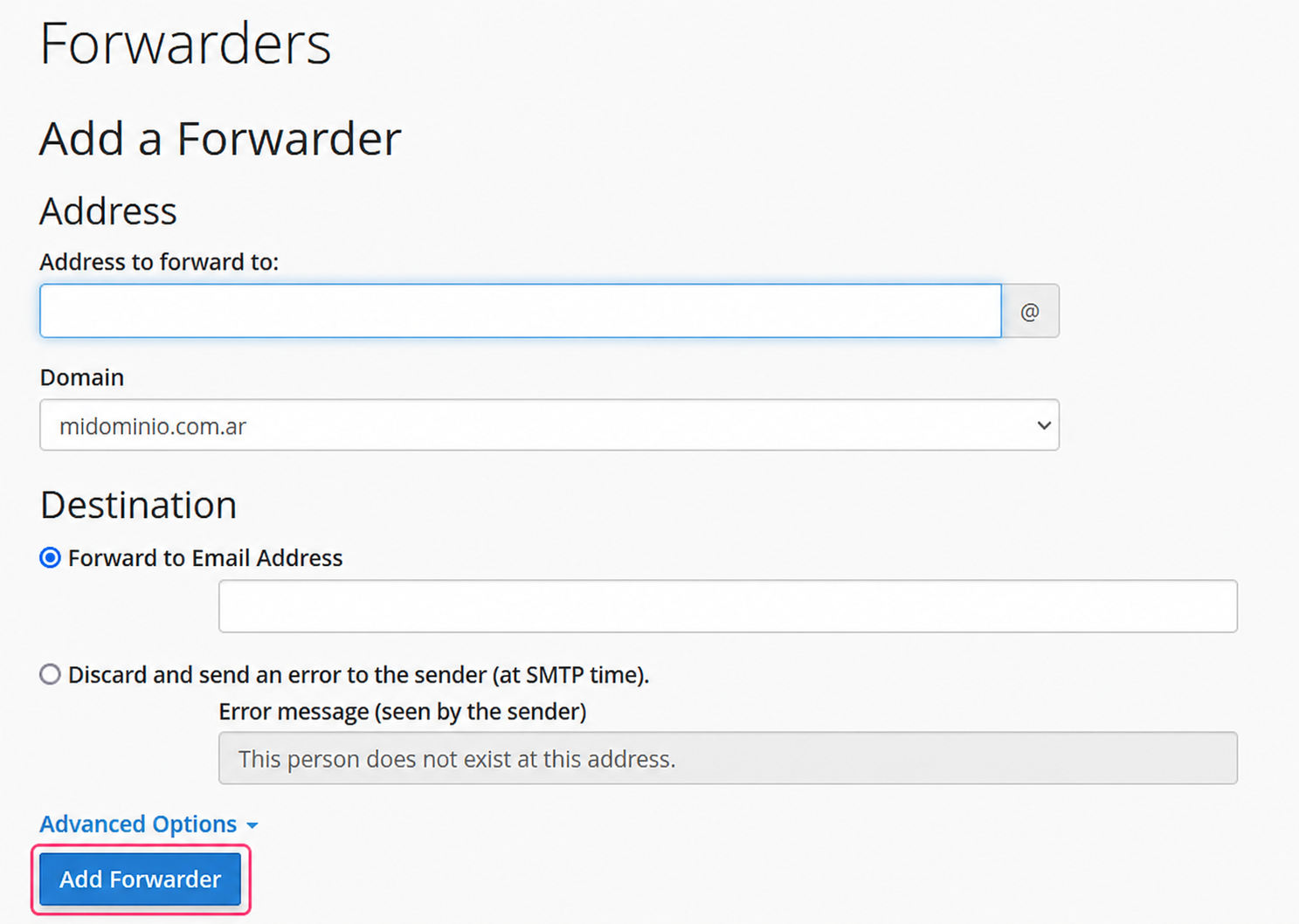
Individual forwarder:
The individual forwarder will ask you to configure the mailbox that will forward your emails and to which mailbox to forward them.
Use the Add Forwarder button to save your forwarder.
Domain forwarder:
The domain forwarder will allow you to forward all emails that arrive to the mailboxes of your domain to the same mailboxes on another domain.
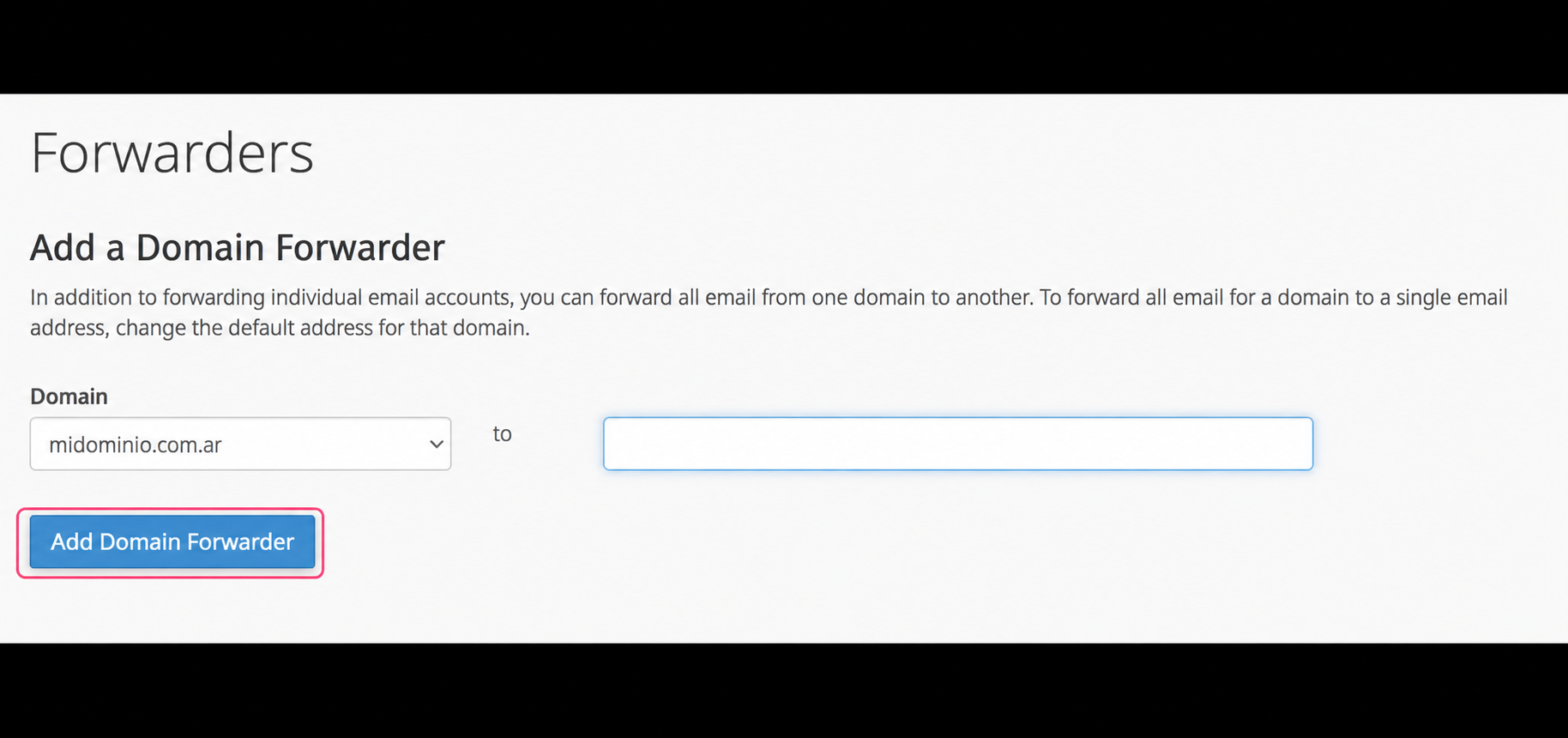
Use the Add Domain Forwarder button to save your forwarder.