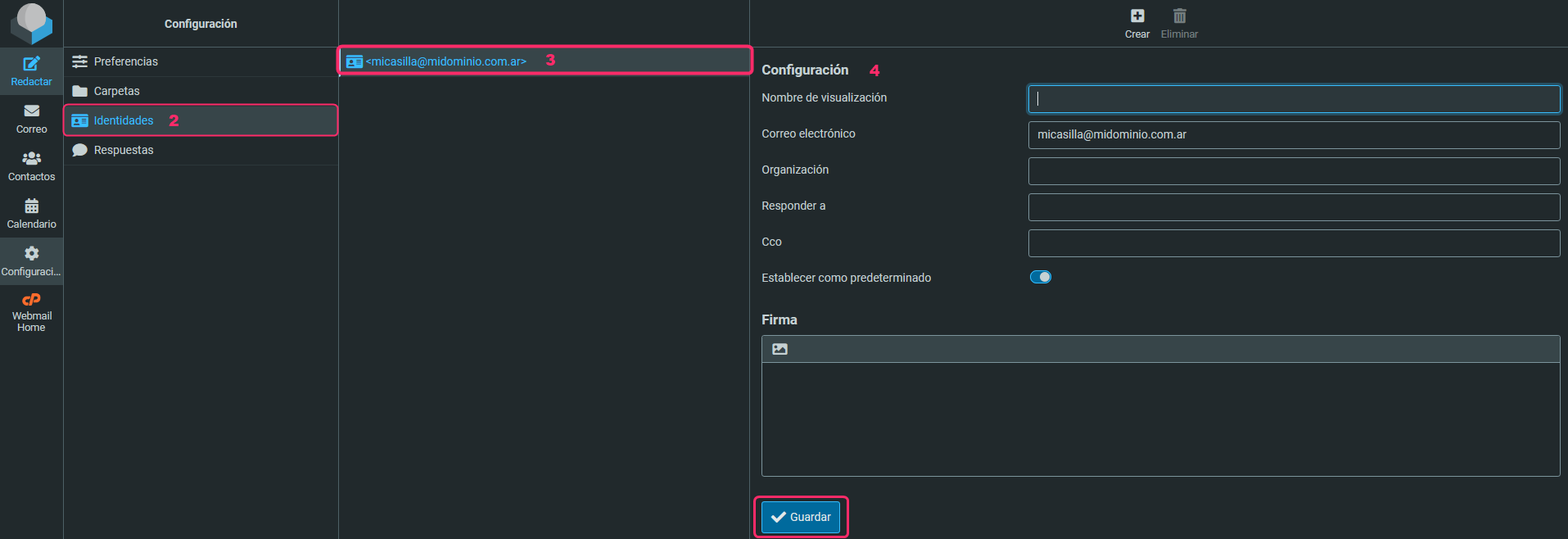
How to create an email signature?
Below, we will show you how to create a Signature so that it appears on your emails.
To set up a Signature that appears in all the emails you send, follow these steps:
Accessing Webmail to create your Signature:
- Log in to your Client Area and click on Services, then My Services.
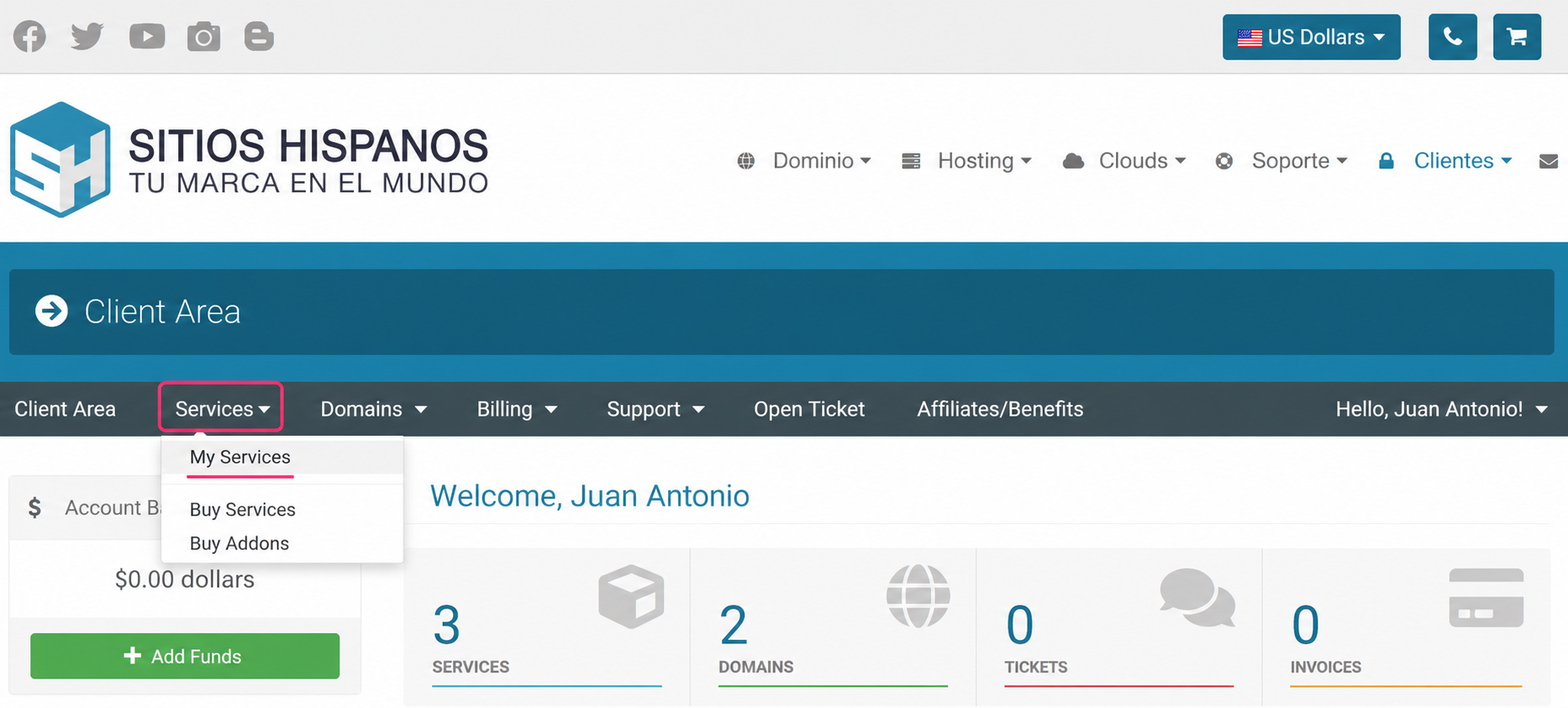
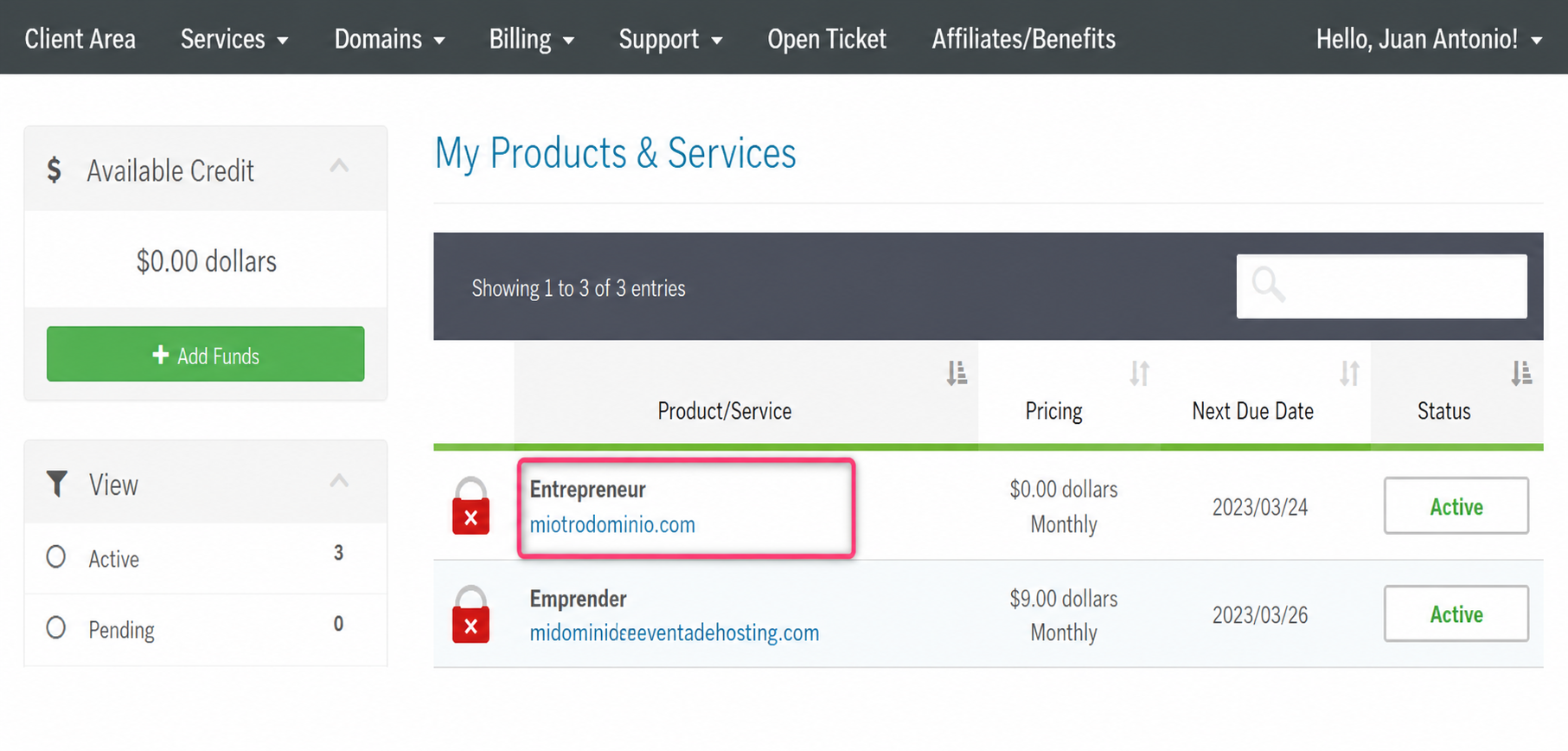
- From the list of hosting plans you have, enter the one where you want to create a Signature.
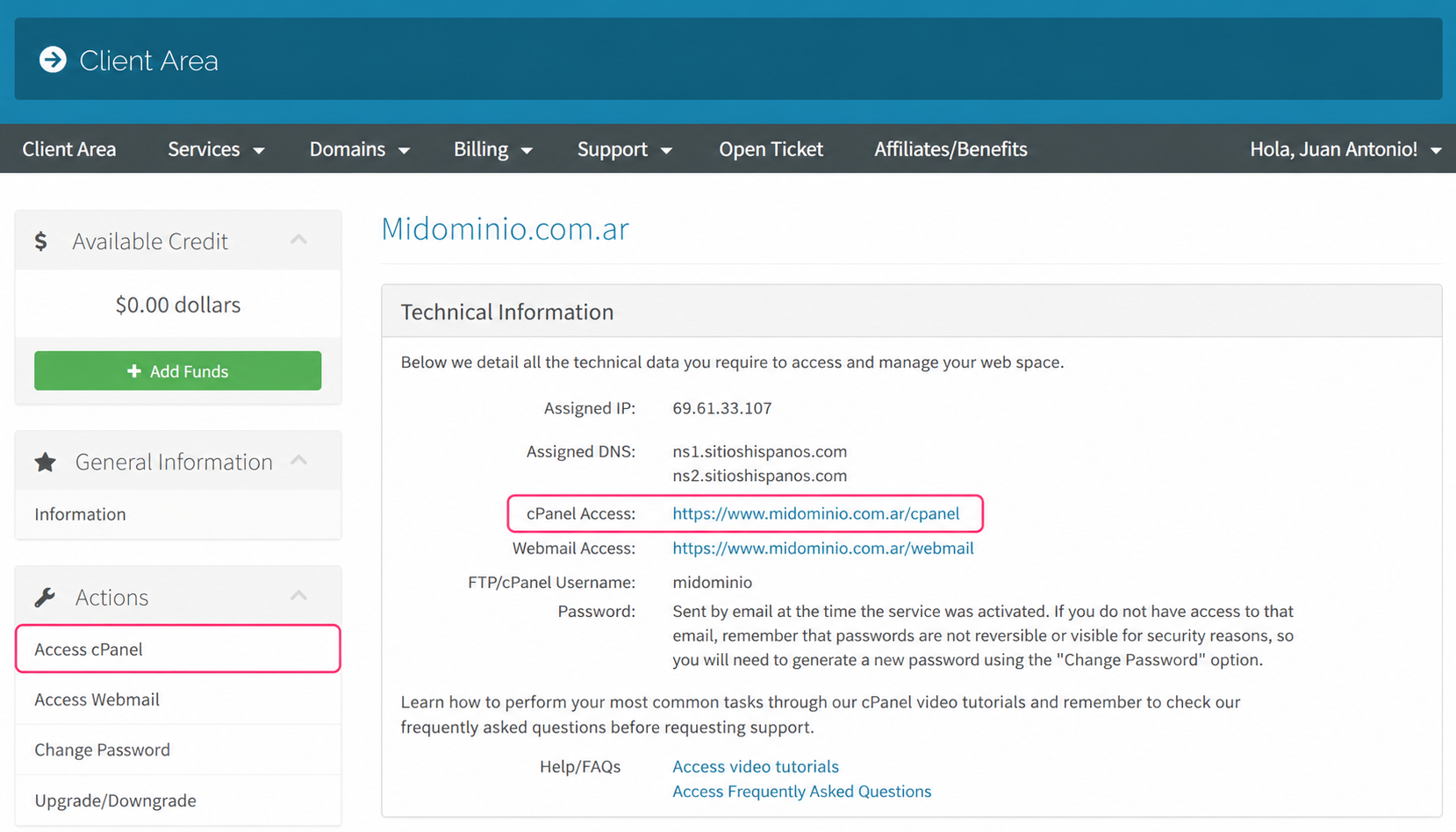
- On the new screen you will see, in the Actions box on the left, the option to access the cPanel control panel.
You will also see, in the central Technical Information box, the direct link to the panel from your browser.
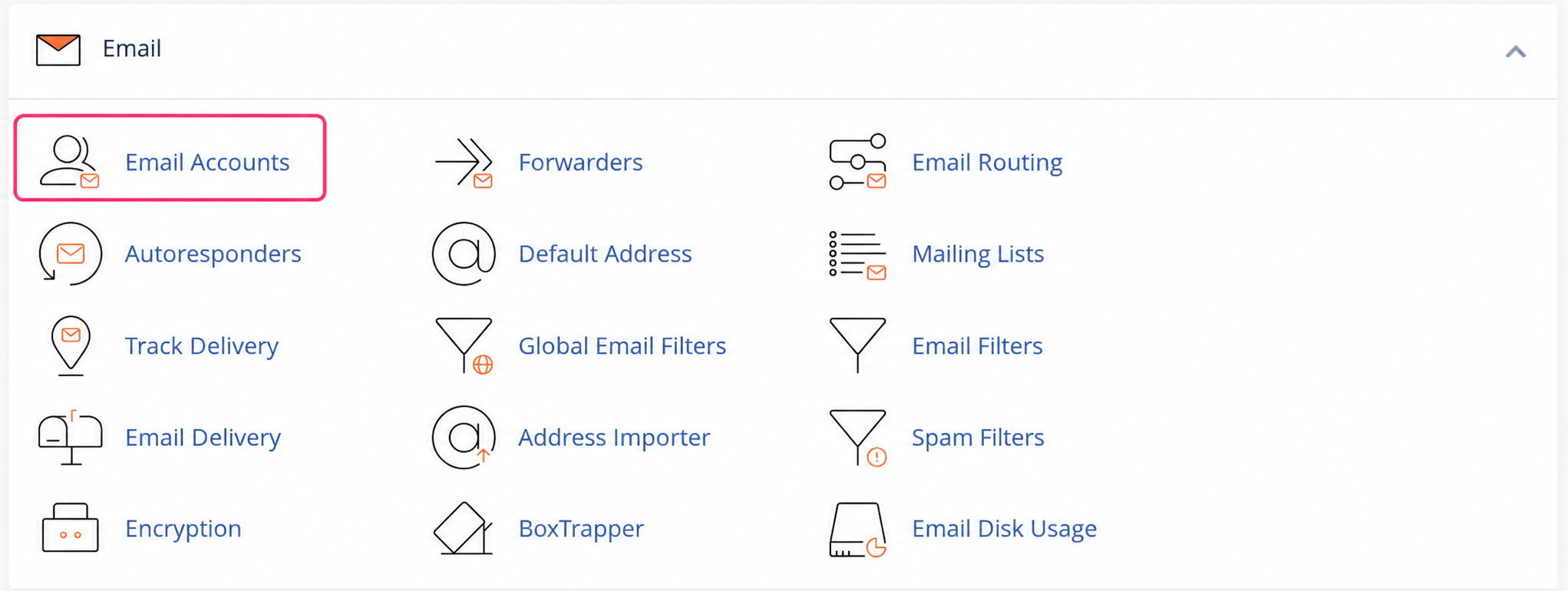
- Once in the cPanel control panel, go to Email Accounts in the Email box.
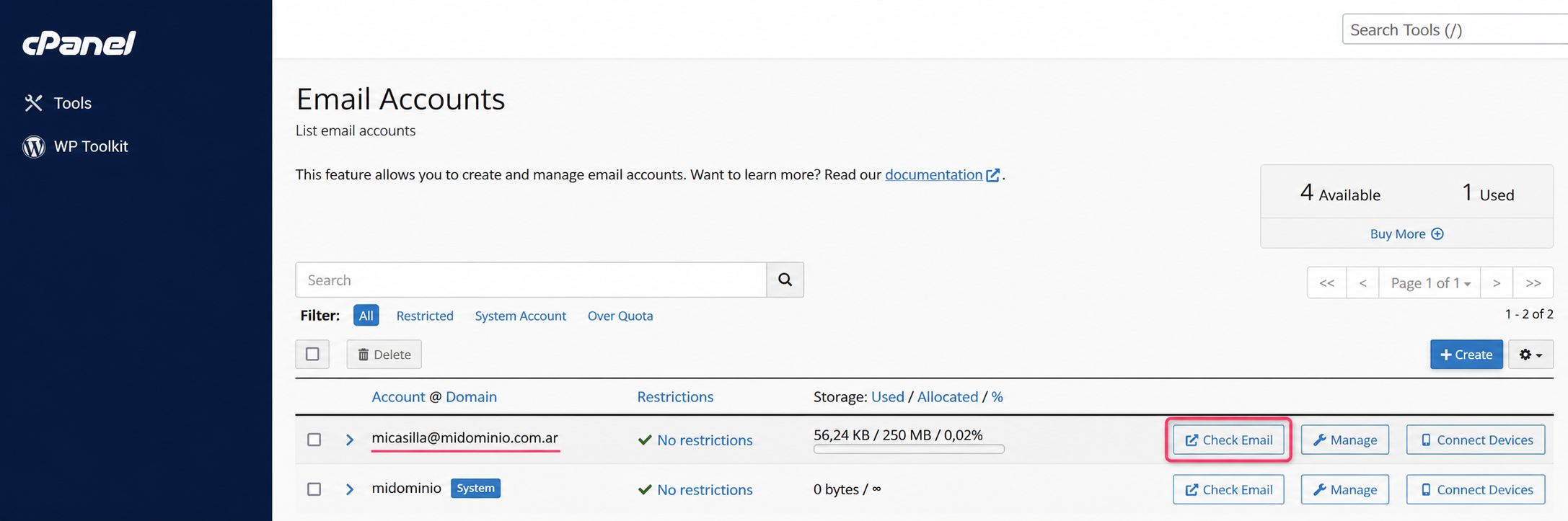
Then, press the Check Email button to access the Webmail of the chosen mailbox.
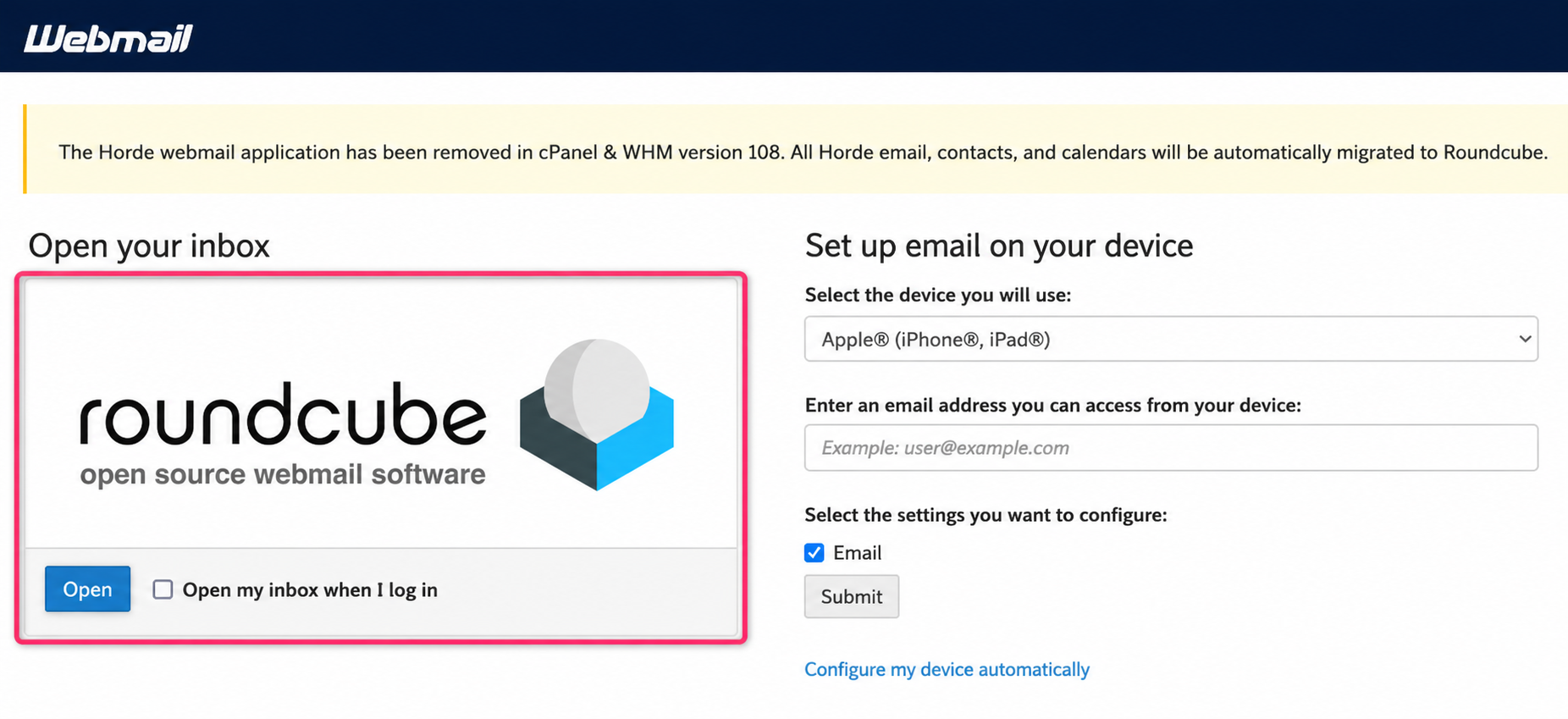
- On the new screen click on roundcube to open the webmail client.
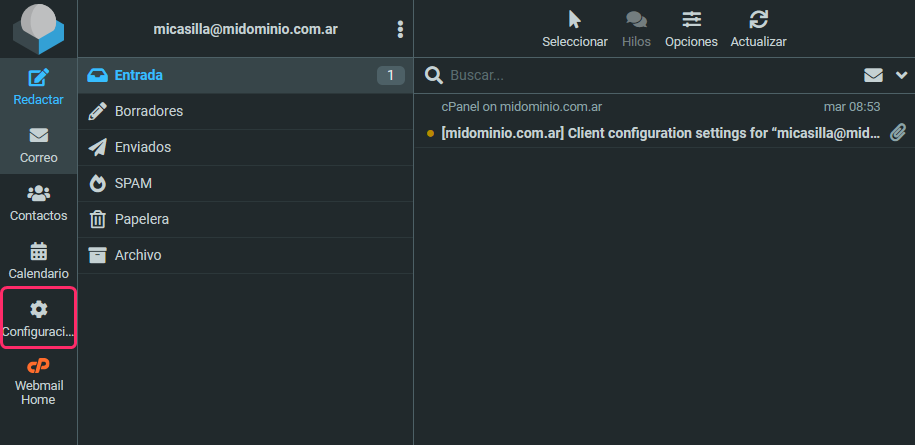
- After entering Webmail, press the Settings button in the left menu.
- Then, click on Identities and select the mailbox to which you want to create a Signature.
The form to create your Signature will appear. When you finish creating it, save with the Save button.