
How to enable Two-Factor Authentication?
Within WHM you can manage this option that helps increase access security to cPanel.
Before starting the setup of this instance, consider cPanel’s suggestions regarding apps to use on your mobile phone:
- For Android, iOS and Blackberry => Google Autenthicator
- For Android and iOS => Duo Mobile
- For Windows Phone => Autheticator
After accessing the WHM of your Reseller plan, go to the “Security Center” => “Two-Factor Authentication” option.
If upon entering this section you see a message that says: “The two-factor authentication security policy is disabled”; contact us so we can enable it for you.
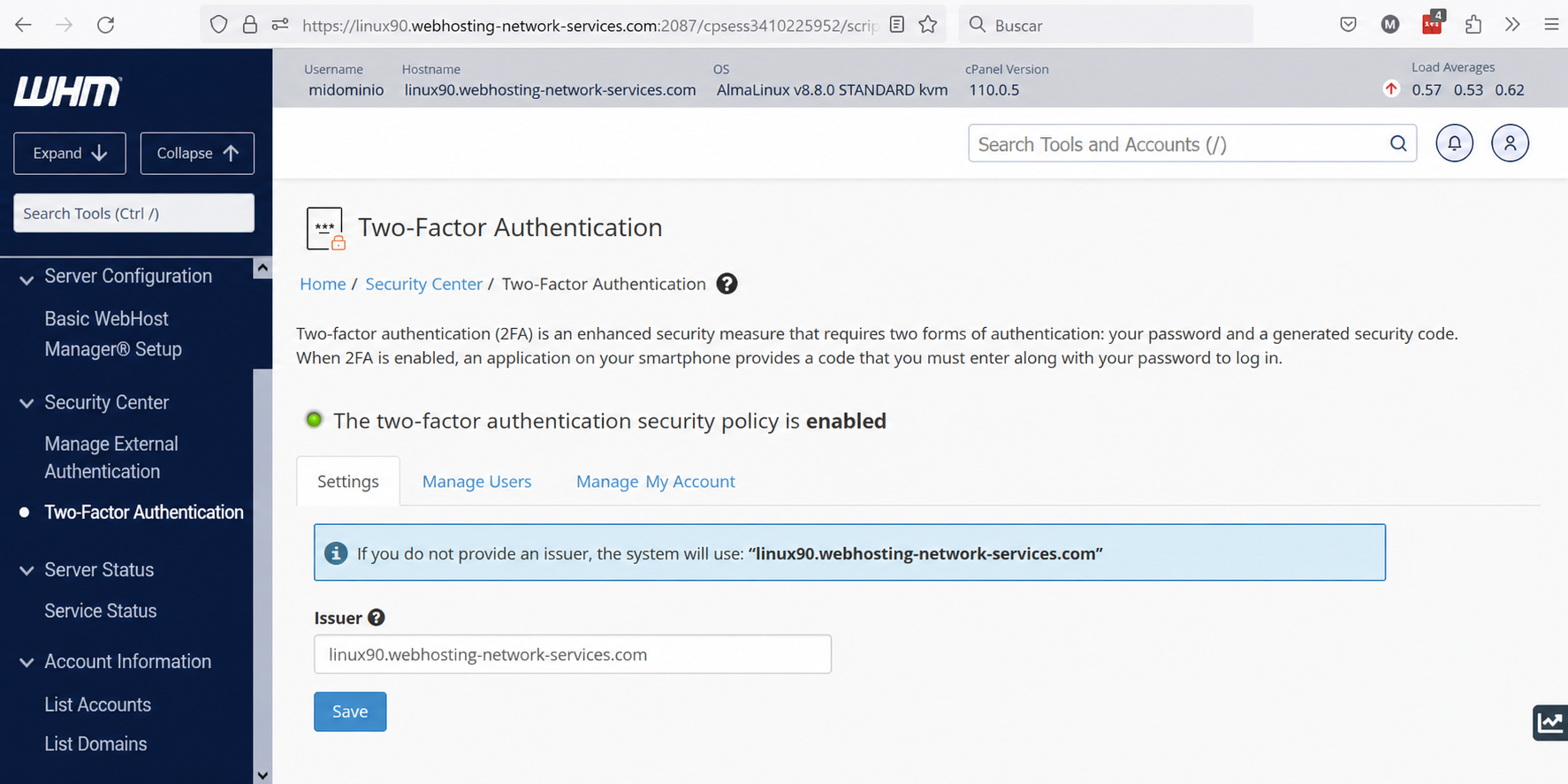
The image above is what you’ll see when you first enter. On the “Settings” tab you should not edit anything; leave the provider/issuer as the server Hostname.
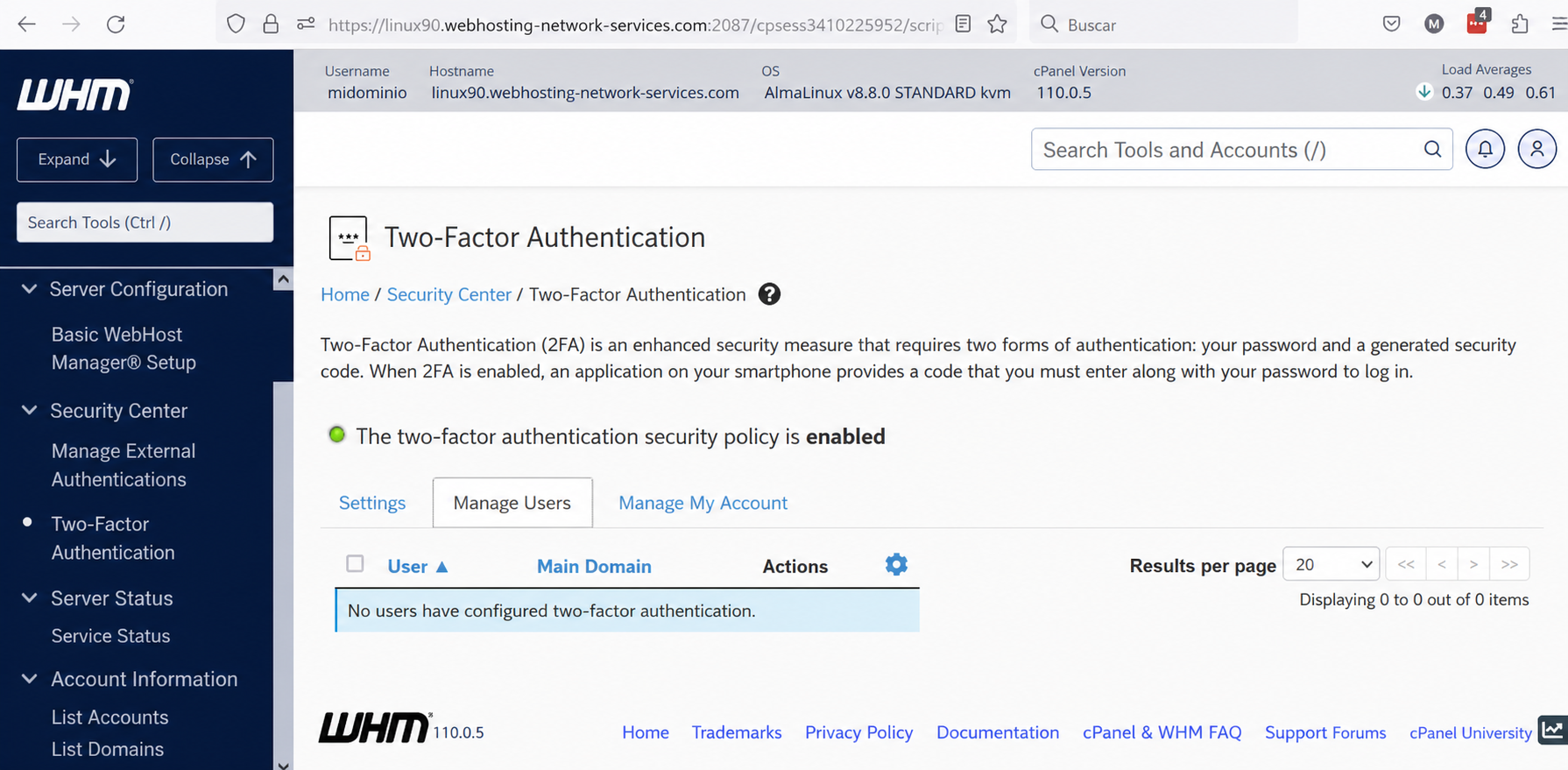
On the “Manage Users” tab you will have the list of accounts that have Two-Factor Authentication enabled in their cPanel; for a user to appear here they must have activated and configured this option in their cPanel.
Among the actions you can perform on this tab is disabling Two-Factor Authentication, for example.
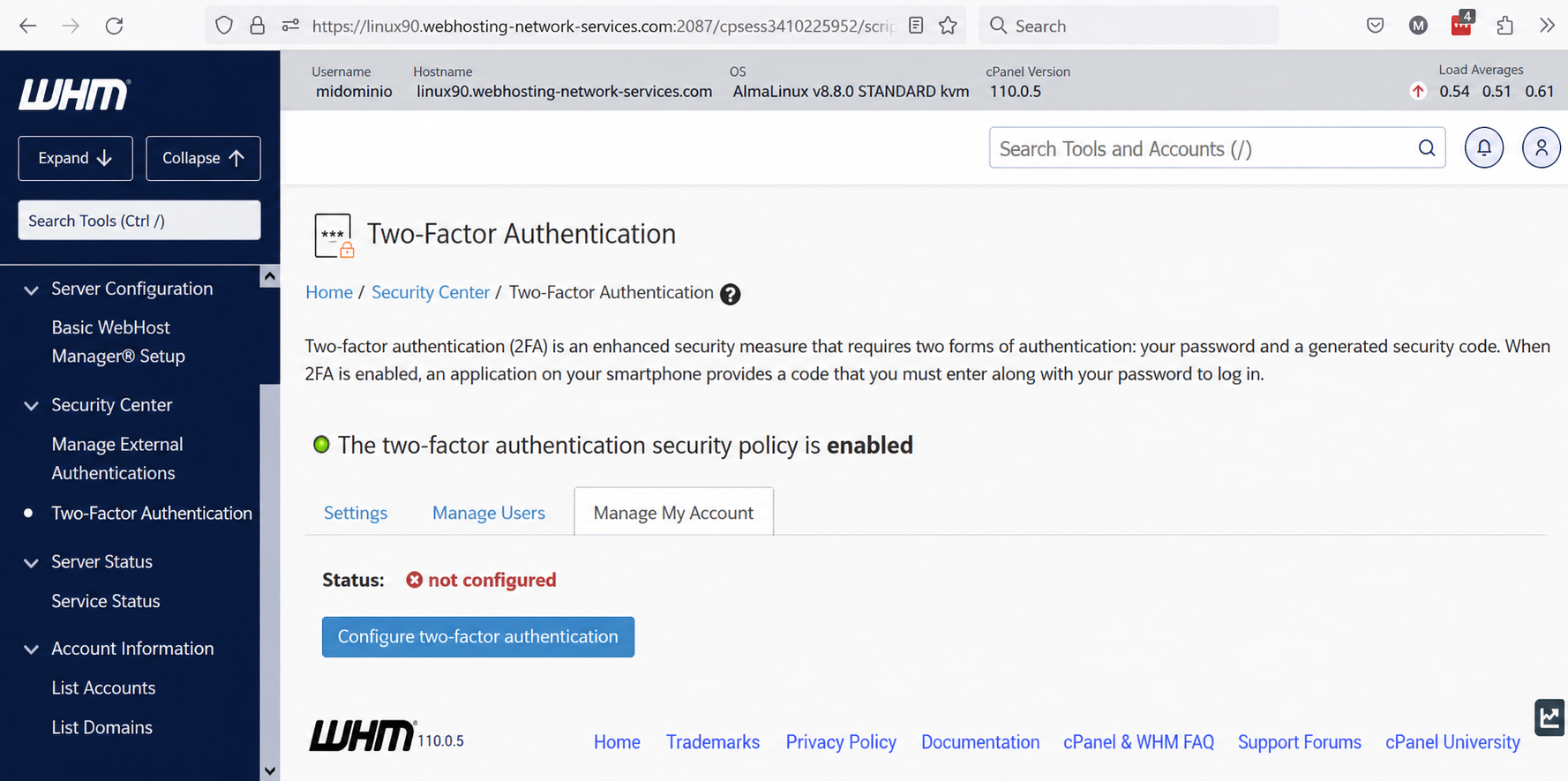
On the “Manage My Account” tab you can configure two-factor authentication for access to your WHM.
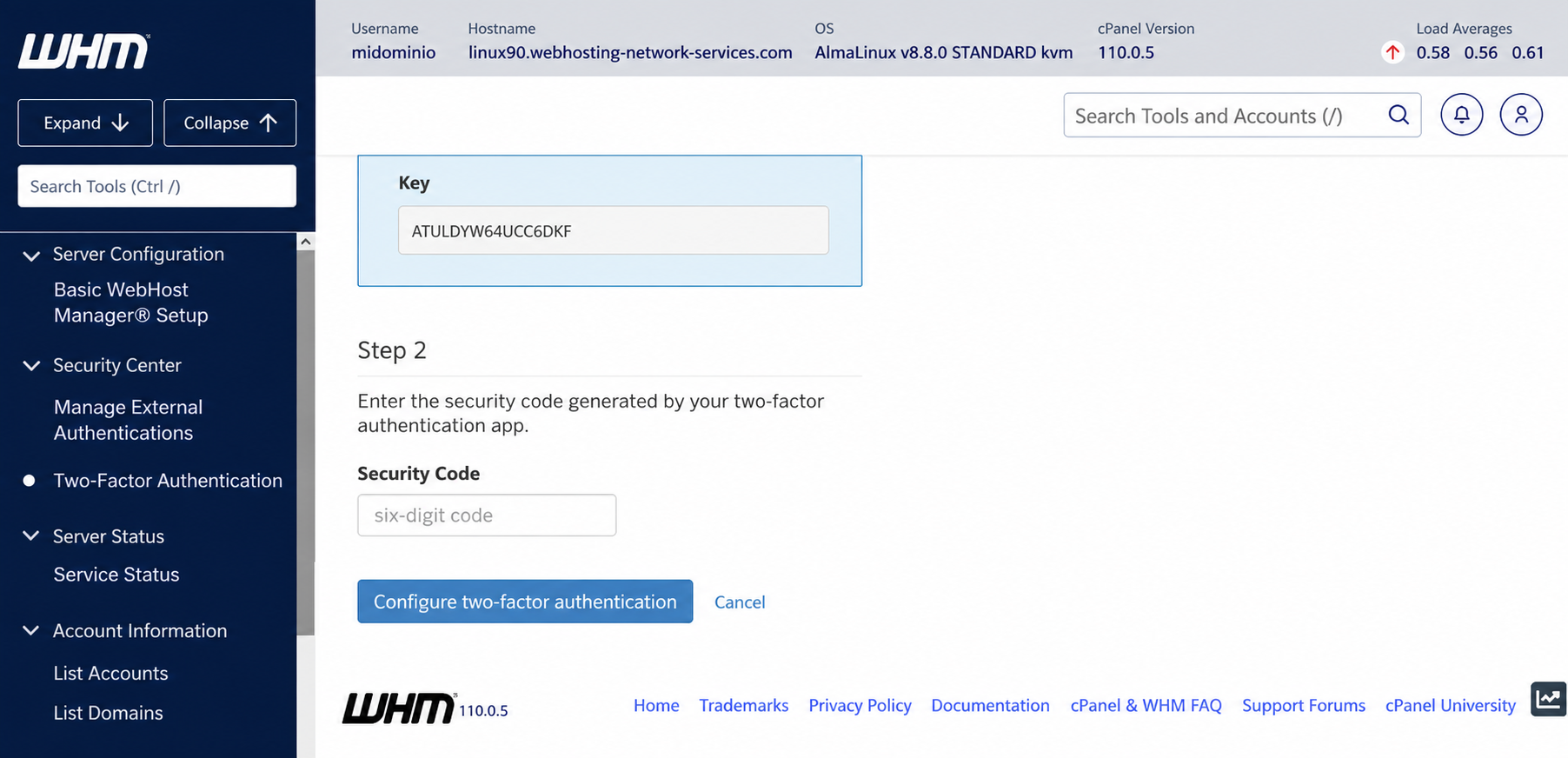
If the status is “not configured” and you want to do it, click the “Configure two-factor authentication” button (The process detailed below can also be used to configure “Two-Factor Authentication” in cPanel).
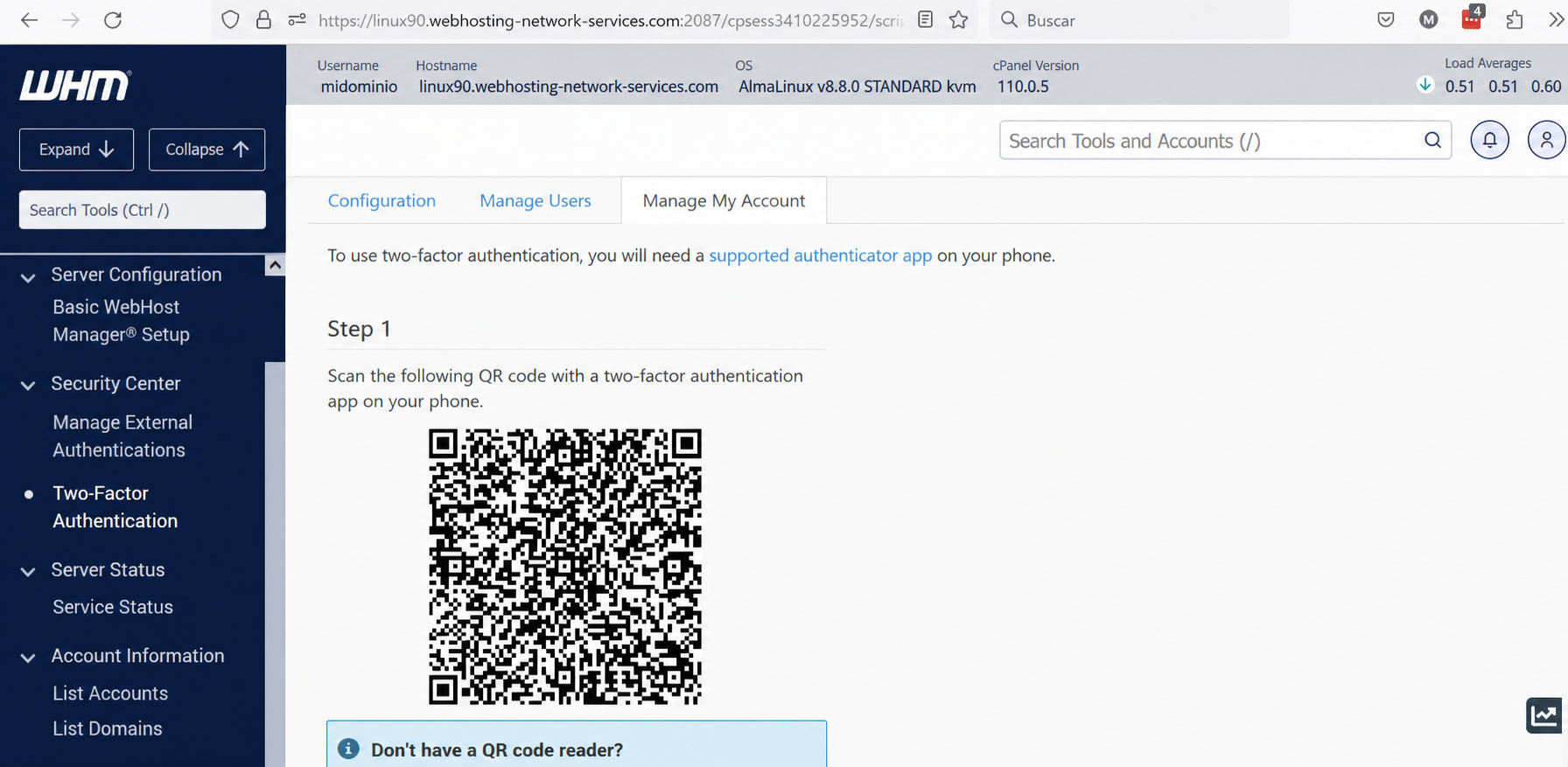
Open the app you downloaded on your mobile phone to use the two-factor authenticator. Depending on which one you downloaded, you should add a new item or code. For this you will have two options: Use the QR generated in WHM (like the one shown in the image above); or use the account credentials and key also generated in WHM, as shown in the following image:
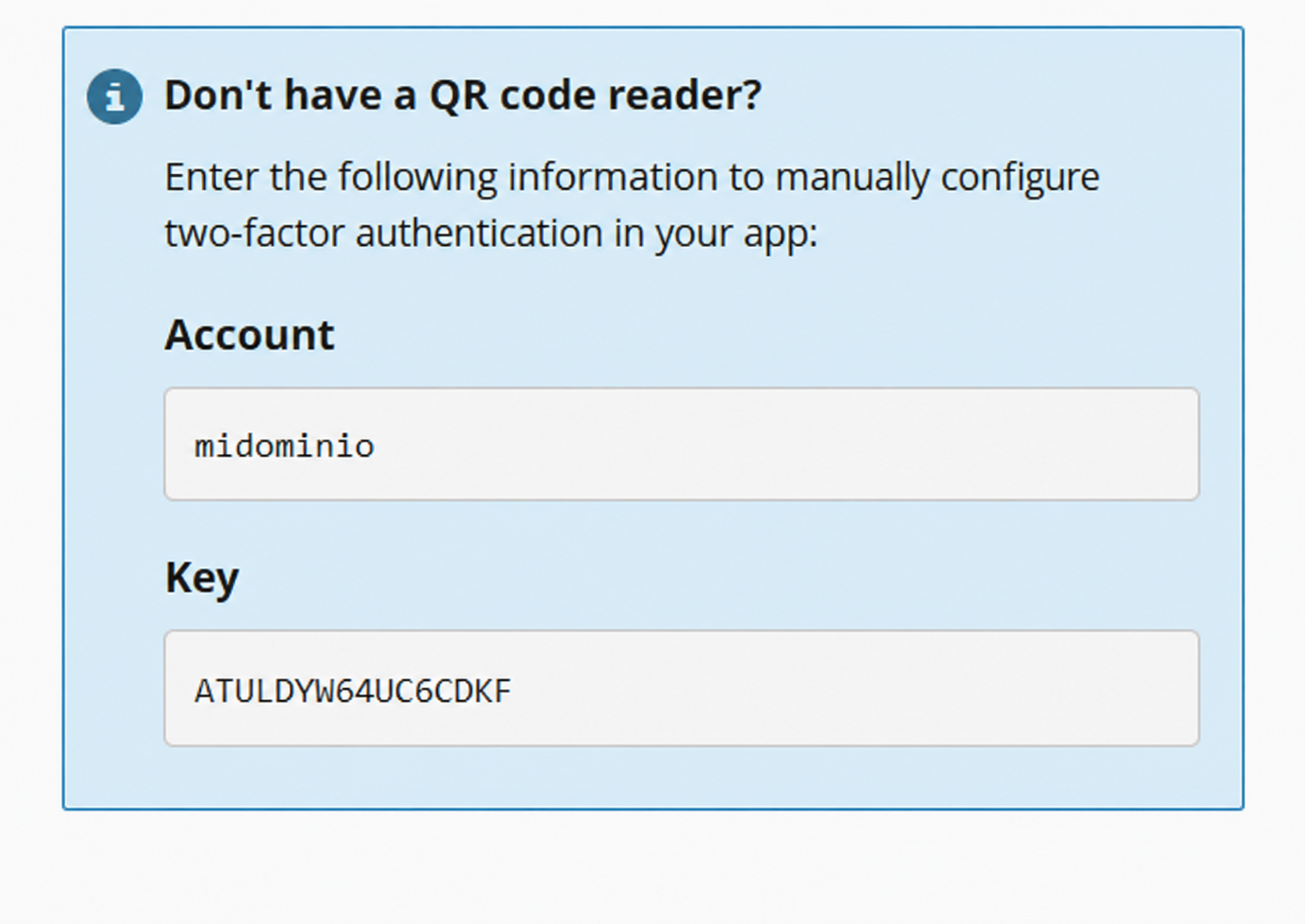
Once done, the authenticator will be configured in the app on your phone. You only need to enter the code generated in the app in step 2, in “Security Code”, and save everything by clicking the “Configure Two-Factor Authentication” button to finish configuring the two-factor authenticator.
What is explained in this section can be applied to the cPanel process of activating Two-Factor Authentication on an account.
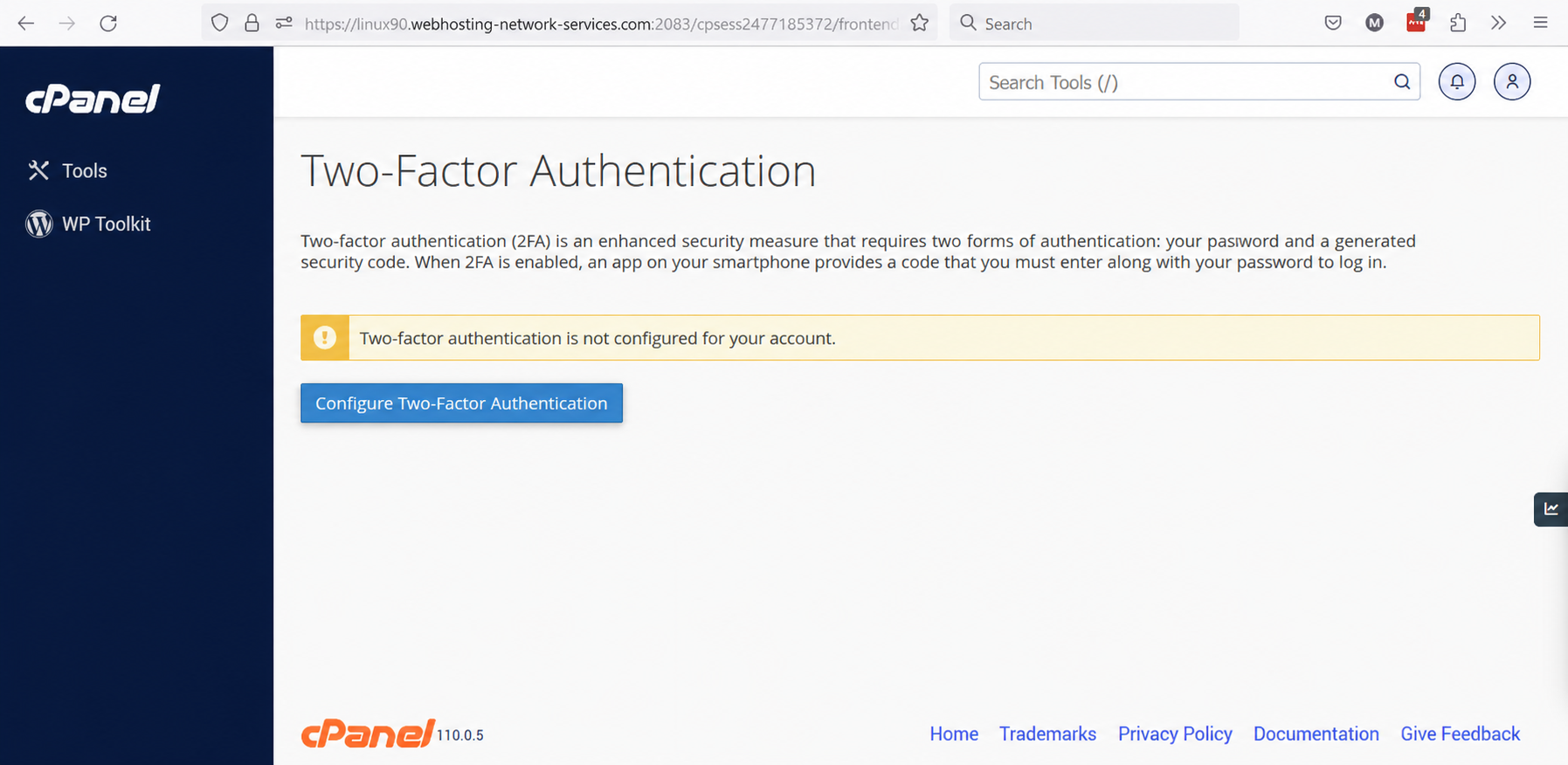
As you can see, the process is identical.