
How to view resource consumption and usage statistics
Below you’ll find different tools that will give you information about the disk space and bandwidth usage of your hosting account.
In your control panel you’ll see, in the Statistics box on the right, the current Disk Space usage under Disk Usage and the Bandwidth usage under Bandwidth.
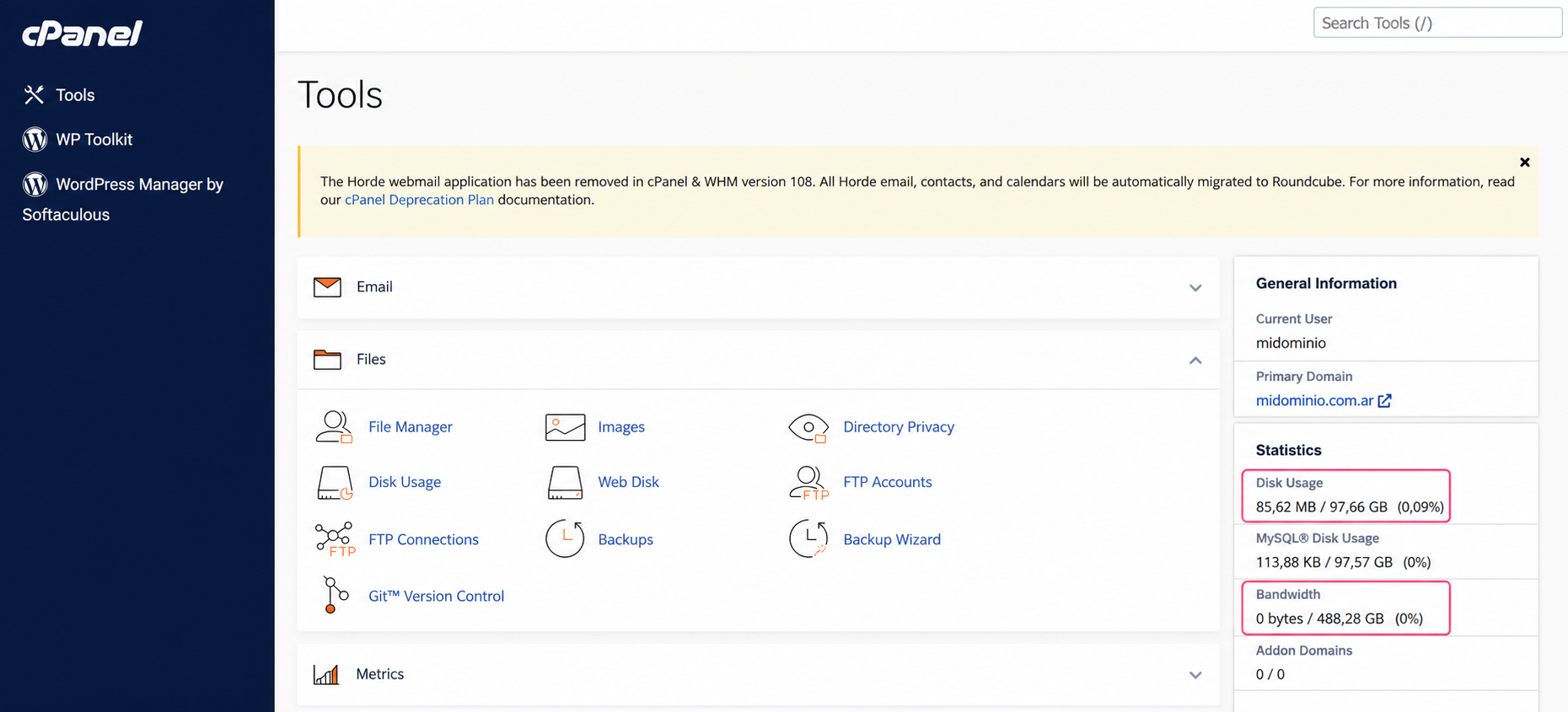
To see disk space and bandwidth usage in detail you’ll use the following tools:
Disk Space Usage
Disk space usage can be viewed from the Disk Usage tool, inside the Files box.
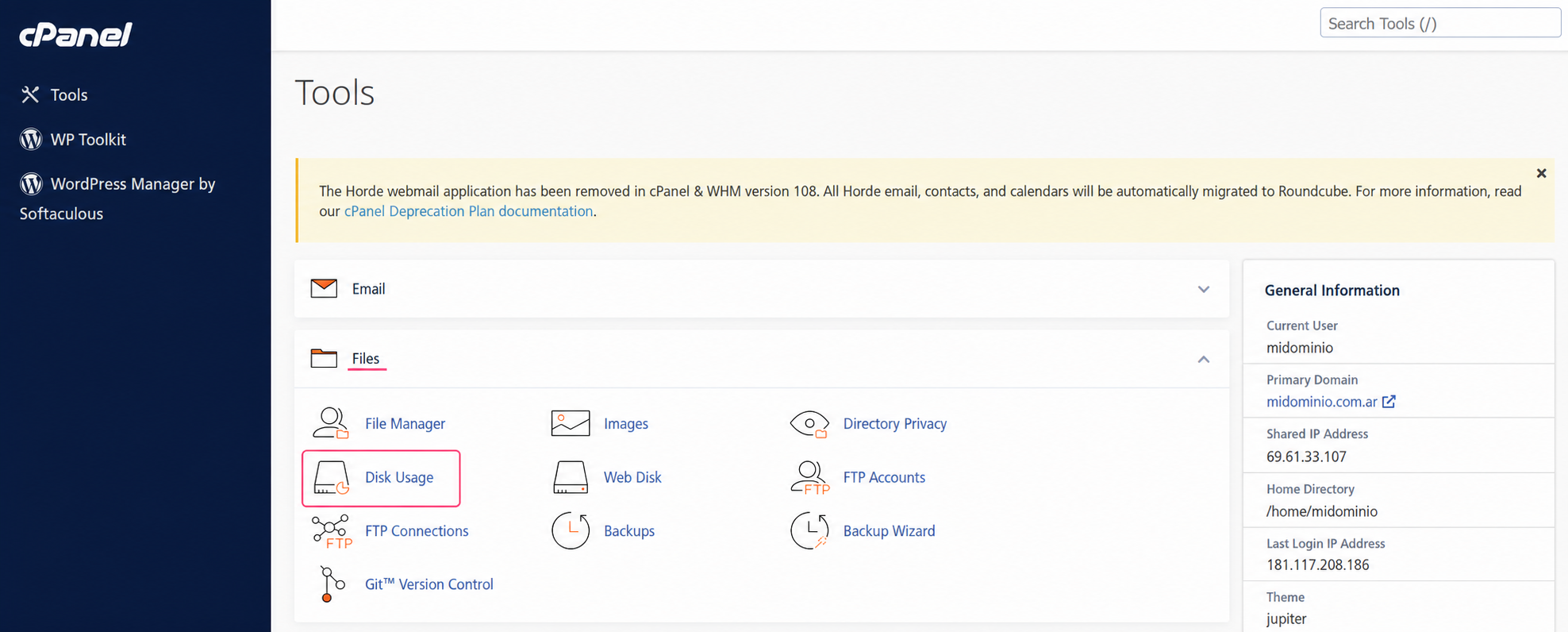
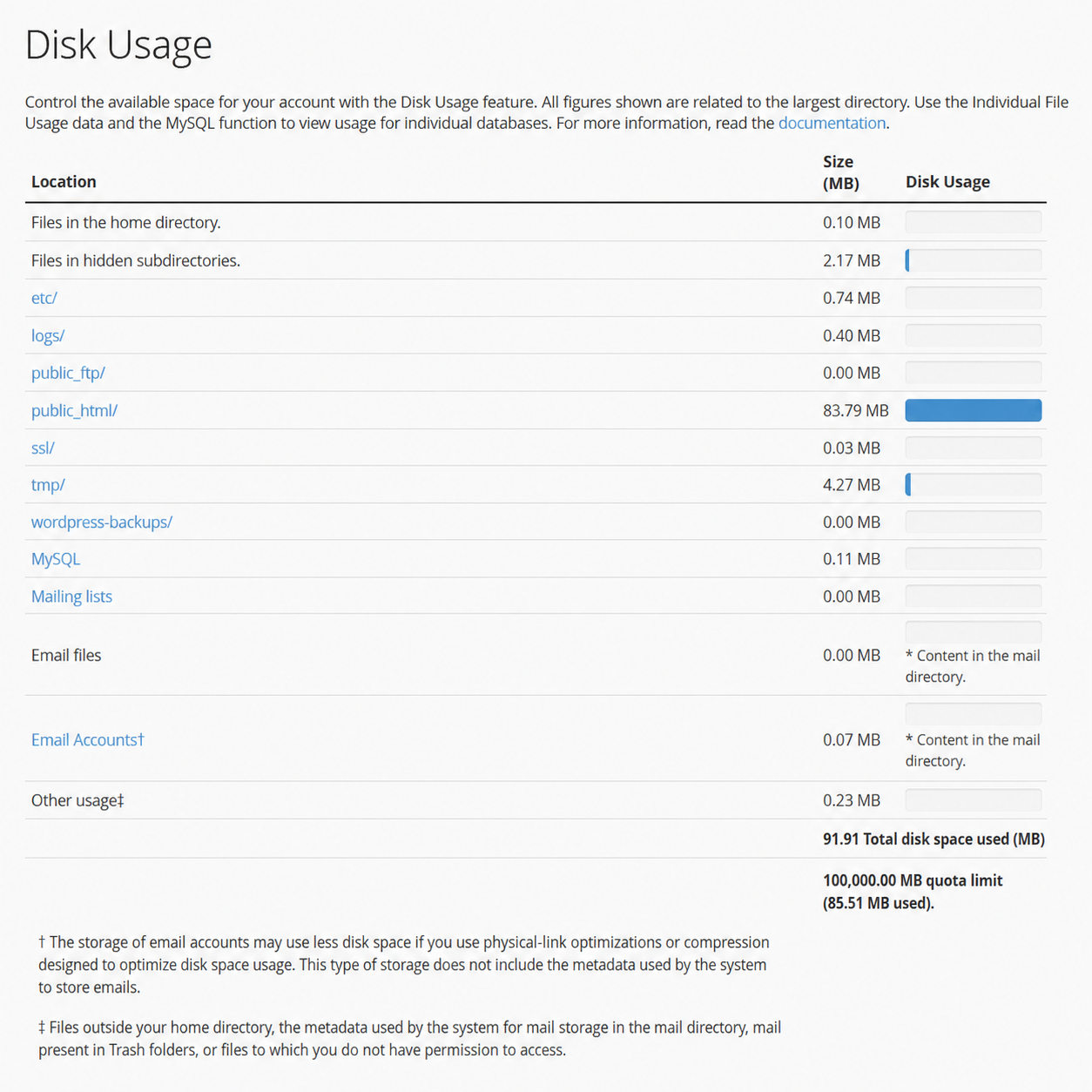
This tool will show you the space usage for each main area of your hosting plan.
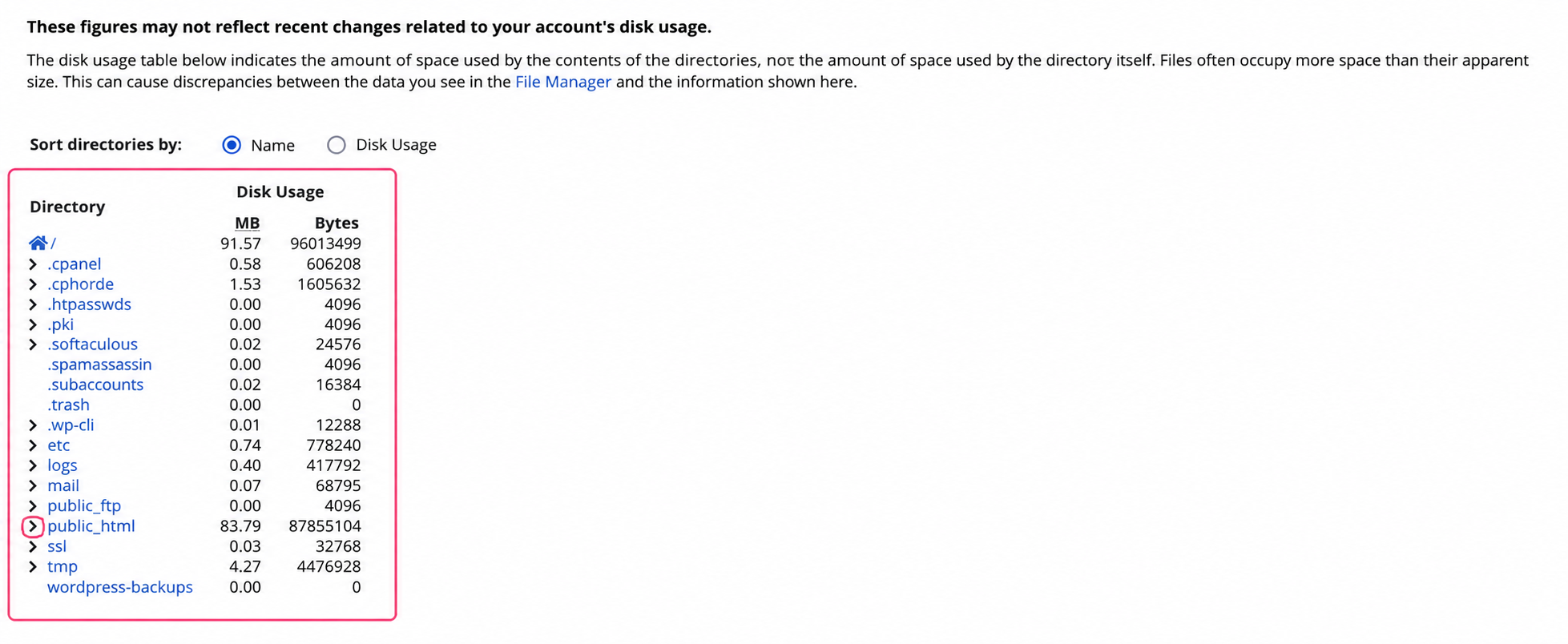
Below, you’ll find the space used by each directory or folder in your account. You can open each directory with the > symbol and, if you click on a directory, the File Manager will open so you can view your content in detail.
Bandwidth Usage
Bandwidth usage can be seen, in general, from the Bandwidth tool, inside the Metrics box.
And, if you want to see bandwidth usage in more detail, you can do so from the Awstats tool, which is also located in the Metrics box.
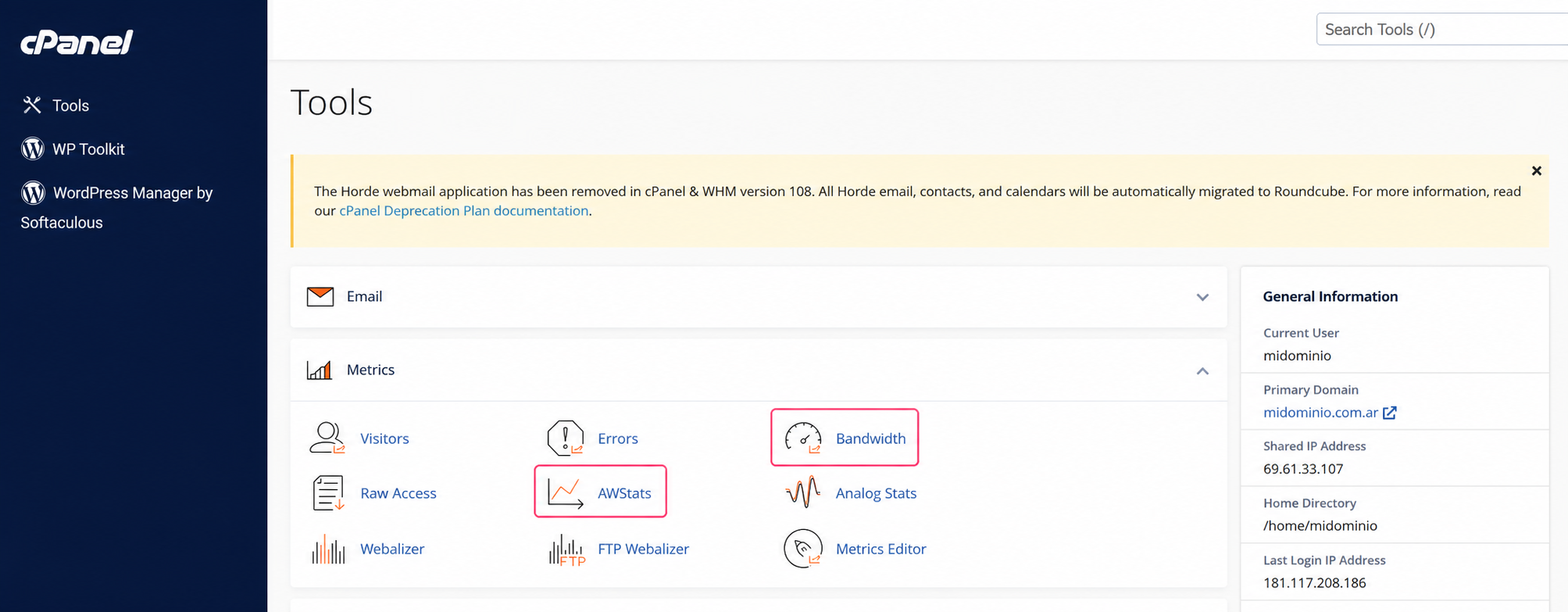
Bandwidth Tool
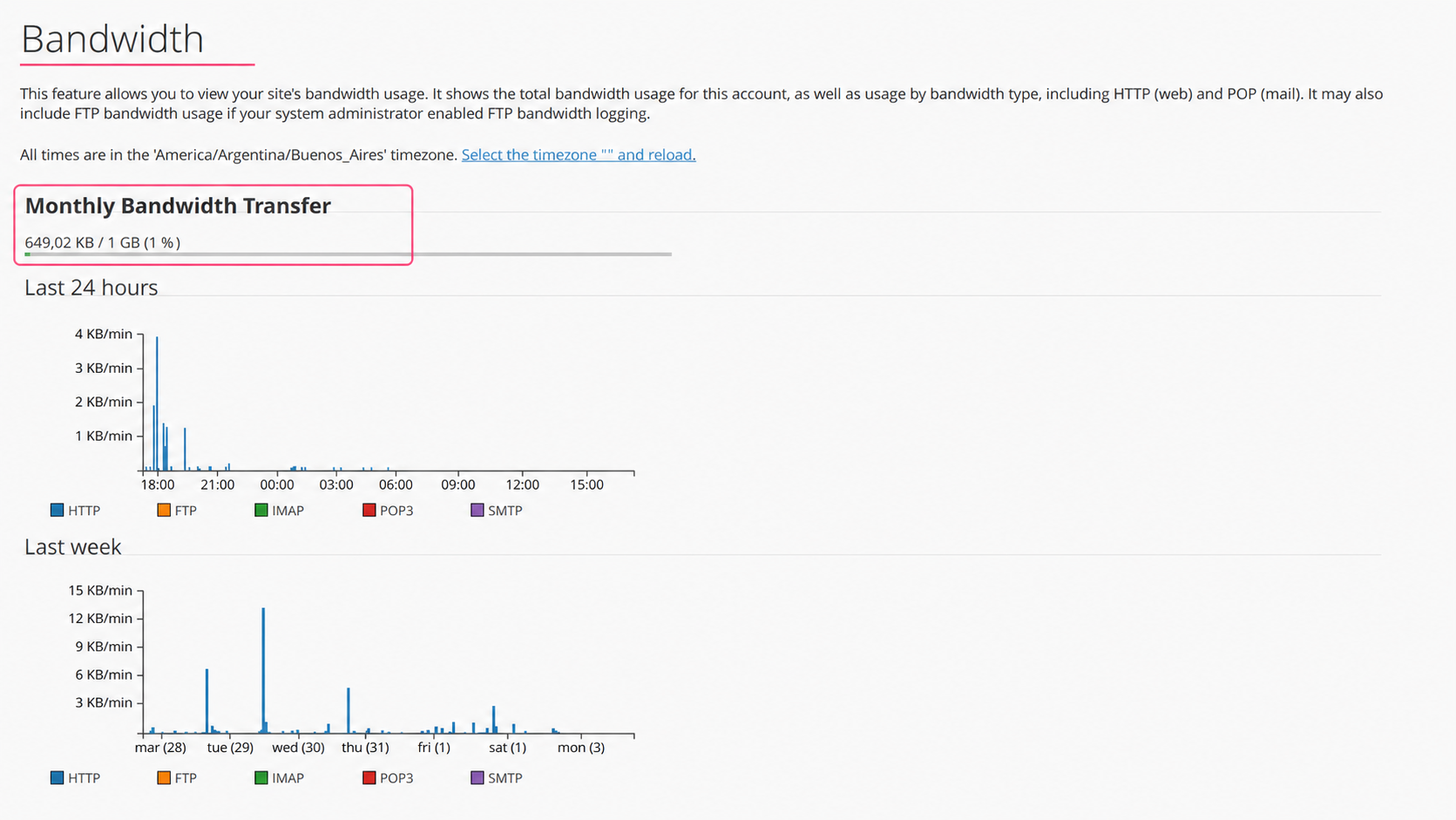
In this tool you’ll see the total bandwidth consumed so far and the limit of your hosting plan.
Below, you’ll see the consumption broken down by services and time segments.
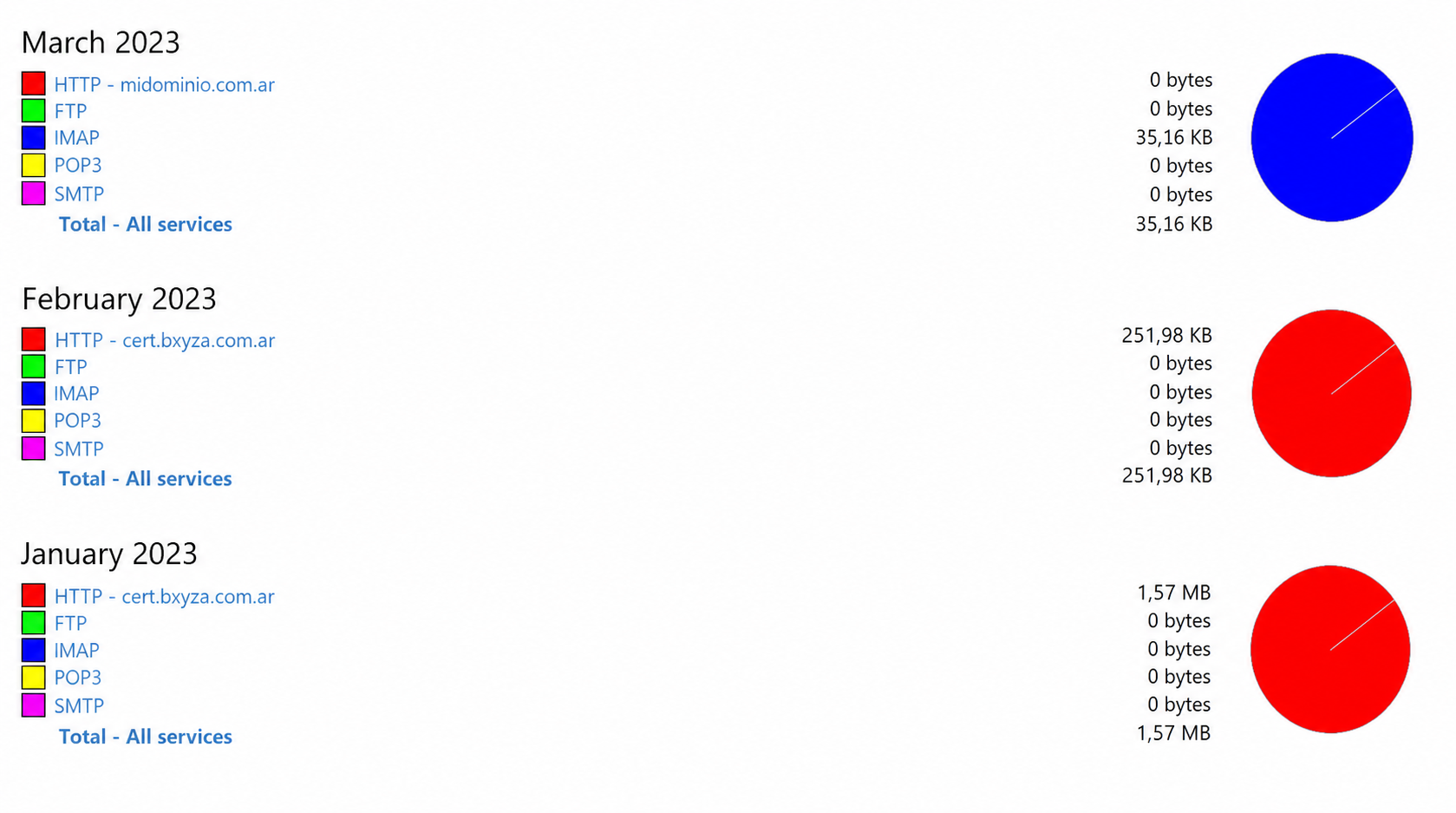
A little further down, you’ll see in more detail the bandwidth consumption generated by each main service of your hosting plan for each month.
This general overview will help you determine whether the usage is stable or if there is a usage spike that you consider suspicious. This can be indicative of a virus in the account.
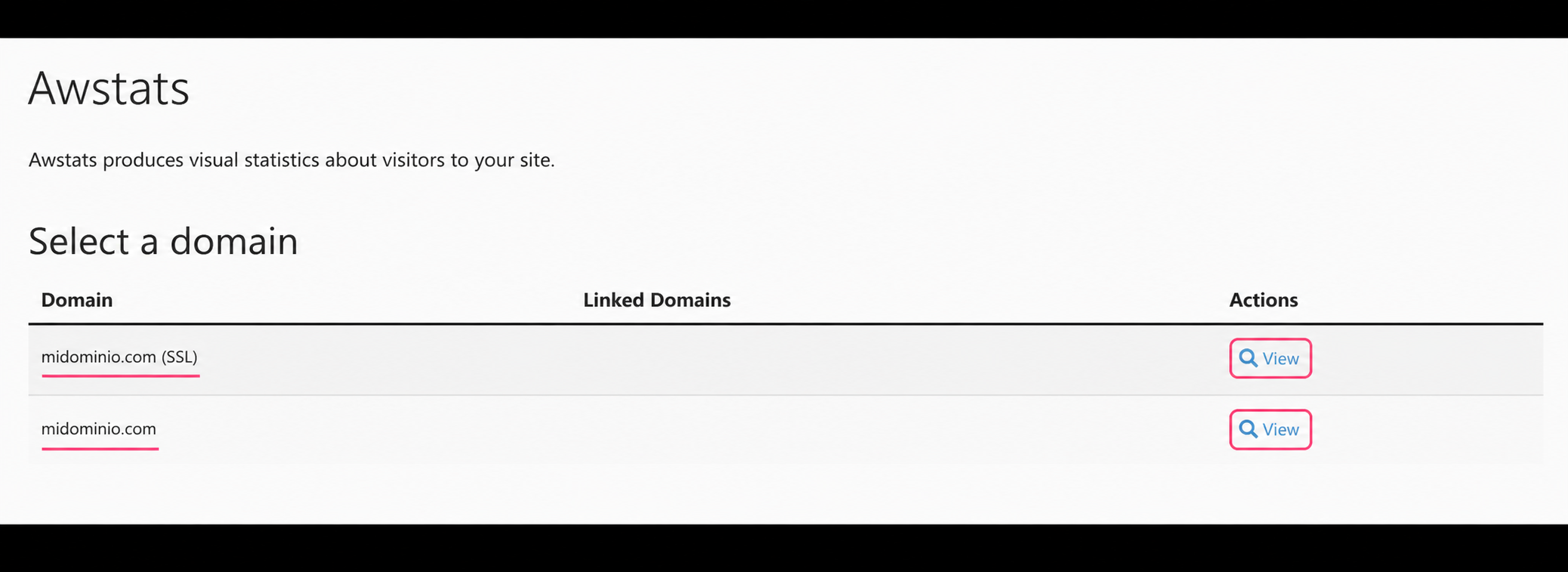
Awstats Tool
If you want to see bandwidth usage in the most detailed way possible, the best tool is Awstats.
If your website opens in browsers as **https://**yourdomain.com then enter the SSL version of your domain. If, on the other hand, the website opens as **http://**yourdomain.com (non-secure mode) then enter the domain without SSL.
When you enter the tool you’ll see several areas with information about bandwidth usage:
- You’ll see the date the metrics in this tool were updated.
- You can choose different periods to show the usage for that time.
- In the center, you’ll see the usage for each month. This section is the first place to check if a suspicious difference in usage is detected compared to previous months.
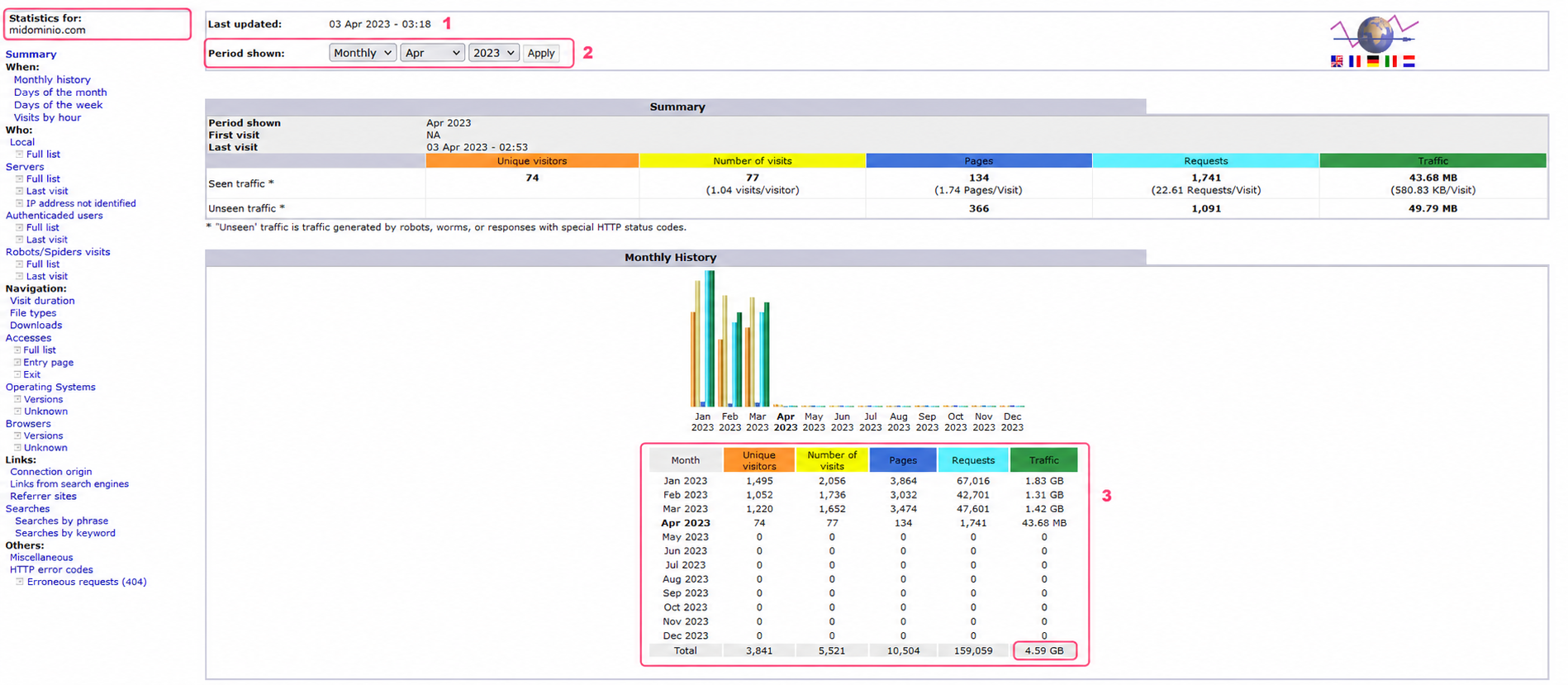
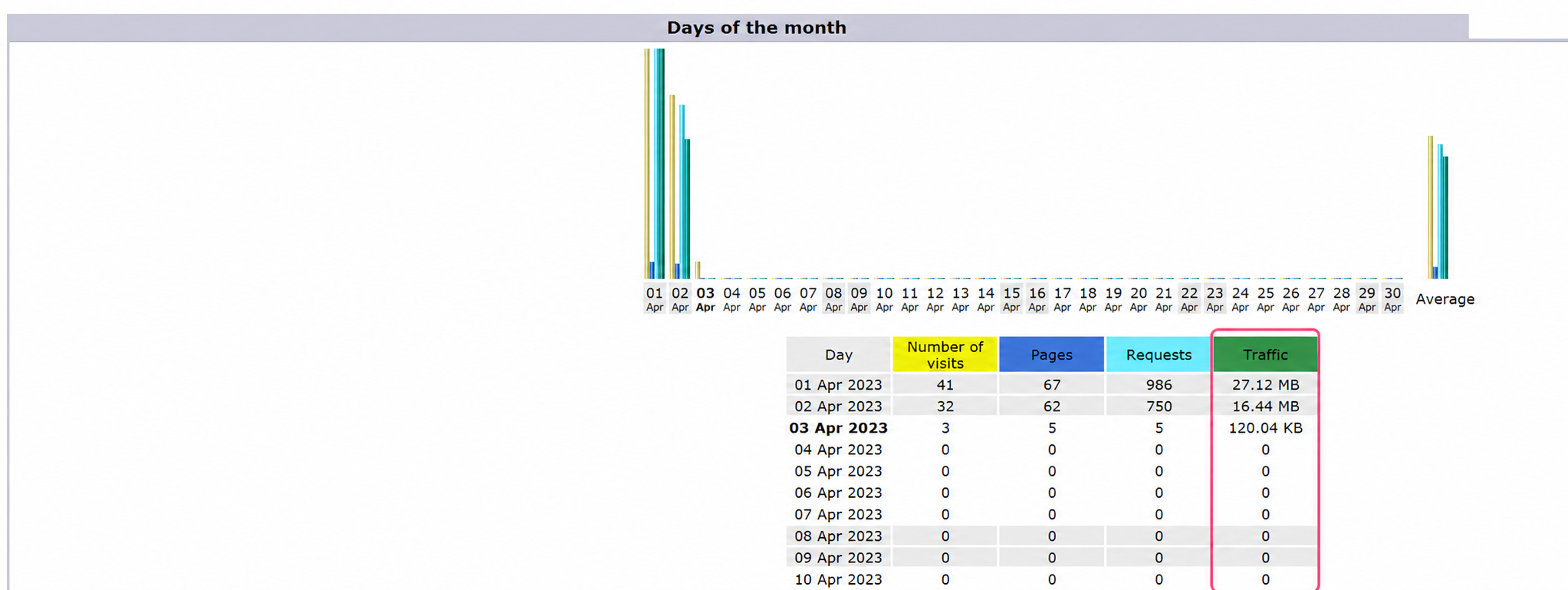
Similarly, Awstats will show bandwidth usage in various ways; in each section the most important value is always Traffic.
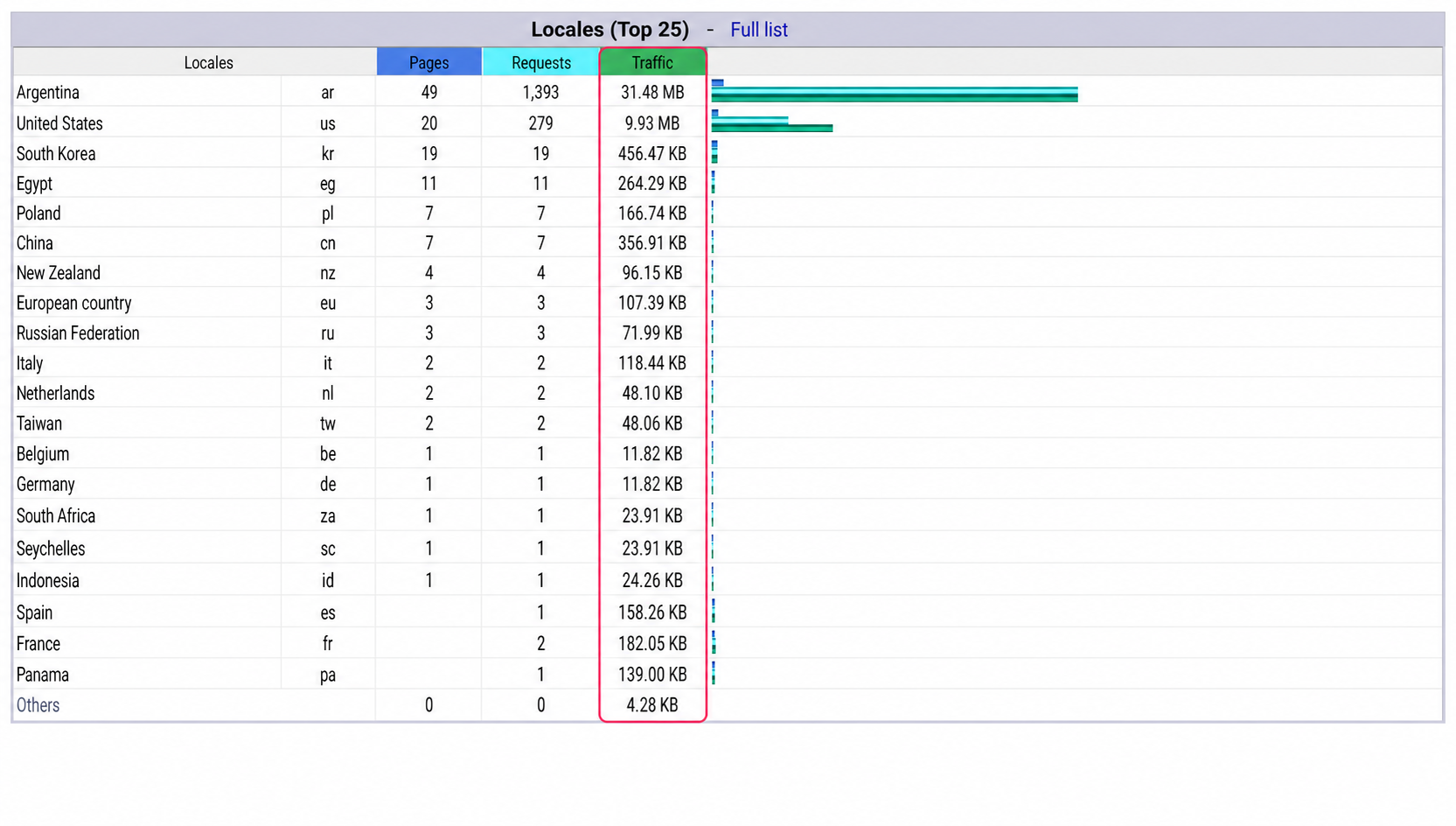
In the section shown in the image below, you’ll see usage by country — this is another area where you can determine if there is unusual bandwidth consumption depending on where it originates.
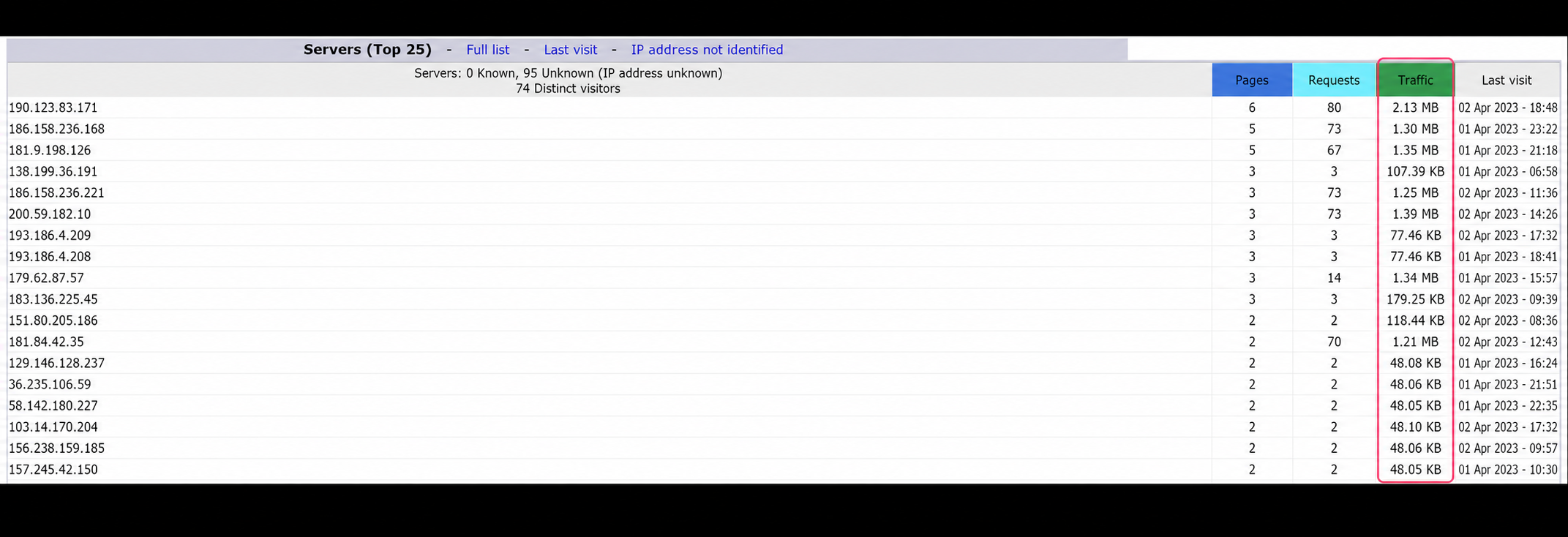
Next you’ll find usage by IP connections. In general, this section often shows unusual usage. Normally, you should find fairly even usage among all connections.
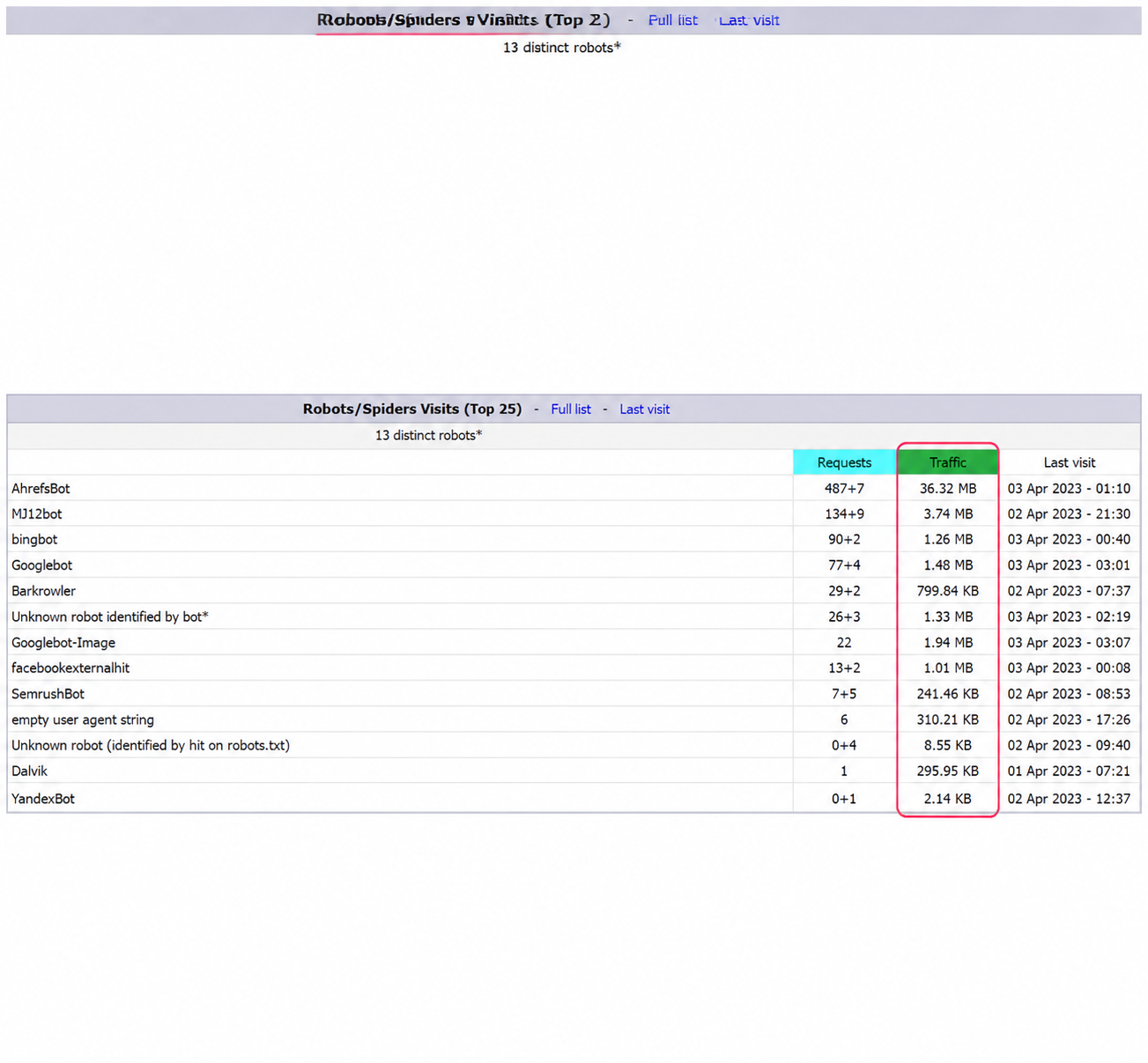
Below, you’ll find the usage generated by Robots, Bots, Crawlers, etc. This section is very important to review; these Bots are the second most common cause of high bandwidth usage.
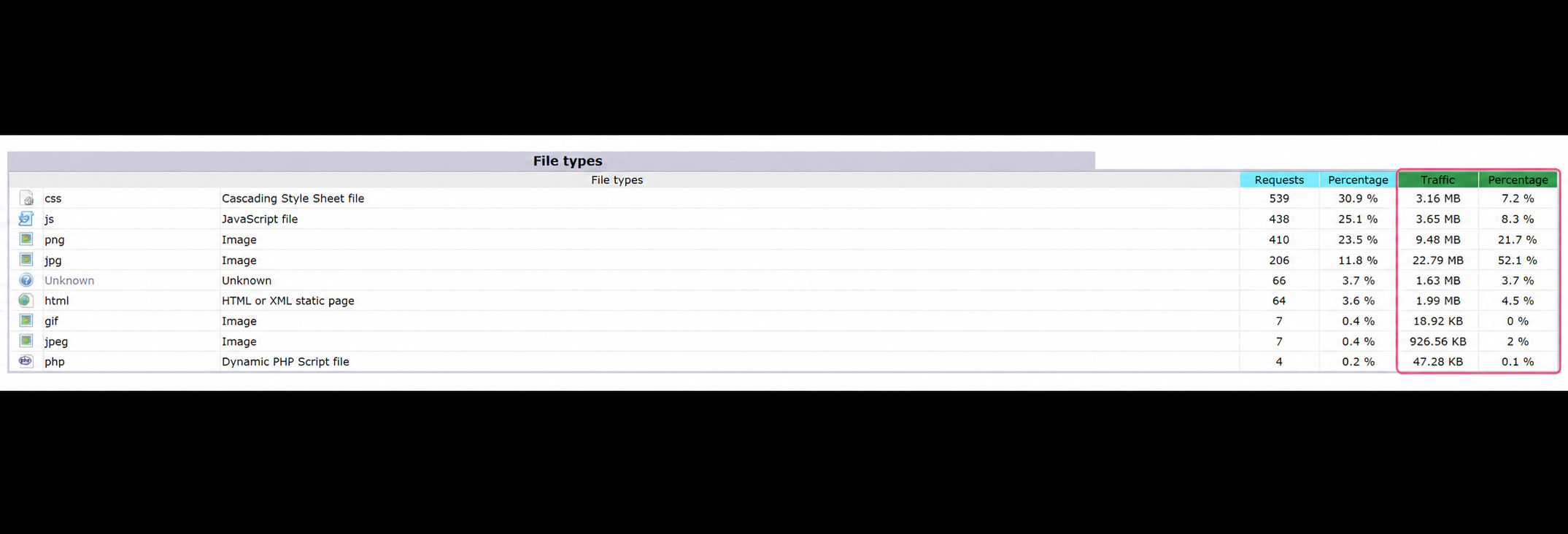
Then you’ll see the most important section of all when reviewing bandwidth usage in your account. In this section you’ll see the bandwidth usage by specific resources of your website (script execution, images, videos, etc.).
This is the most frequent cause of bandwidth usage in your account: visits to the website itself. Of all the resources on your website, images or similar multimedia files almost always consume the most bandwidth.
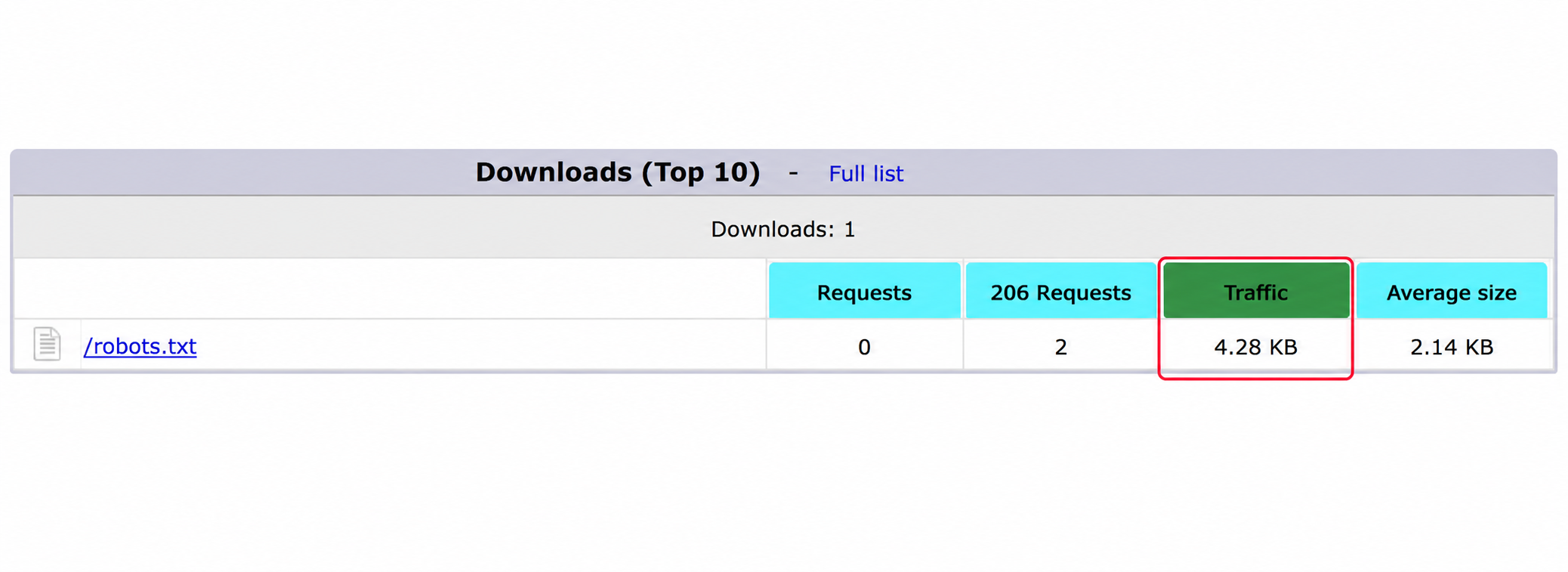
Finally, you’ll find the Download section, which will show the usage from direct downloads you may have on your website.
By reviewing each section or area of this tool you can find what consumes the most bandwidth on your website. You can even detect suspicious usage or misuse of your website. If that is the case, do not hesitate to contact us so we can review your account.