
How to use WP Toolkit in cPanel?
To install and manage WordPress easily using WP Toolkit follow these steps:
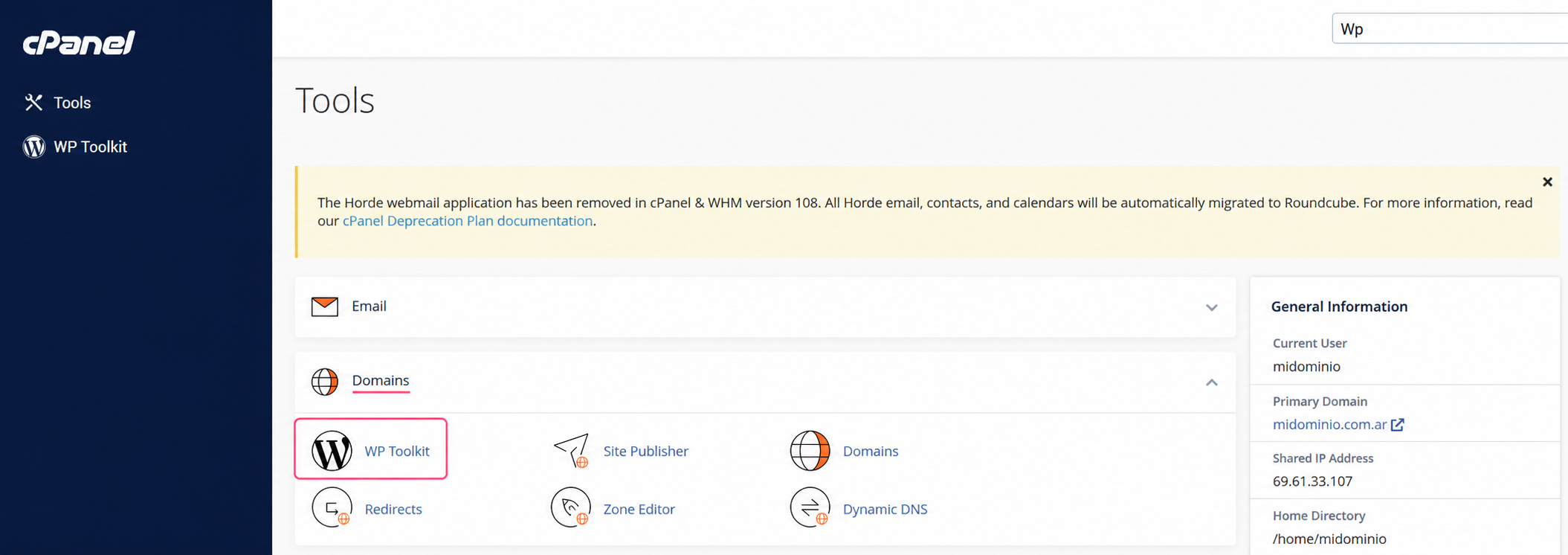
- In the control panel go to WP Toolkit, in the Domains box.
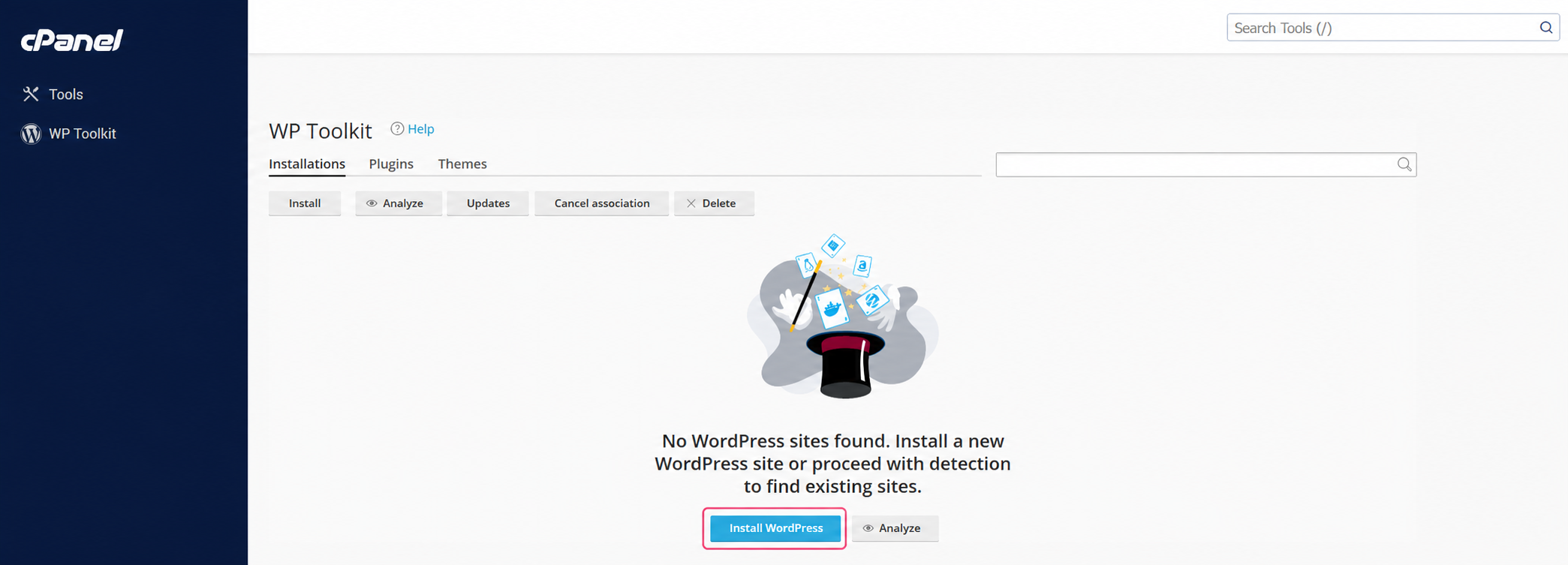
- If this is your first installation you will see this screen, where you can start the installation.
- On the installation screen you will see several options that you must complete.
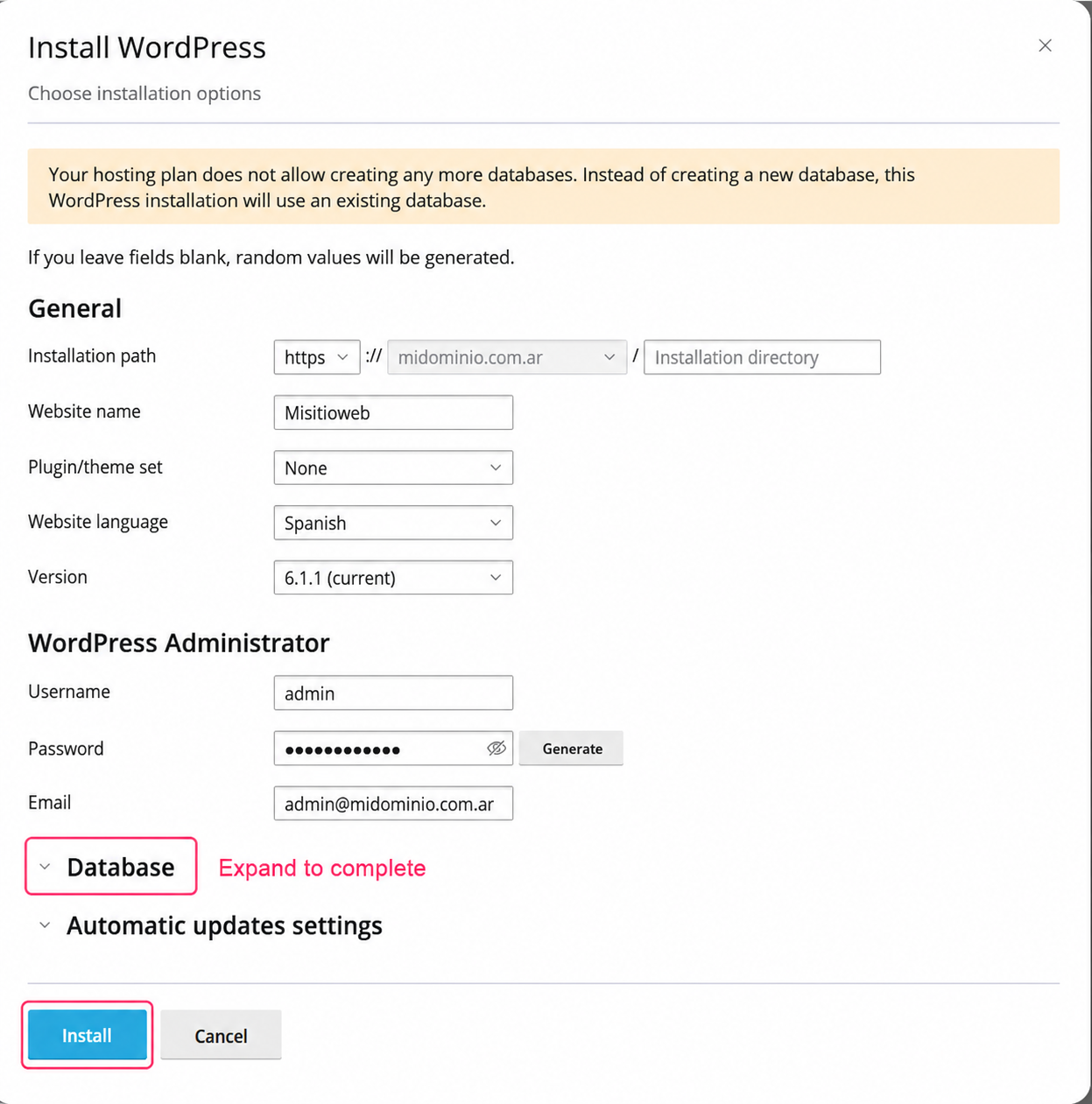
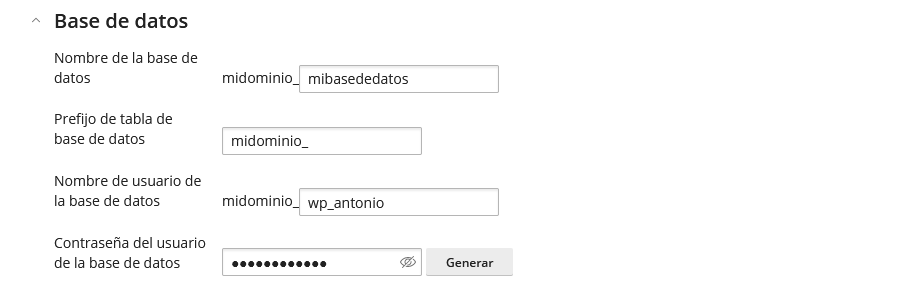
By expanding the Database menu you can fill in the database details you will use. Then, with the Install button a WordPress installation will be created on your hosting plan.
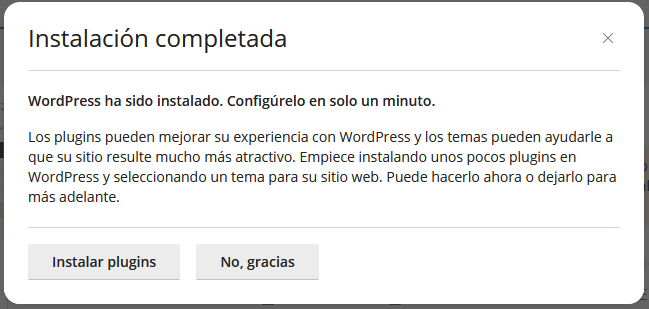
- When the installation finishes you will see this screen, from where you can enter the WP Toolkit manager to install plugins or close the window.
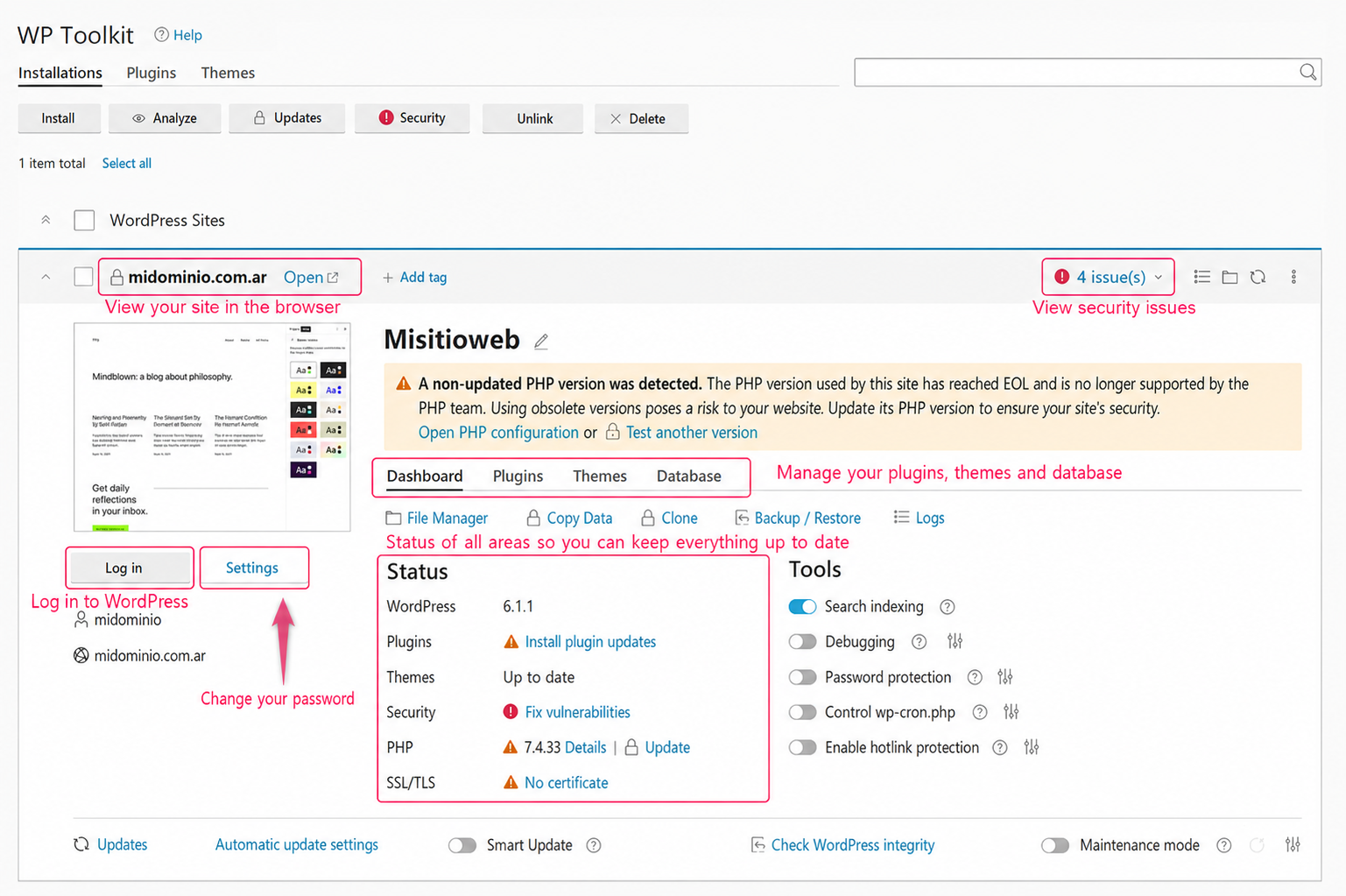
- If you enter WP Toolkit from the control panel you will see your installation. You will find many options and tools to make managing WordPress easier.
You will find options to:
- Change the password for the WordPress Dashboard.
- Log in to the WordPress Dashboard.
- Install and modify Plugins, Themes and your Database data.
- View Security issues to keep your installation protected.
- View the Status of each area to keep everything up to date.
Explore WP Toolkit to get the most out of all its features. Below we provide a video tutorial.