
How to configure my email account on Android?
Below we will show you how to configure an email mailbox on Android.
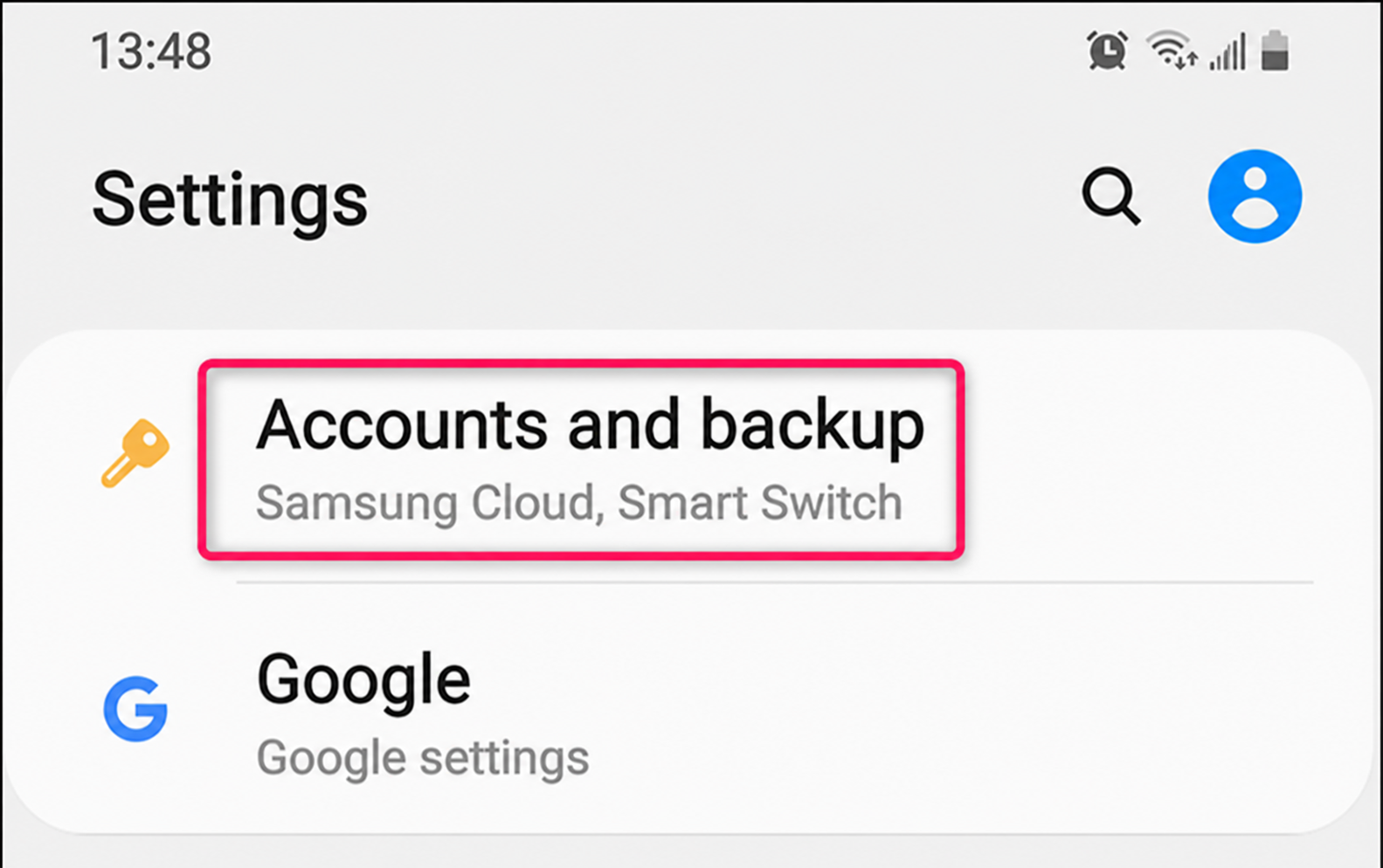
1) From your Android device, go to Settings and then to Accounts and backup.
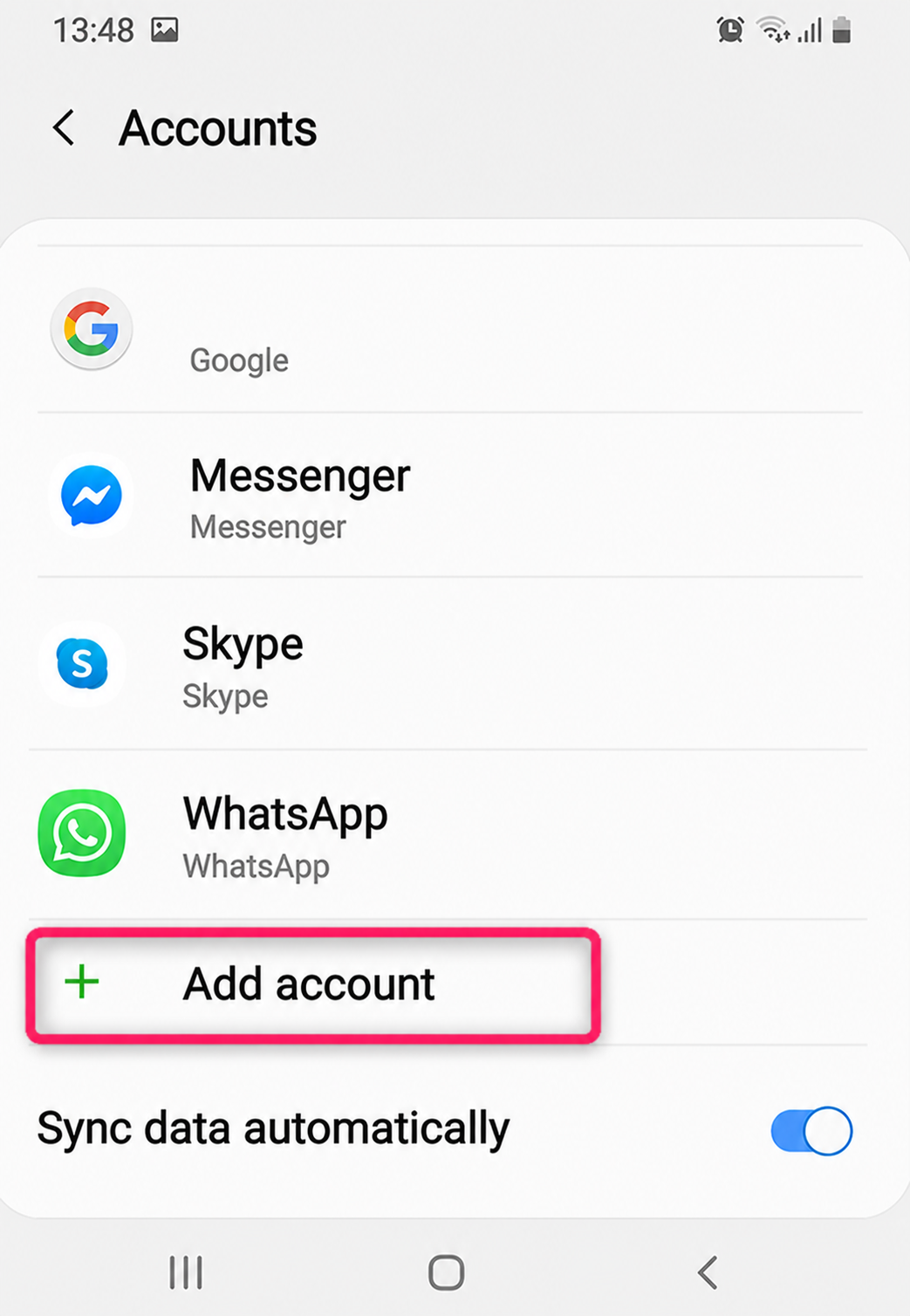
2) Select Accounts and click Add account.
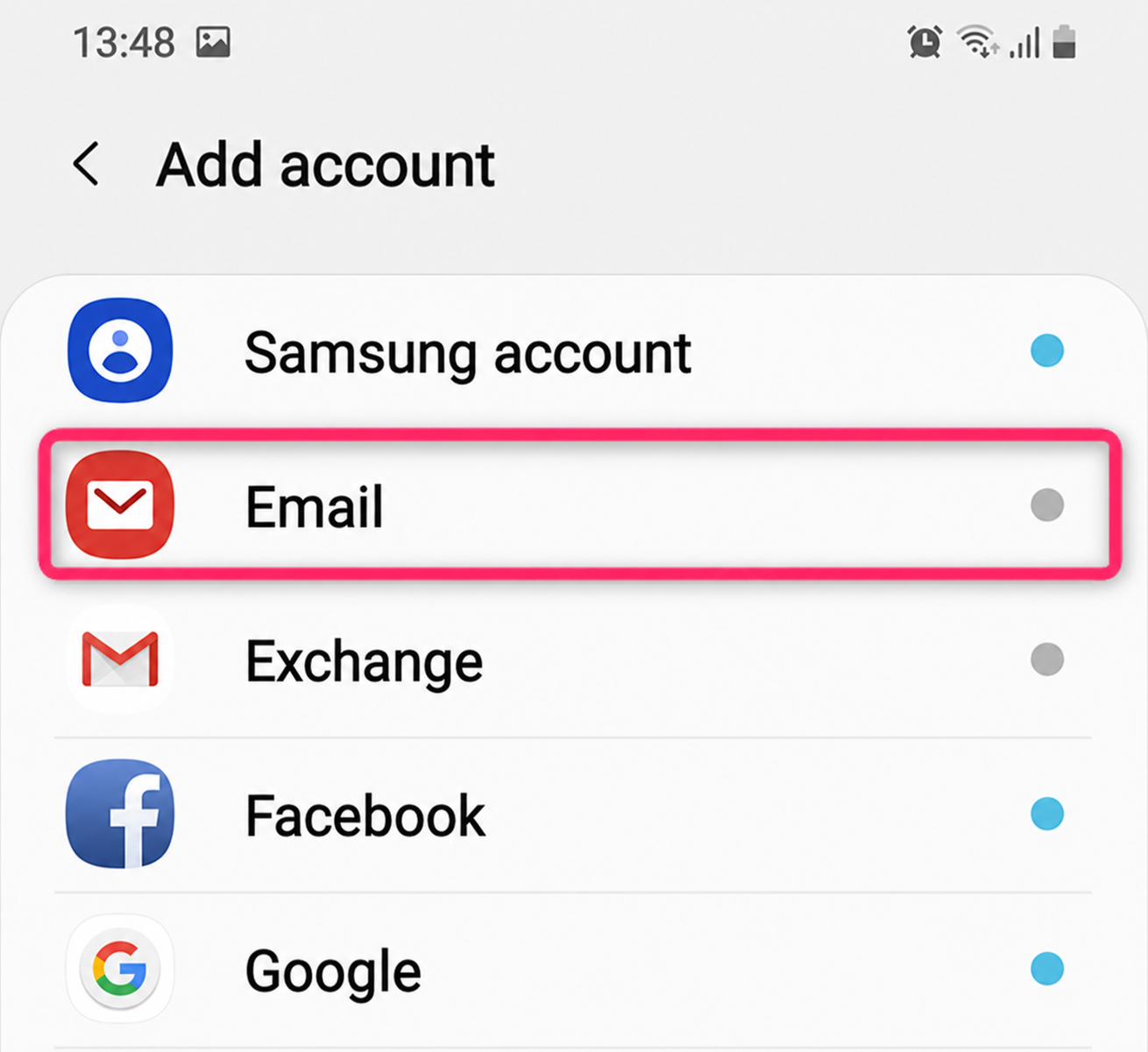
3) On the next screen go to the Email option
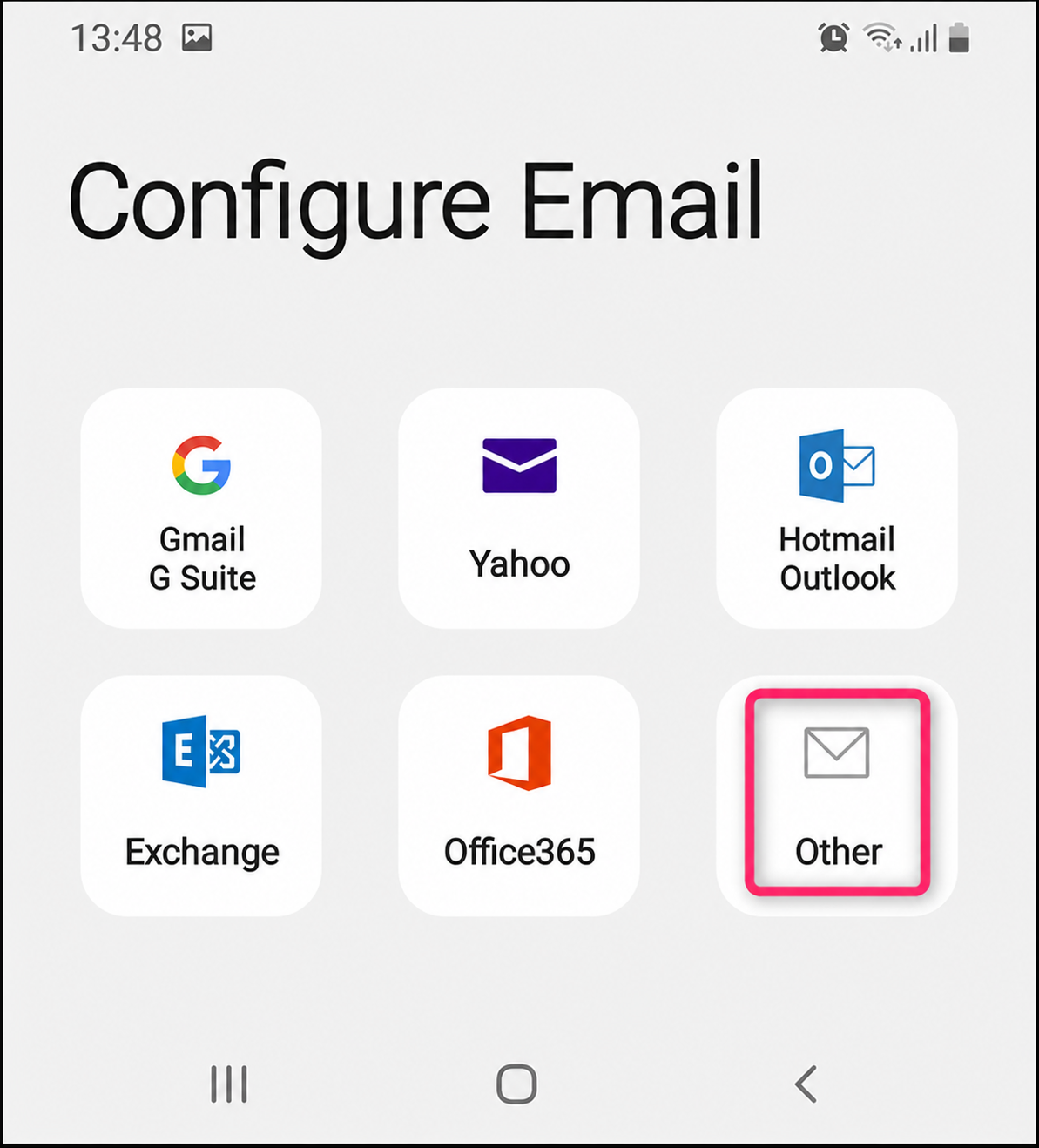
4) Then, select the Other option
5) Fill in the account details and press Sign in. Then, select the account type as POP3 account or IMAP account.
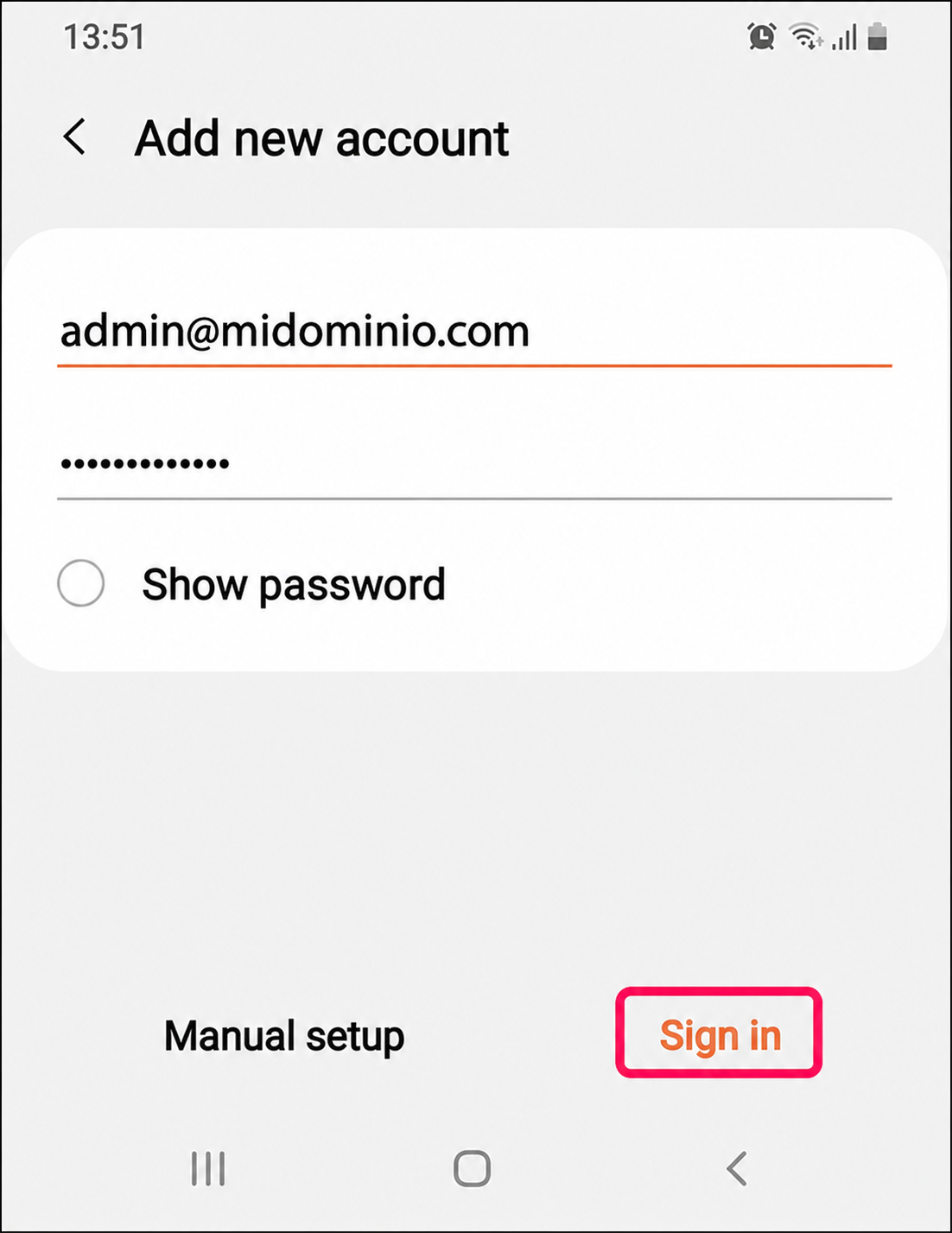
6) Verify that the incoming and outgoing server settings are correct, press Sign in to finish.
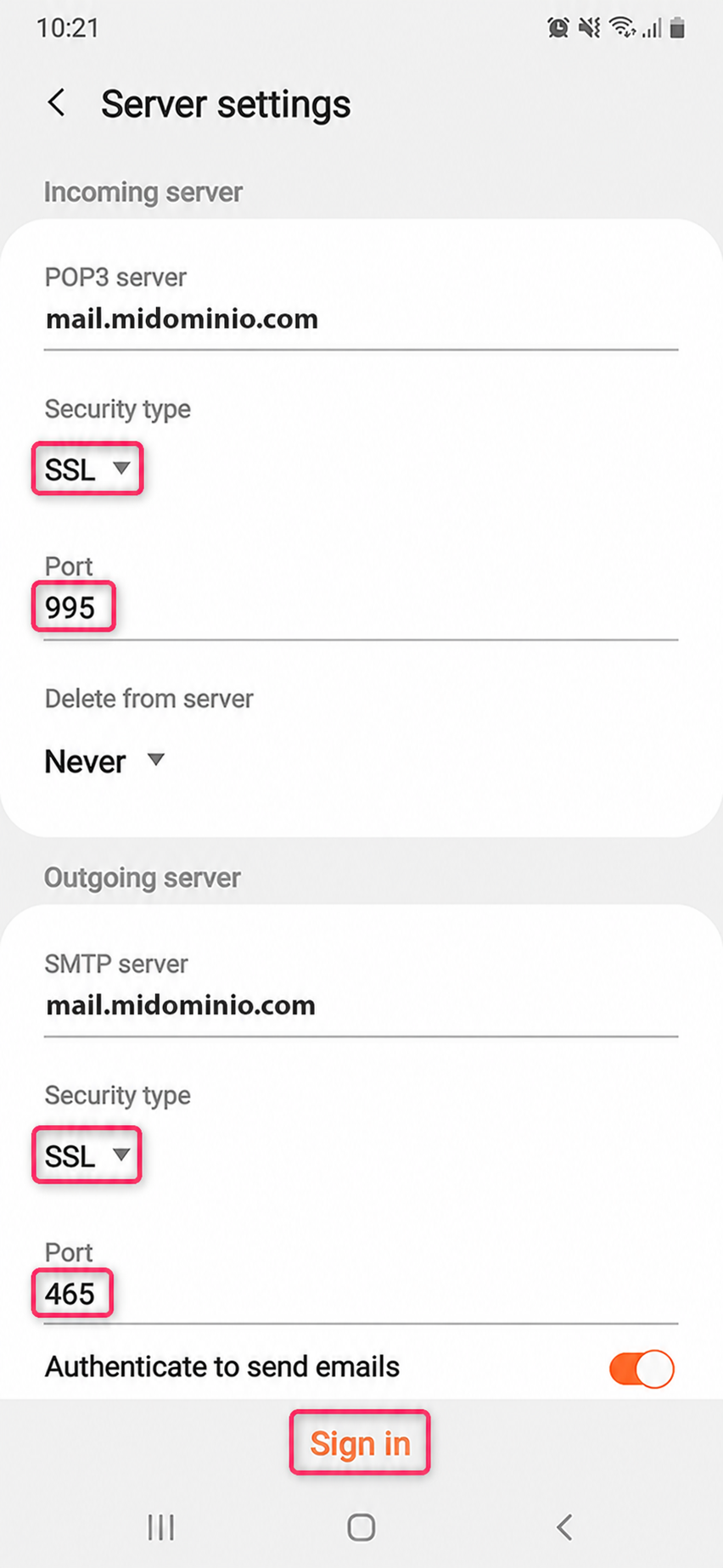
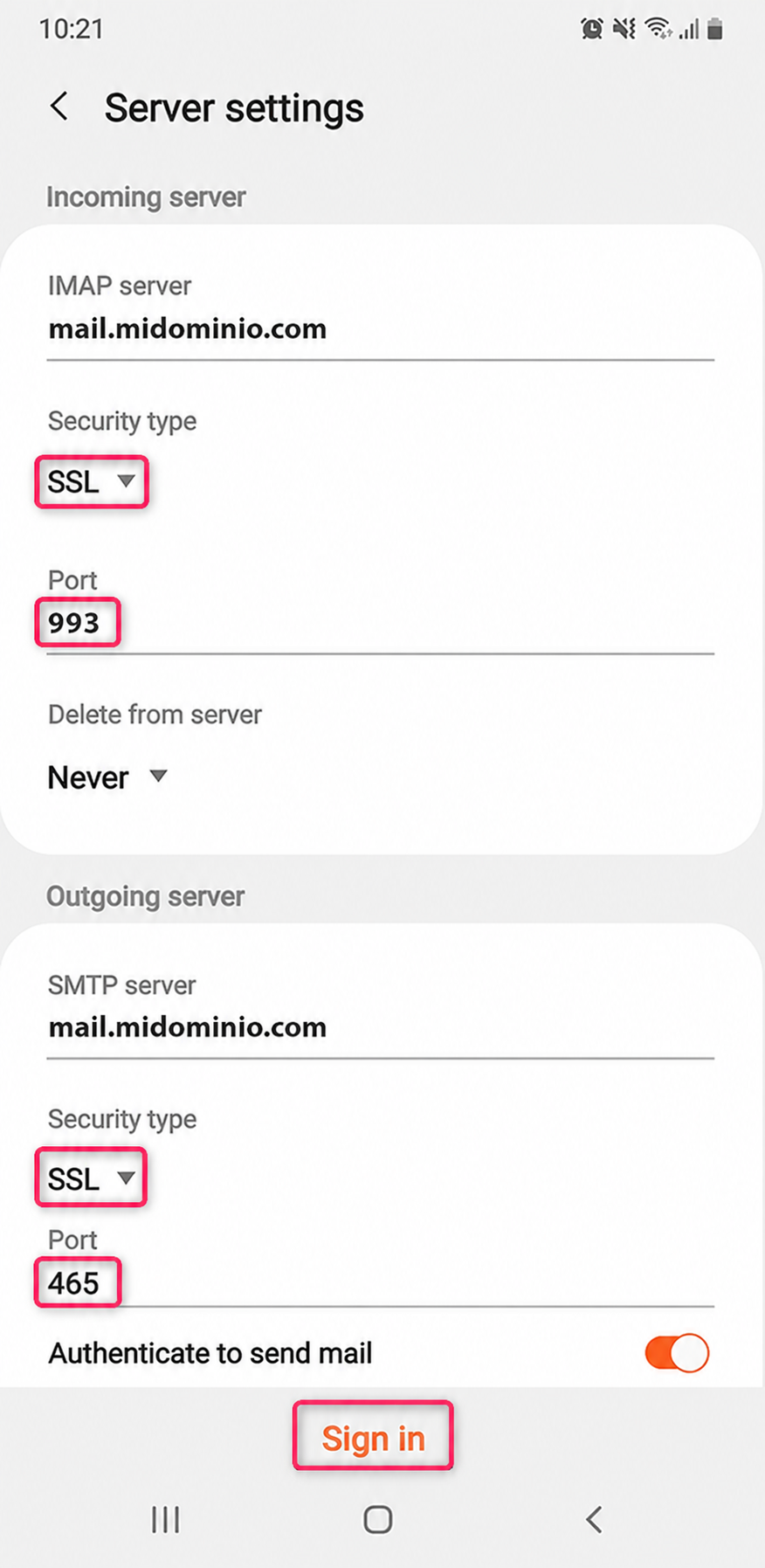
If an error occurs, you can modify the details manually from Server settings.
These are the steps to follow:
- Select IMAP or POP for your new account
- fill in the Incoming server and Outgoing server information
- configure the incoming and outgoing server ports.
Once you have configured everything, press Sign in again.
POP3 example:
IMAP example:
7) Done, your new email account will have been added to your Android device.