
How to configure my email account in Gmail?
- Sign in to gmail.com with your credentials. In the top right corner, click the gear icon and press See all settings.

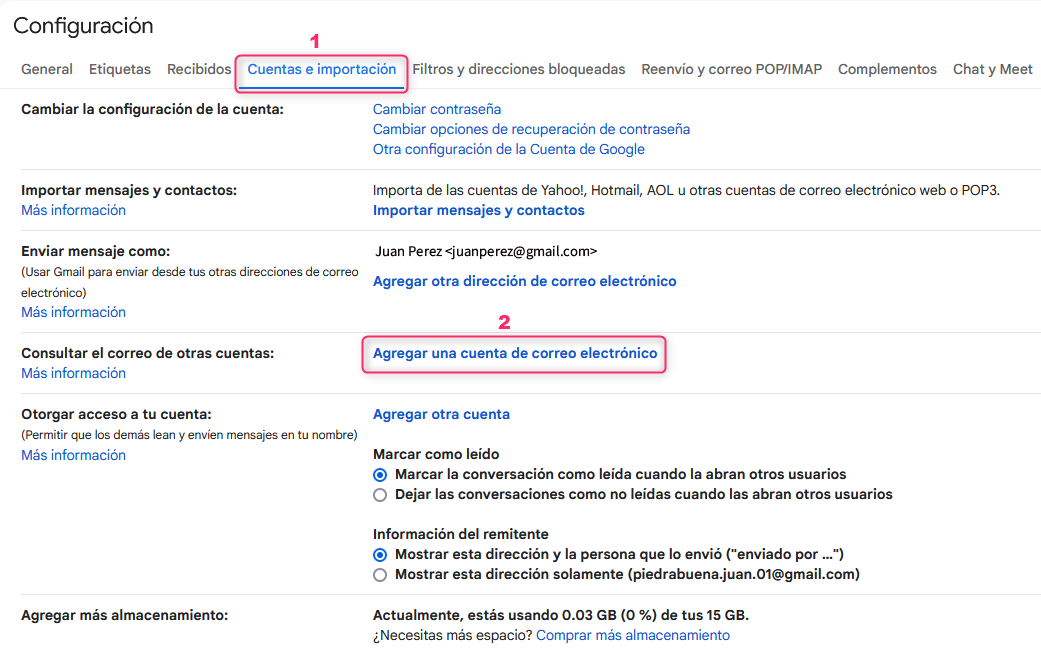
- On the new screen, click the Accounts and Import tab, then look for the Check mail from other accounts section and click Add a mail account.
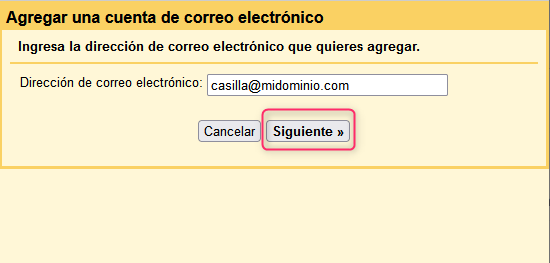
- On the new screen enter the email address to add and press Next.
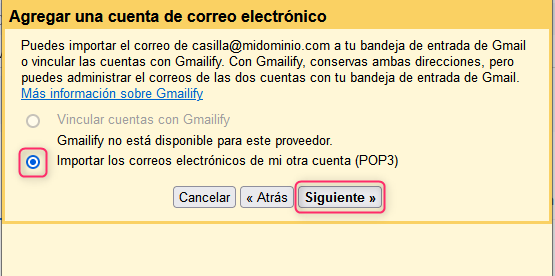
- Now select Import emails from my other account (POP3) and then press the Next button.
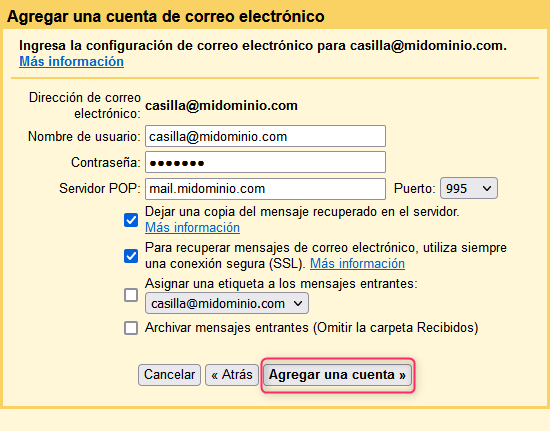
- On this screen fill in your account details as shown in the image, adding your domain where applicable.
- That’s it. You will have added the new account to Gmail.
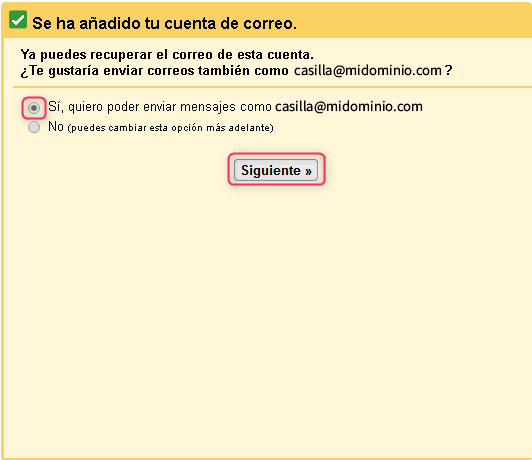
Now choose whether you want to use your new account to send emails. If so, choose the first option and then press the Next button.
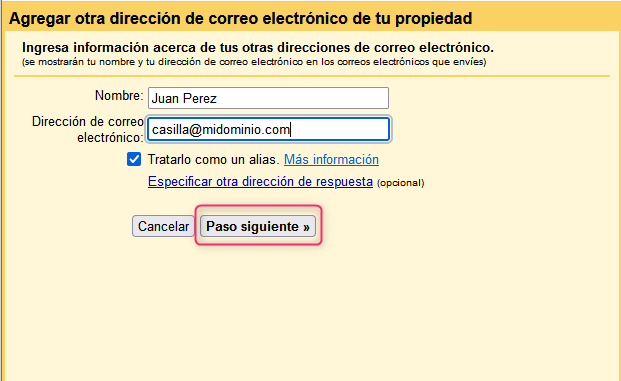
- On the new screen enter the name you want to display when sending your messages and press the Next Step button.
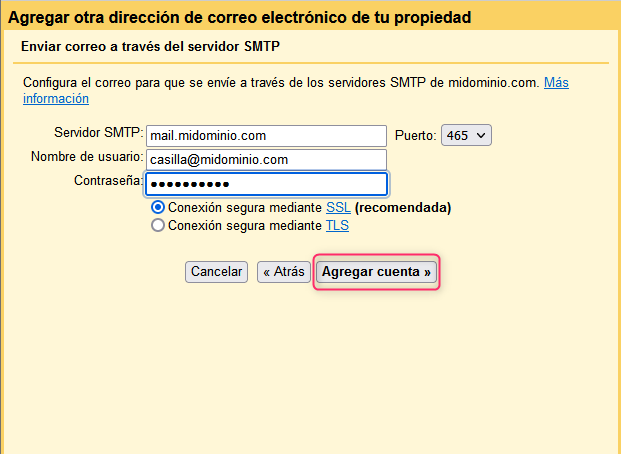
- Now fill in the SMTP server details for sending mail as shown in the image. Replace with your domain where applicable.
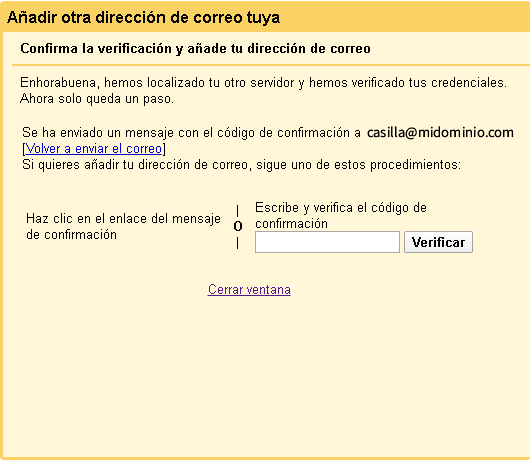
- After the entered details are verified, you’ll receive an email with a confirmation code to finish adding the account.
You can choose two methods:
- Click the link in the confirmation message
- or Enter and verify the confirmation code. Enter the code and press the Verify button
- That’s it. You will have added your mailbox to send emails from Gmail.