How to configure my email account in Thunderbird?
Below we will show you how to configure an email account in Thunderbird.
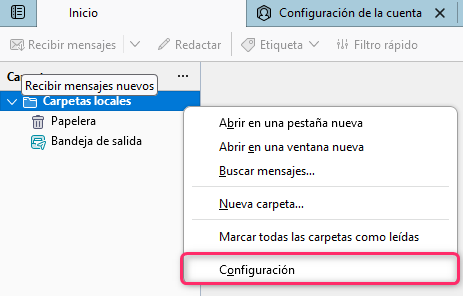
- Open your Thunderbird mail client. If you don’t have any mail account created, right-click on Local Folders and then go to Settings in the menu.
If you already have an account created you can do the same step, but on the mail account.
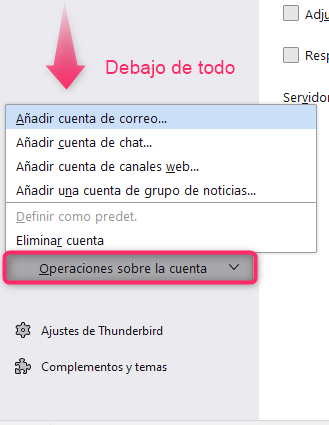
- On the new screen you will see, at the very bottom, the option Account Actions. Select that option and then go to Add Mail Account.
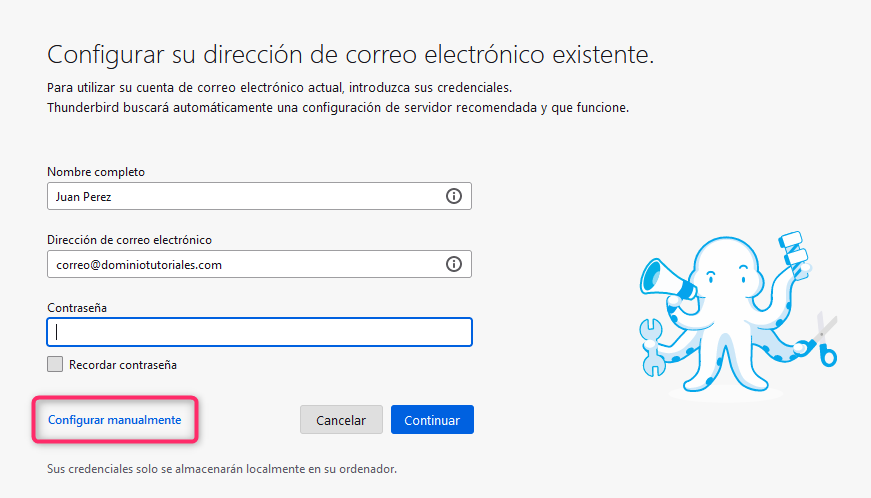
- Fill in the details with your name and email address, the option Configure manually will appear, click on that link.
The options to configure all the incoming server IMAP or POP3 details will open:
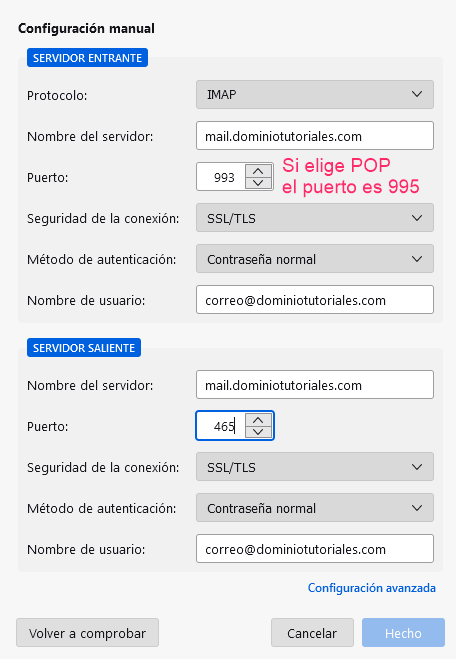
- That’s it, your email account is configured in Thunderbird.
How to modify the details of an already created account
If you need to modify your email account details, right-click on the account and go to Settings to view the account details.
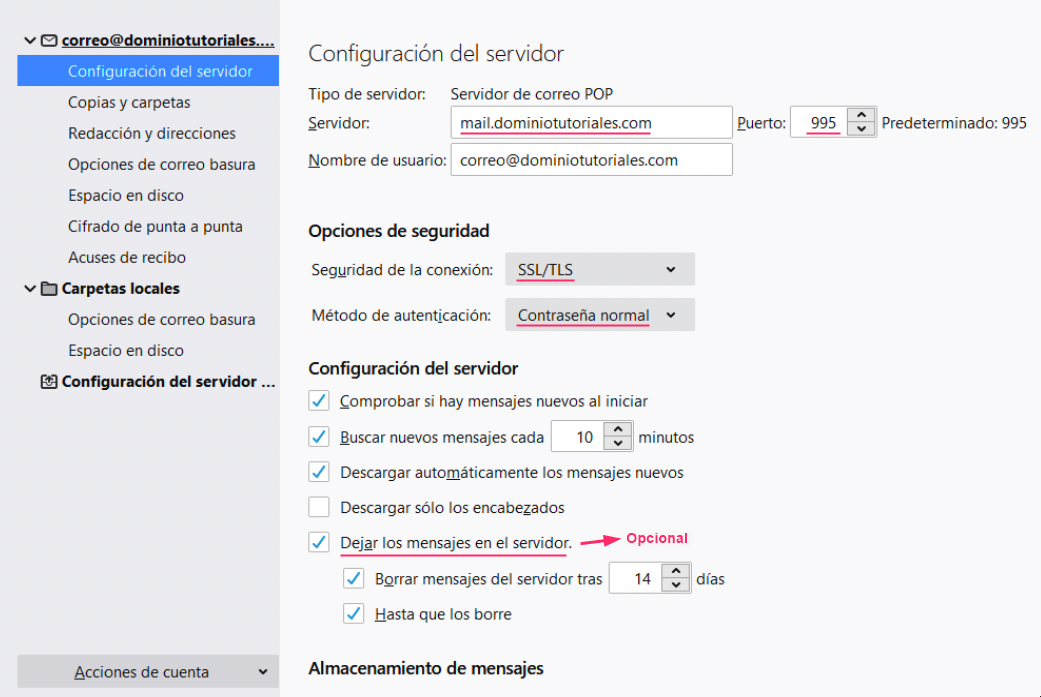
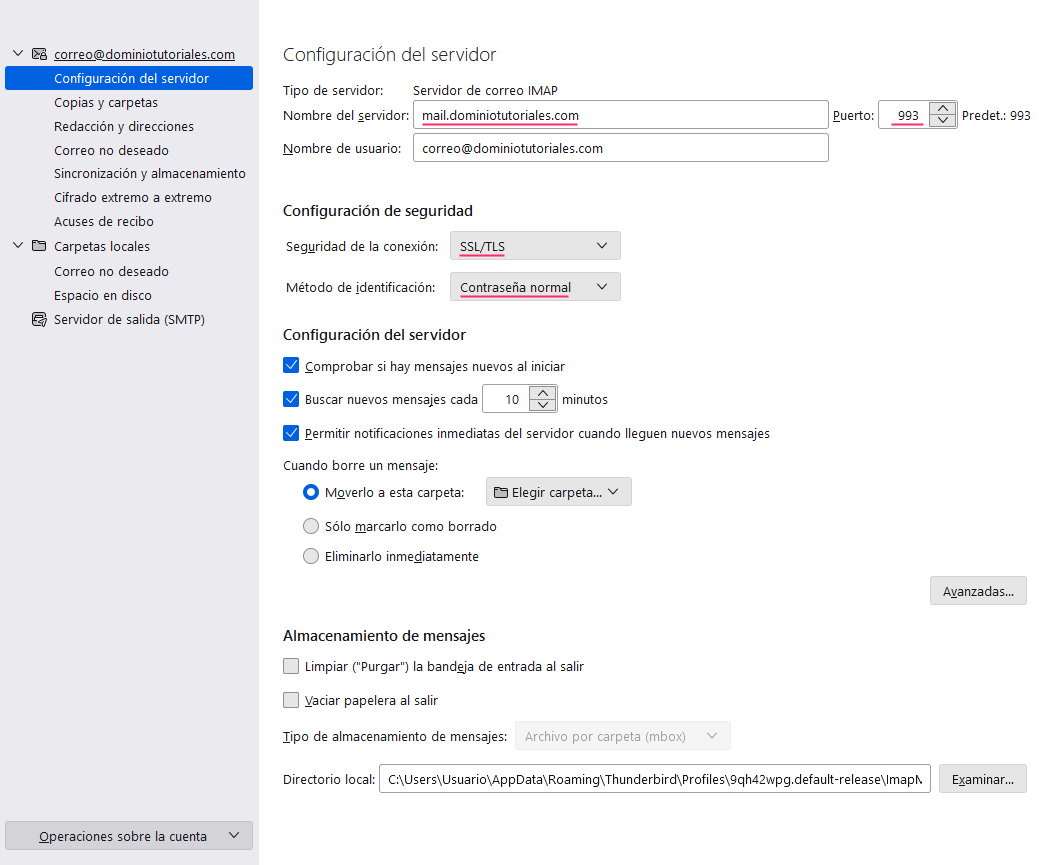
These are the details you should have for POP and IMAP mode:
POP configuration
IMAP configuration
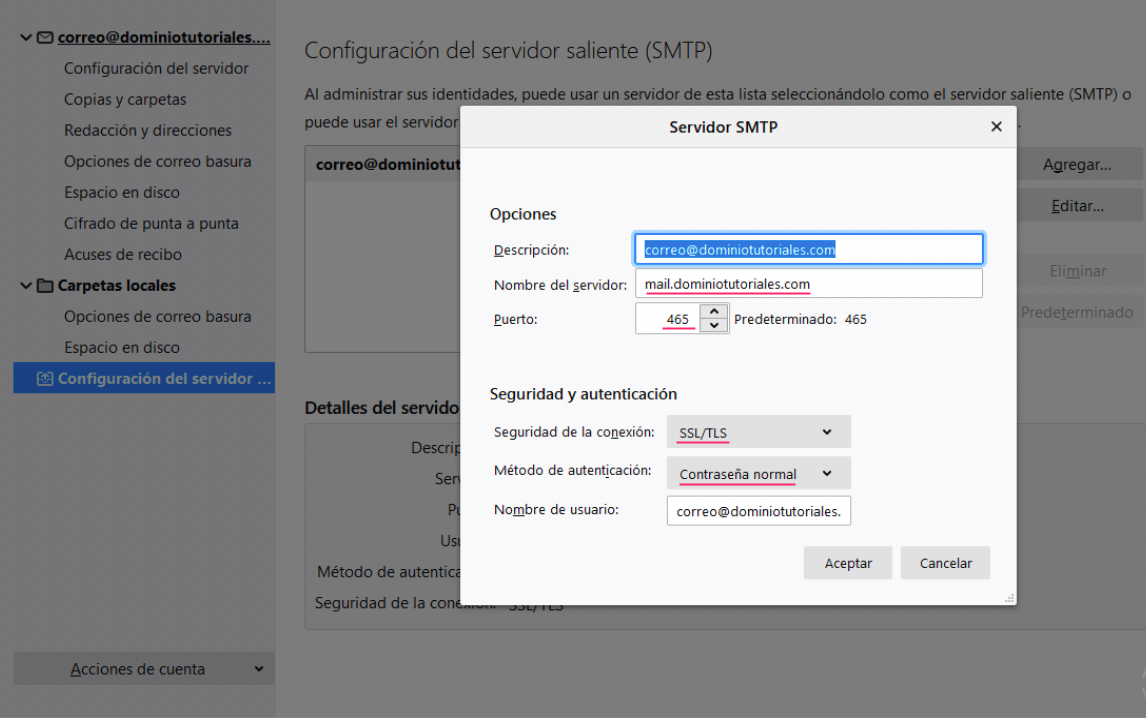
Outgoing server (SMTP)