How to change the password and other options for my mailboxes?
Below, we will show you how to change the password of your mailboxes and modify other options.
Accessing your list of mailboxes
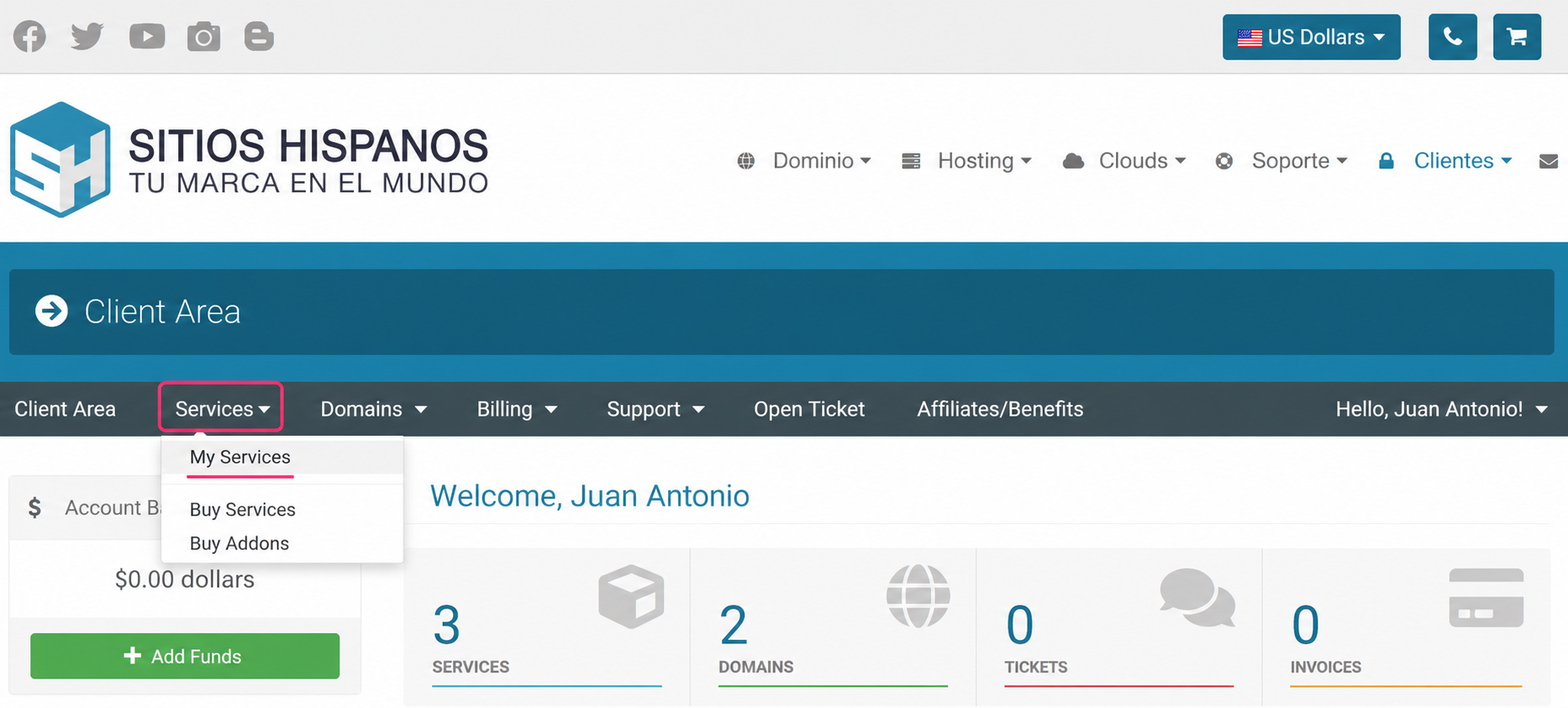
1) Log in to your Client Area and click Services, then My Services.
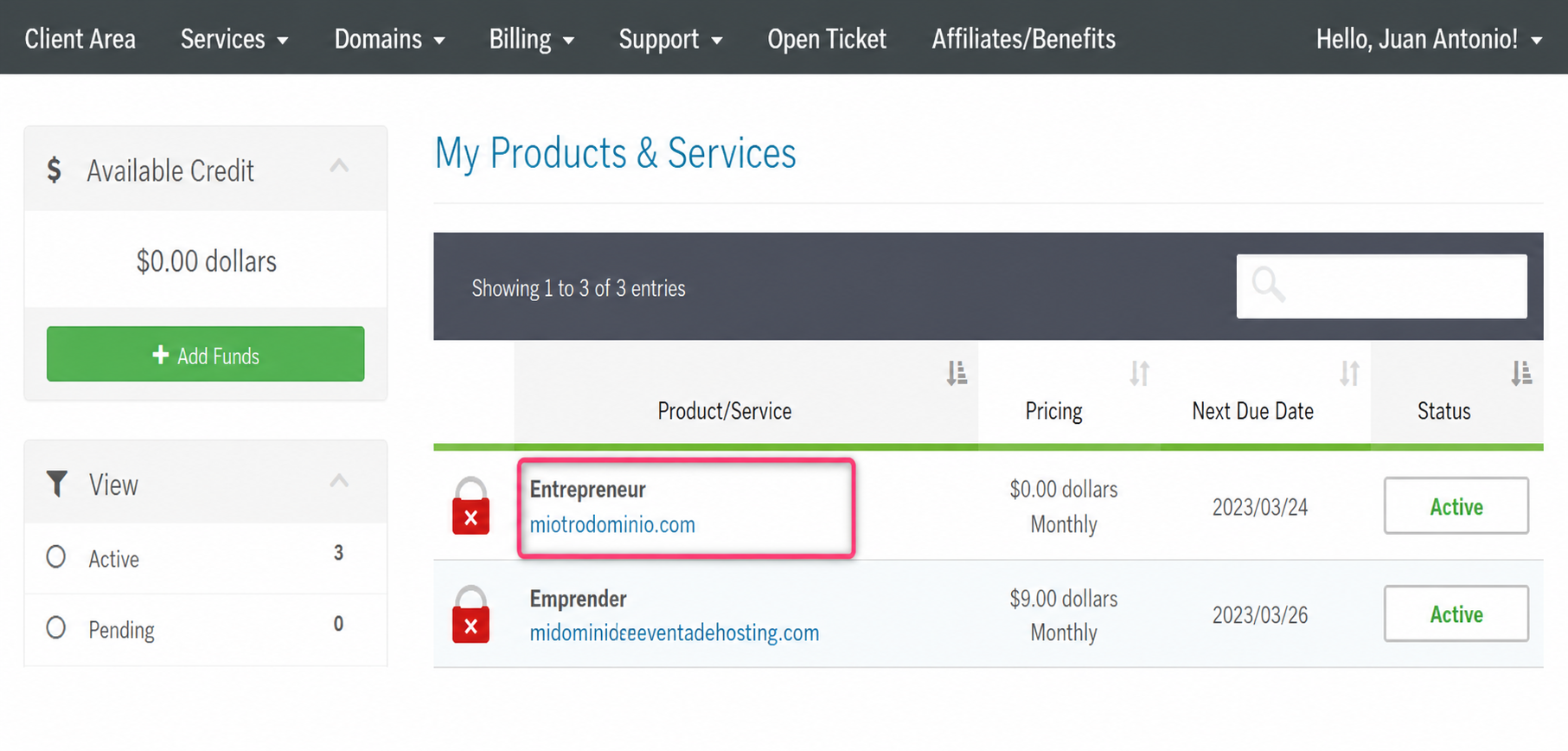
2) From the list of hosting plans you have, enter the one for which you want to modify the mailbox.
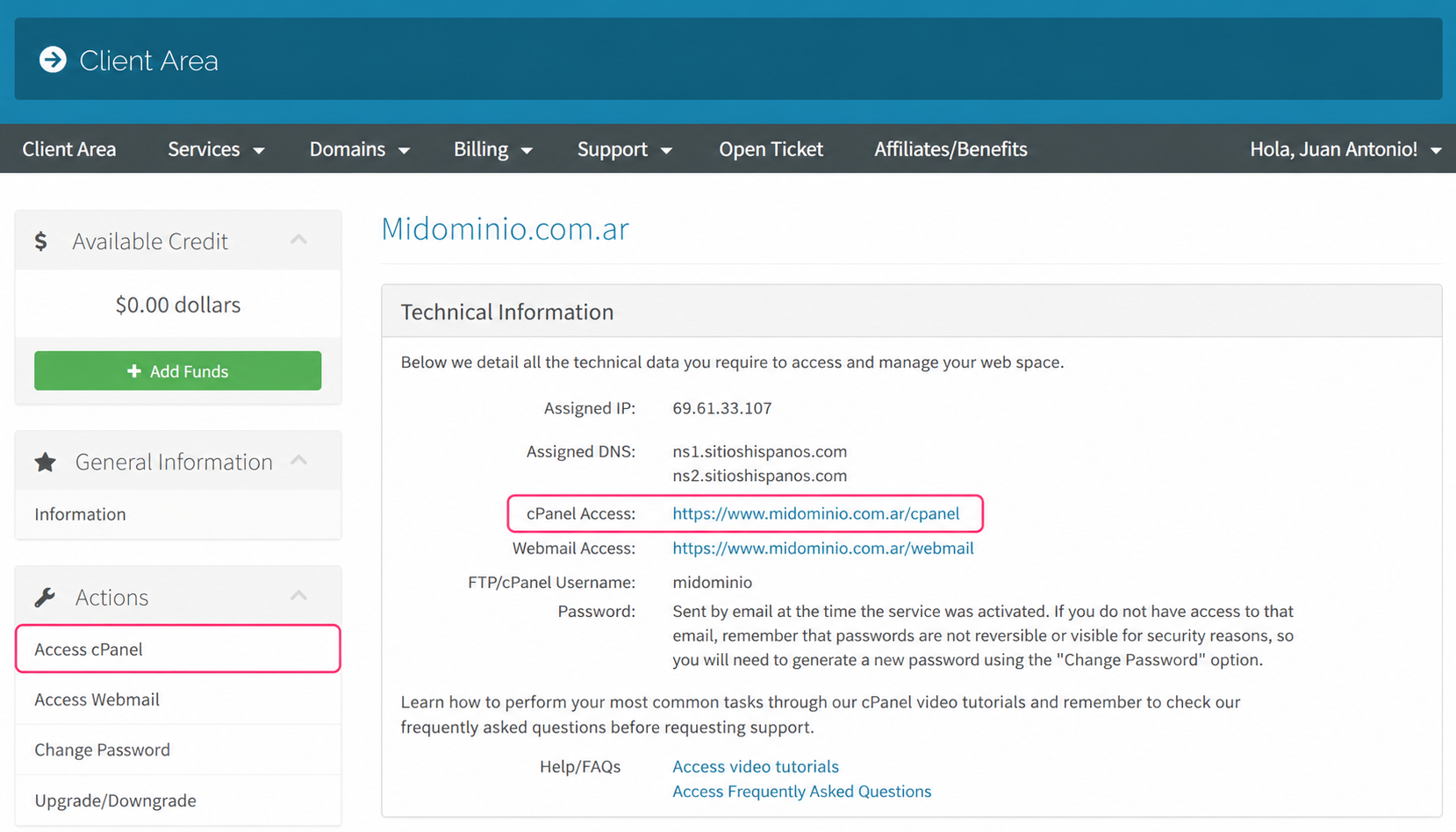
3) On the new screen you will see, in the Actions box on the left, the option to enter the cPanel control panel.
You will also see, in the central Technical Information box, the direct link to the panel from your browser.
.png)
4) Once in the cPanel control panel, go to Email Accounts, in the Email section.
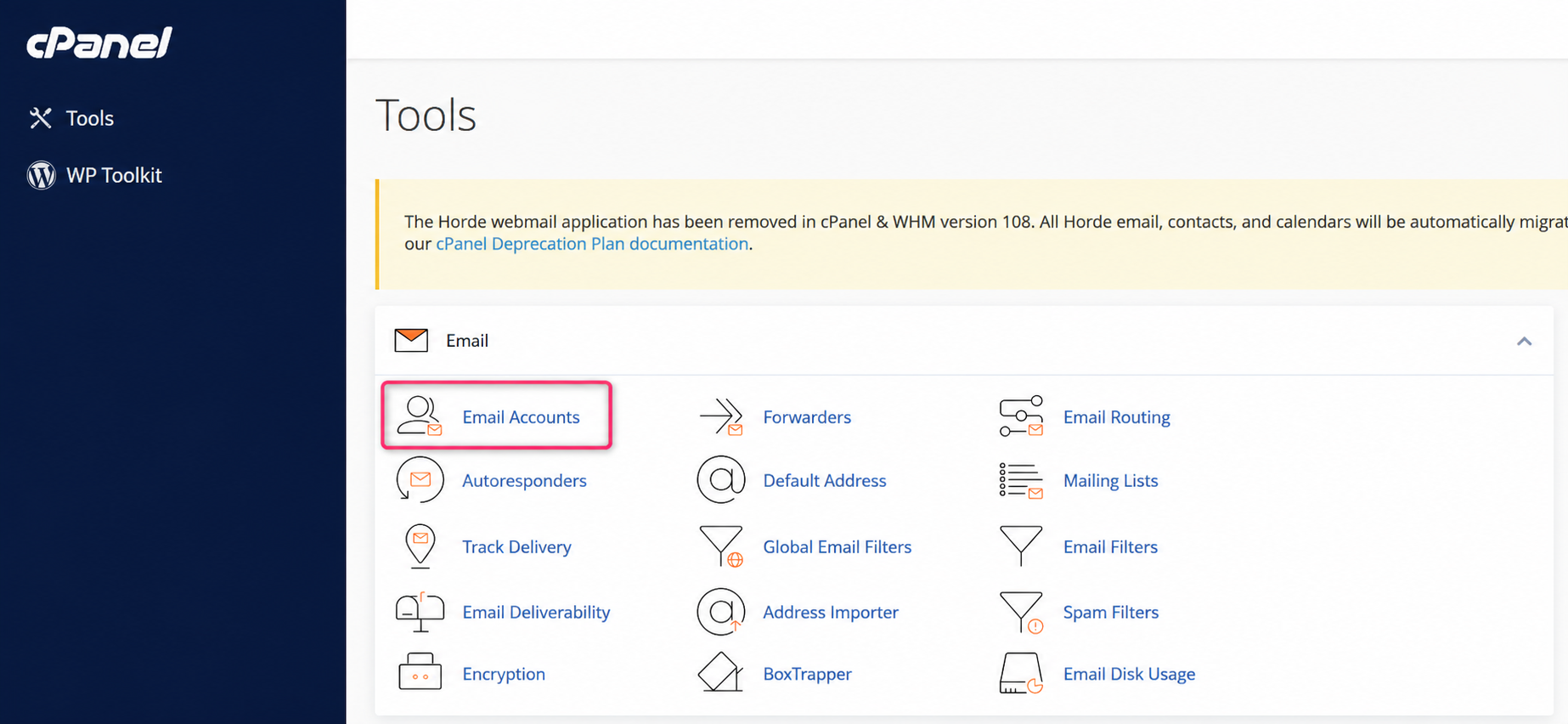
Modify password and other options in cPanel
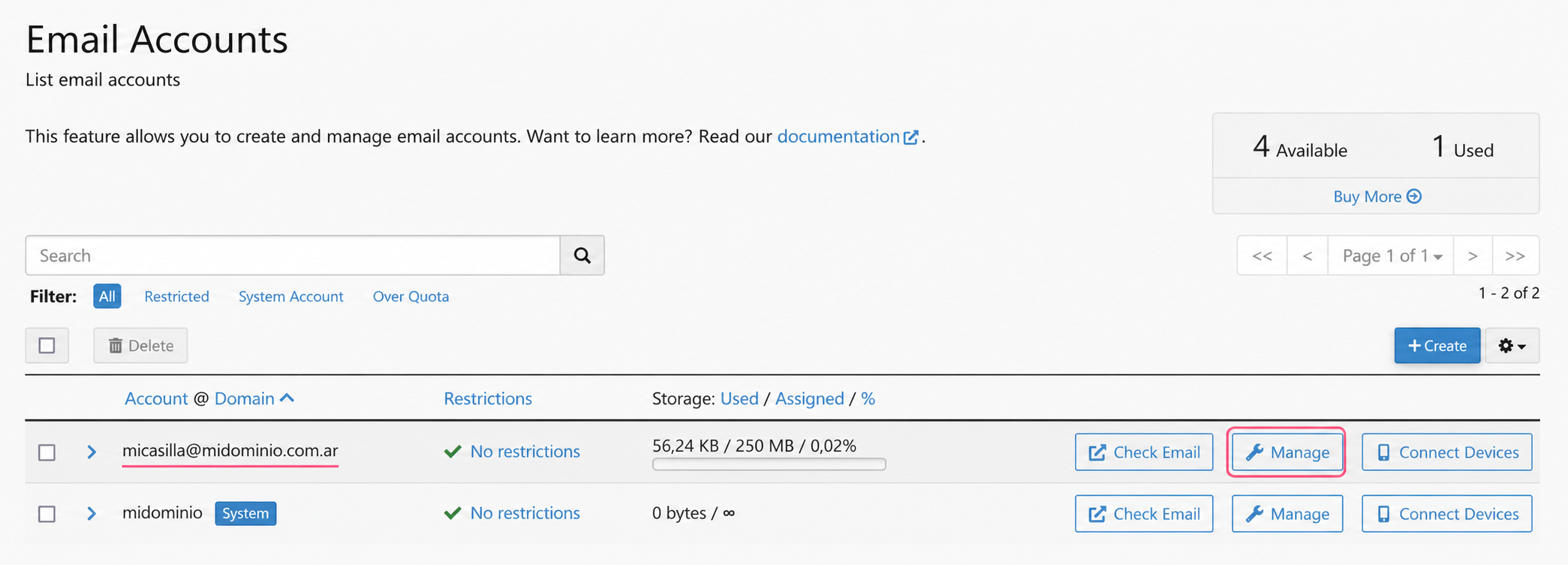
1) Once you see your list of created mailboxes press the Manage button
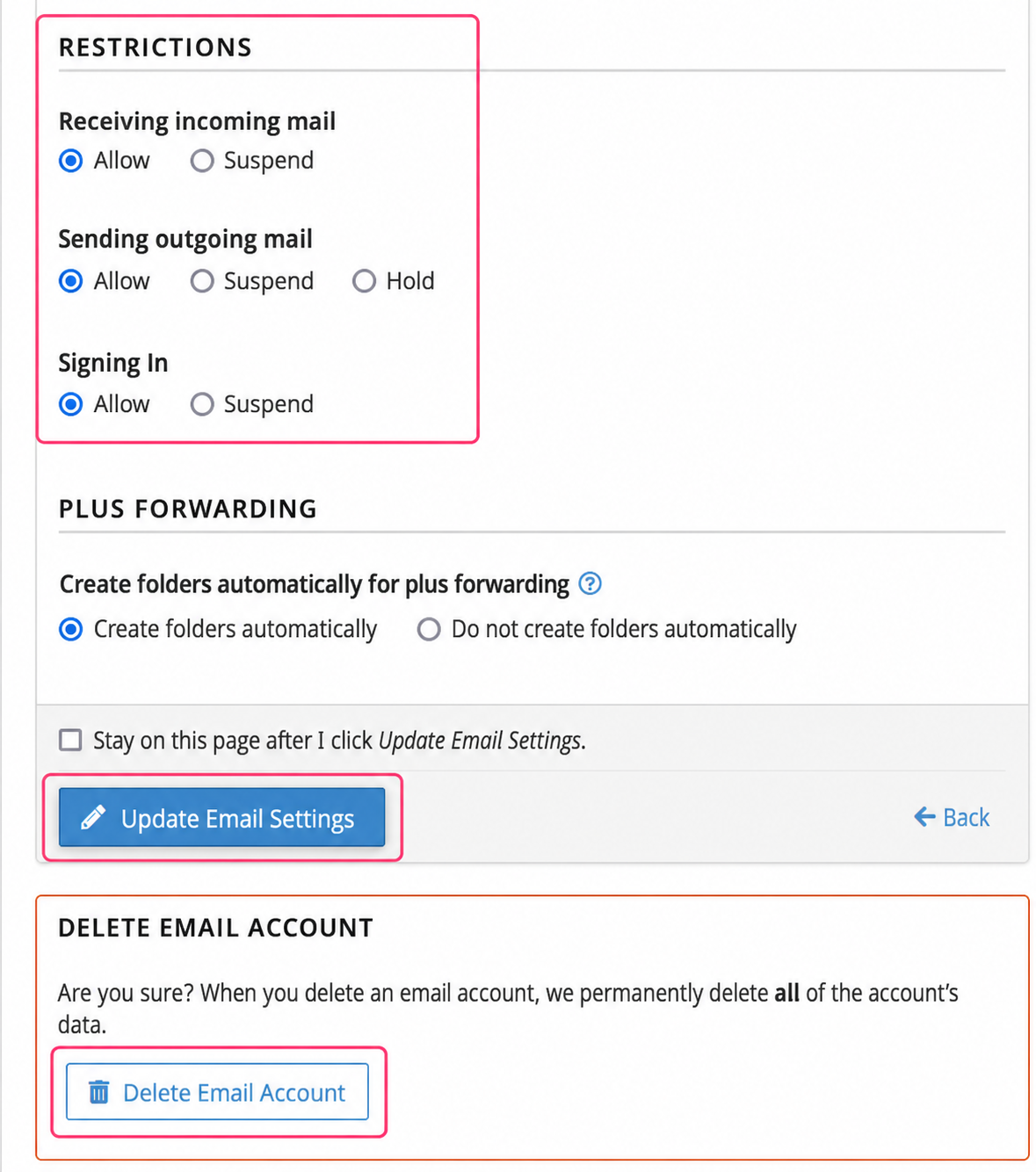
2) On the new screen you will see several options that you can modify, such as:
- The mailbox password
- the maximum space you can use
- restrictions and permissions
- delete the mailbox
.png)
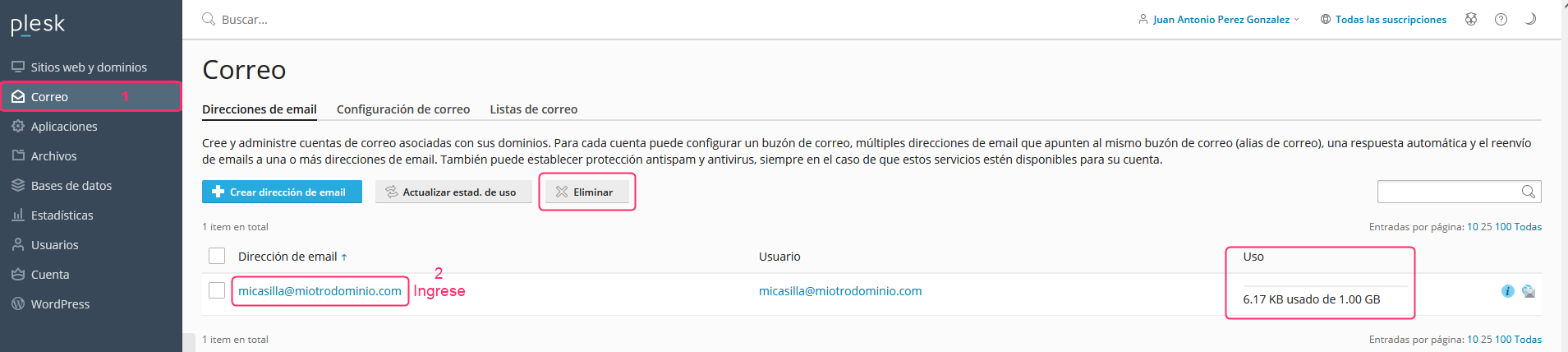
Modify password and other options in Plesk
1) When entering Plesk from your client area choose the Mail option in the left menu.
You will see the list of created mailboxes, the space they occupy and a button to delete them.
2) By clicking on an email account you will be able to modify its details.
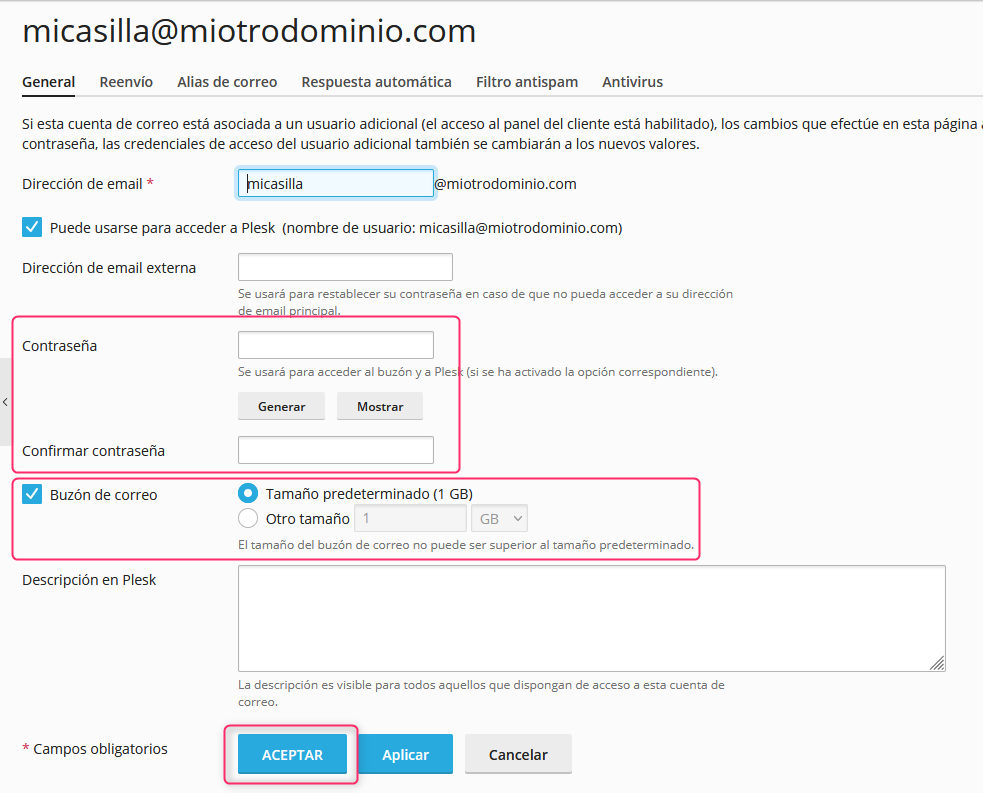
On the new screen you will see several options that you can modify, such as:
- The mailbox name.
- a secondary email account for password recovery.
- changing the mailbox password.
- the maximum storage limit the mailbox can use.
Pressing the ACCEPT button will save the changes made.