How to Generate Backups in Plesk?
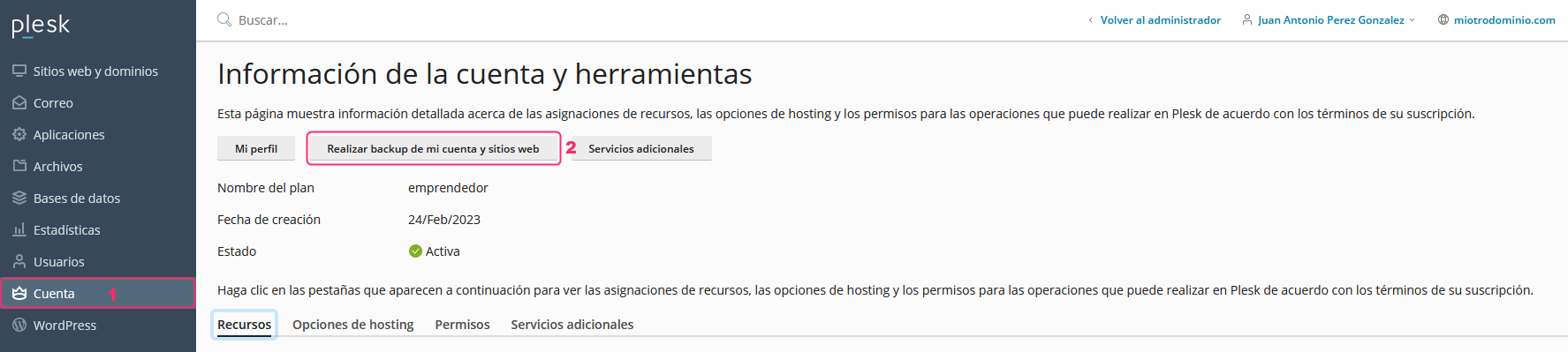
1) To generate or download backups of your account go to Account in the left menu, and then press the Back up my account and websites button.
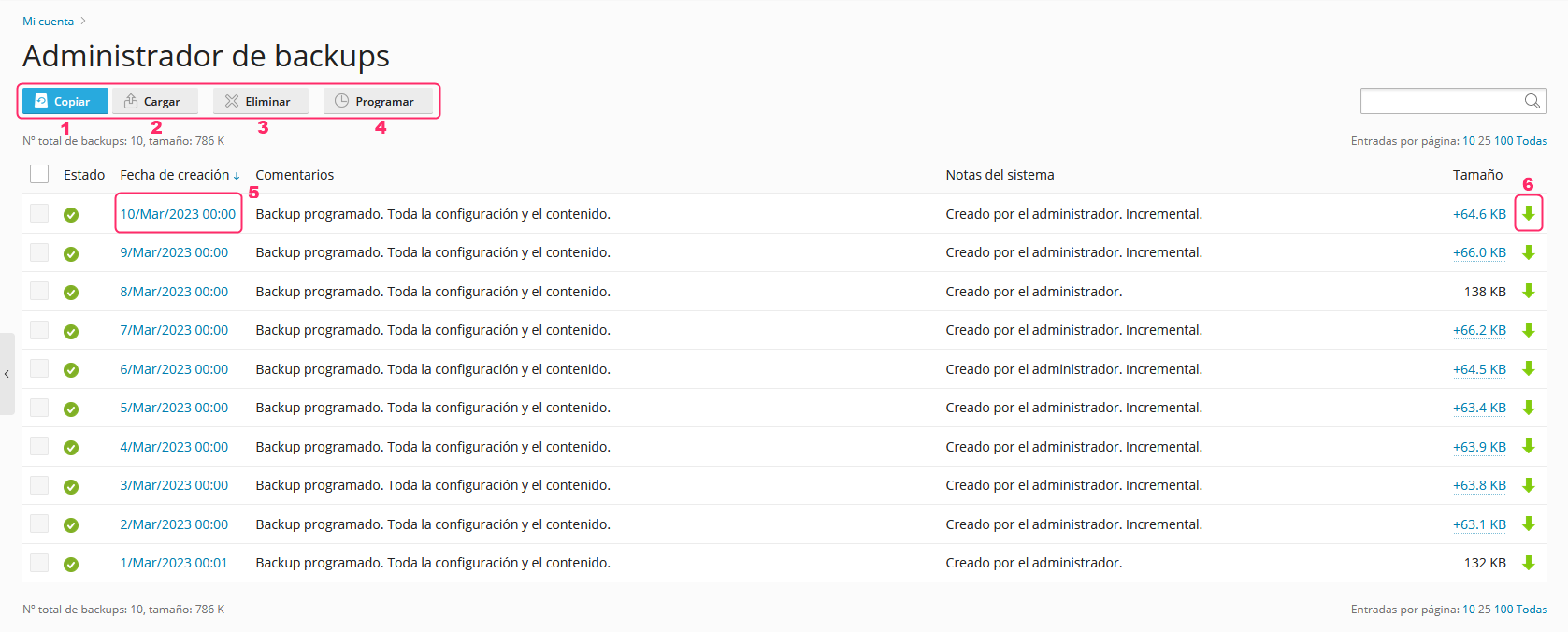
2) On the new screen, you will see several buttons and options. We will outline each one and then look at them in more detail:
- With the Copy button you can create a backup. Find the steps here.
- With the Upload button you can upload a backup that you have downloaded to your PC or device. It will appear in the list so it can be restored if necessary.
- With the Delete button you can remove backups that you have checked using the checkboxes on the left.
- With the Schedule button you can configure when the server will make backups of your account. Plesk already generates account backups periodically so they can be restored.
- If you click on the date of a backup, you can restore it. Find the steps here.
- If you click the green arrow to the right of a backup you can download it to your PC or device.
Create a backup
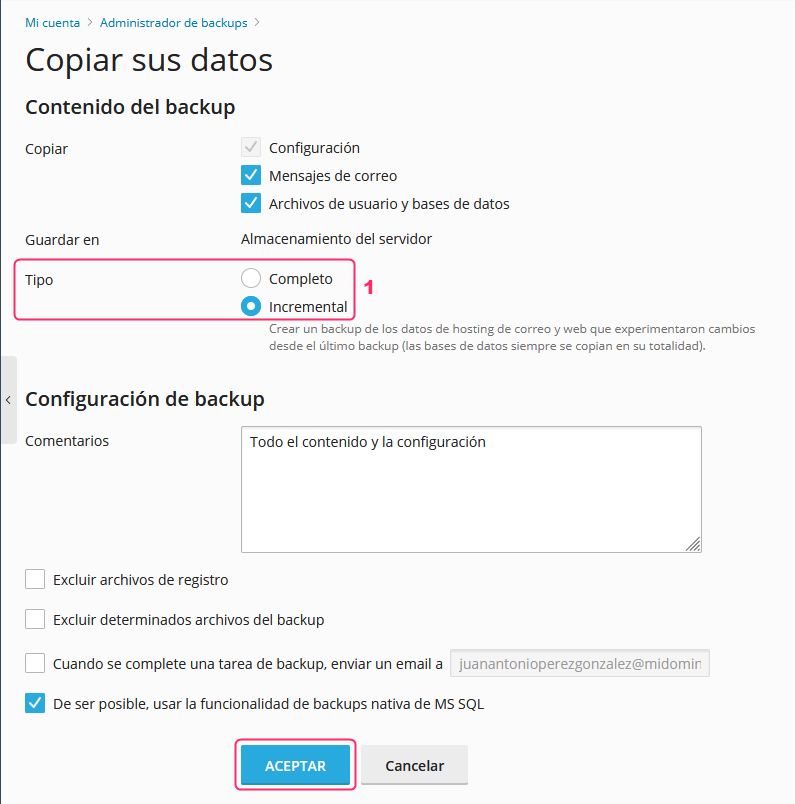
The backup creation screen will ask you for:
- What types of data to include in the backup.
- The type of backup to create. It can be Full or Incremental.
- The Full backup will copy your entire account.
- The Incremental backup will only include the changes made since the last generated backup.
- You can exclude certain files from the backup.
- You can send a notification to an email address when the backup is completed.
- It is recommended to keep the checkbox for the native MS SQL backups functionality enabled.
By clicking Accept the backup of your account will begin to be generated.
Restore a backup
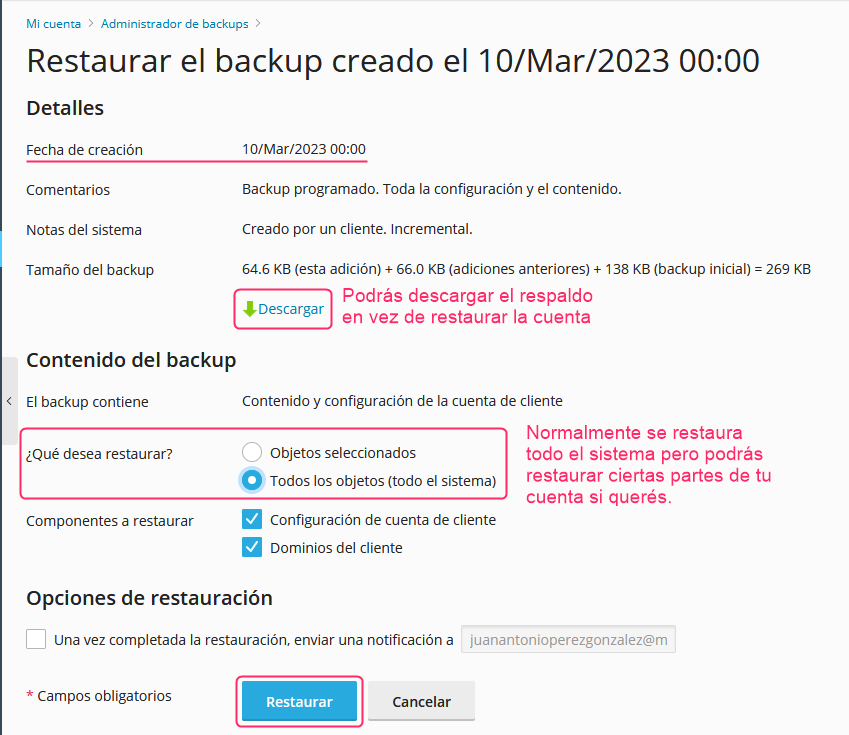
The account restoration screen will show information about the selected backup and give you different options to restore your account:
- You can download the backup to your PC if you want to keep it outside the server.
- You can restore the entire account (recommended) or restore only certain parts.
- You can send an email notification when the restoration is completed.
- By clicking the ACCEPT button the restoration of your account will begin.