How to configure the anti-spam filter?
The Antispam filter is called SpamAssassin and is configured from the control panel.
Configuring the antispam filter from the control panel:
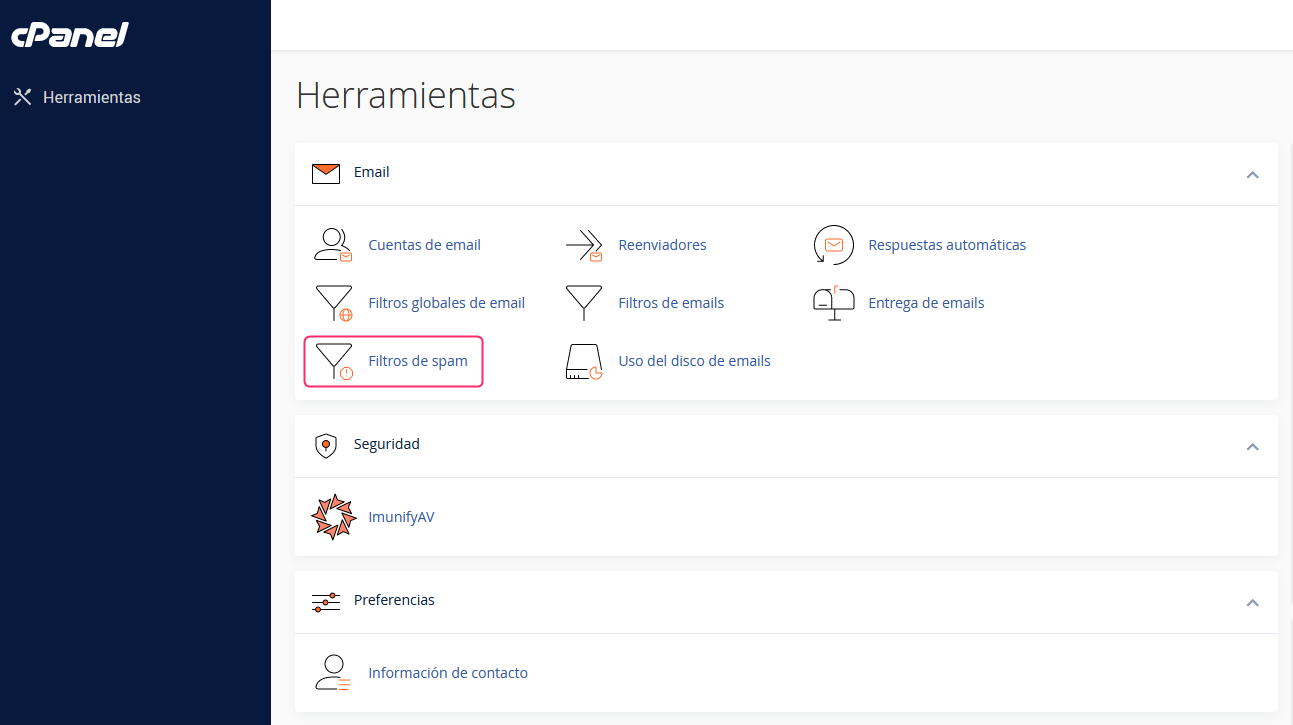
- In the control panel cPanel, go to Spam Filters, in the Email section.
-
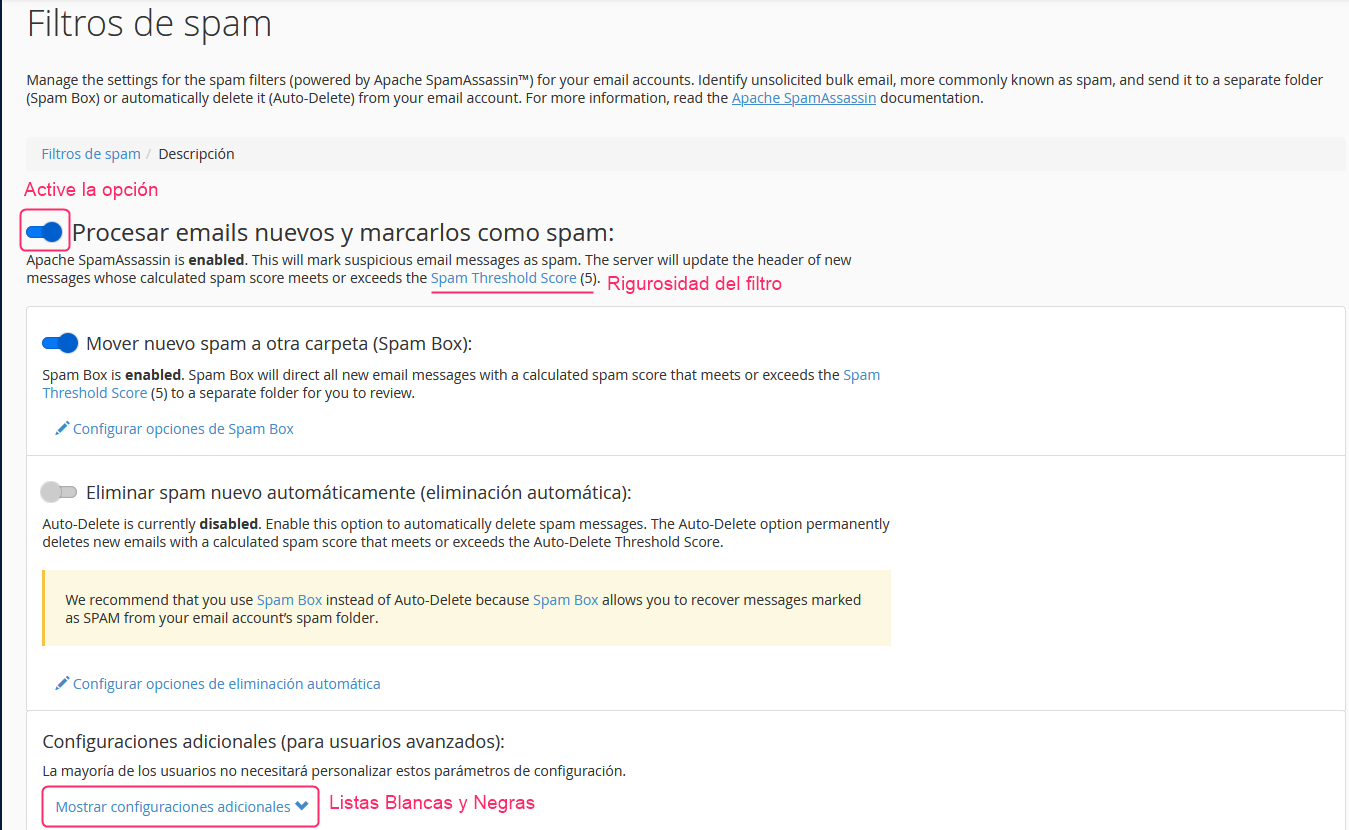
First, enable the options you are interested in for your filter. You will see three options:
Process new emails and mark them as spam:
This option is the filter itself. You must enable it for the other options to be processed.
Spam Threshold Score
You will notice that the Spam Threshold Score has a set value.
This is the strictness of the filter. It is recommended to set a value of 8 for a not-too-strict filter or a value of 5, which will make it a bit stricter. It is not recommended to lower it below 4 or it could filter legitimate emails.
Move new spam to another folder (Spam Box):
This option will create a spam mailbox in your email accounts. Detected spam will be moved to this mailbox automatically.
Automatically delete new spam (auto-deletion):
This option will automatically delete emails detected as spam. It is recommended to set a higher strictness here than the one given to the normal filter.
Manage Whitelists and Blacklists
Below the main options of the Antispam Filter you will find an option called Show additional settings.
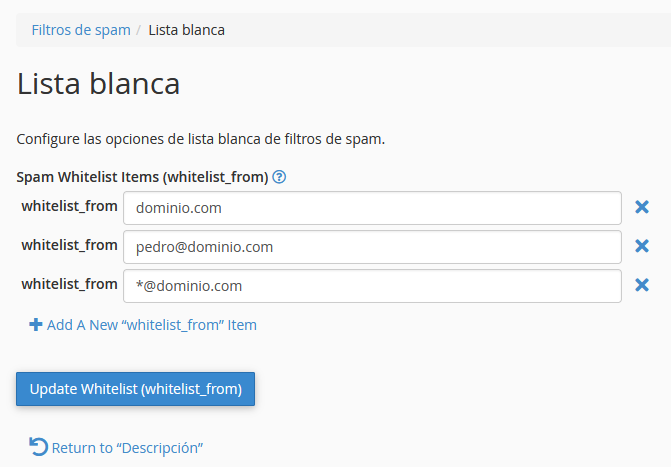
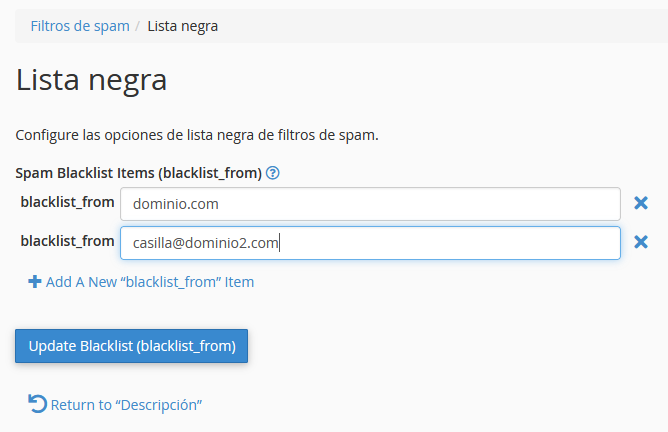
This option will open the manager of Whitelists and Blacklists.
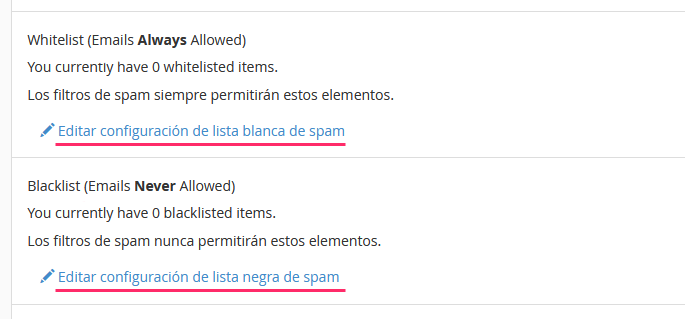
Inside each list type you can define domains or email accounts that you always want to accept or block. This way, you ensure that certain emails always arrive or are always blocked by the Antispam Filter.