How to configure automatic email replies?
Below we will show you how to configure an automatic email reply.
Follow these steps to create an automatic reply in your email accounts:
Accessing Automatic Replies
- Log in to your Client Area and click Services, then My Services.
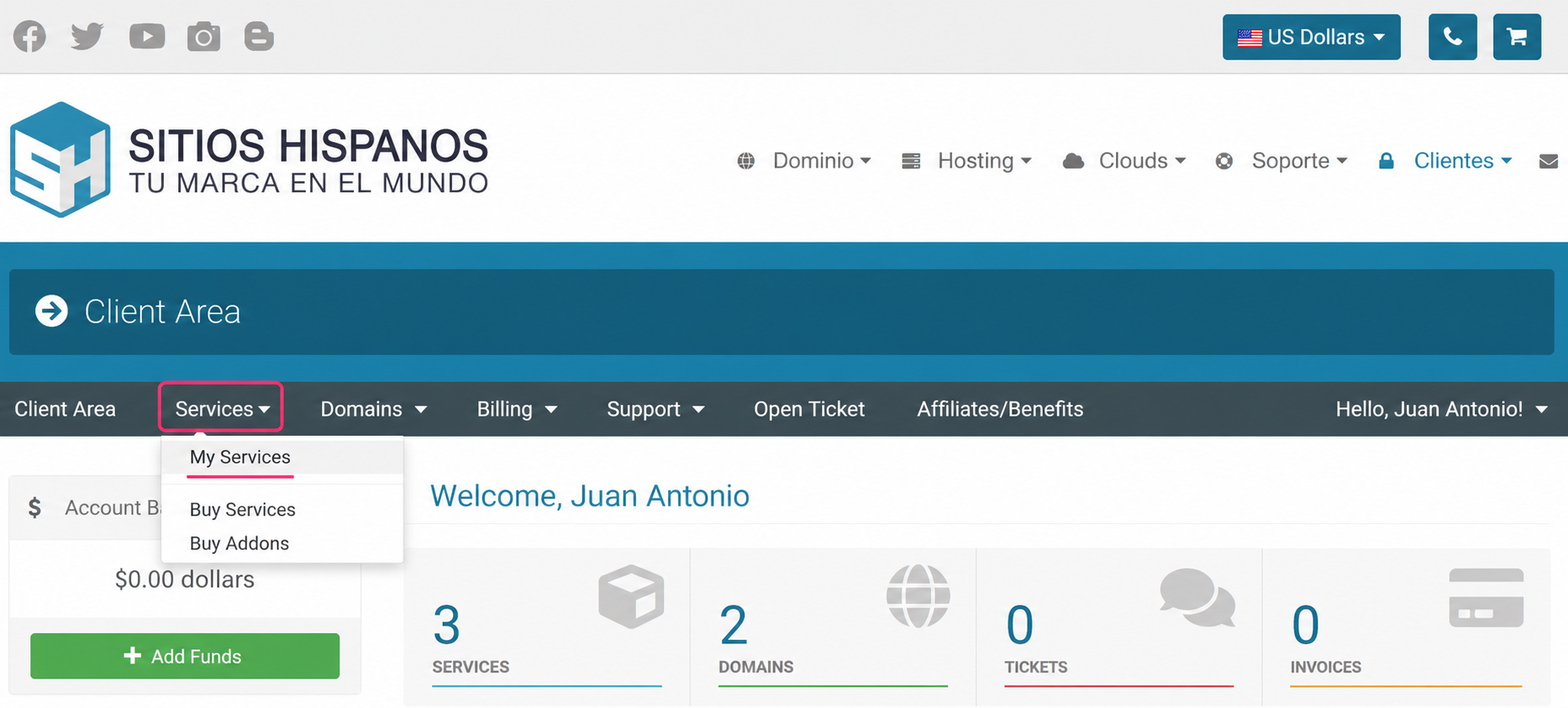
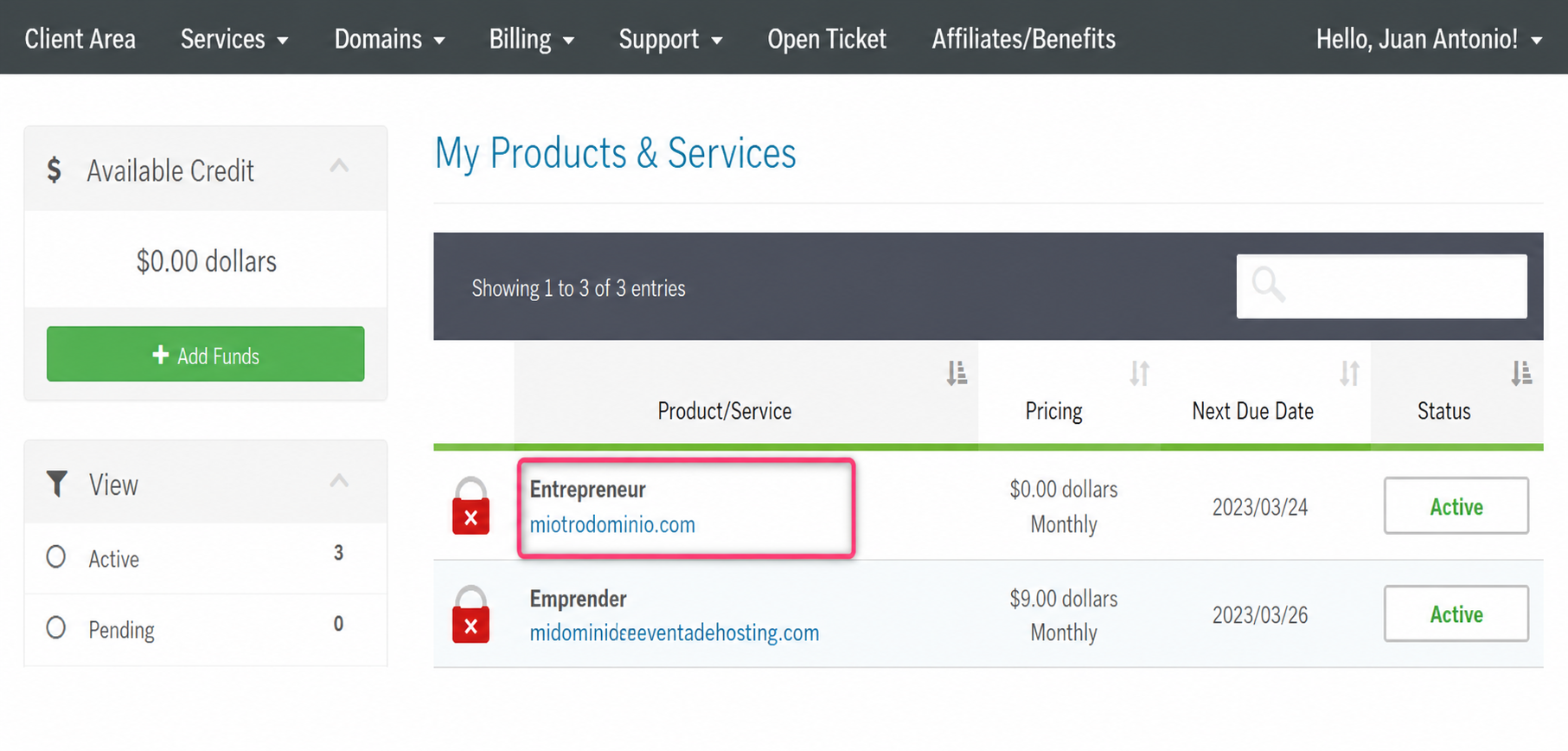
- From the list of hosting plans, enter the one where you want to enable Automatic Replies.
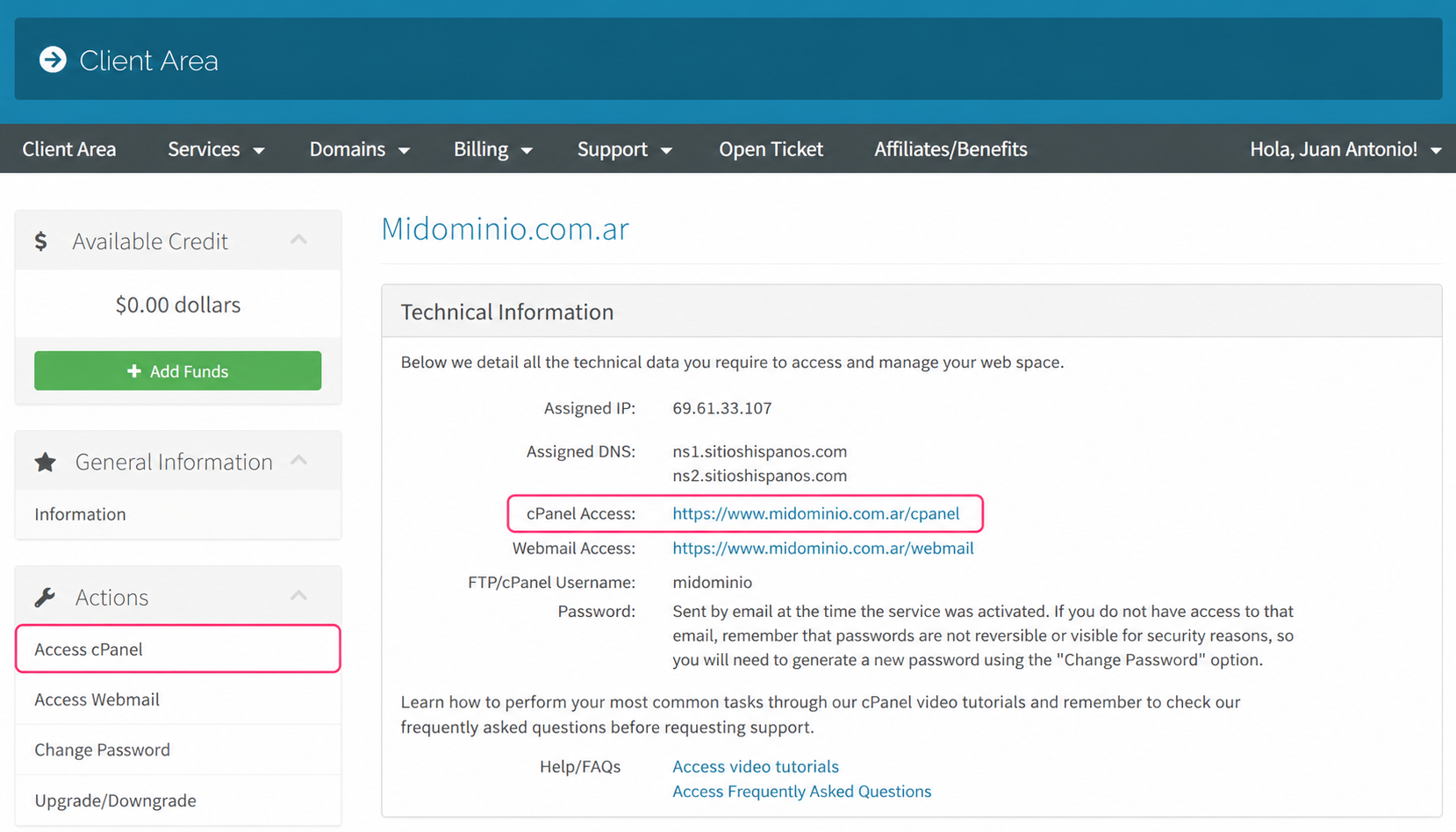
- On the new screen, in the Actions box on the left, you’ll find the option to access the cPanel control panel.
- You will also see, in the central Technical Information box, the direct link to the panel from your browser.
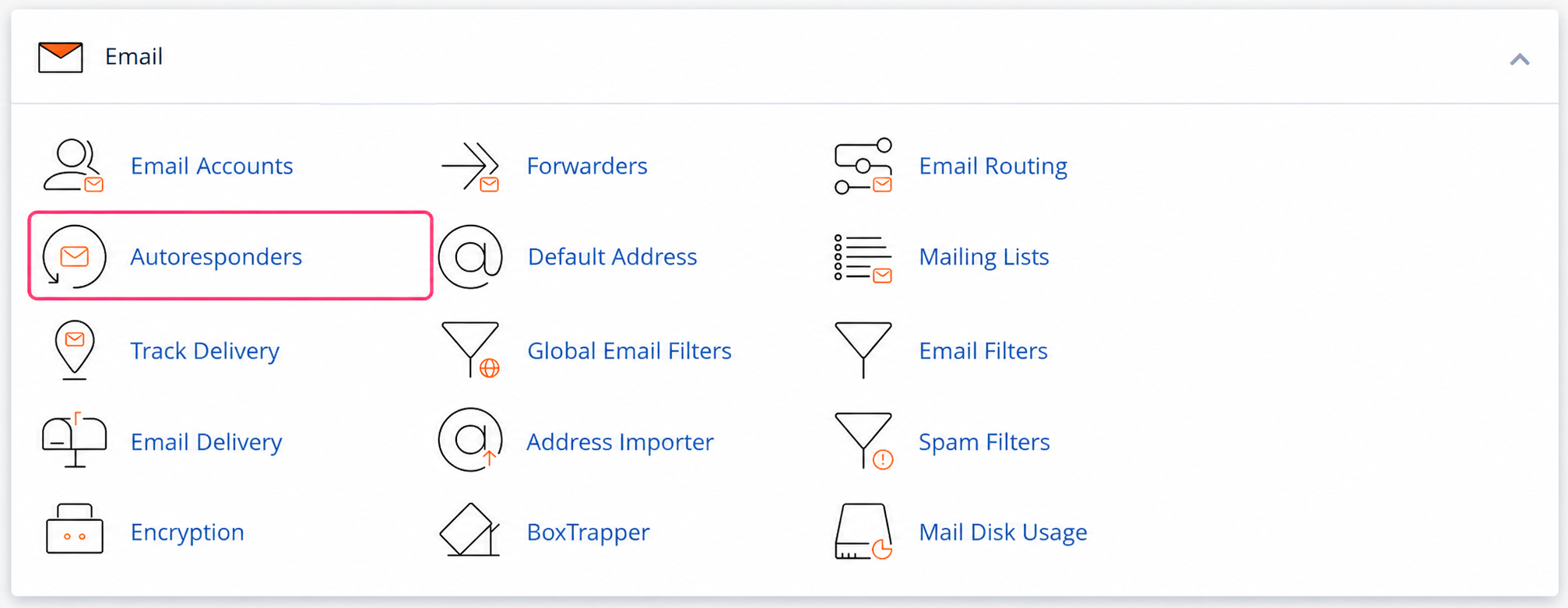
- In the cPanel control panel, go to Autoresponders, in the Email box.
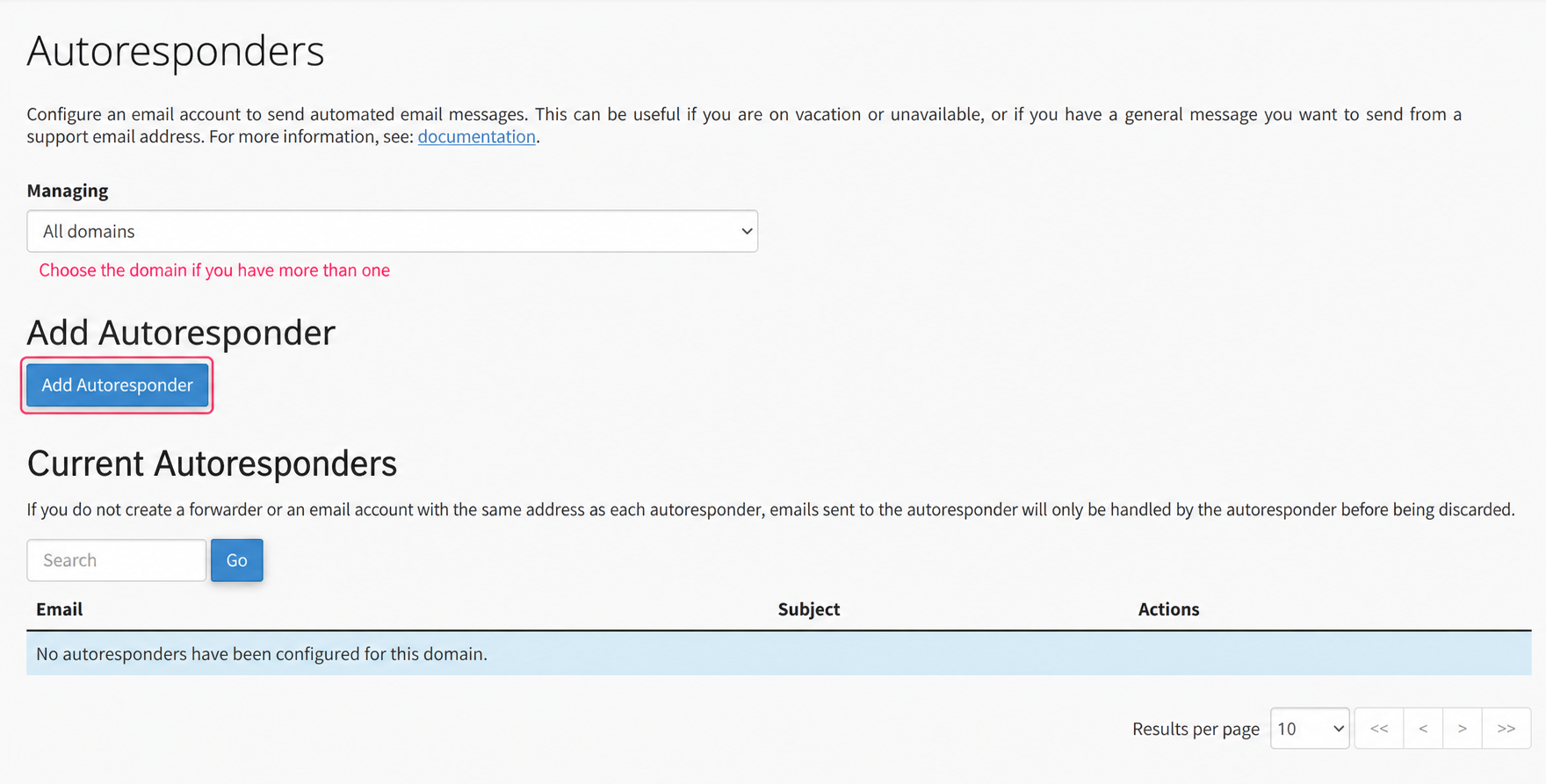
- First, choose the domain with which you will create the Automatic Replies, if you have more than one. Then press Add Autoresponder to create it.
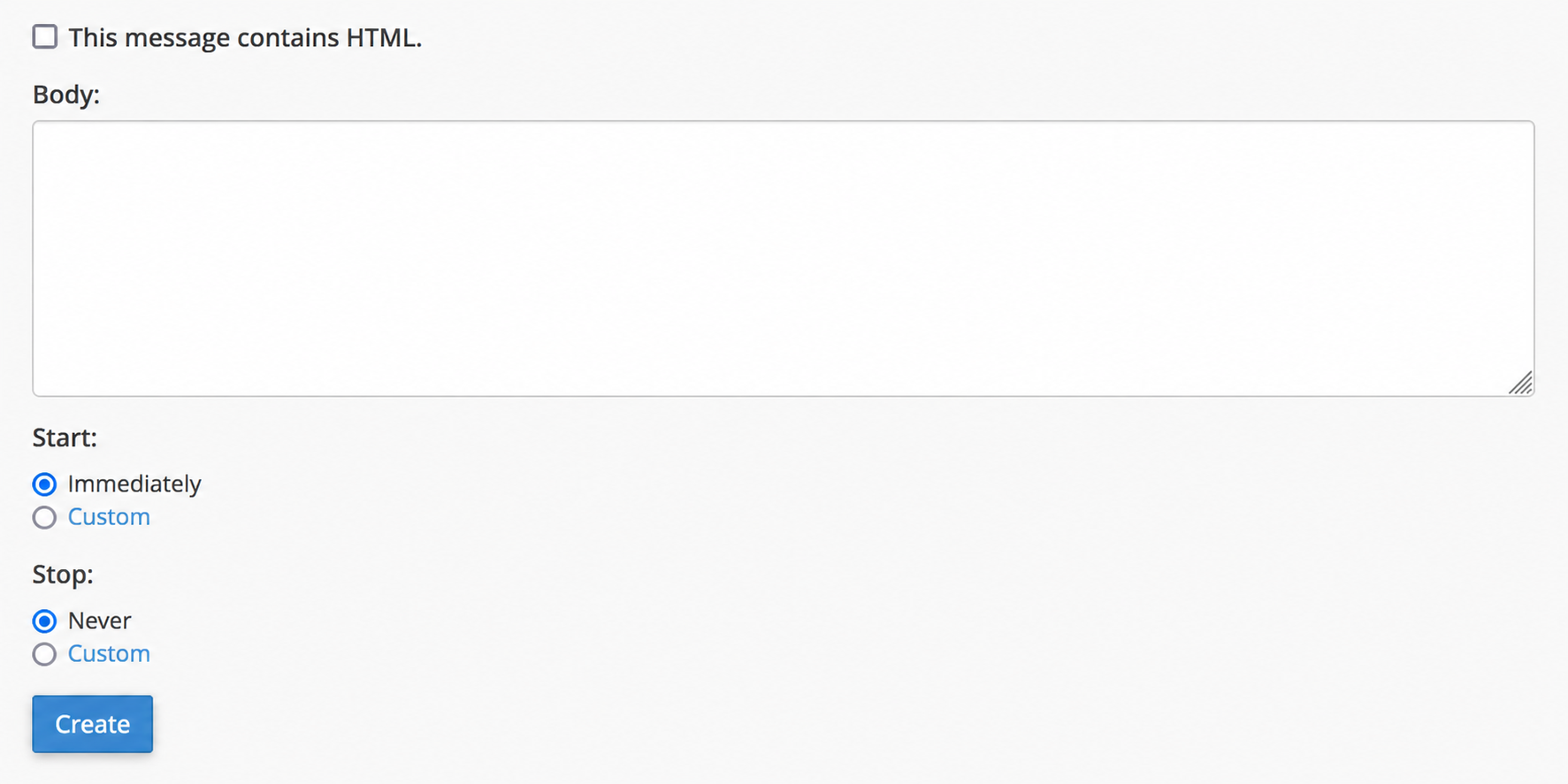
The configuration of the Automatic Reply is quite simple. The form will ask for the email account that will generate the automatic replies, the sender’s name, the subject and the message body to send.
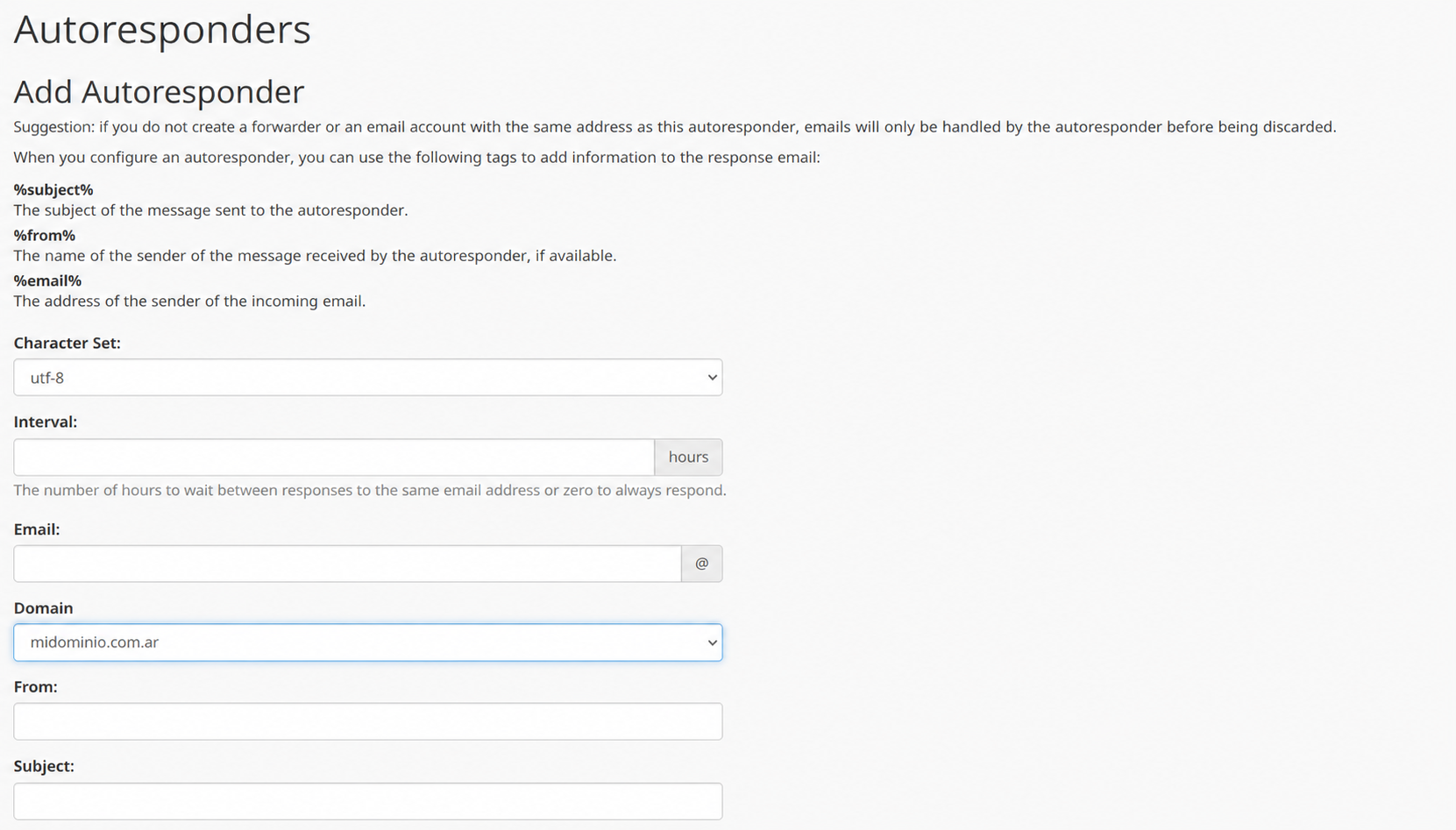
You can configure when the Automatic Replies will activate and when they will end. You can set this in the Start and Stop options.
- Finally, press the Create button and the autoresponder will be created.