How to configure the Catch All mailbox?
Below we will explain how to configure the Catch All mailbox.
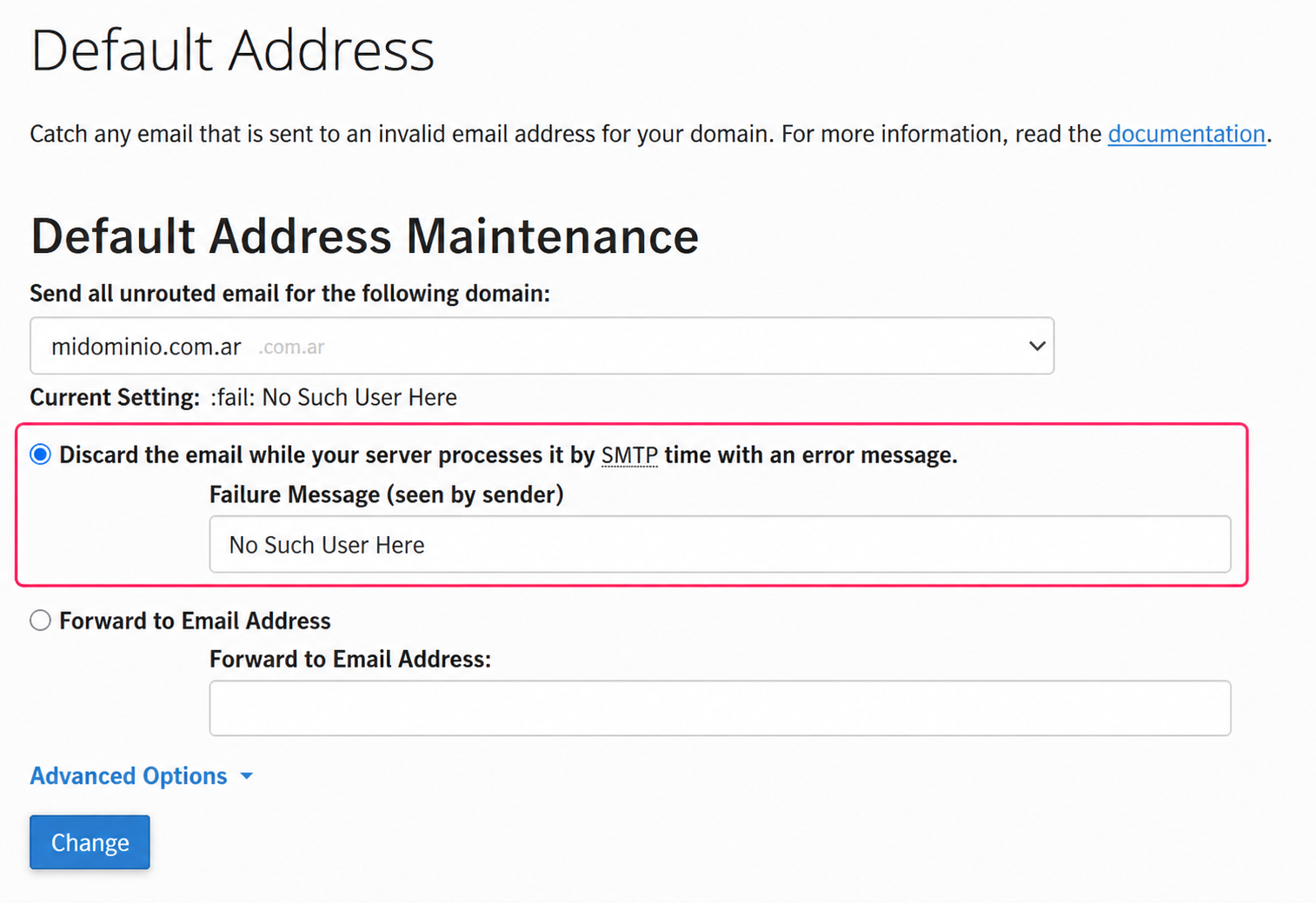
When an email is sent to an @your-domain account that doesn’t exist, the server will return that email to the sender with a message indicating the problem.
This is the recommended configuration but there are other options, such as forwarding the email to another mailbox configured by the user.
This mechanism for deciding what to do with a “lost” email is called the Catch All or Default Mailbox.
Below we’ll show you how to configure the different available options.
Accessing the Catch All or Default Address tool:
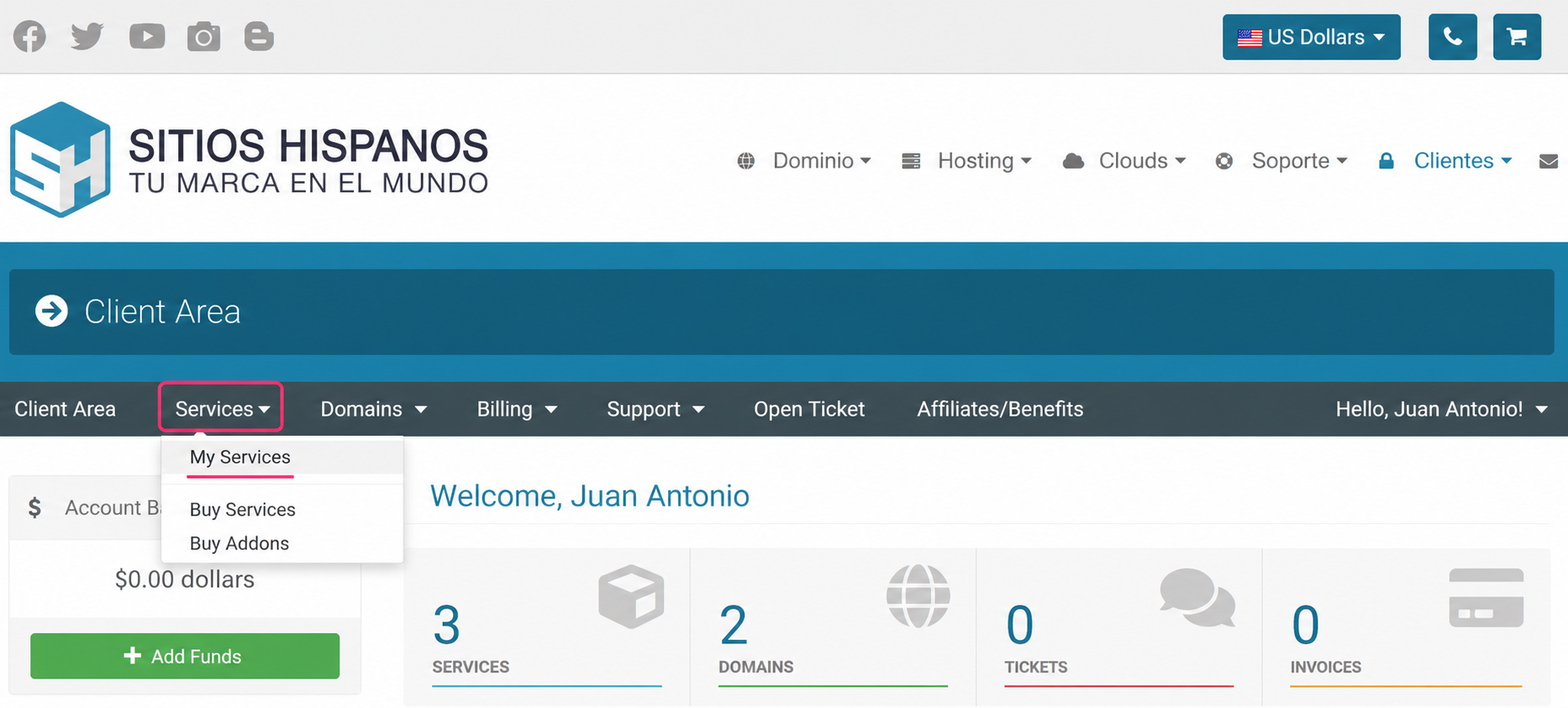
- Log in to your Client Area and click Services, then My Services
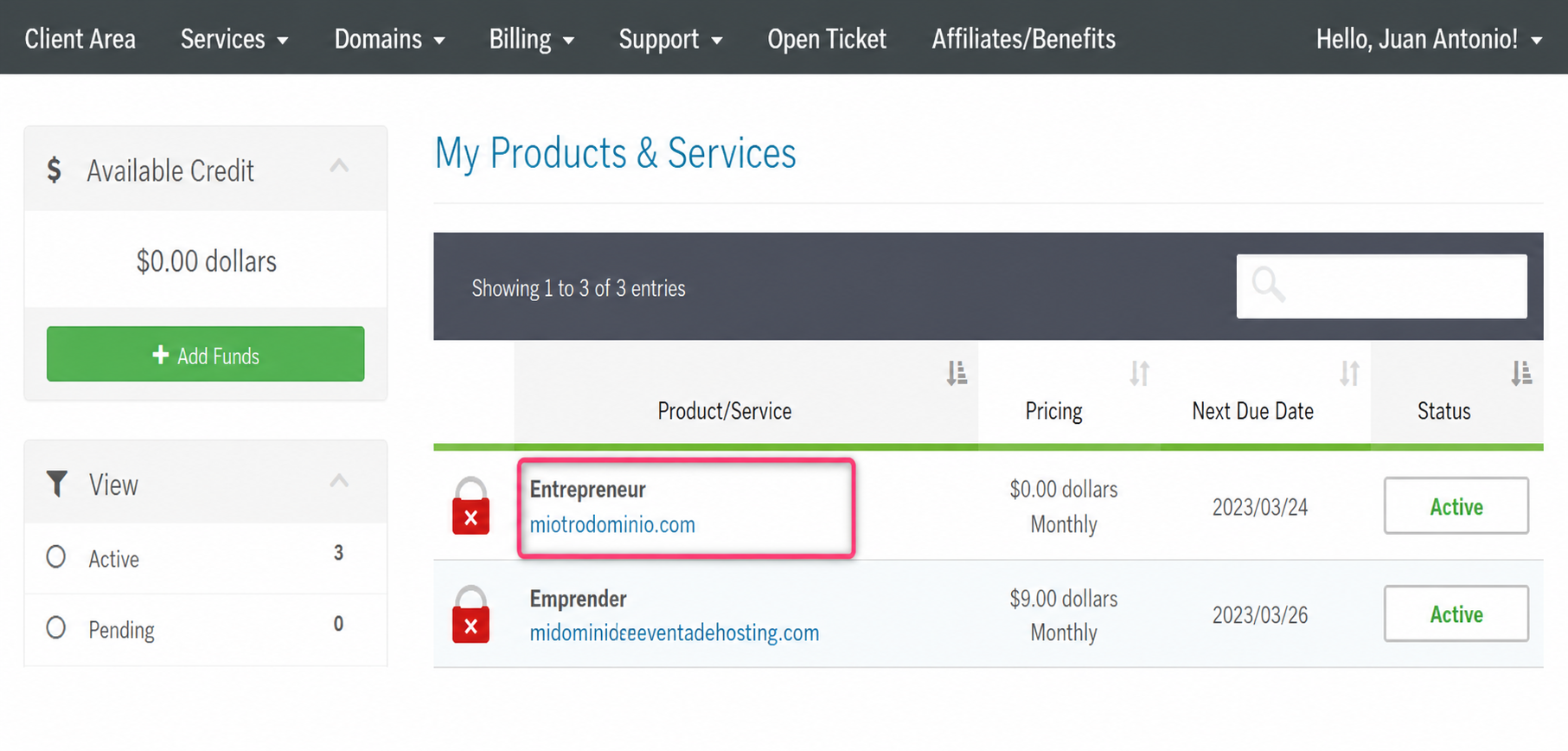
- From the list of hosting plans, access the one for which you want to configure the Catch All or Default Address mailbox.
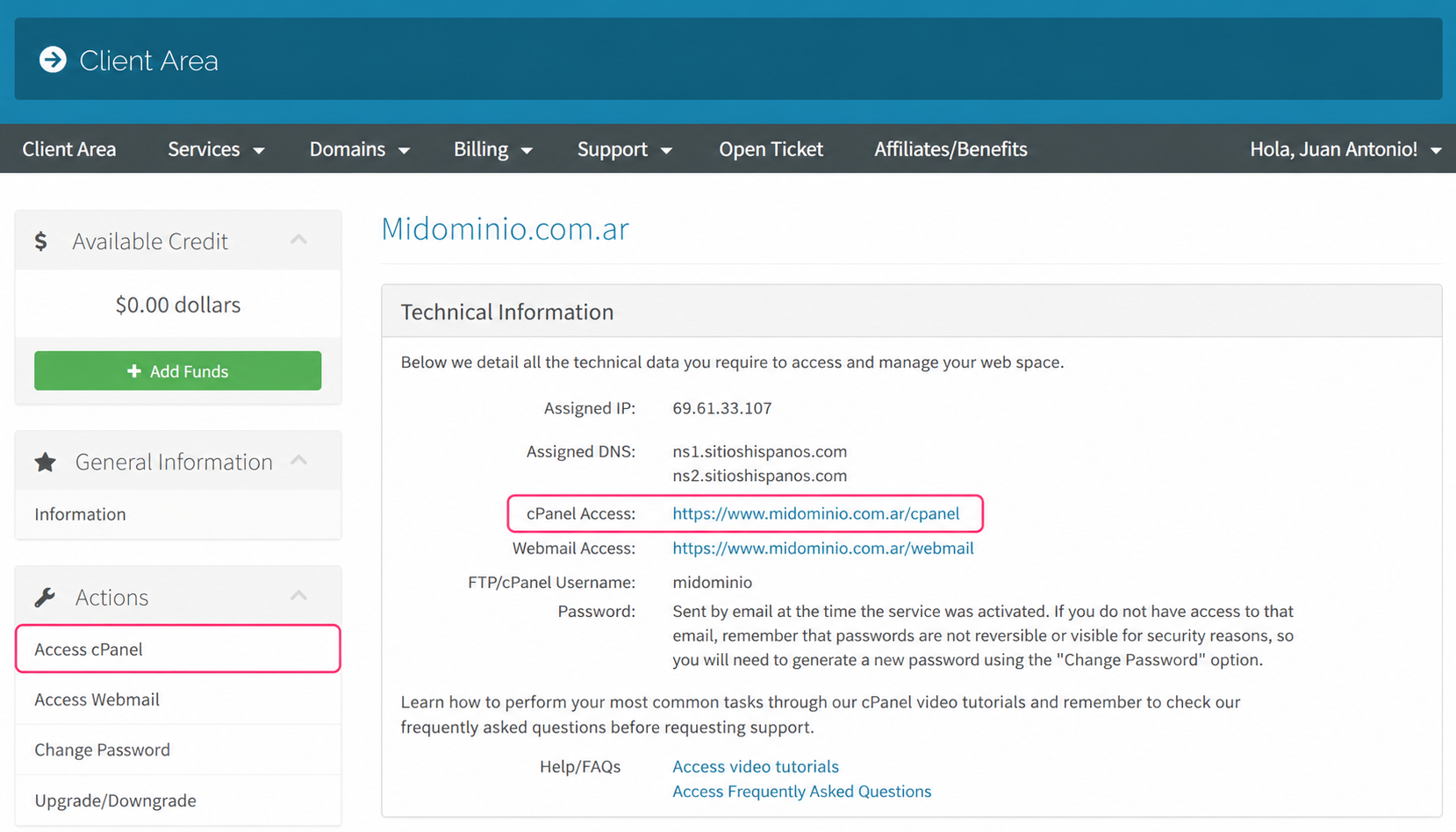
- On the new screen you will see, in the Actions box on the left, the option to access the cPanel control panel. You will also see, in the central Technical Information box, the direct access to the panel from your browser
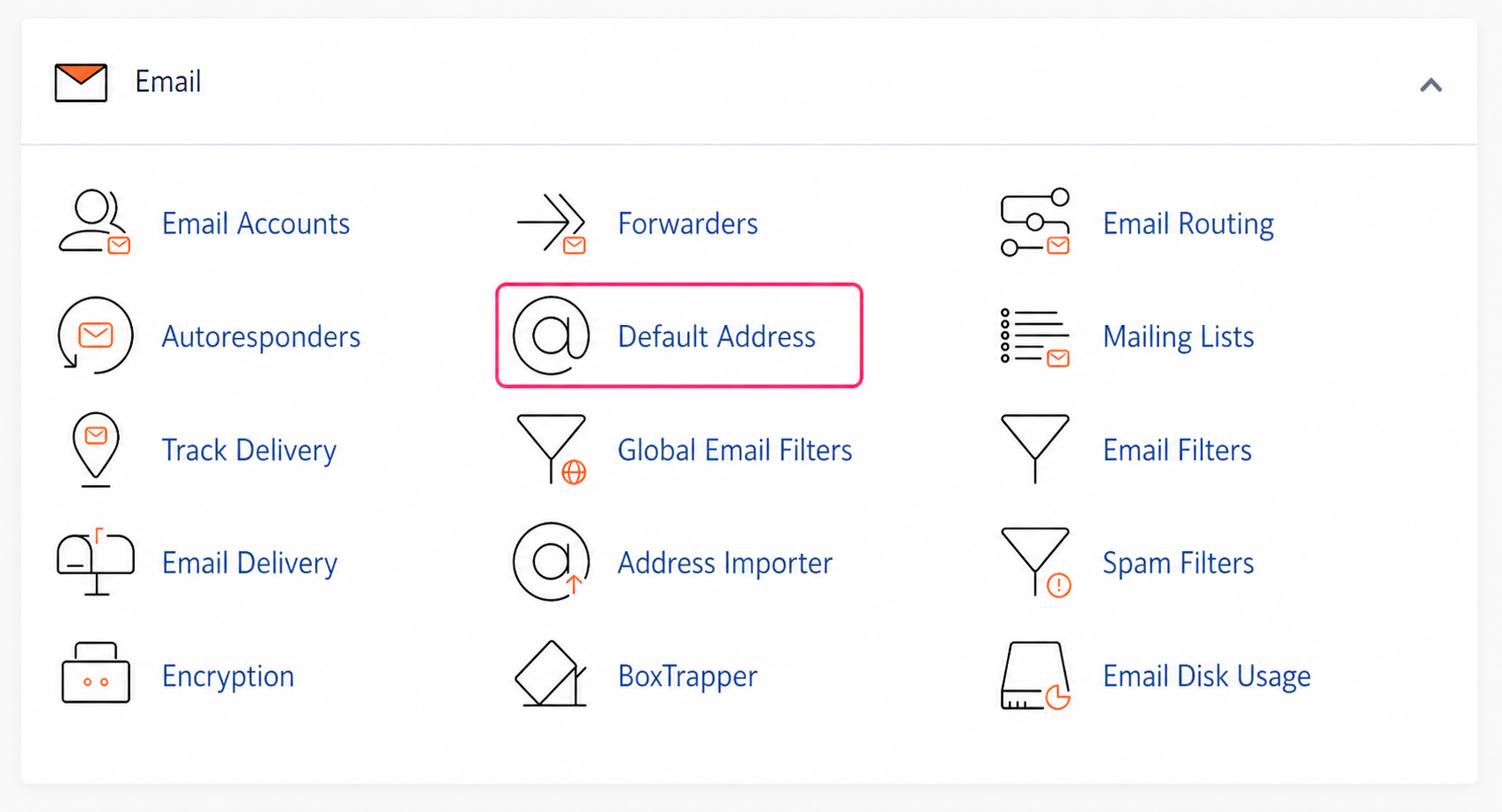
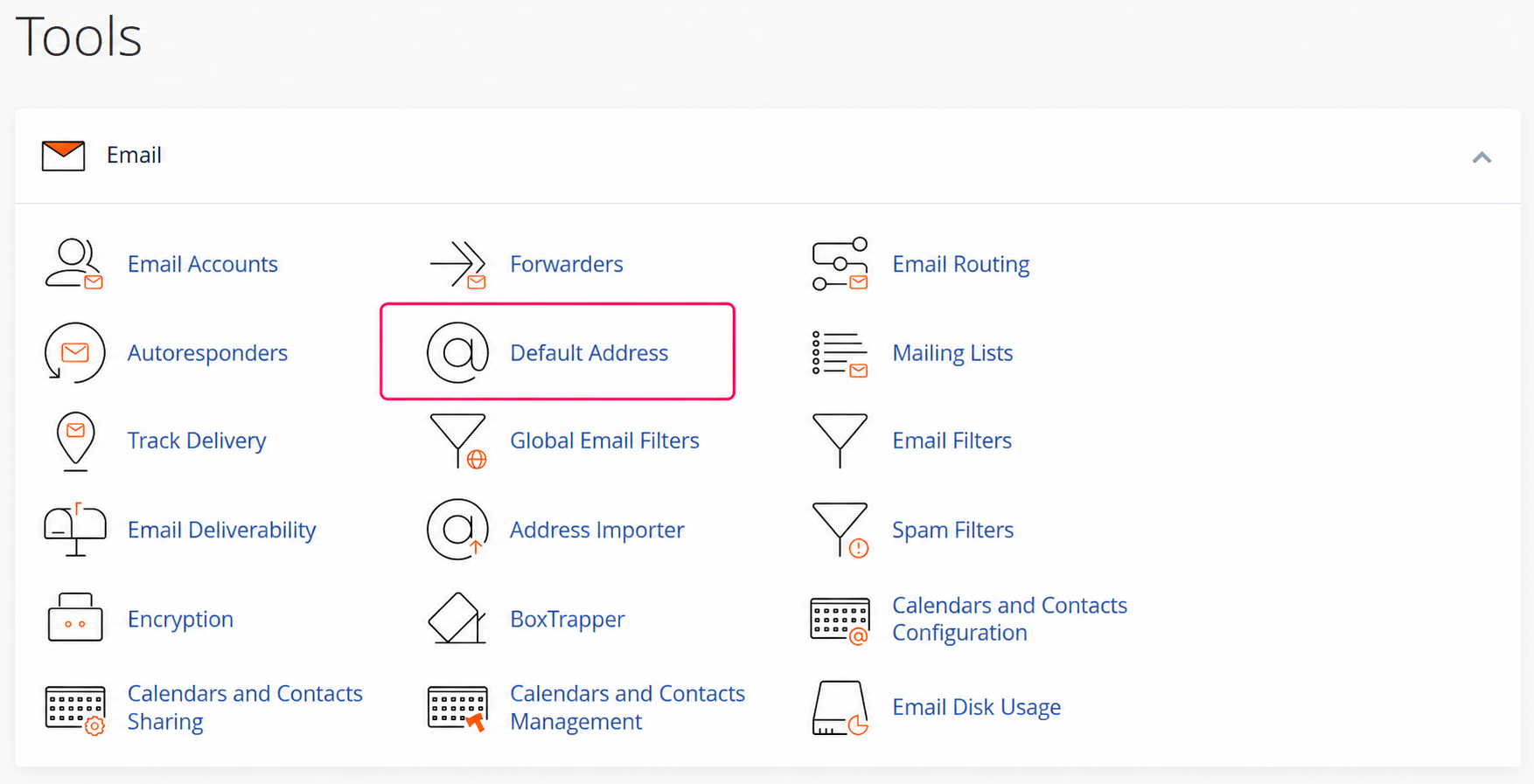
- Once in the cPanel control panel, go to Default Address, in the Email box.
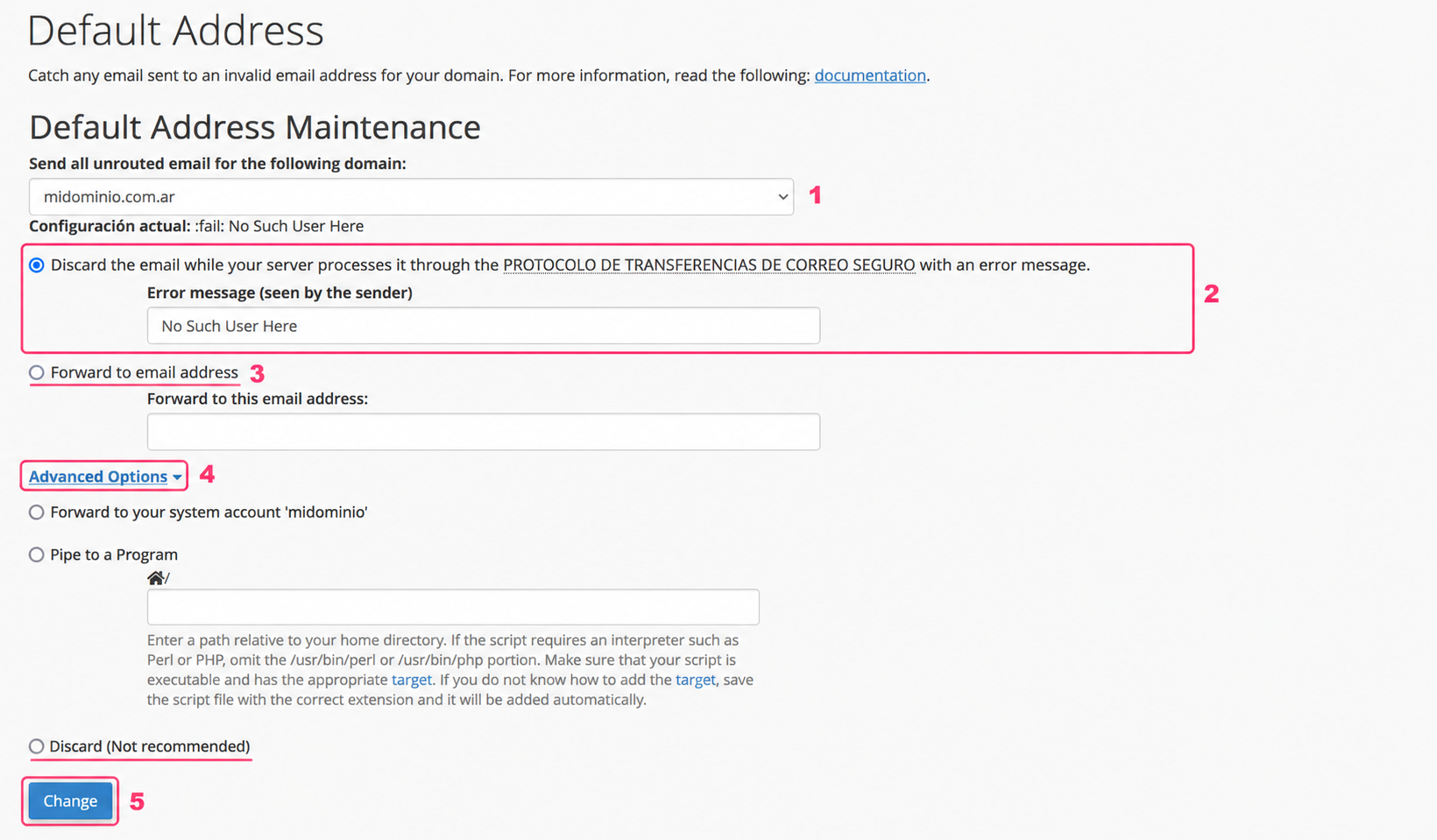
On the default address configuration screen you can choose different options to redirect emails sent to non-existent mailboxes.
These are the options:
- First, you’ll see the domain selector for which you’ll configure the Catch All mailbox
- Next, you’ll see the recommended option to configure the Catch All mailbox. This option will delete the received email and send the sender a message that you can customize in the text box.
- The Forward to email address option will forward the received email to a specific mailbox. This option is not recommended since it could generate spam and affect your domain’s sending reputation. It could also fill the configured mailbox very quickly.
- Expanding Advanced Options you will see an option called Discard which will simply delete the received message. This option is also not recommended because it will not alert users that the recipient mailbox does not exist and will not trigger anti-spam filters in cases where spam is deliberately sent to one of your mailboxes.
- Once you have configured this tool, save the changes with the Change button.