Graphical Template Editor
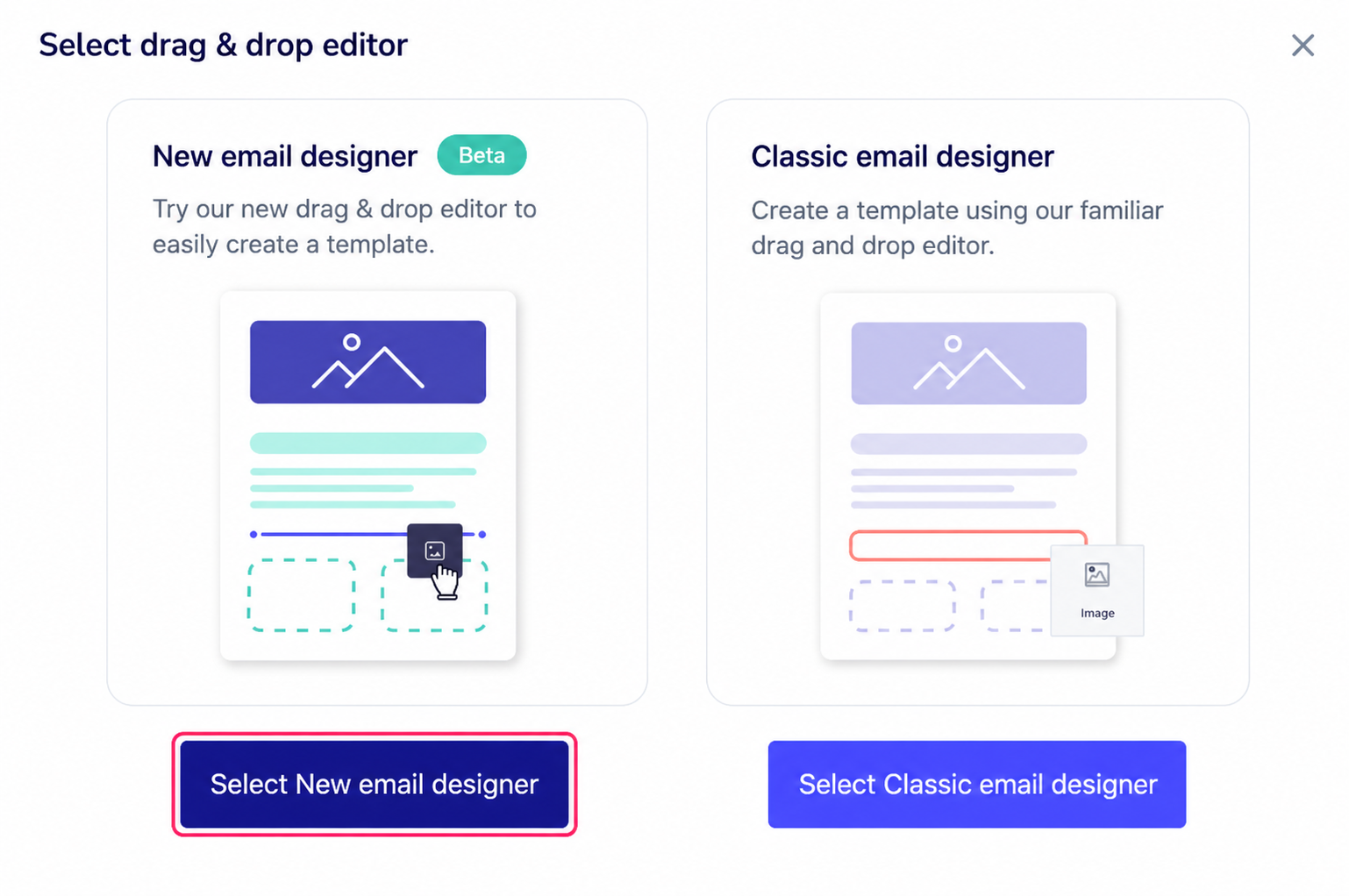
When entering the Graphical Editor for templates you will see two options.
You can choose between using the new editor or the classic editor.
We recommend using the new editor.
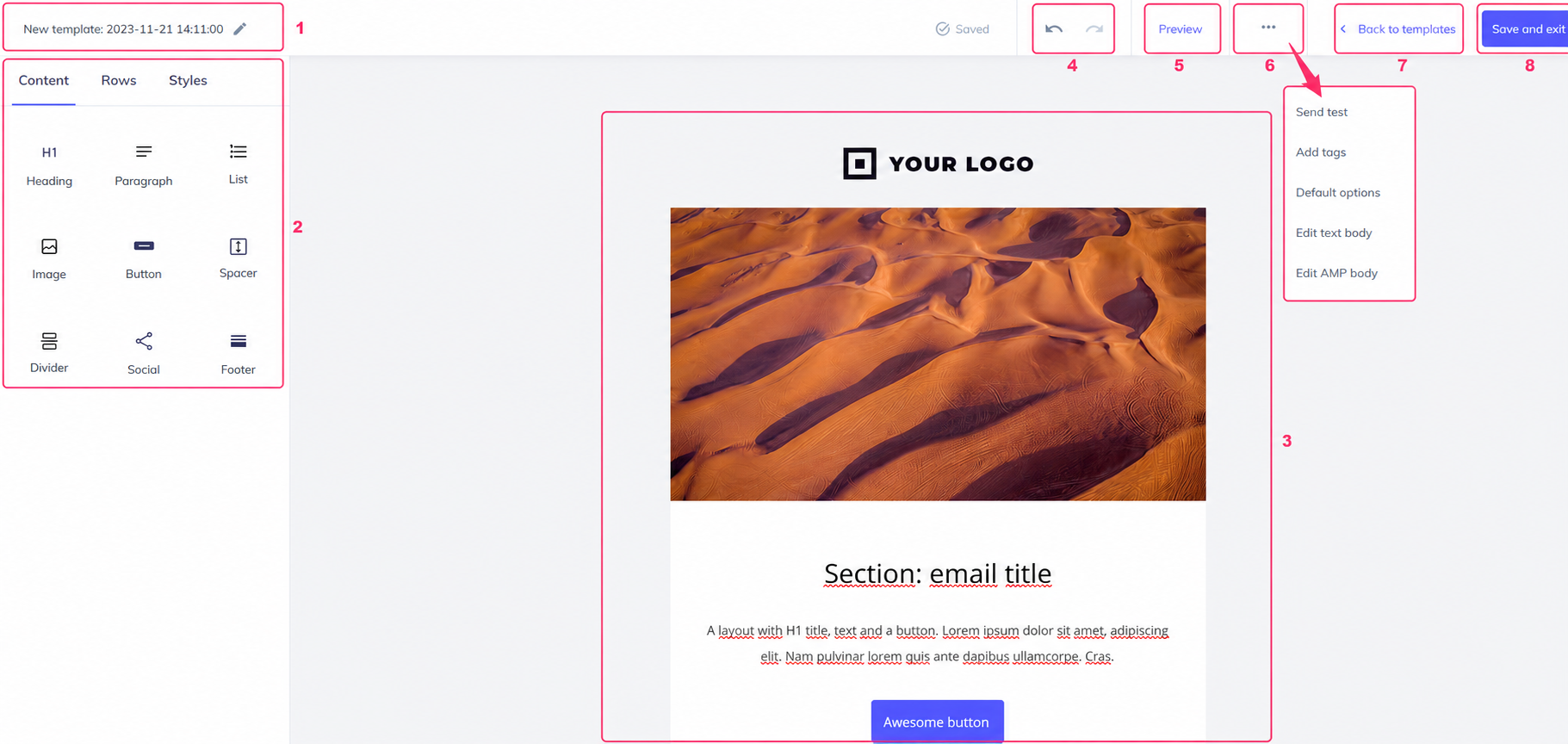
The template editor consists of the following areas:
- Template name.
- Object box to design your template.
- Model of your created template.
- Buttons to undo or redo a change.
- Preview will show a preview of the template.
- The button with three dots will open a menu with several options:
- Send test: used to send a test using the template being edited.
- Add tags: you can add tags to the template.
- Default options: you can save a Sender and Subject by default to use with this template.
- Edit text body: you can create a default message body if you don’t define one when using this template in a campaign.
- Edit AMP body: you can create a default AMP body if you don’t define one when using this template in a campaign.
- Back to templates will return to the previous menu, your template edits will be saved automatically.
- With the Save and exit button you will save the changes and exit to the previous screen, where you will see all your templates.