How to connect via FTP in cPanel?
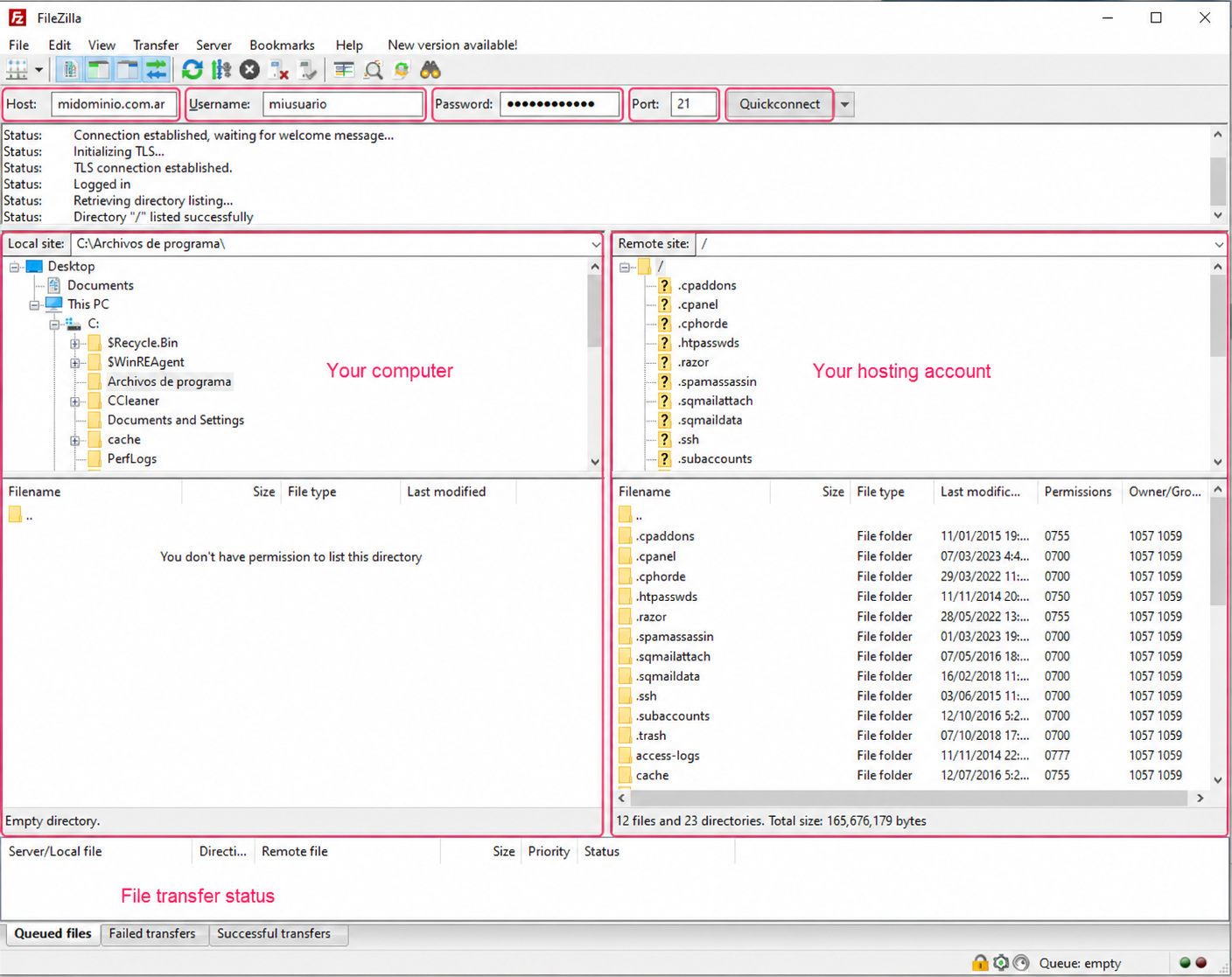
To connect via FTP to your account you will need an FTP client. There are several programs of this type and you can use any of them to connect. A popular FTP client is Filezilla.
With your FTP client open, the details to connect are:
- Host: yourdomain.com (enter the account’s primary domain)
- User: cPanel username
- Password: cPanel password
- Port: 21 (or leave blank)
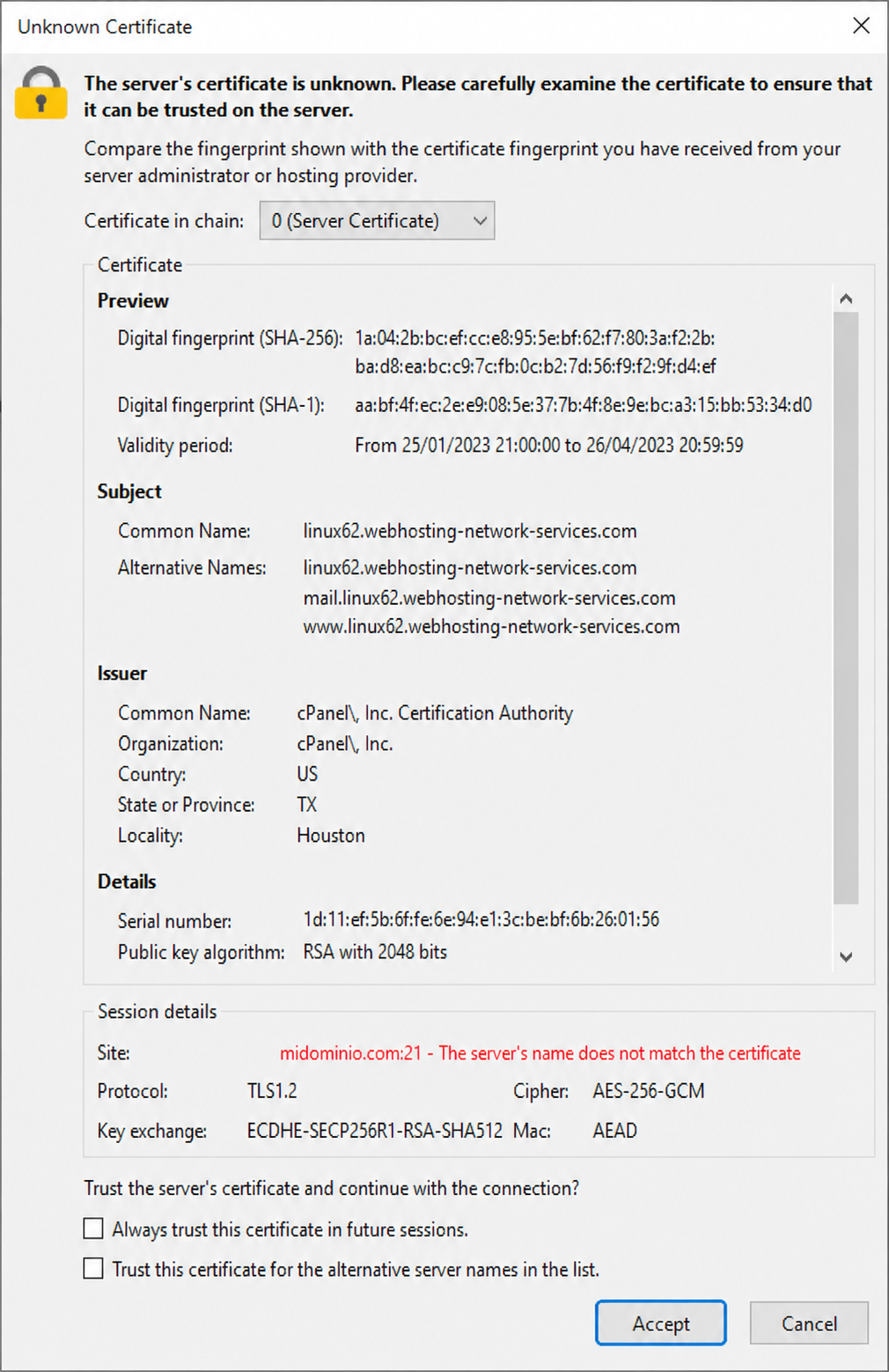
You may see a window similar to the one below when trying to connect. Click Accept to accept the connection.
FTP Sessions
In cases where you don’t want to use your control panel login credentials to connect via FTP, or you want to give other people access to specific directories, you can create FTP Sessions to grant individualized access.
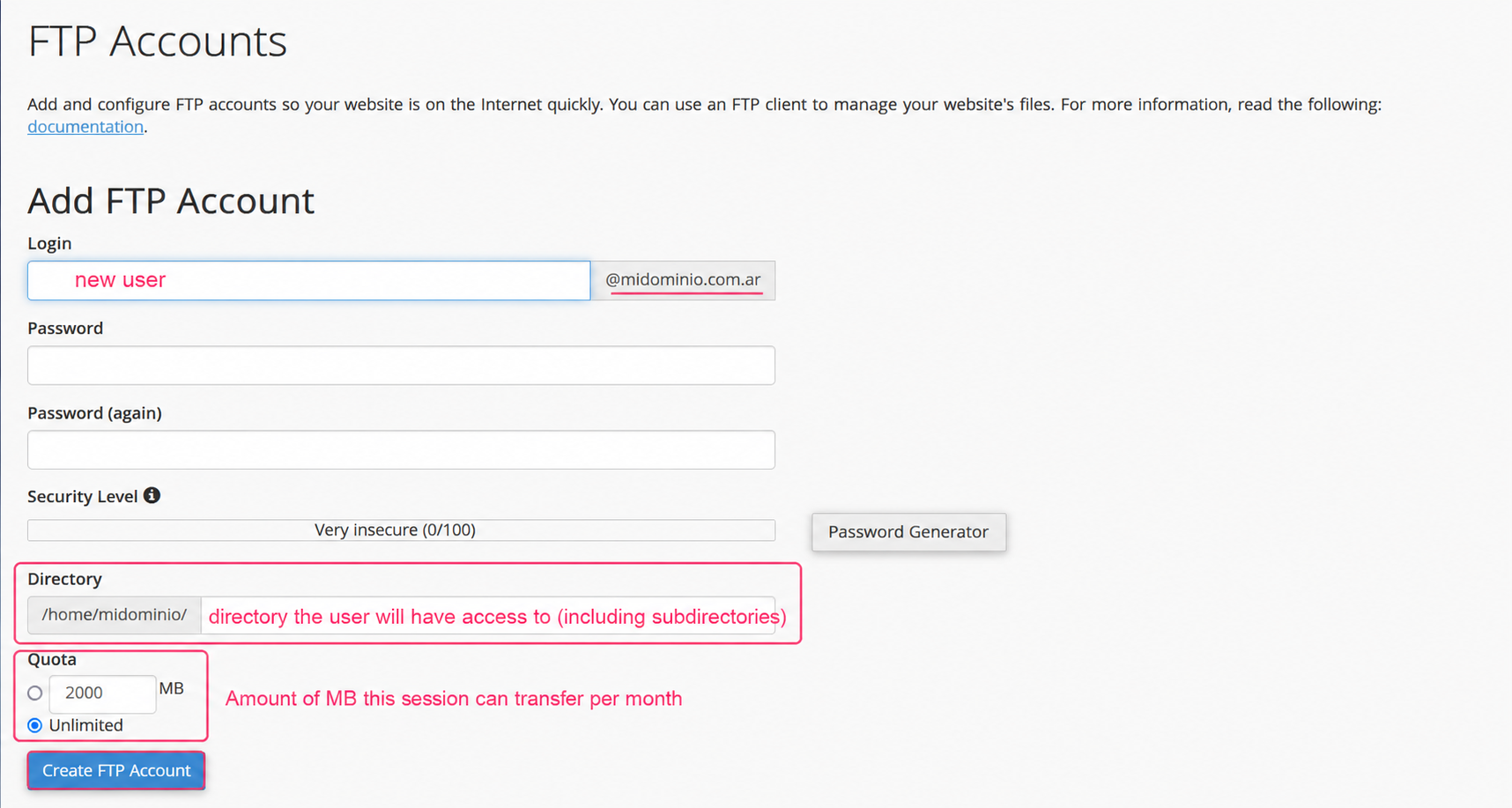
- To create an FTP Session go to FTP Accounts, in the Files box, of the control panel.
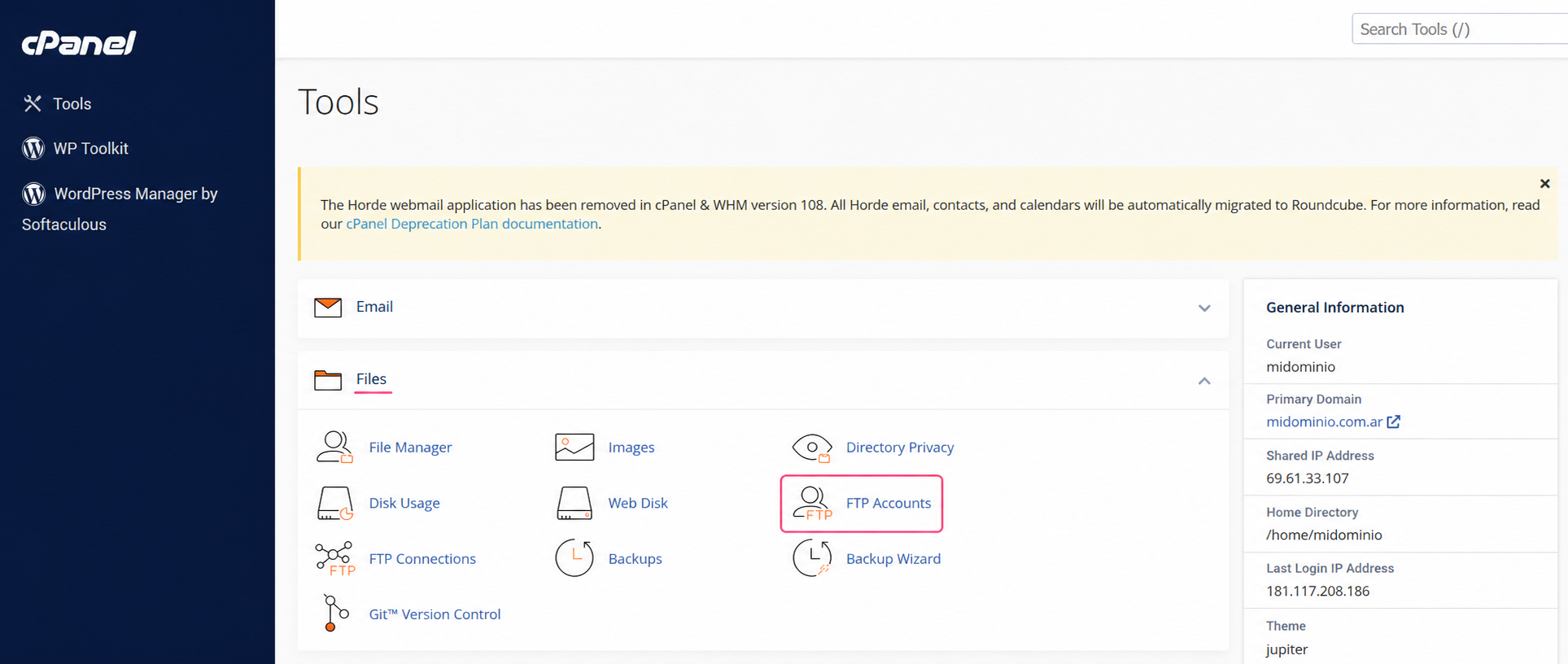
- You will see the form to create the FTP session. FTP users will have the format user@domain.
You will see an option to define the directory the user will have access to. For example, to give access only to a subdomain or to the public_html.
You can also set a Quota for monthly bandwidth that the user of this FTP session can consume. At the beginning of each month this limit will reset.
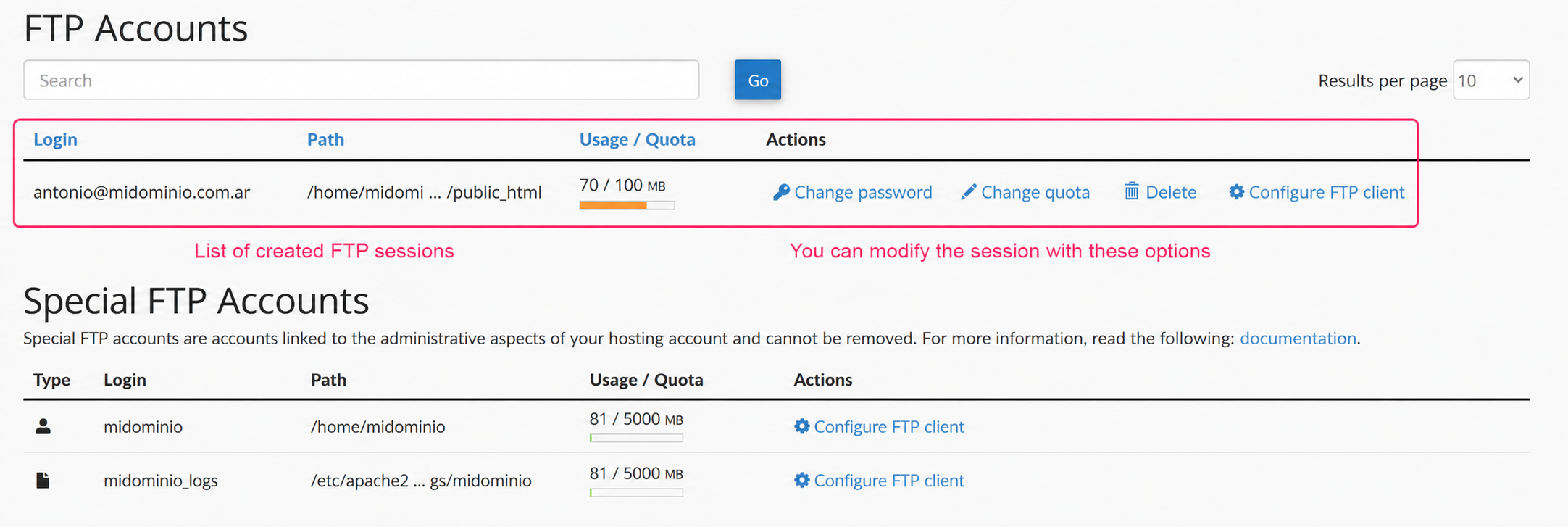
3) Once you have an FTP Session created you will see it in the list, in FTP Accounts, and you can modify the session options.