

How to create a package?
In this section we’ll show how to create a package or plan to assign to your domains.
After accessing the WHM of your Reseller plan, go to “Packages” => “Add a Package”.
Below, we’ll explain the options on this screen.
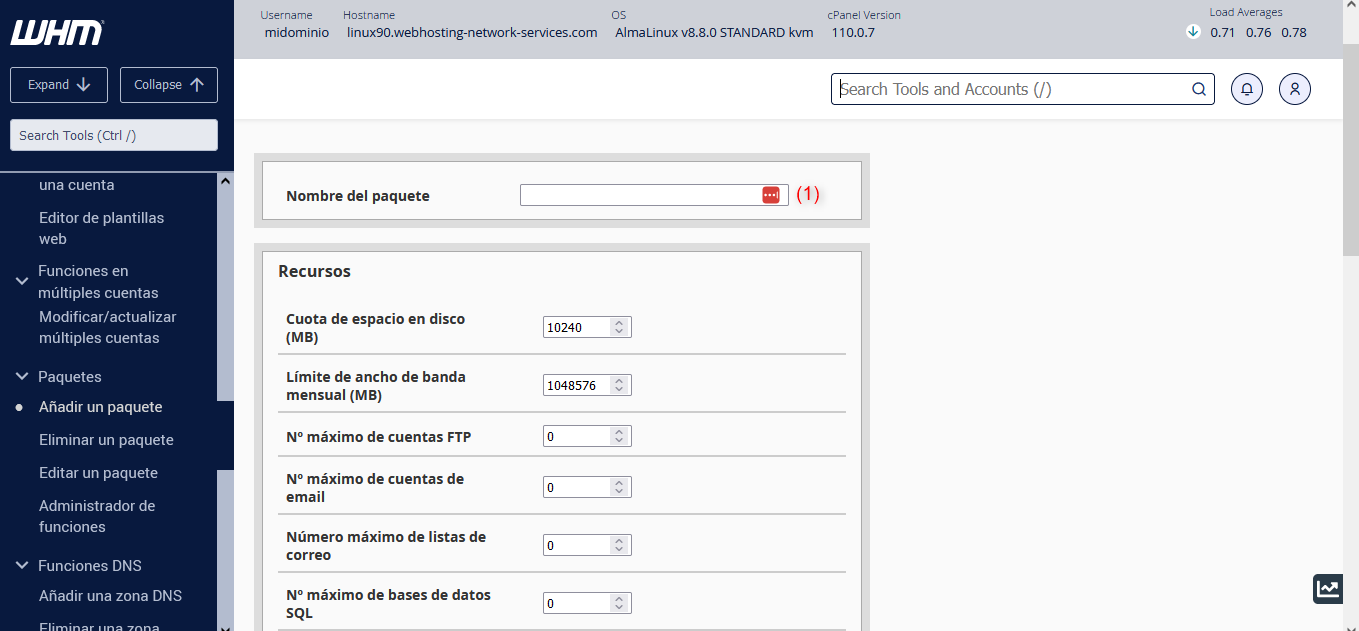
- Disk space quota (MB): indicates the disk space limit the package will have, expressed in megabytes.
- Monthly bandwidth limit (MB): indicates the monthly bandwidth limit the package will have, expressed in megabytes.
- Maximum number of FTP accounts: indicates the maximum number of FTP accounts that can be created in cPanel.
- Maximum number of email accounts: indicates the limit of mailboxes that can be created in cPanel.
- Maximum number of mailing lists: used to configure how many mailing lists can be used in the package.
- Maximum number of SQL databases: indicates the limit of databases that can be created from cPanel with that package.
In (1) you can name the package to differentiate it.
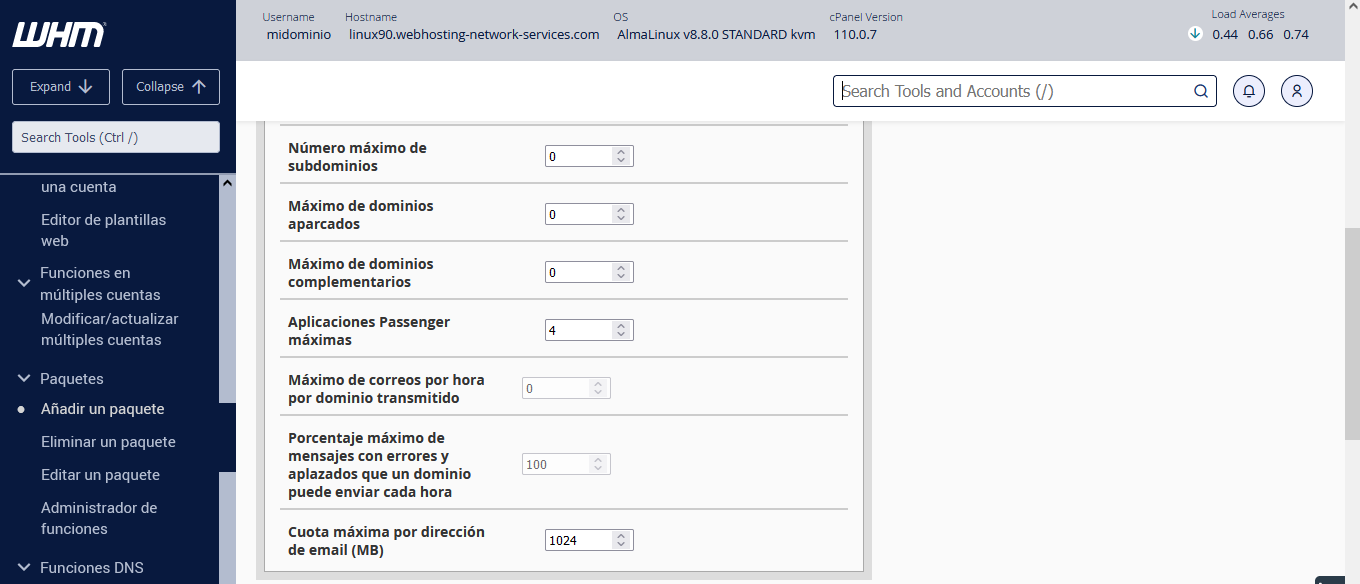
- Maximum number of subdomains: indicates the maximum number of subdomains for the package.
- Maximum parked domains: indicates the maximum number of ALIAS or parked domains for the package.
- Maximum addon domains: indicates the maximum number of additional domains for the package.
- The rest of the options are best left at their defaults, unless you want to edit and specify another value in Maximum quota per email address (MB).
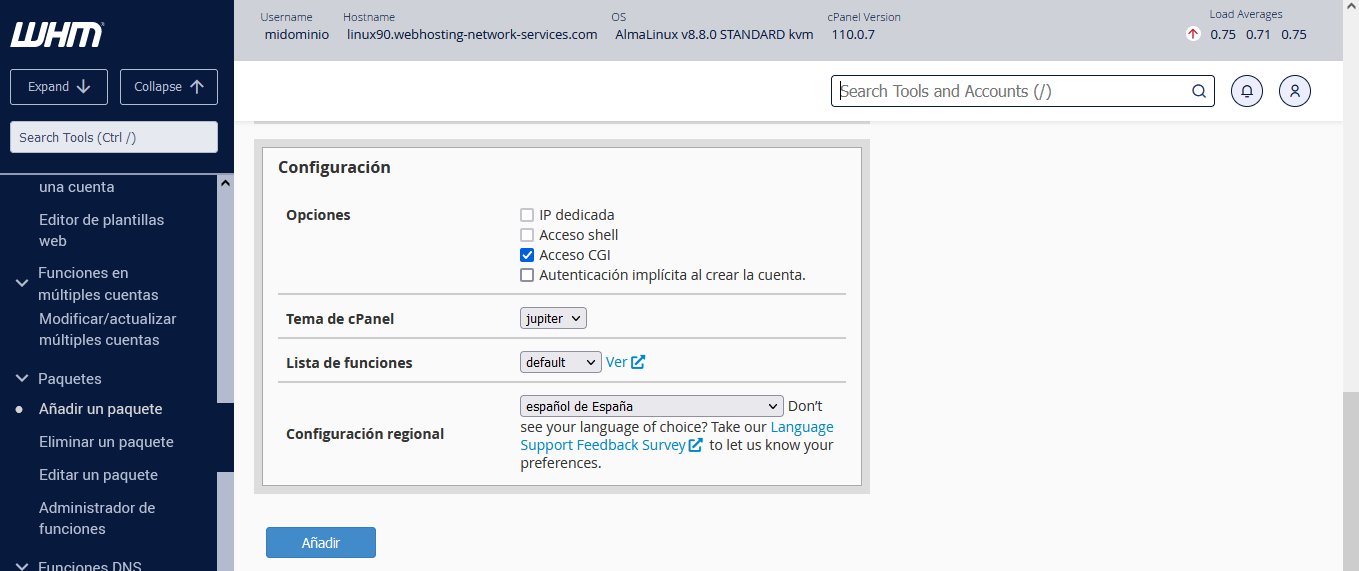
The options in the image above are best left at the defaults as cPanel suggests. Use the Add button to create the package.