

How to create and configure Databases in Plesk?
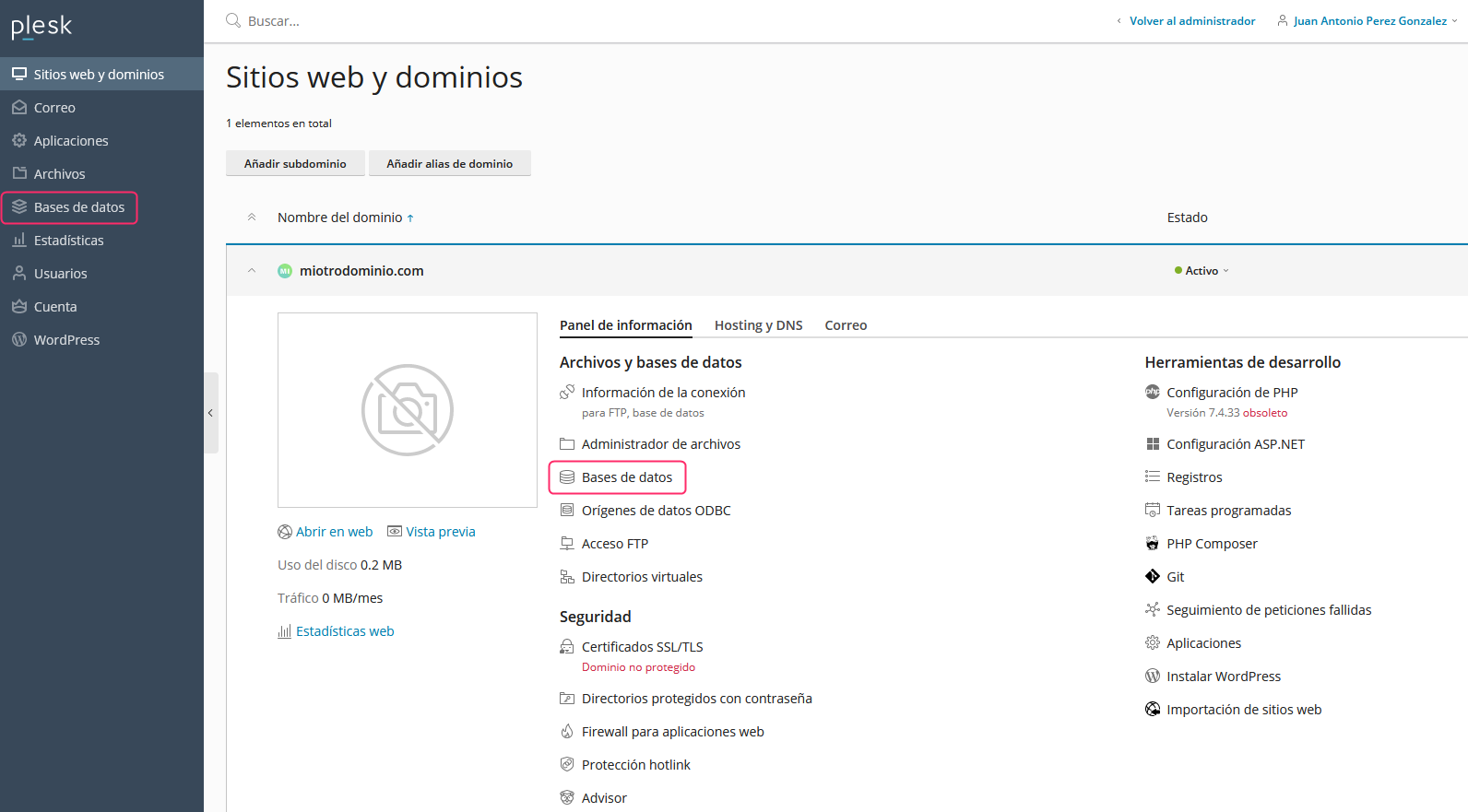
- To create databases you can go to the Databases area from the left menu, the Databases option, or from the same option in the central menu of the Information Panel tab.
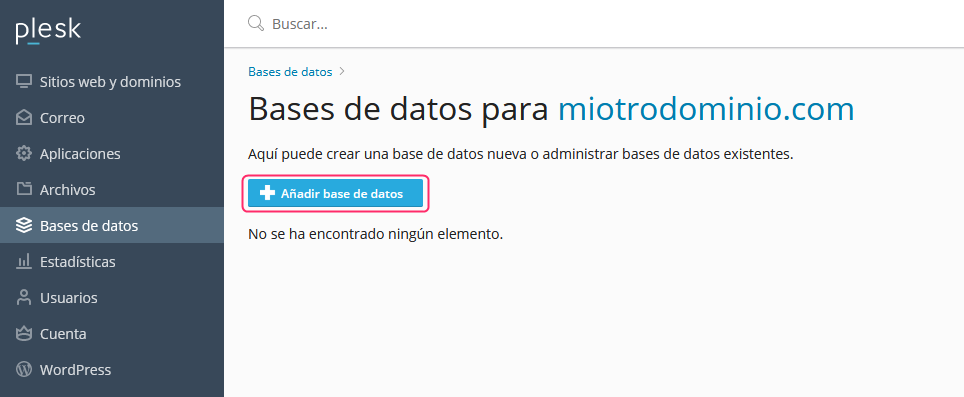
- If you have databases created you will see them on this screen. With the Add Database button you can create a new database.
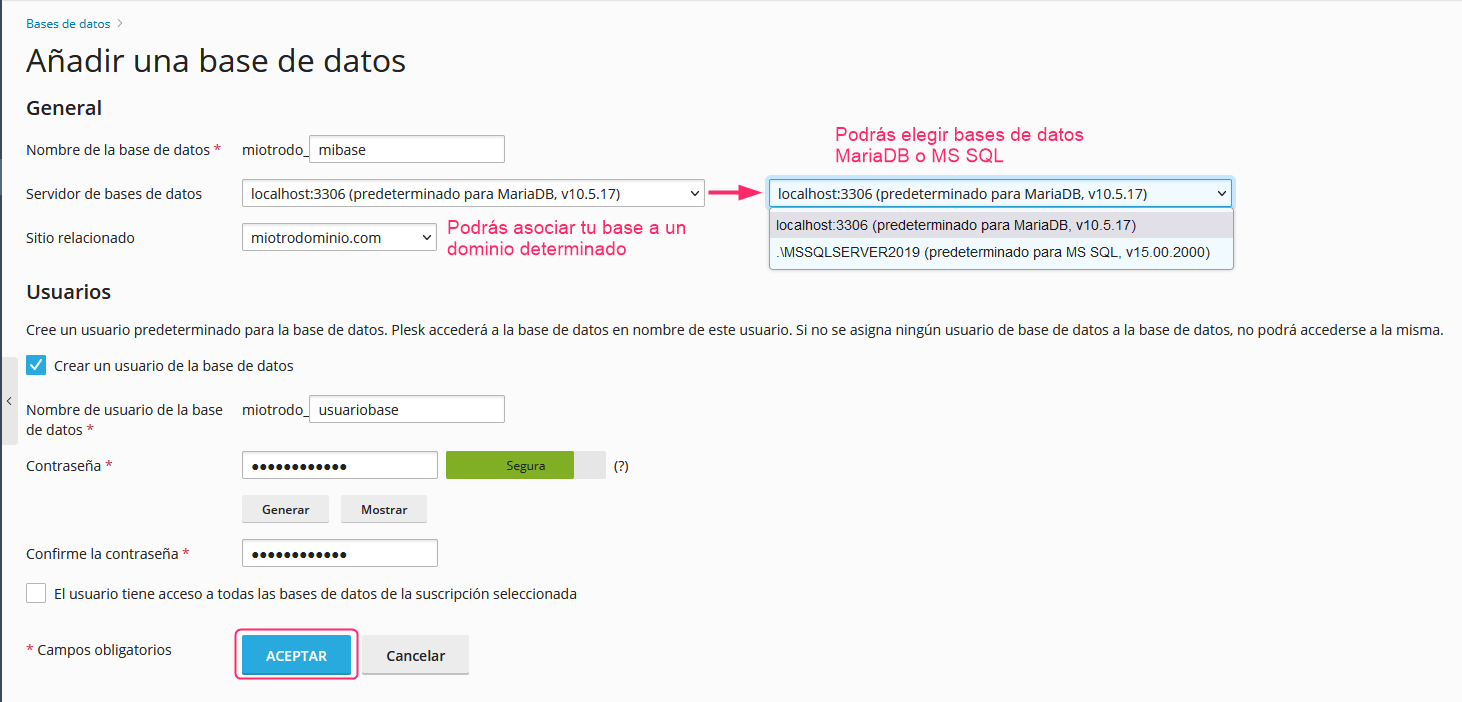
- The form to create the database will ask for the database name and will allow you to choose between a MariaDB (MySQL type) or MS SQL database for Windows environments.
From Related Site, you can associate the created database with your account or leave it unassociated.
Then it will ask for the user details that will connect to the database and whether you want to give them access to all created databases.
Clicking the ACCEPT button will save the database.
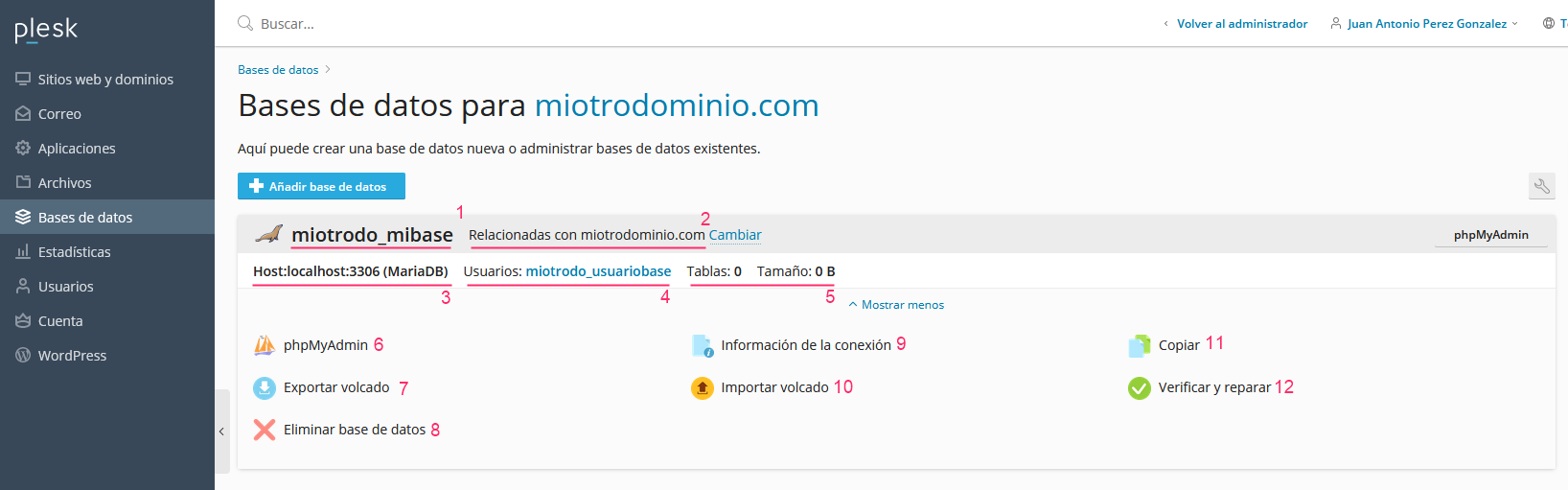
- After creating your database you will return to the screen from step 2, where you will now see information and options for your new database.
There are several options and data on this screen:
- Database name, with the Plesk user prefix.
- Association with the specific hosting account (if you have more than one domain or website).
- Connection details and database type.
- Users associated with the database. You can change their password and privileges by clicking on their name.
- Number of tables in the database and how much space it occupies.
- Access to phpMyAdmin, a web database editor.
- Tool to export the database.
- Option to delete the database.
- This option will show you the details to connect to the database from an external program.
- Tool to import a previously exported database.
- It will allow you to copy or clone the database.
- This tool will check the database and repair any errors it finds.
In item 4 we show the user associated with the database. By clicking on their name you can edit their details and access privileges. You will see this screen:
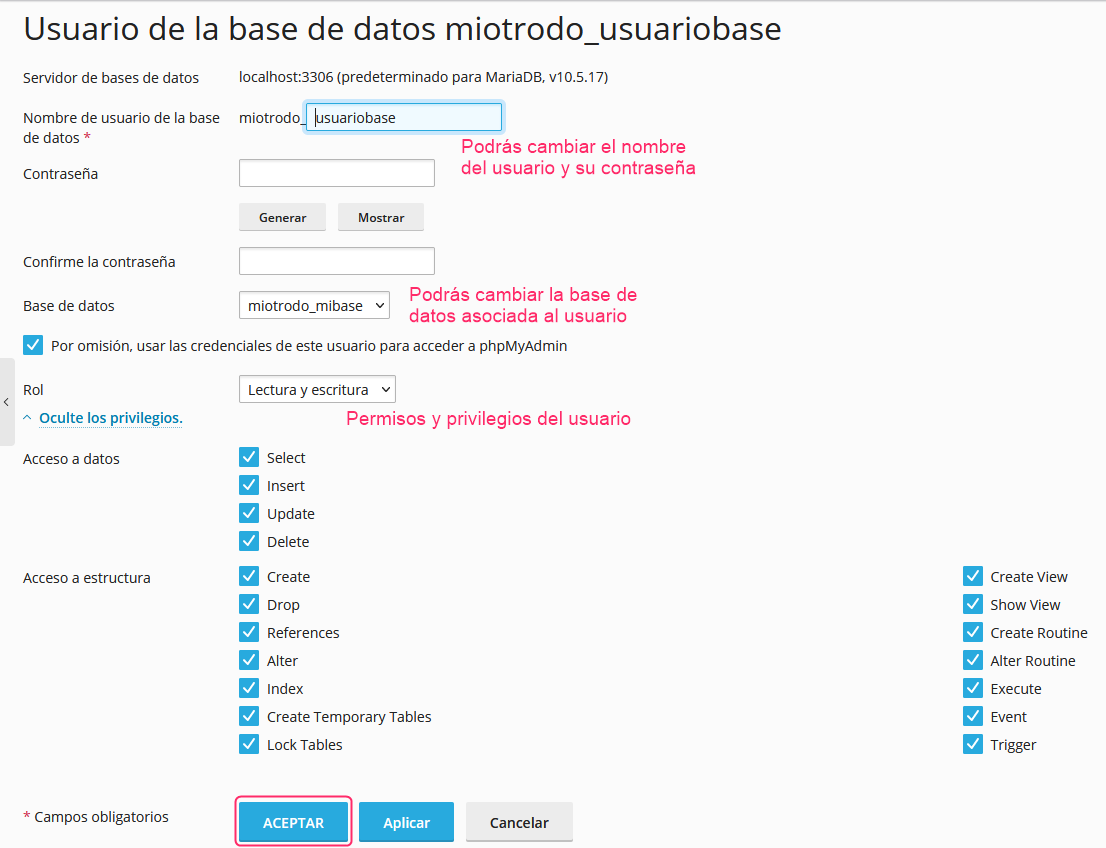
- That’s it — you will have created a database, associated it with a user, and linked it to a hosting plan.