How to configure my email account in Thunderbird?
Below we will show you how to set up an email account in Thunderbird.
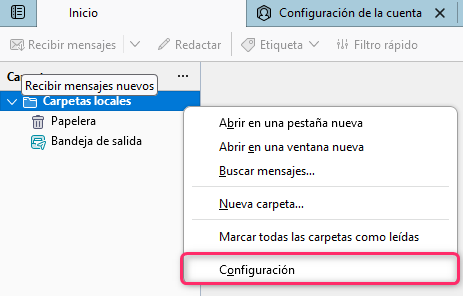
- Open your Thunderbird mail client. If you don’t have any mail account created, right-click on Local Folders and then go to Settings in the menu.
- If you already have an account created, you can perform the same step, but on the mail account.
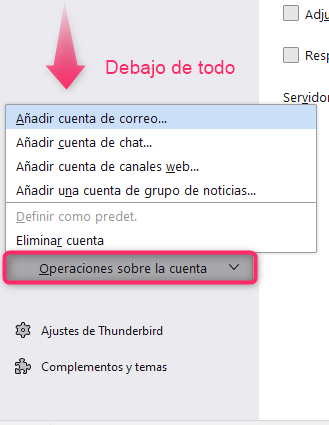
- In the new screen you’ll find the option Account Actions. Select that option and then go to Add Mail Account.
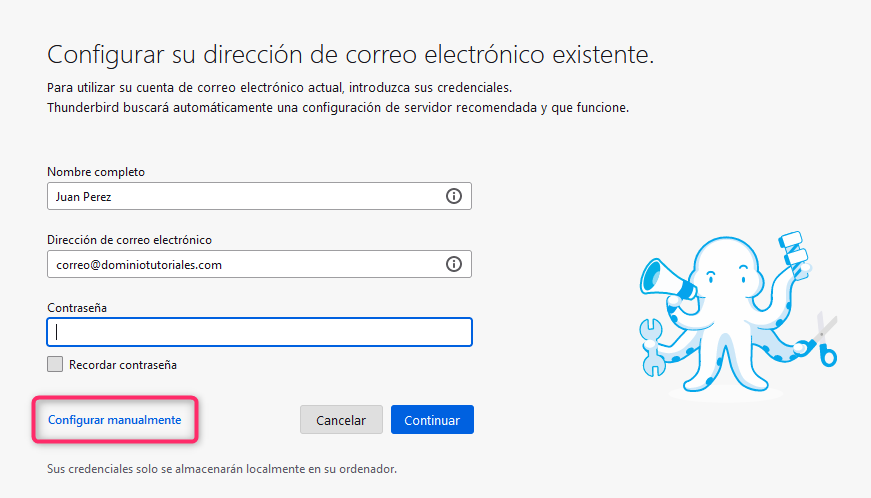
- Fill in the details with your name and email address. The Configure manually option will appear: click that link.
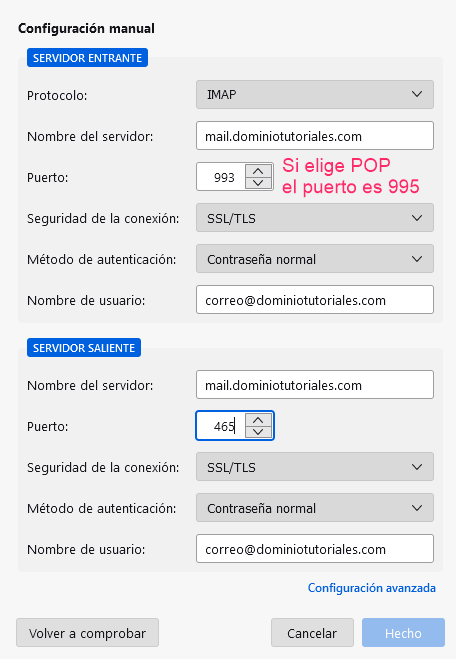
- Options will open to configure all the incoming server details IMAP or POP3. Once everything is done, your account will be configured in Thunderbird.
How to modify the settings of an existing account
If you need to modify your mail account’s settings, by right-clicking on the account and going to Settings you can view the account details.
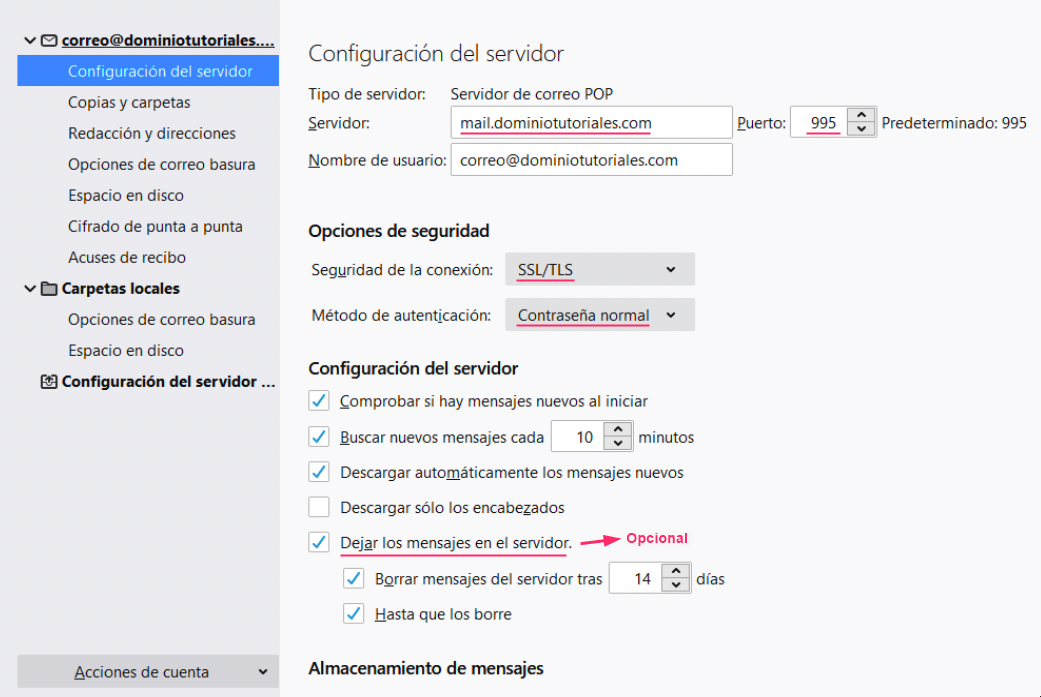
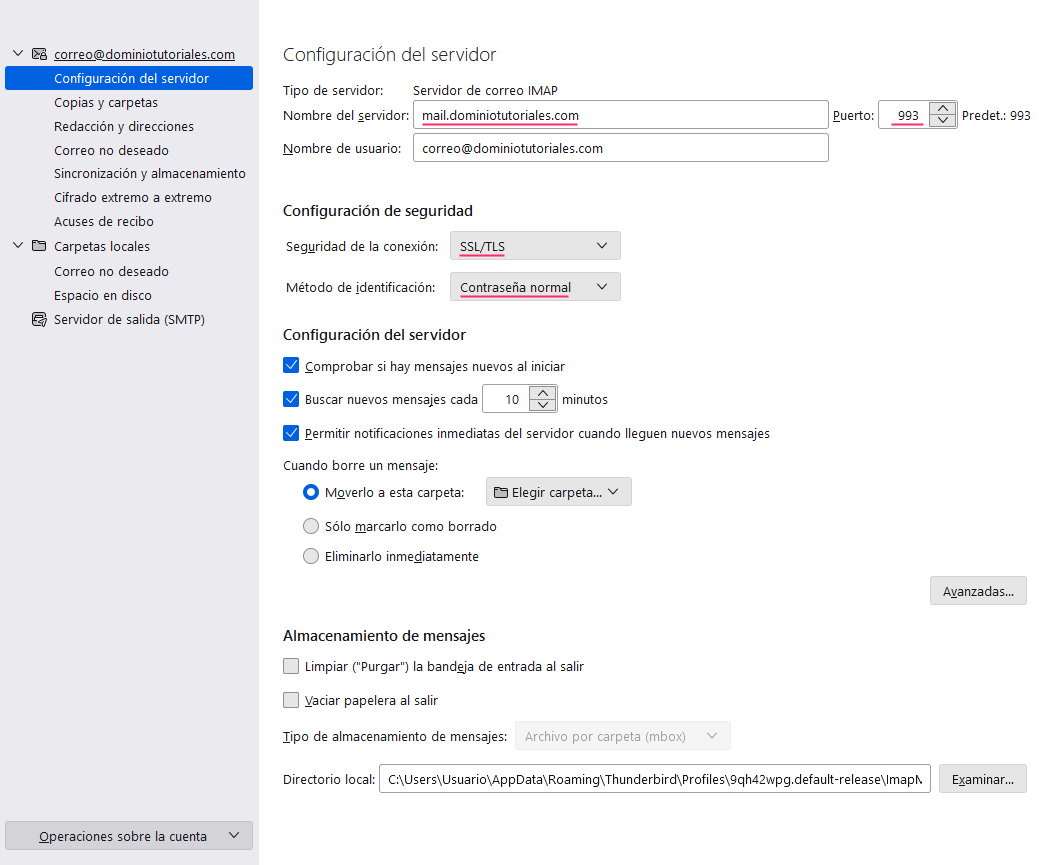
These are the details you should have for POP3 and IMAP mode:
POP3 configuration
IMAP configuration
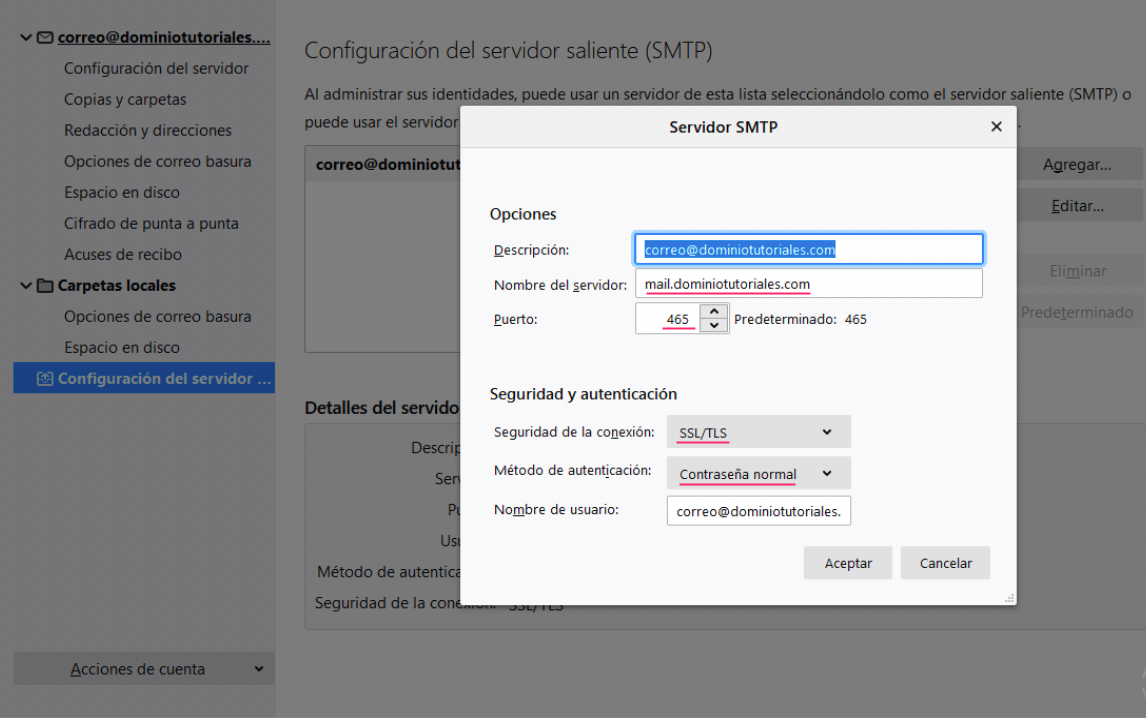
Outgoing server (SMTP)