

How to access mailboxes via Webmail with cPanel?
Below we will show you how to check your mailboxes from cPanel Webmail.
Below, we detail the different ways to access Webmail:
Access from the browser
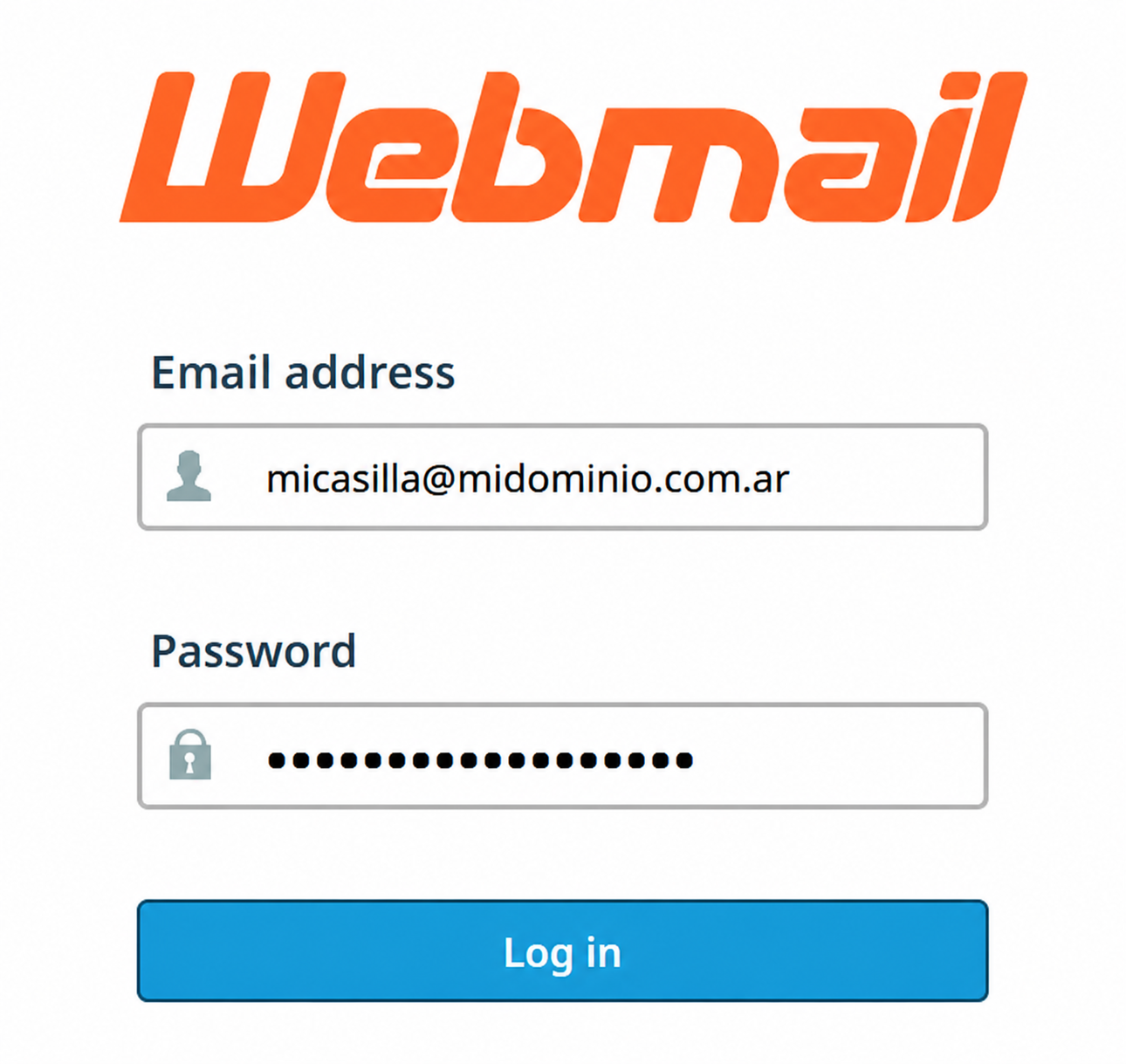
- In your browser enter the web address [tudominio.com]/webmail
- A screen will appear where you must enter your email account and password.
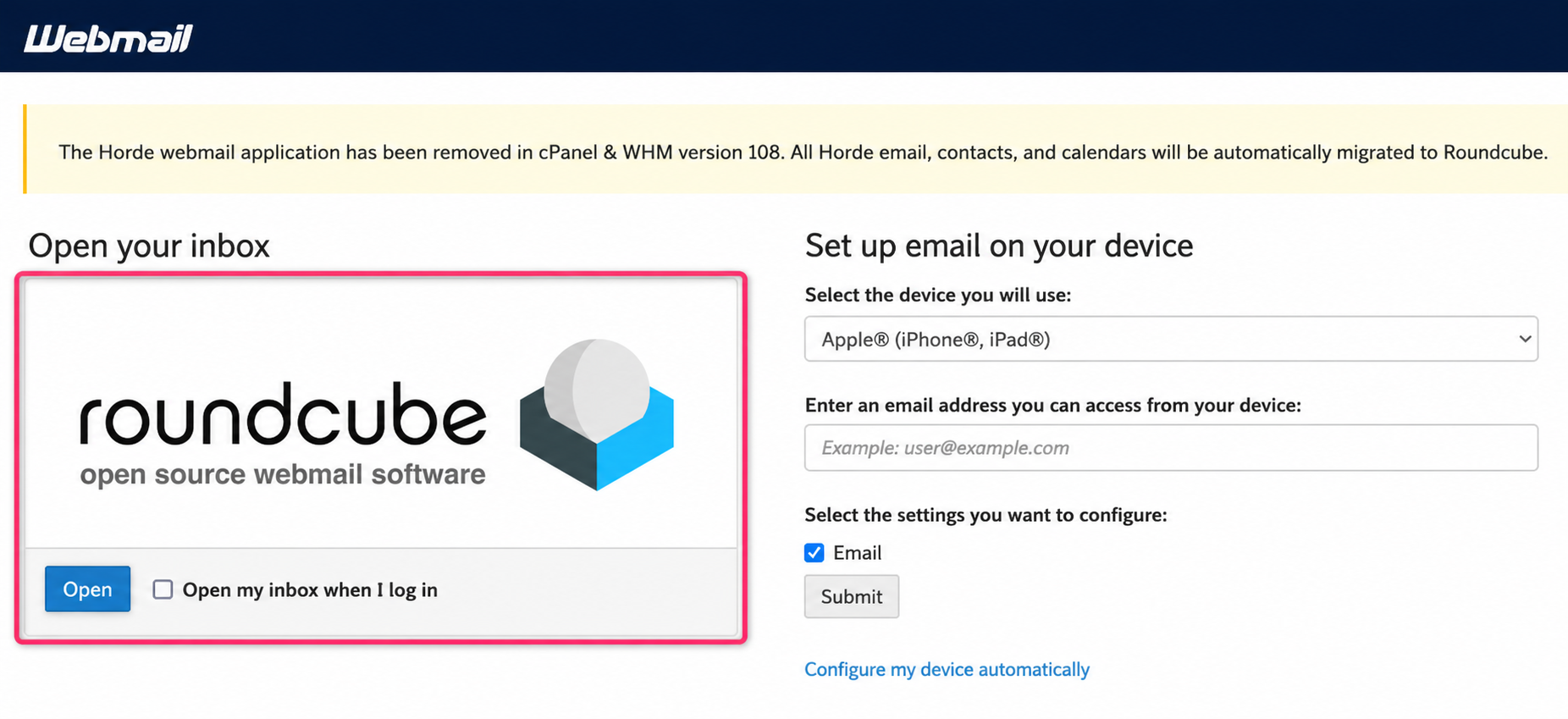
- You will arrive at the screen where you must choose roundcube to access your email account.
Access from the Control Panel
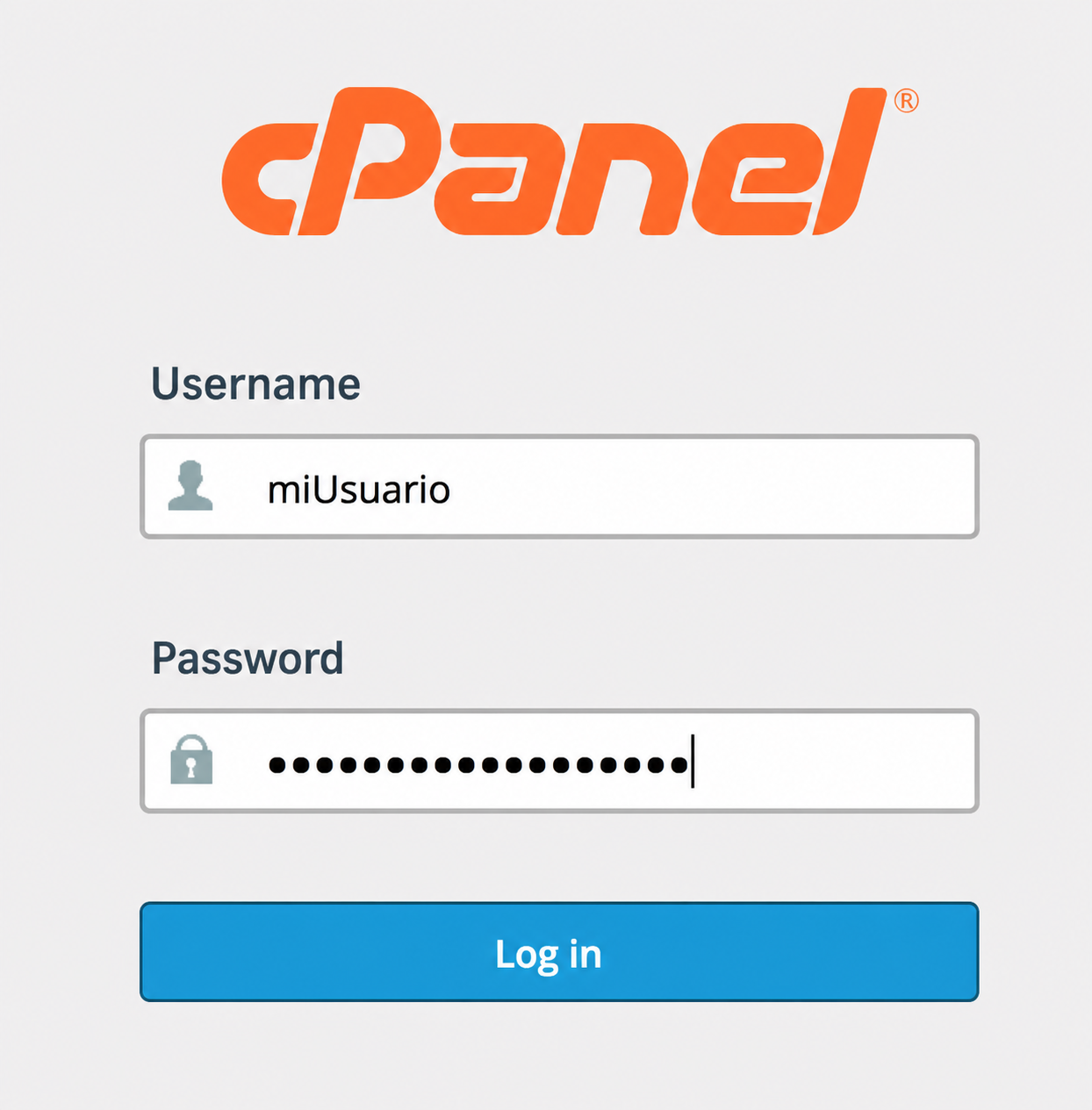
- In your browser enter the web address [sudominio.com]/cpanel and log in with your username and password.
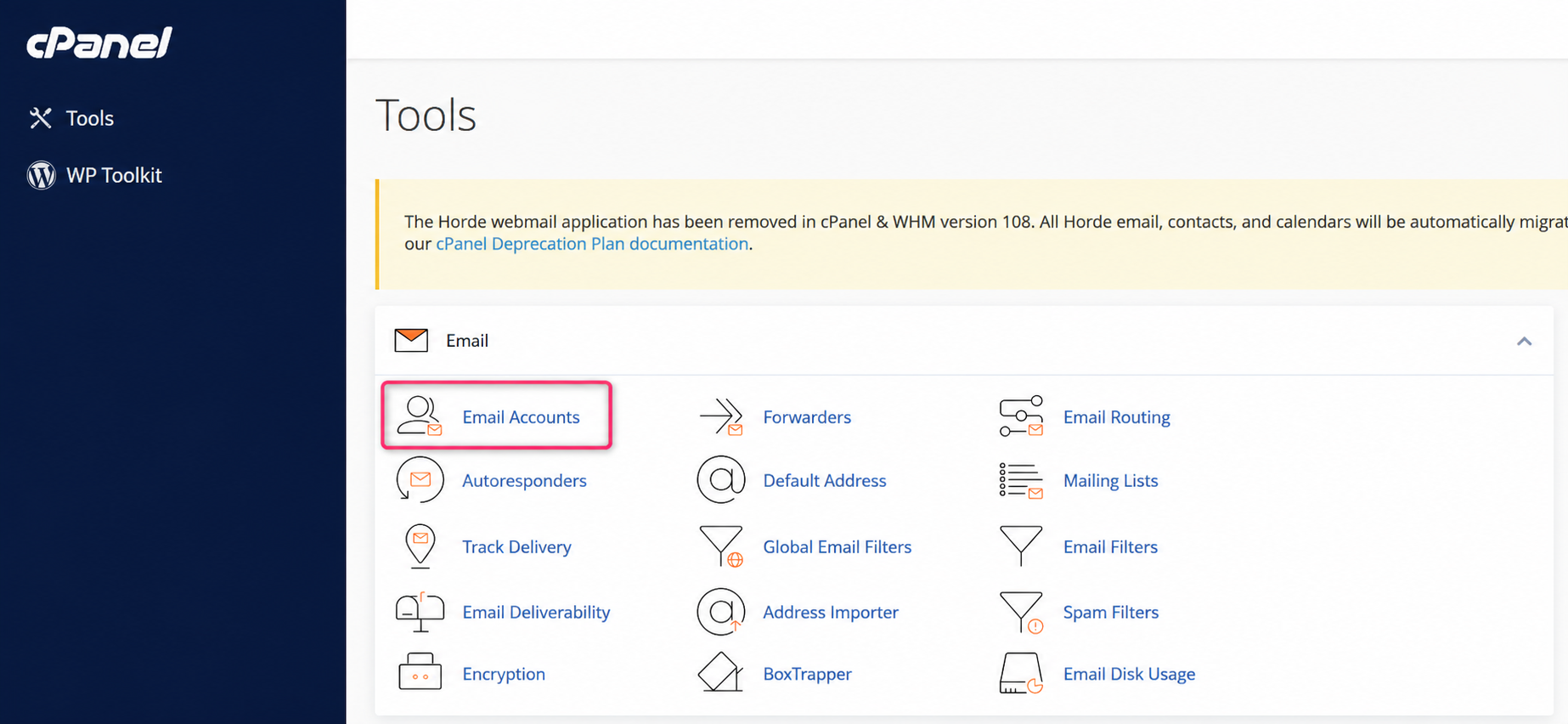
- Once you have logged into your cPanel control panel, you will find the Email box. Go to Email Accounts.
- On the new screen you will see the area where email accounts are created and managed. Press the Check Email button to view your email account in Webmail.
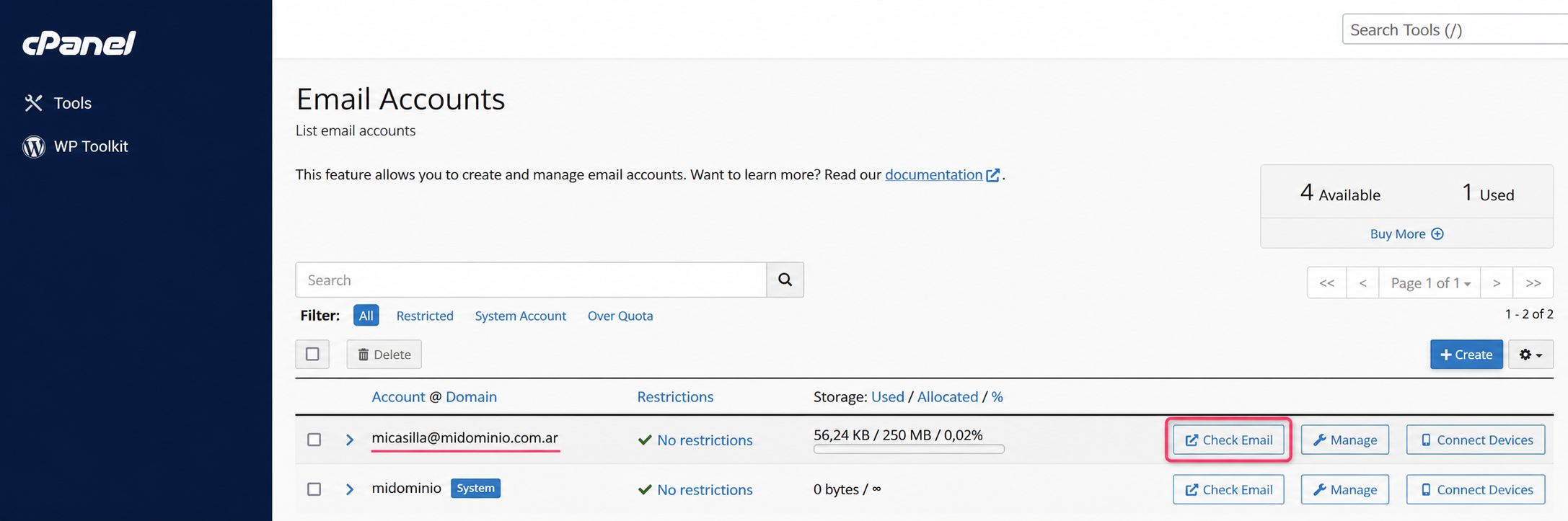
- You will arrive at the screen where you must choose roundcube to access your email account.
Access from the Client Area
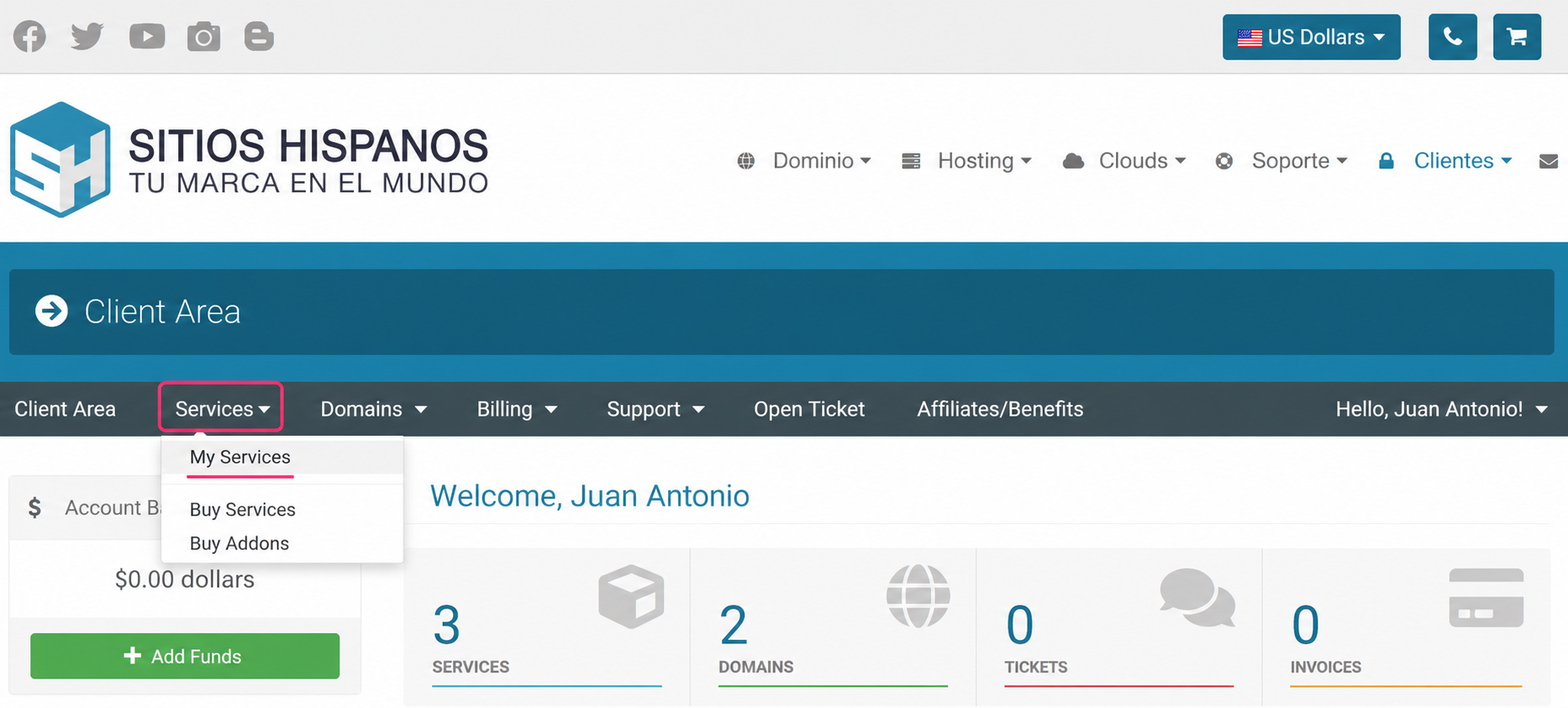
- In your Client Area go to Services, then to My Services.
- From the list of hosting plans you have, select the one for the email account you want to check.
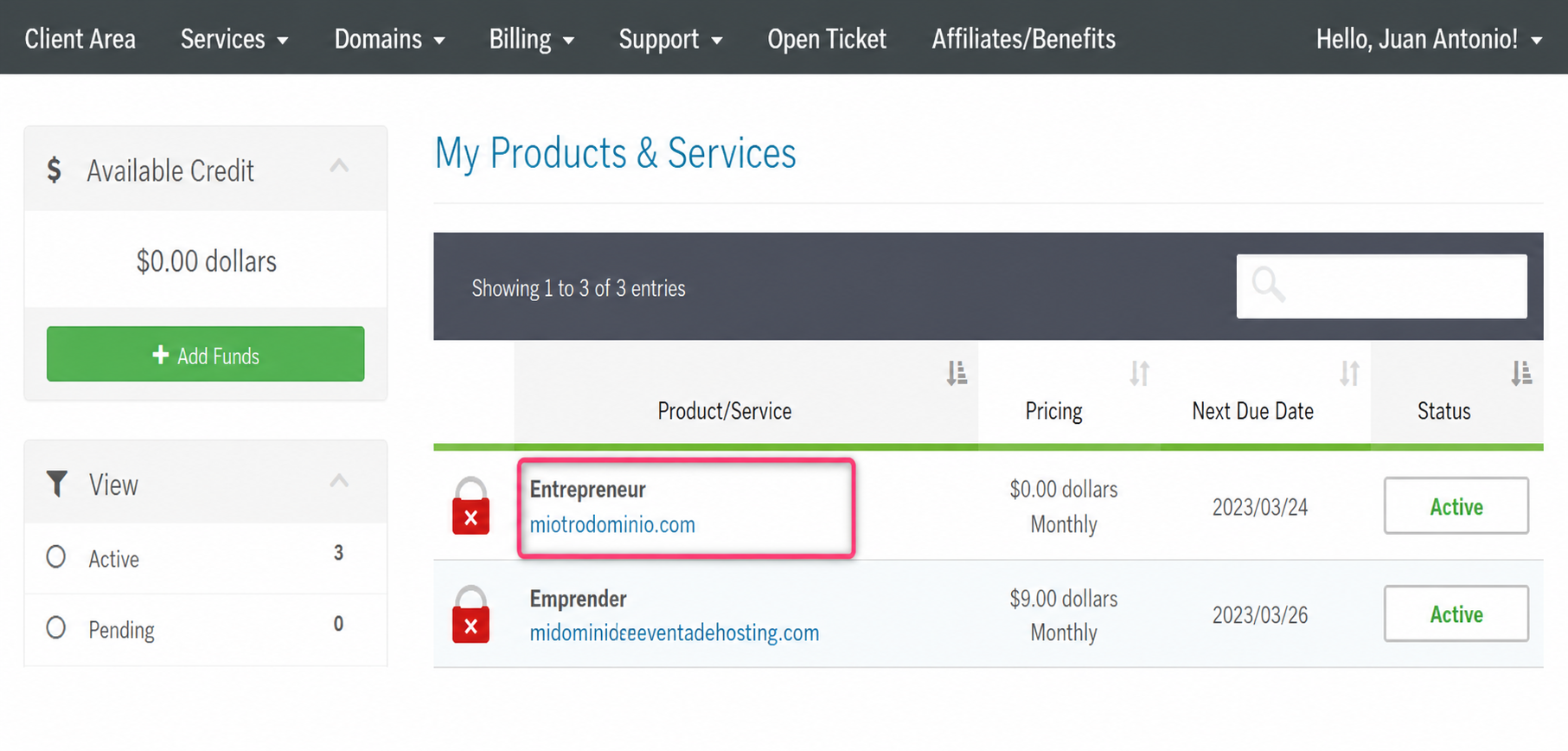
- On the new screen you will find the Quick Shortcuts option.
You will find the email accounts by going to Email Accounts.
.png)
- In the list of created email accounts press the Check Email button to view your email account in Webmail.
- Finally, click on roundcube to open your mailbox in Webmail.