

How to move emails in Webmail?
If you access your email accounts via Webmail, you can create directories to organize your emails according to your own criteria.
In the following guide we’ll show you how to do it:
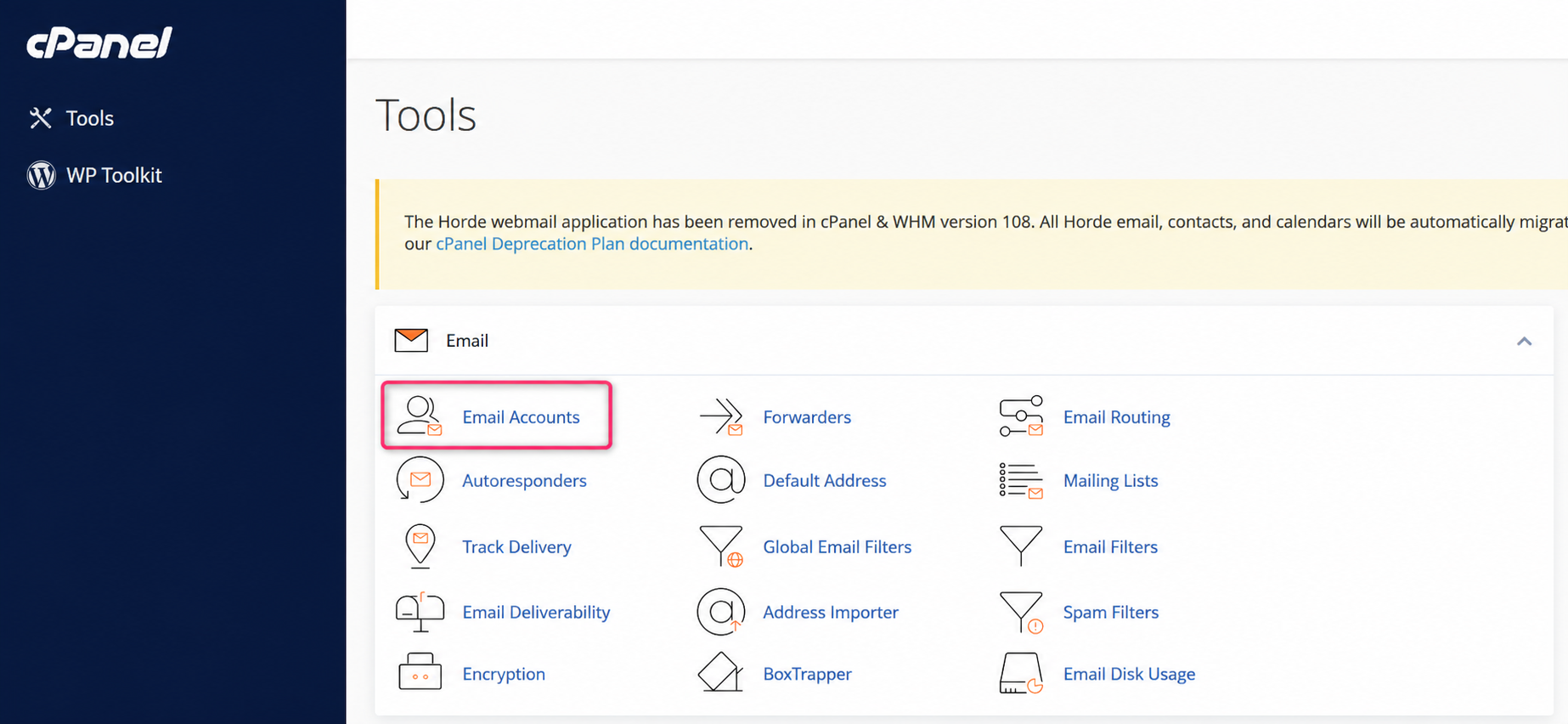
- In the cPanel control panel, go to Email Accounts, in the Email box.
- On the new screen you will see the area from which email accounts are created and reviewed. Click the Check Email button to review your mailbox in Webmail.
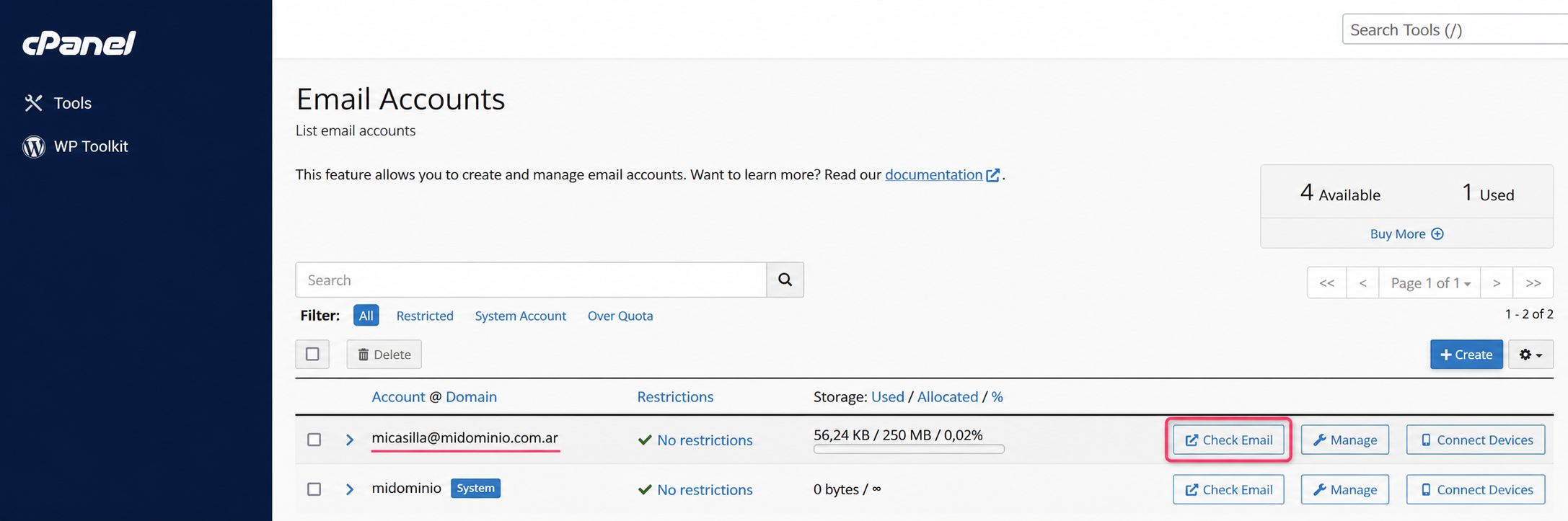
- You will reach the screen where you must choose roundcube to access your mailbox.
How to create directories inside Webmail
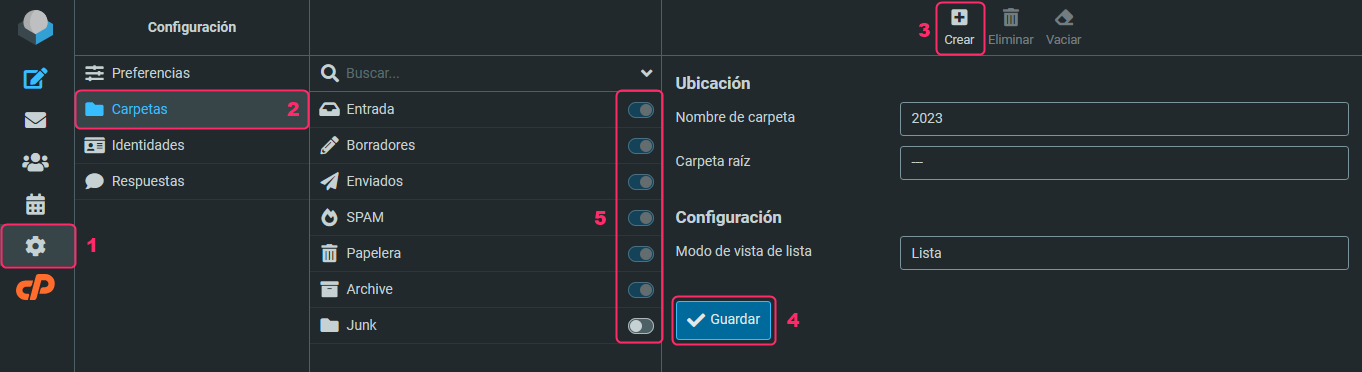
- Inside Webmail, click Settings.
- Then, select Folders.
- At the top right, you will see the Create button to create the new directory or folder.
You will also see a button to delete the folder when you no longer need it. - Choose a name for the new directory or folder and press the Save button.
If you want your new directory to be inside an existing folder, select that folder in Root folder. - In the center, you will see all the directories or folders created. Each one works as an email tray.
To the right of each folder, there is a switch that allows synchronizing the folder with external email clients such as Outlook, Thunderbird, Apple Mail, etc.
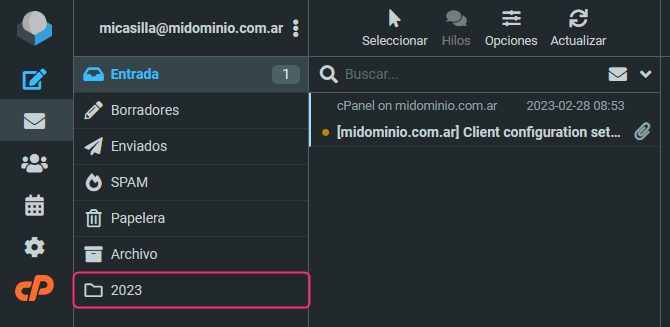
When you create your new folder you will see it as another tray in your mailbox.
How to archive emails to the Archive tray
It is not advisable to keep too many emails in an account’s inbox, whether you check it in Webmail or in external email clients such as Outlook, Thunderbird, Apple Mail, etc.
Now, we will show you how to archive emails quickly and easily:
- Select the email you want to archive.
- At the top right, you will find the Archive option.
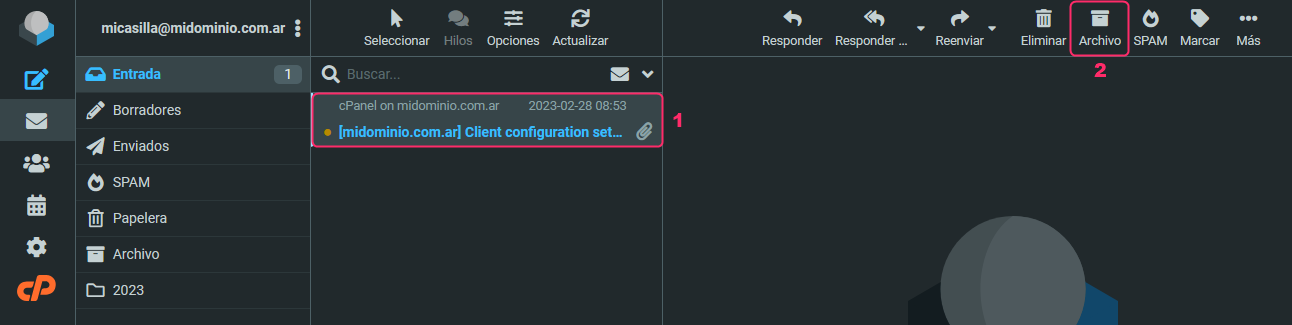
Any email you archive will be moved to the Archive tray. This tray is not synchronized continuously like the inbox, so it is very useful to move infrequently consulted emails to this tray.
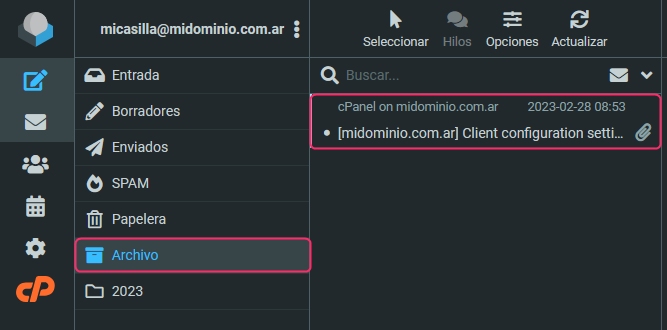
At the beginning of this guide we showed you how to create folders where you can store emails according to your own criteria. This is very similar to how emails are archived.
Now, we will show you how to move emails to a specific tray.
- Select the email you want to move to another tray.
- Open the three-dots menu located at the top right.
- Select the Move to… option in the menu.
- Choose the tray or folder where you want to move the email.
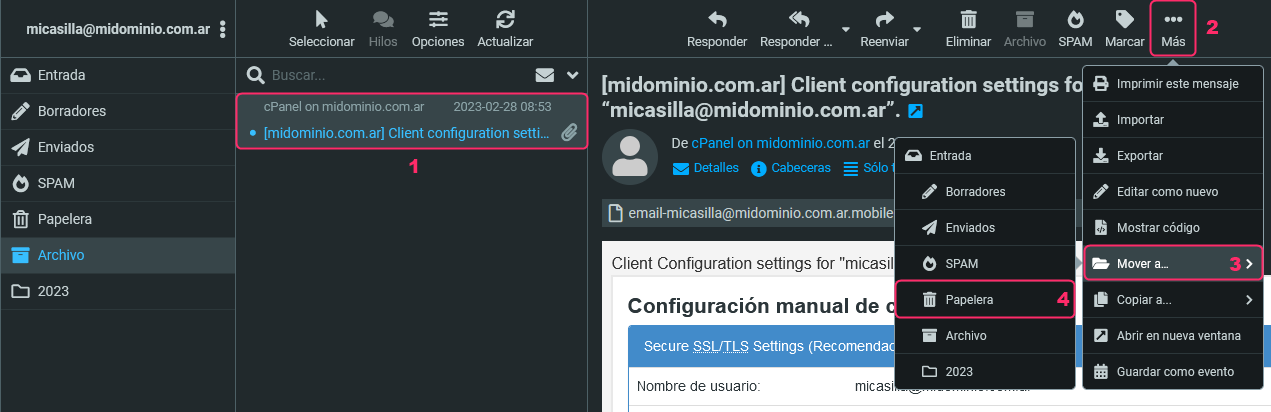
With these three methods you can manage the emails of your accounts efficiently, organizing them as you like and improving performance by reducing the load of emails in each tray.
Below, we leave you one last guide that may be very useful for continuing to manage your mailboxes:
how-to-empty-inboxes-and-delete-emails-in-email-accounts-in-cpanel.md