How to empty mailboxes and delete emails in cPanel email accounts?
Using email accounts can generate a lot of disk space usage on the hosting account.
Below we will show you how to empty mailboxes and delete emails in your email accounts according to certain criteria.
There are two main methods to quickly delete emails and empty mailboxes. Access the method you want to use below:
Delete emails from the cPanel control panel
- This method requires access to the cPanel control panel. If you don’t know how to log in, you will find the steps at this link.
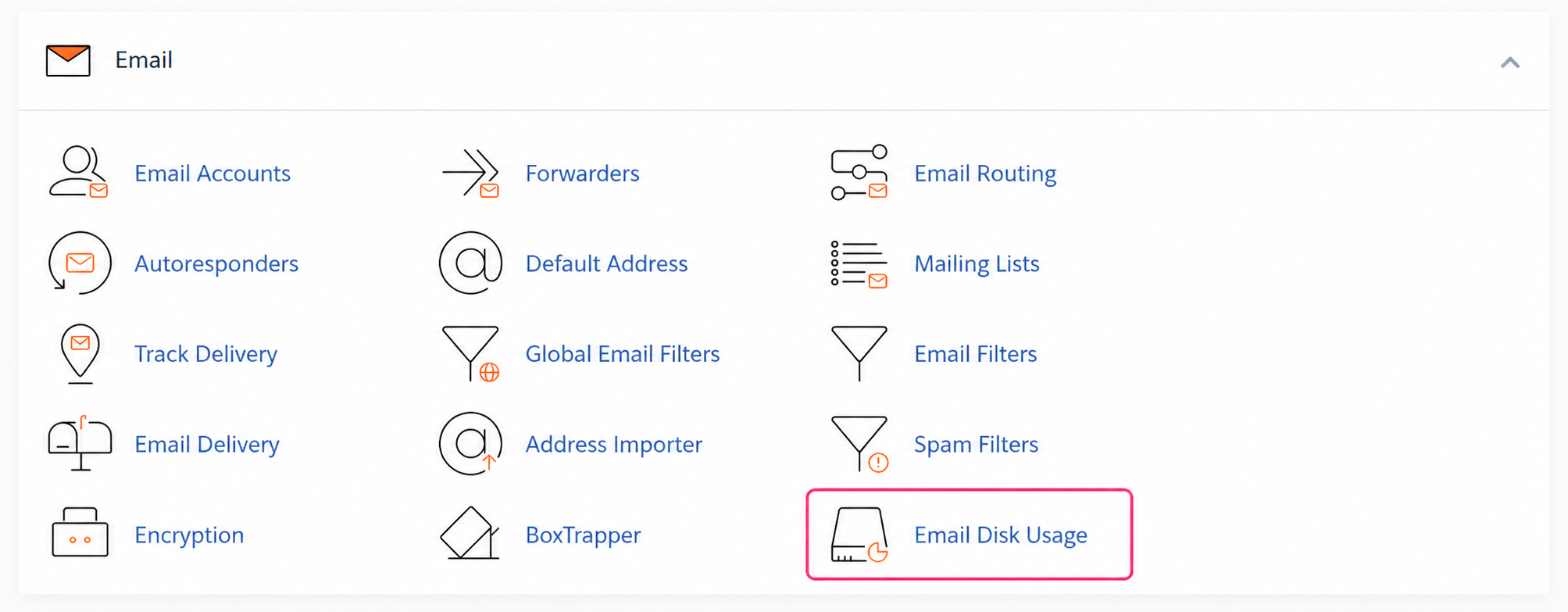
- Once in the control panel you must go to the Email Disk Usage option, inside the Email box.
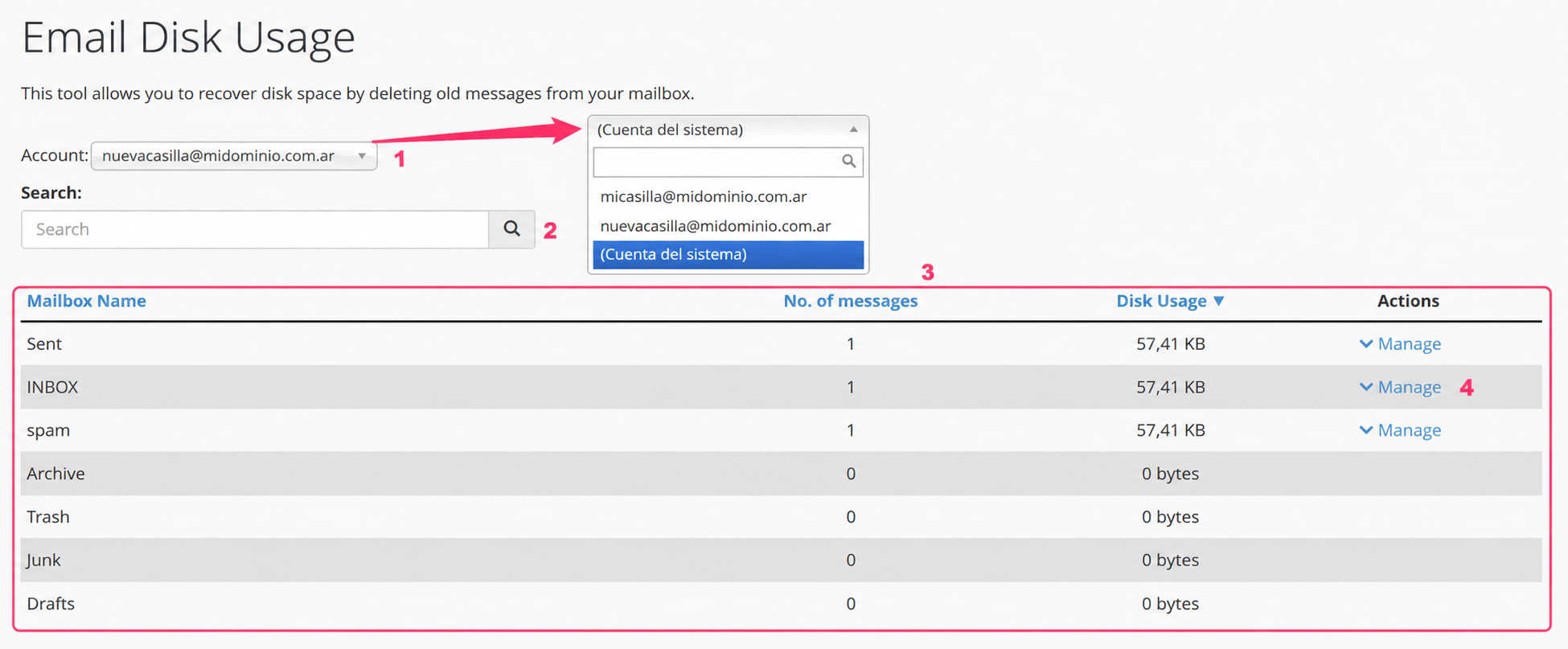
- In the Email Disk Usage interface you will find:
- A dropdown menu with all your accounts. You will also see the system account or Catch All.
- Below you will see a search field. It is used to search for specific mailboxes within a chosen account.
- Then, you will see the information box with the mailboxes, number of messages and space used by the selected email account.
- In the Actions column you will see the Manage link for each mailbox of the selected email account that has content.
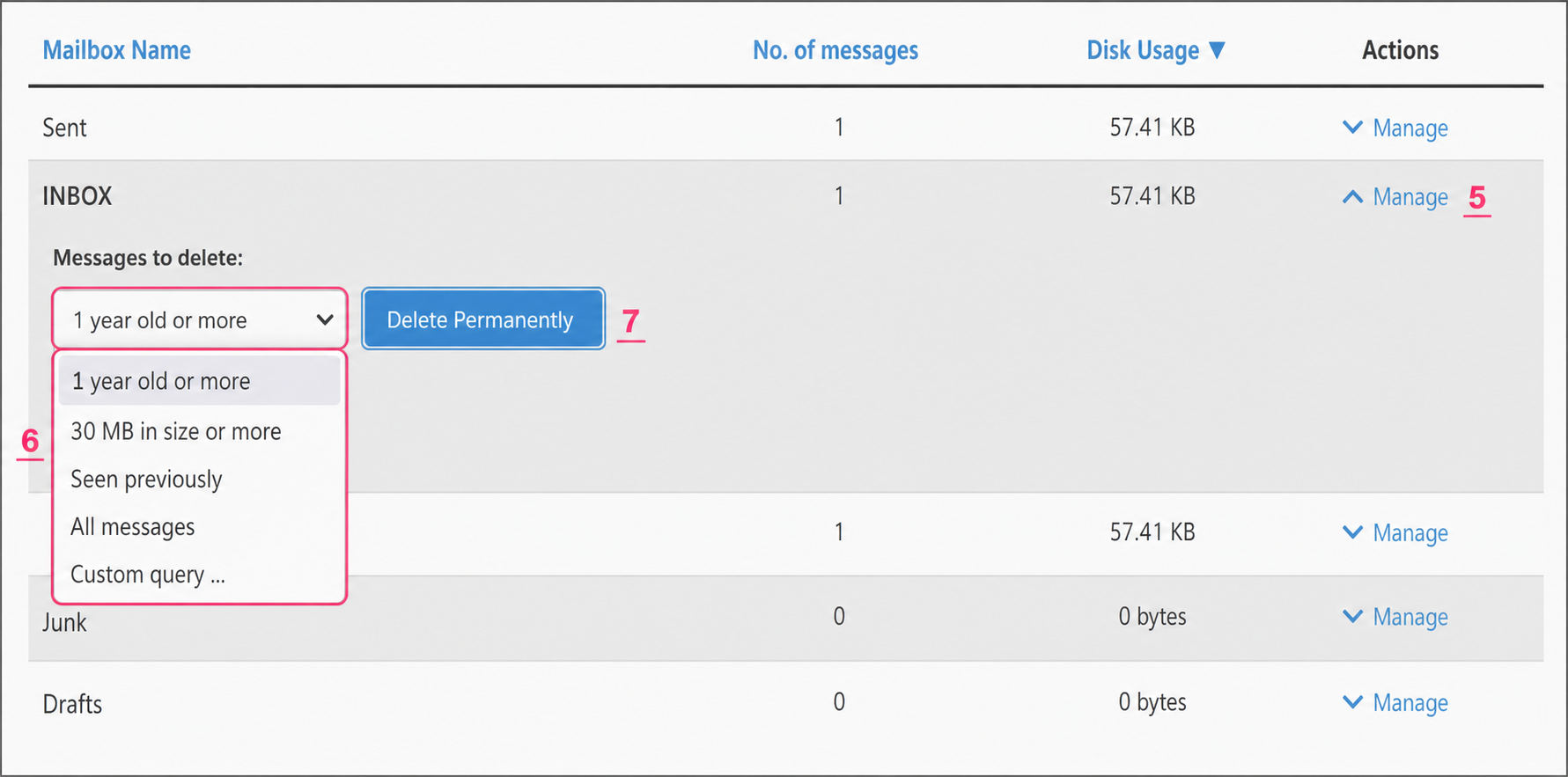
- Click Manage on the mailbox from which you want to delete emails. The options with the criteria to delete its contents will be displayed.
- You will see a dropdown menu with the criteria to delete the content. For example, you can delete emails that are older than 1 year.
- By pressing the Delete permanently button you will delete the emails from the mailbox according to the chosen criterion. Emails from other accounts or other mailboxes will not be deleted.
Delete emails from Webmail
- This method requires access to the Webmail of the account you want to clean. If you don’t know how to log in, you will find the steps at this link.
- Once in the Webmail panel of the selected account you must go to the Manage Disk Usage option, at the very bottom of this screen.
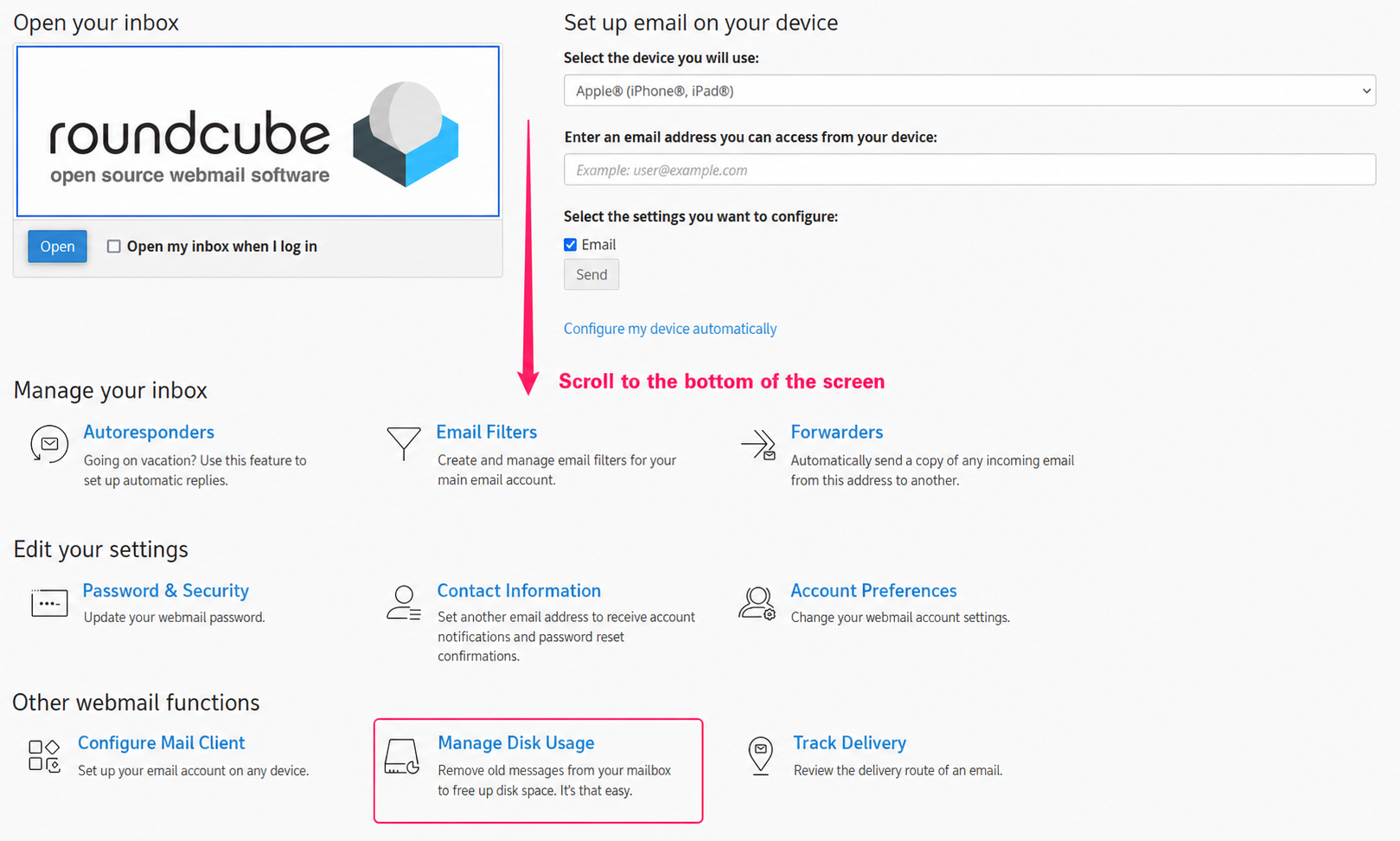
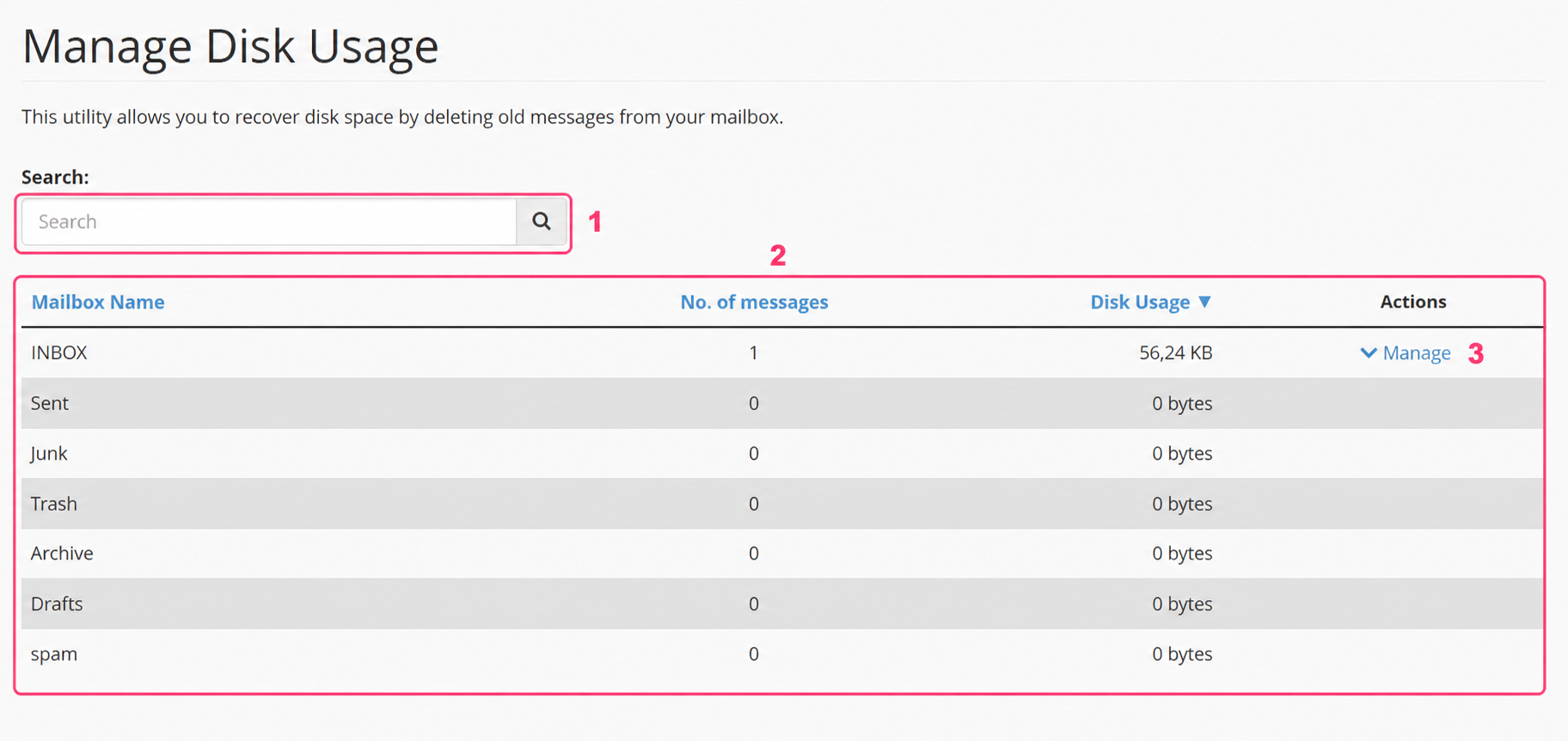
- In the Manage Disk Usage interface you will find:
- A search field to filter specific mailboxes of the email account.
- The information box with the mailboxes, number of emails and the space occupied by each one.
- In the mailboxes that have content you will see the Manage link. You must click it to open the email deletion options.
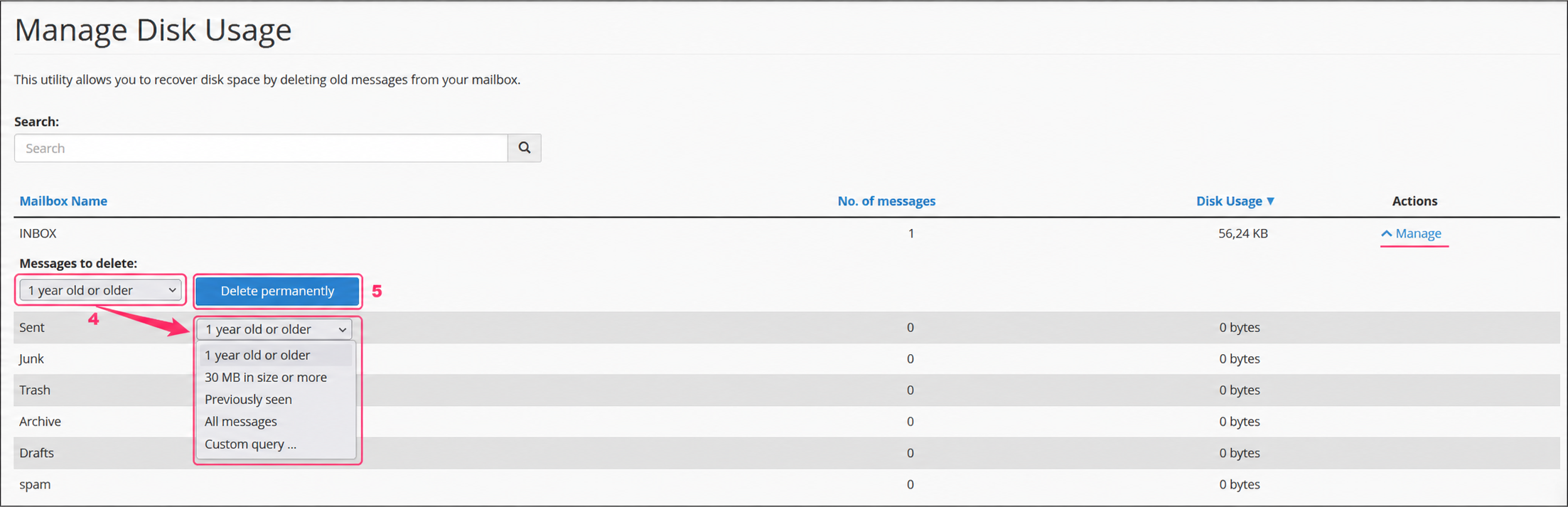
- You will see a dropdown menu with the criteria to delete the emails from the selected mailbox. For example, you can delete emails that are older than 1 year.
- By pressing the Delete permanently button you will delete the emails from the mailbox that meet the selected criterion. Emails from other accounts or other mailboxes will not be deleted.
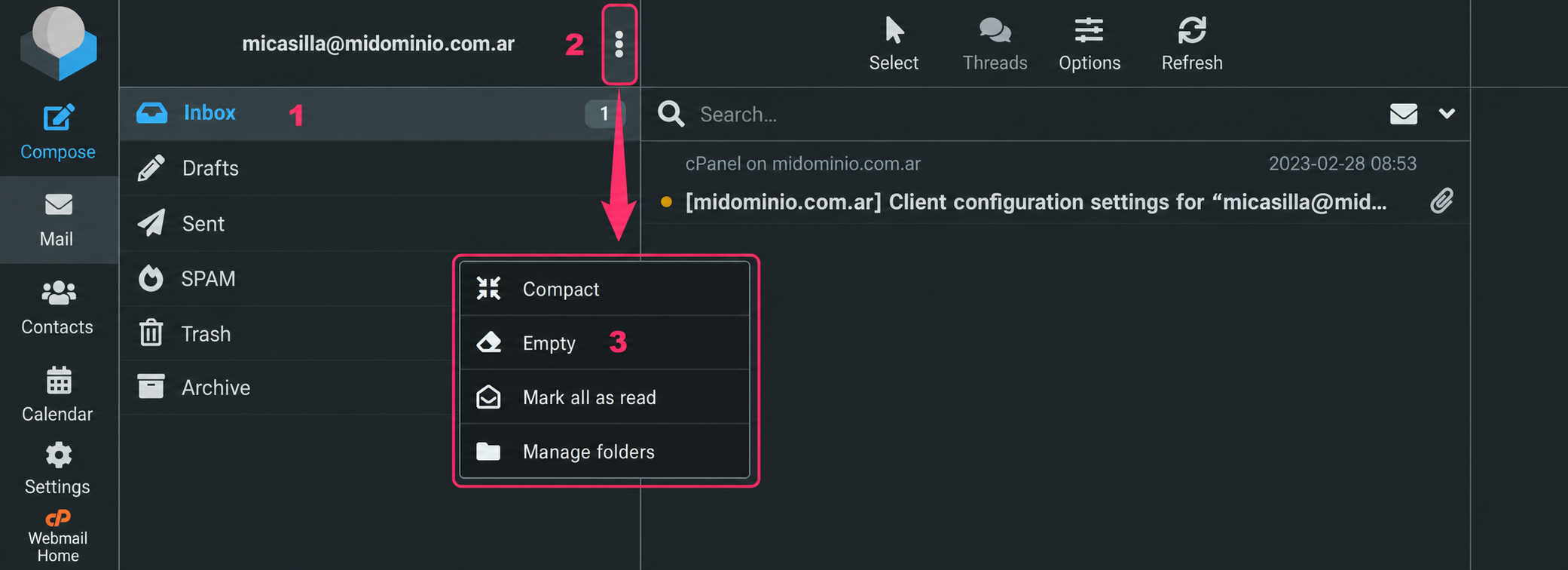
There is one last method to delete emails via Webmail, although this method will delete all emails in the selected mailbox. These are the steps:
- When accessing an email account via Webmail select the mailbox whose entire contents you want to delete.
- Then, press the three-vertical-dots button located to the right of the mailbox name.
- In the options menu select Empty.