

How to access mailboxes via Webmail with Plesk
Below we’ll show you how to check your mailboxes from Plesk Webmail.
Below, we’ll detail the different ways to access the Plesk Webmail:
Access from the Control Panel
- Enter this web address in your browser to access the Plesk Control Panel:
https://windows10.webhosting-network-services.com:8443 - Once in the Plesk control panel, look in the left menu for the Mail option and enter it
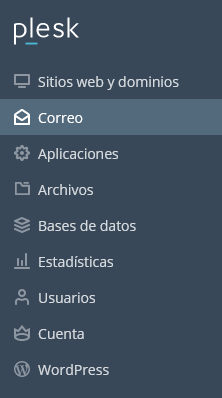
- On this screen you’ll find the list of created mailboxes. Go to the Mail Settings tab.
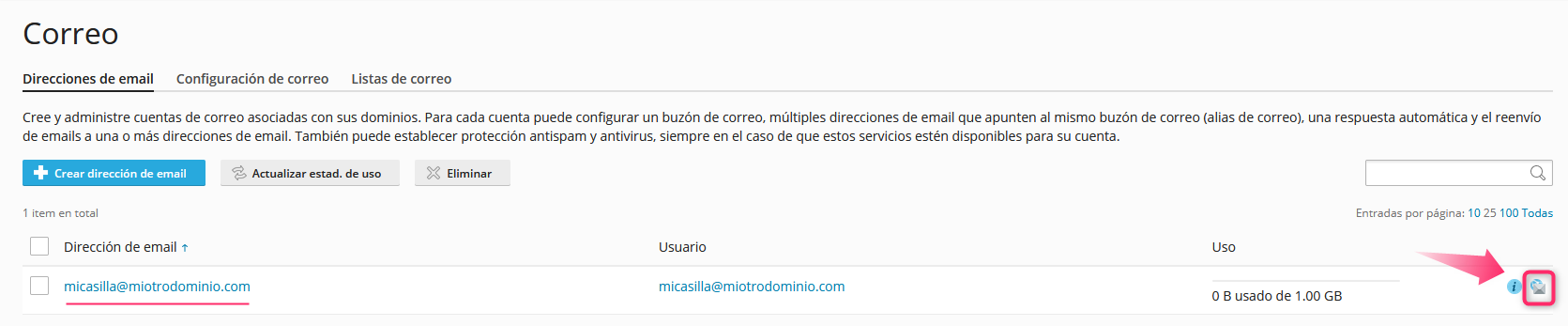
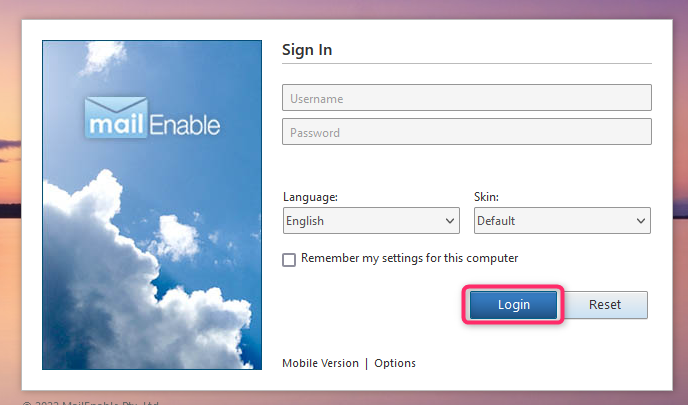
- Finally, enter your mailbox credentials on the Login screen.
Access from my Client Area
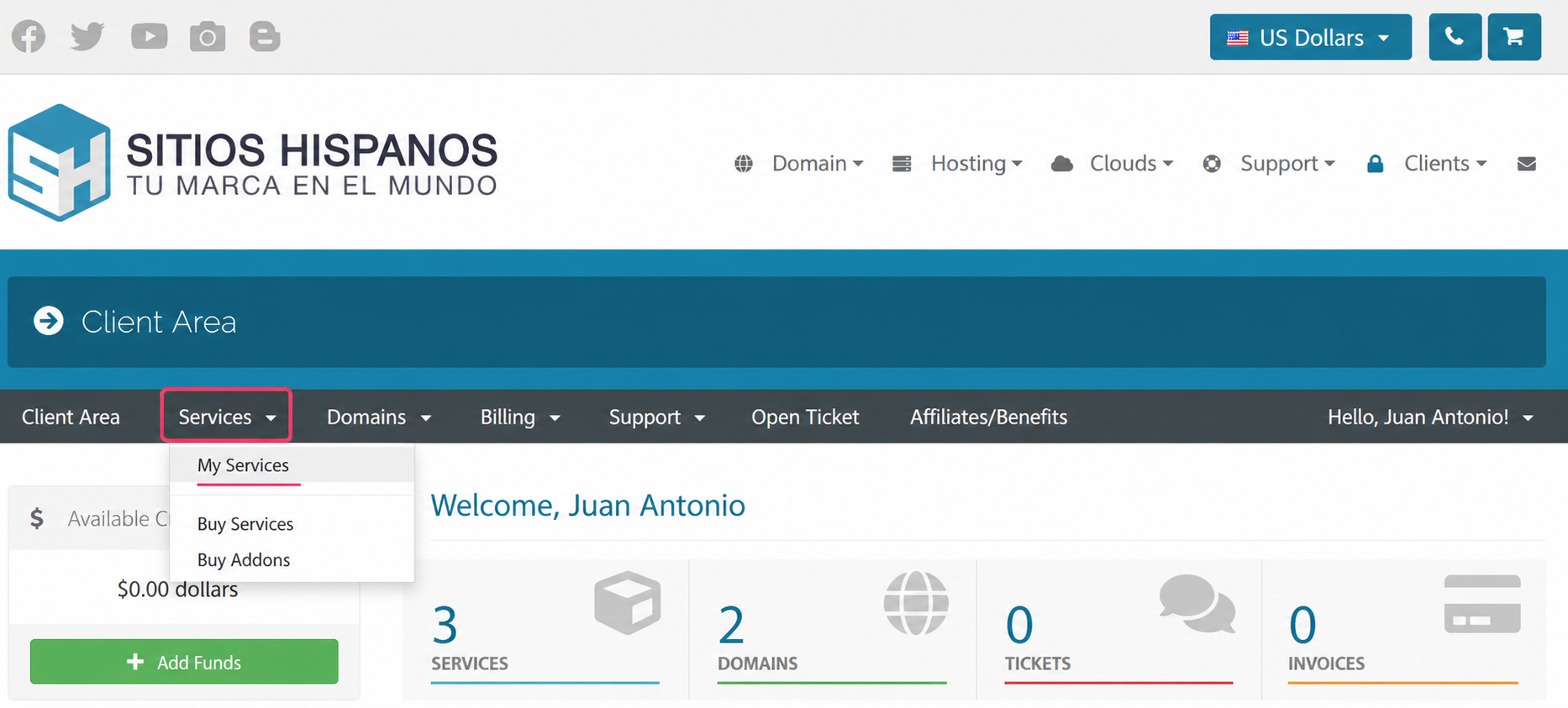
- In your Client Area, go to Services and then to My Services
- From the list of hosting plans, select the one for which you want to check the mailbox
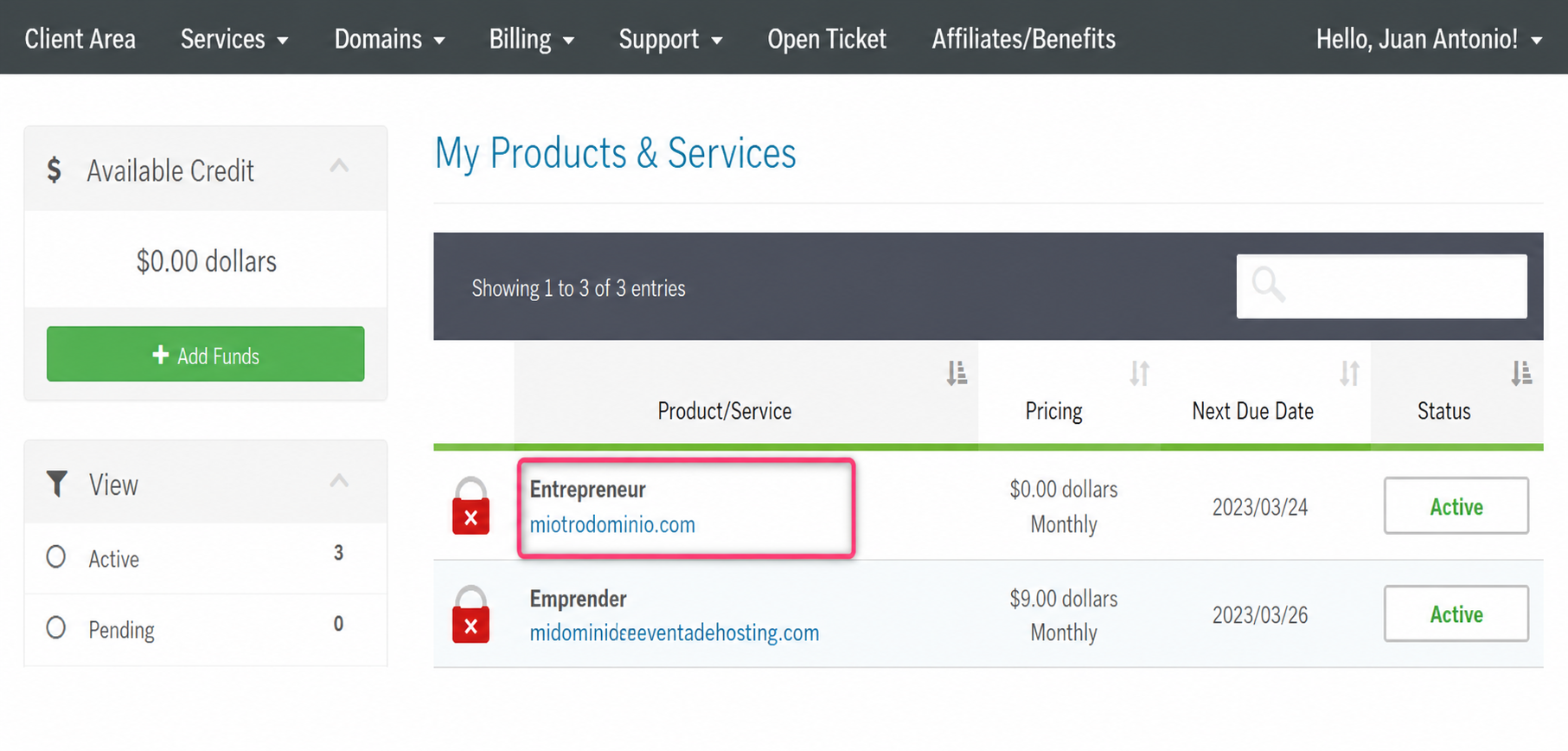
- On the new screen you’ll find the Quick Shortcuts option. Go to your mailboxes
.png)
- Enter the Plesk control panel. Look in the left menu for the Mail option and enter it.
- On this screen you’ll find the list of created mailboxes. Go to the Mail Settings tab.
- Finally, enter your mailbox credentials on the Login screen