

How do I enable two-factor authentication for the Client Area?
Two-factor authentication adds an additional layer of security. When signing in, in addition to the username and password, you will need to enter a code generated on your phone.
How to enable it
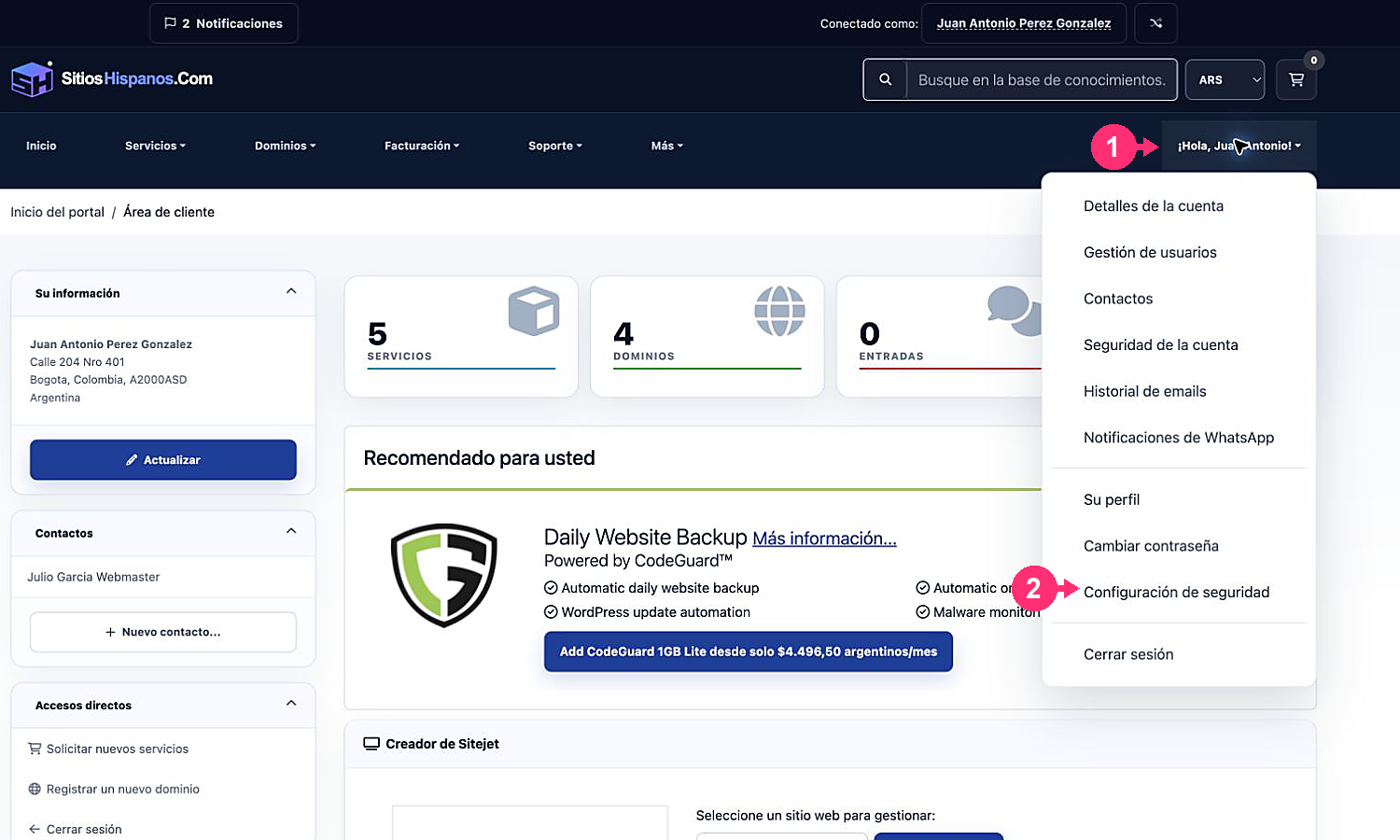
- Log in to your Client Area. If you don’t remember how to do this, see How to access the Client Area.
- Open the Hello, [your name]! menu and select Security Settings.
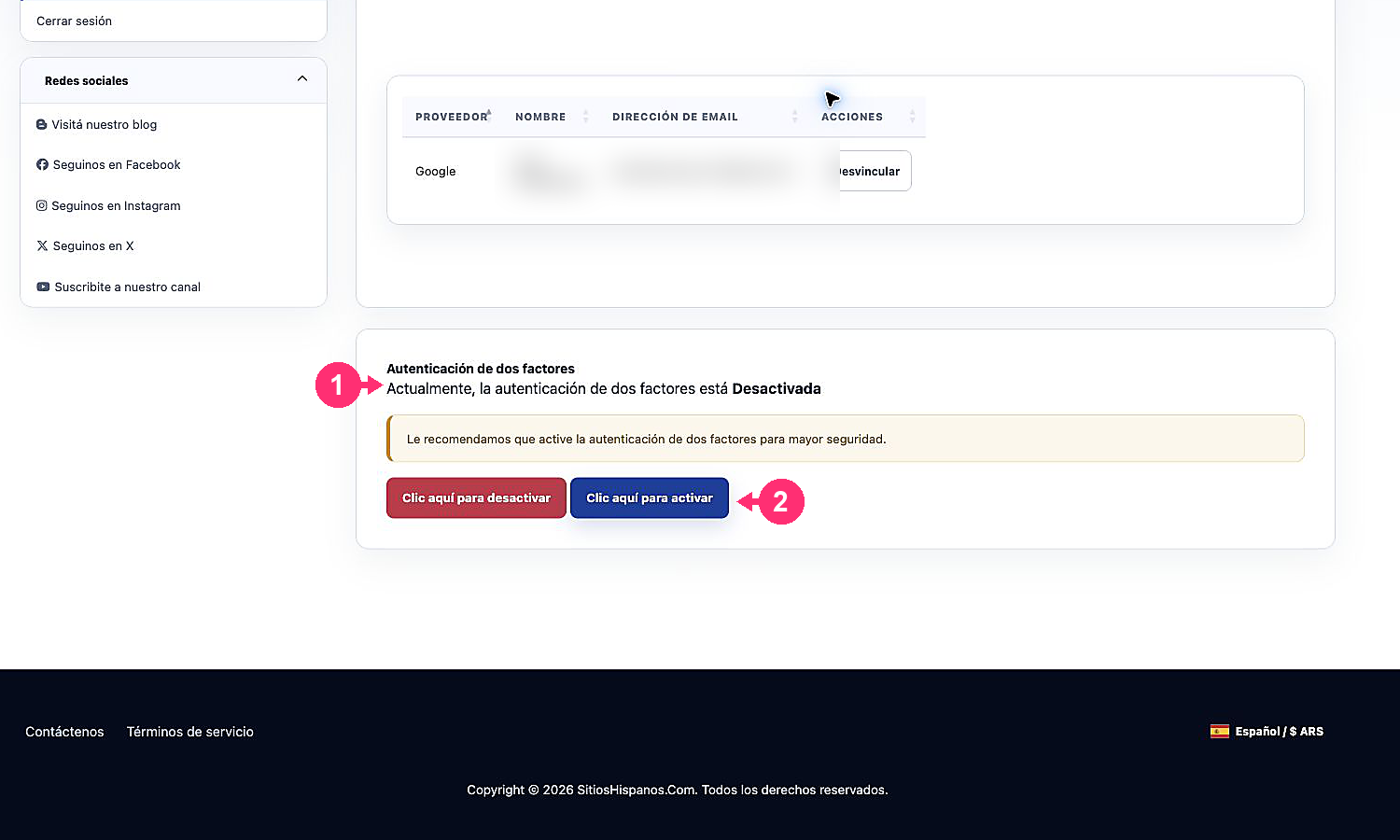
- Under Two-factor authentication, check the current status and press Click here to enable.
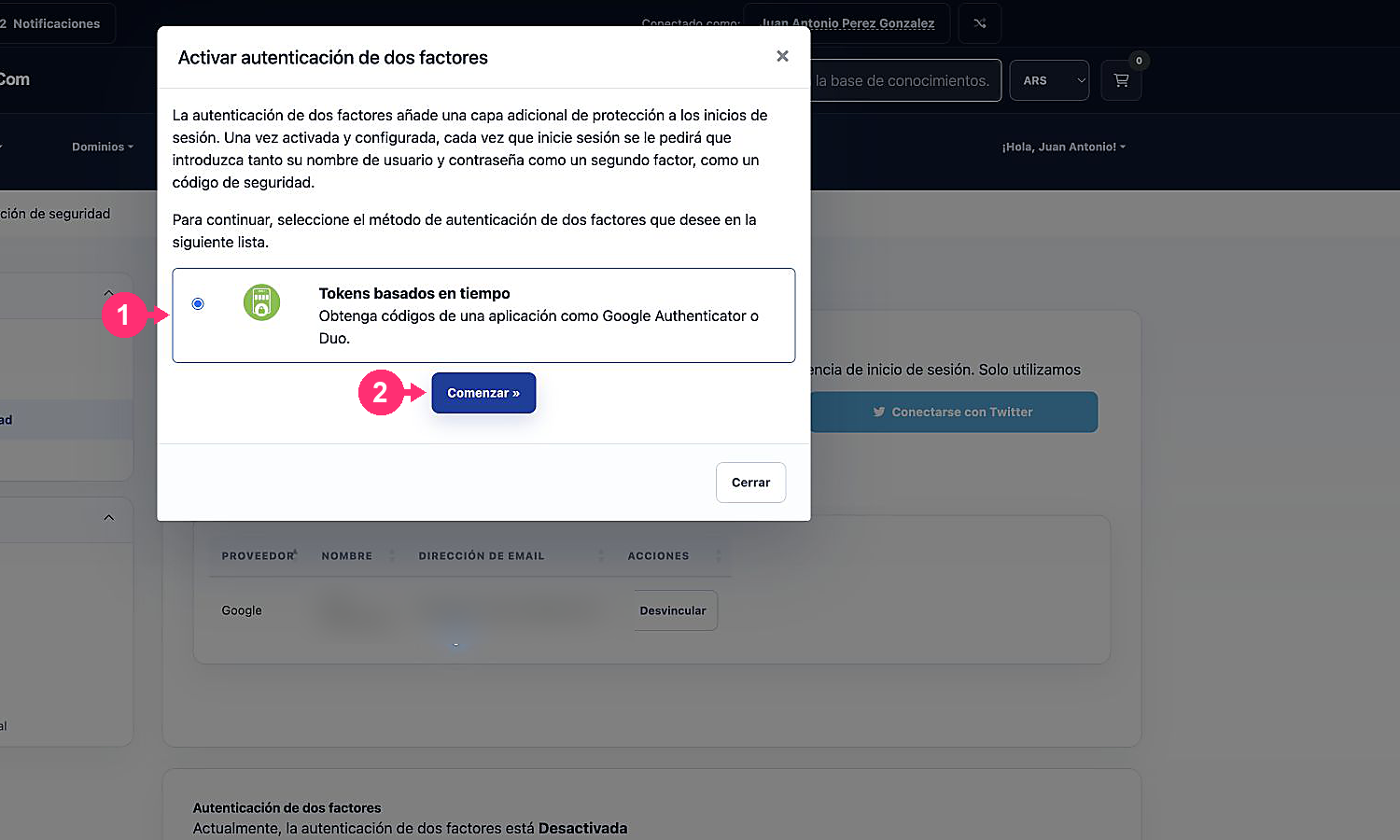
- Select Time-based tokens and press Start.
- Scan the QR code with an app like Google Authenticator or Duo.
- Enter the six-digit code generated by the app and confirm the activation.
- Save the backup code in a safe place separate from the device.
How to disable it
- Return to Hello, [your name]! > Security Settings.
- Under Two-factor authentication, press the option to disable.
- Confirm the operation with your password when prompted.
Disabling this protection reduces the account’s security. Do this only if you are immediately going to configure another method or if support asks you to.