

Sitejet Builder User Guide
Initial Setup and Access.
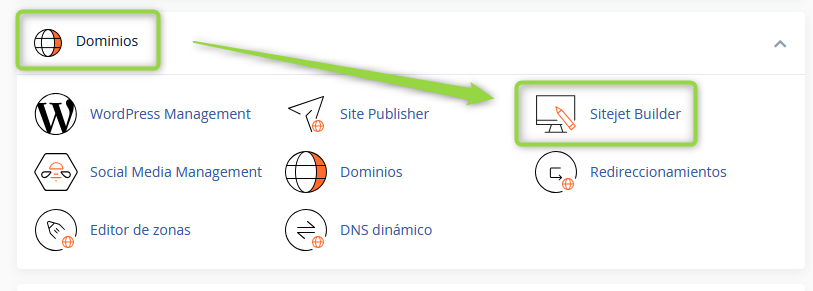
To access the tool, simply go to cPanel and then navigate to Domains ⇒ Sitejet Builder.
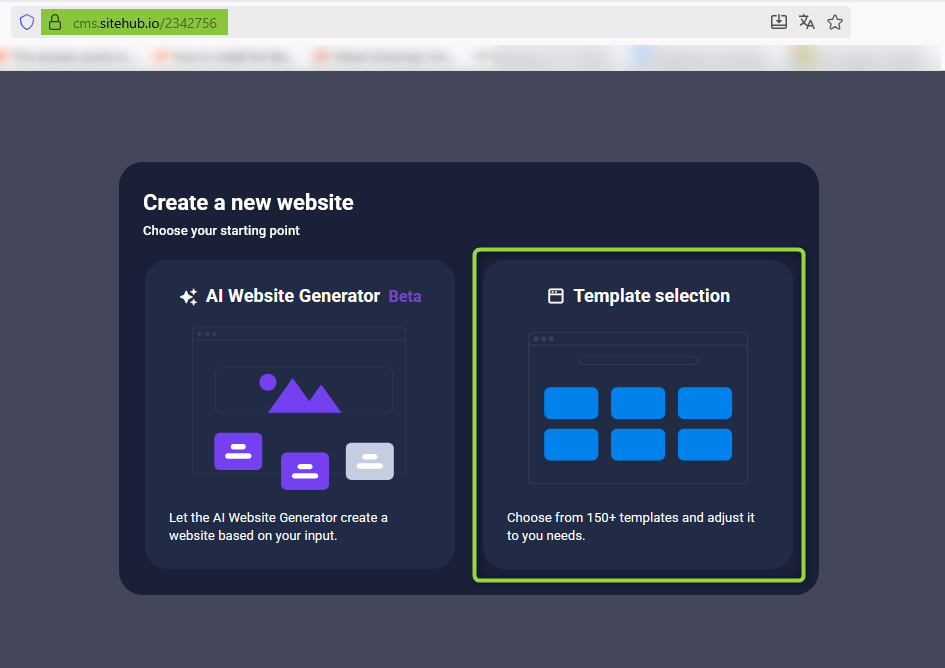
This will redirect us to a temporary URL. We will start by selecting the “Template Selection” option, where we can choose the base template for the website design to create.
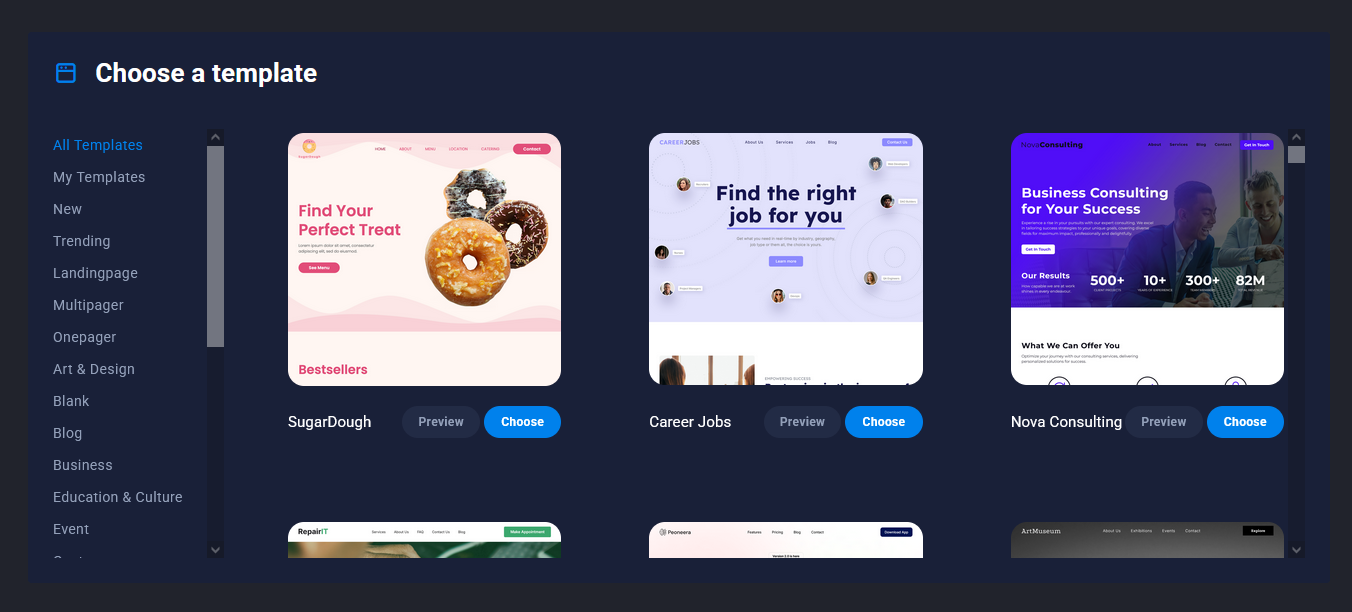
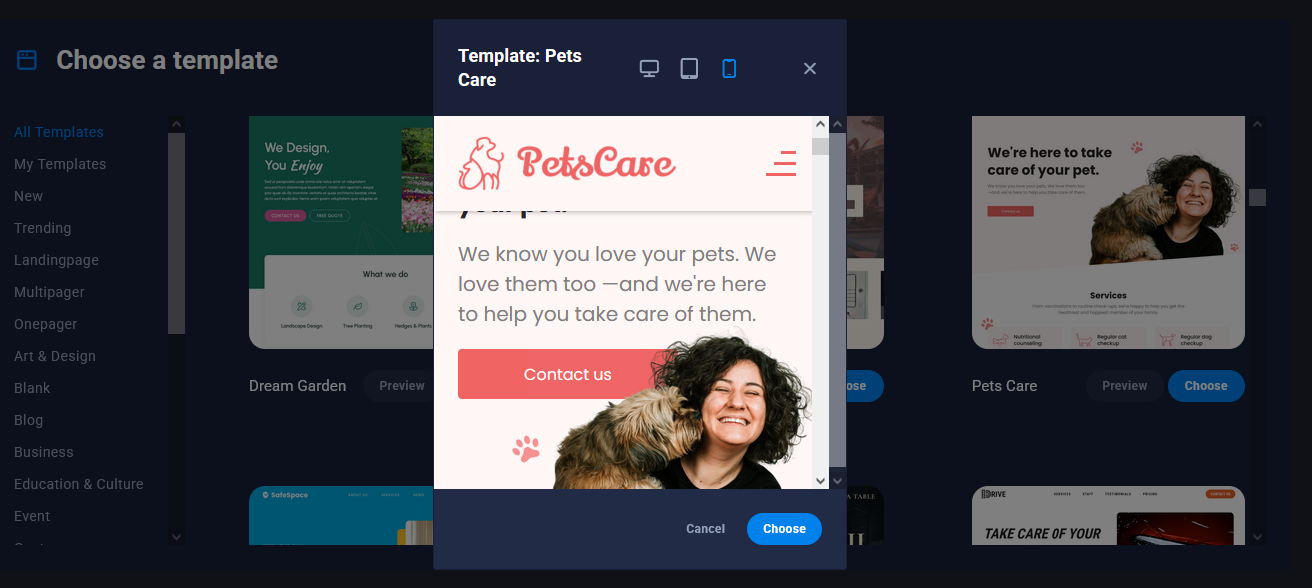
Below each template you will see two options: “View” to see a demo and simulate different formats (Desktop, Tablet and Mobile), and “Choose” to select it as the template to work on.
Desktop
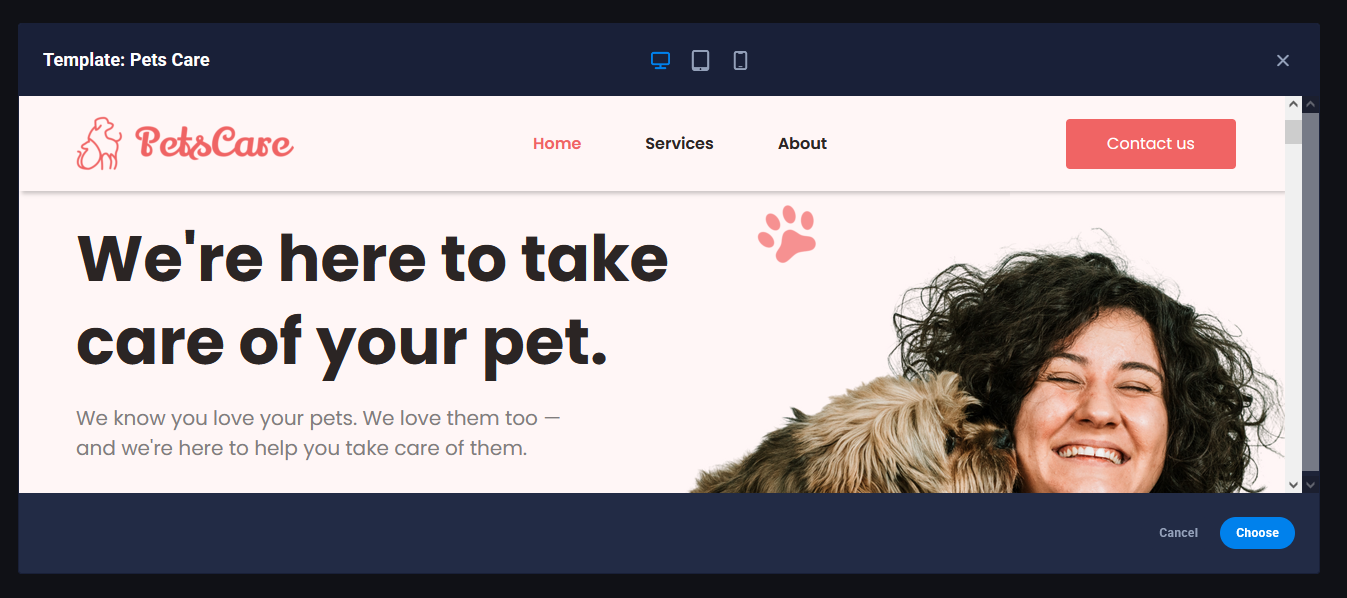
Tablet
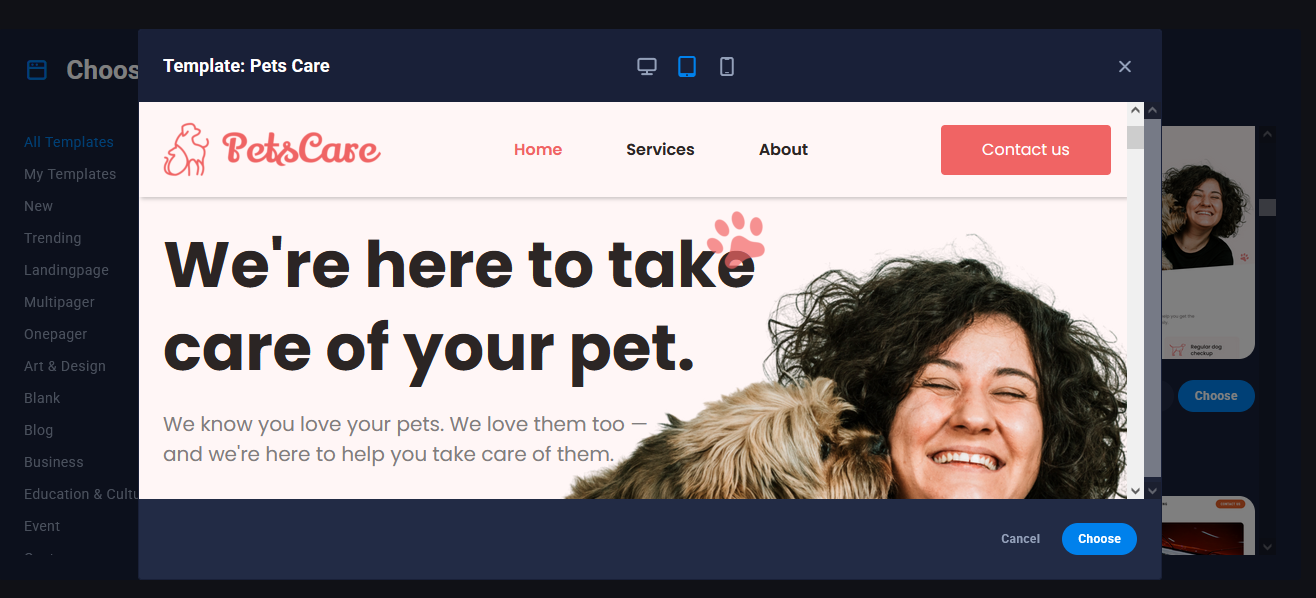
Mobile
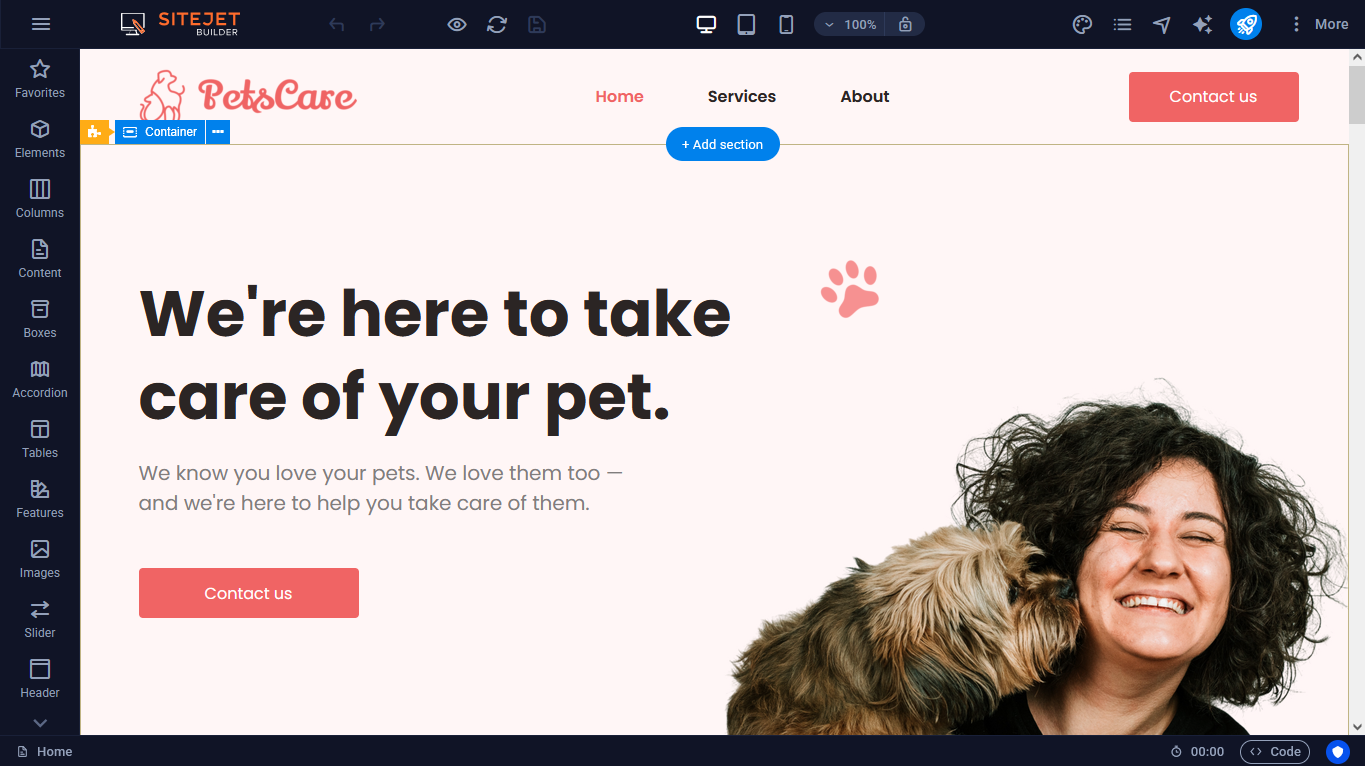
After choosing a template, you enter the editor, where you will find multiple tools to adjust, configure and style your website. Although the number of options may seem extensive at first, it is very easy to use: the entire design is done using the “drag and drop” function and customization through different panels and settings.
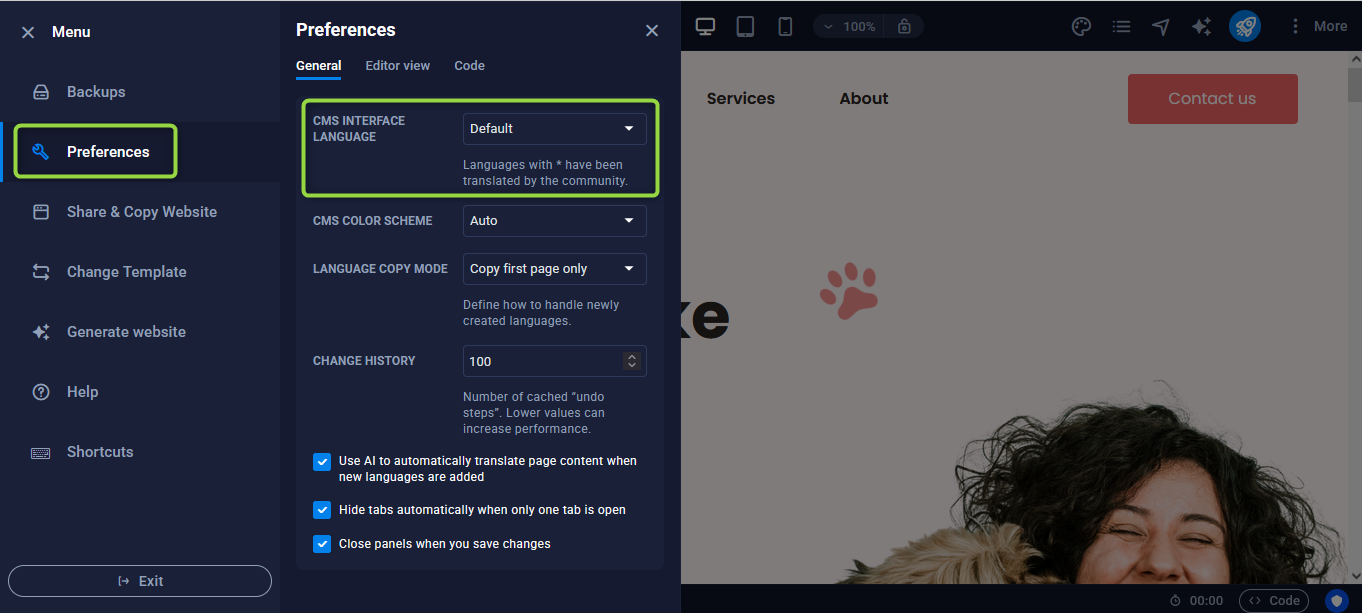
At the top left of the screen you will see the Menu icon (three horizontal lines).
Among the options that appear there, we can highlight:
- Backups: before applying any publication, the system automatically creates a backup, allowing you to revert to a previous version if necessary.
- Preferences: in this section you can adjust different editor options, such as selecting the Spanish language or other settings according to your needs.
The sidebar concentrates the main editor tools; from there you can search for and drag different predesigned elements to build the structure of your site.
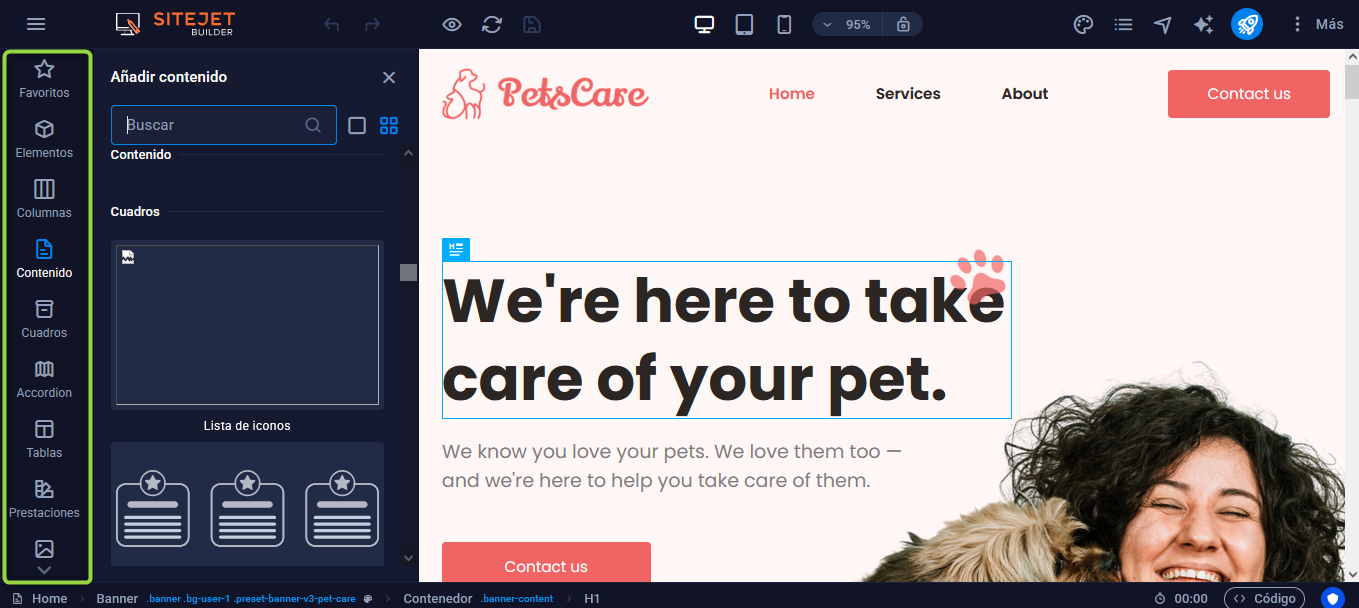
Among the available options you will find accordions, tables, forms, headers, text, columns, images, carousels, videos and audio, among many others.
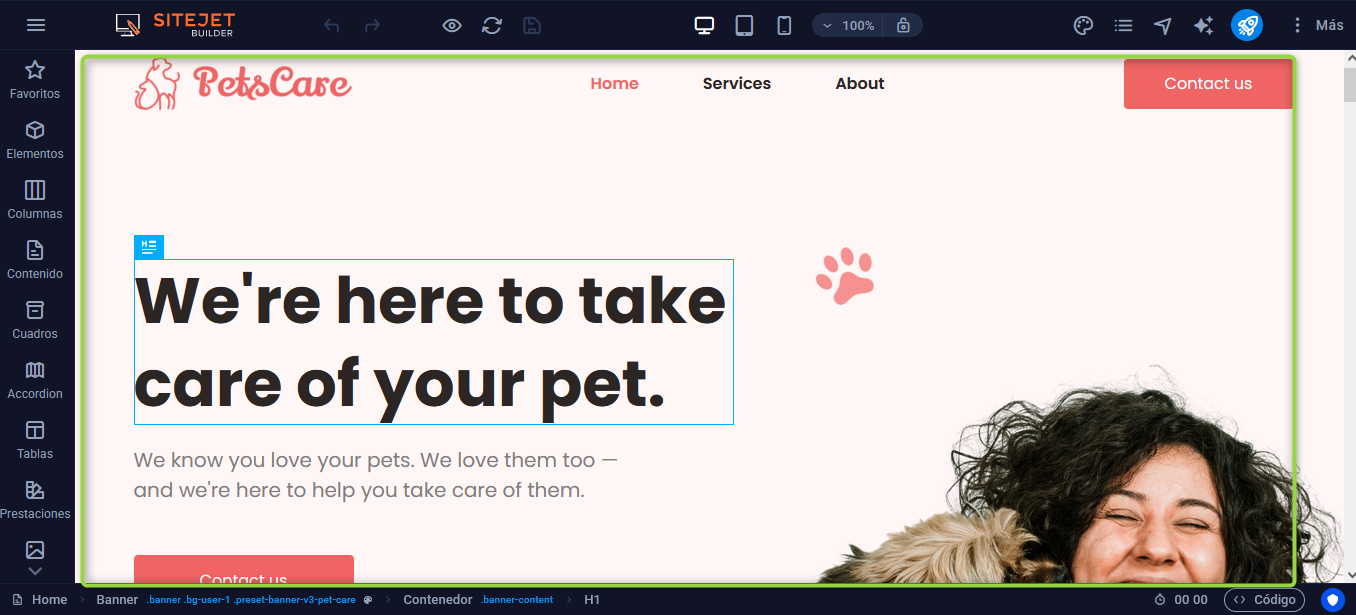
In the central area is where the entire design is developed: you add, move or adjust each component. By simply clicking on a block, you will access its customization options.
In the top of the editor there are tools such as undo and redo actions, adjust the view type to check how the site displays on mobile devices or tablets, and modify the zoom level.
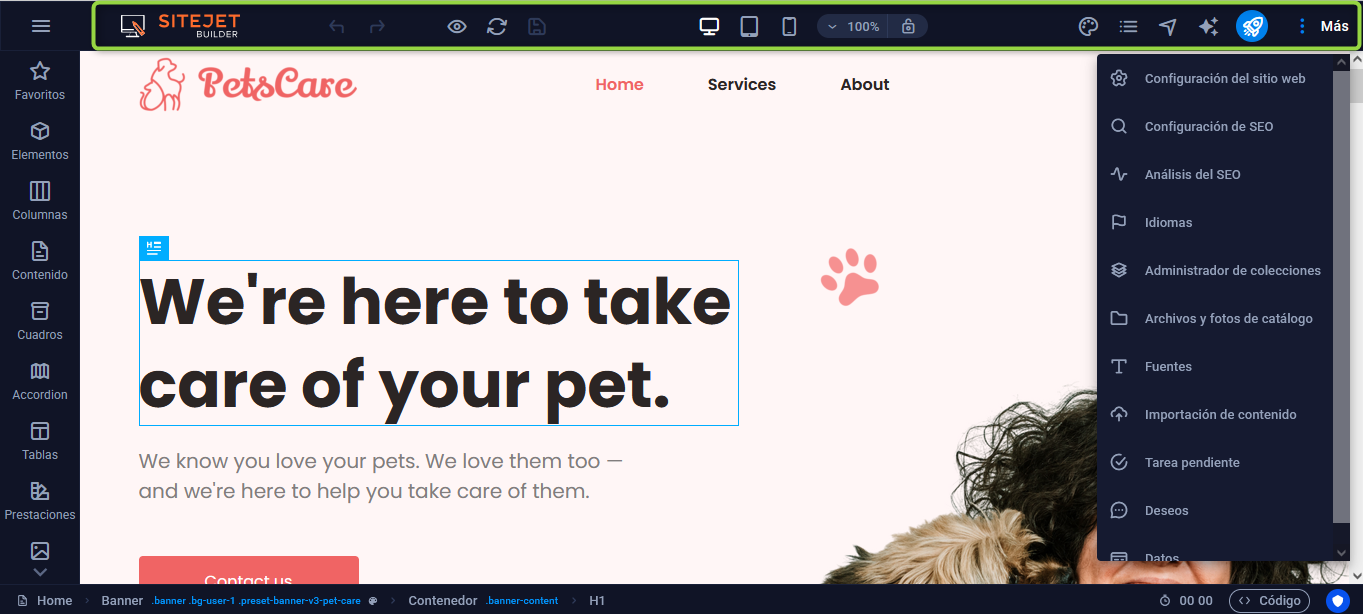
On the far right of that bar several key sections are grouped:
- Design: allows you to define the overall style and appearance of the site.
- Pages: from here you manage the site structure, creating subpages, modifying friendly URLs, SEO titles and keywords.
- Navigator: offers a hierarchical view of all elements present on the page.
- Text Generator: uses artificial intelligence to produce web-optimized content.
- Publish: essential function to apply the changes made; when published, the system updates the project directory with the latest version of the site.
- More: includes additional settings, such as language management, SEO settings, fonts, collections, files, stock images and global site options, like the logo.
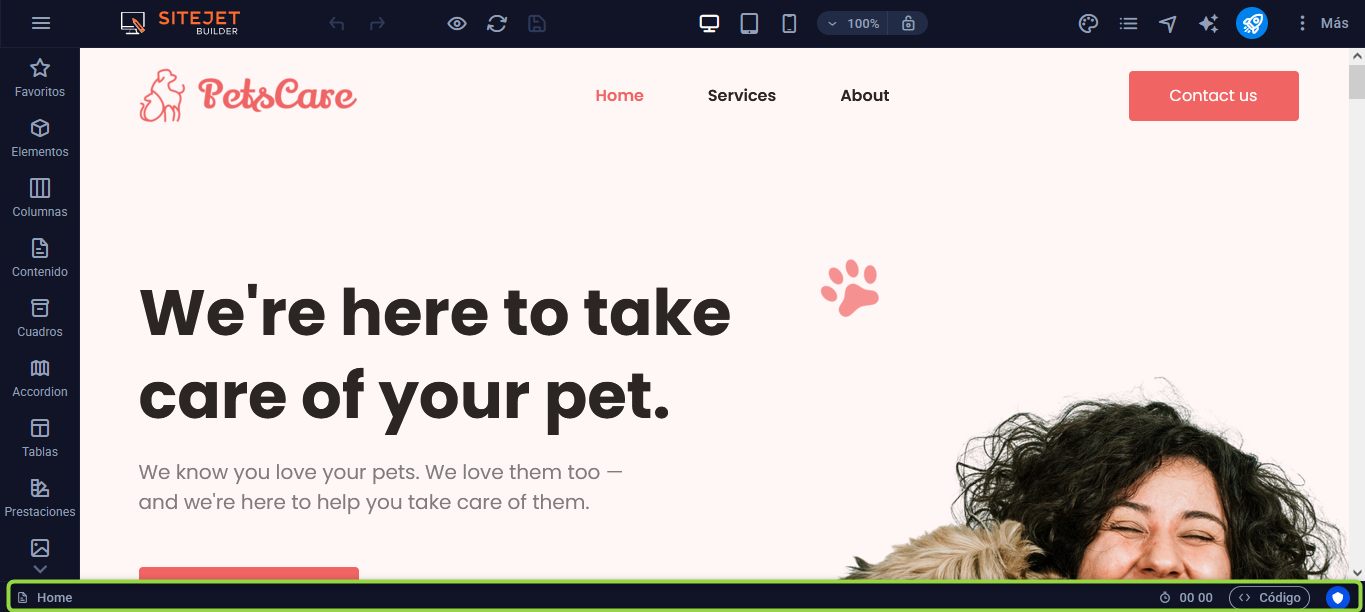
The bottom bar, although discreet, performs useful functions: it shows the path of the block you are editing and also offers the possibility to view the code that the system automatically generates in real time.
The functions and tools of Sitejet Builder are constantly expanding, so it is difficult to cover them all in a single guide. Its applications are practically unlimited and vary depending on each project. We recommend exploring it and trying its various options to make the most of its potential.