How do I change the client area password?
To change your password, follow these steps:
- Log in to your Client Area.
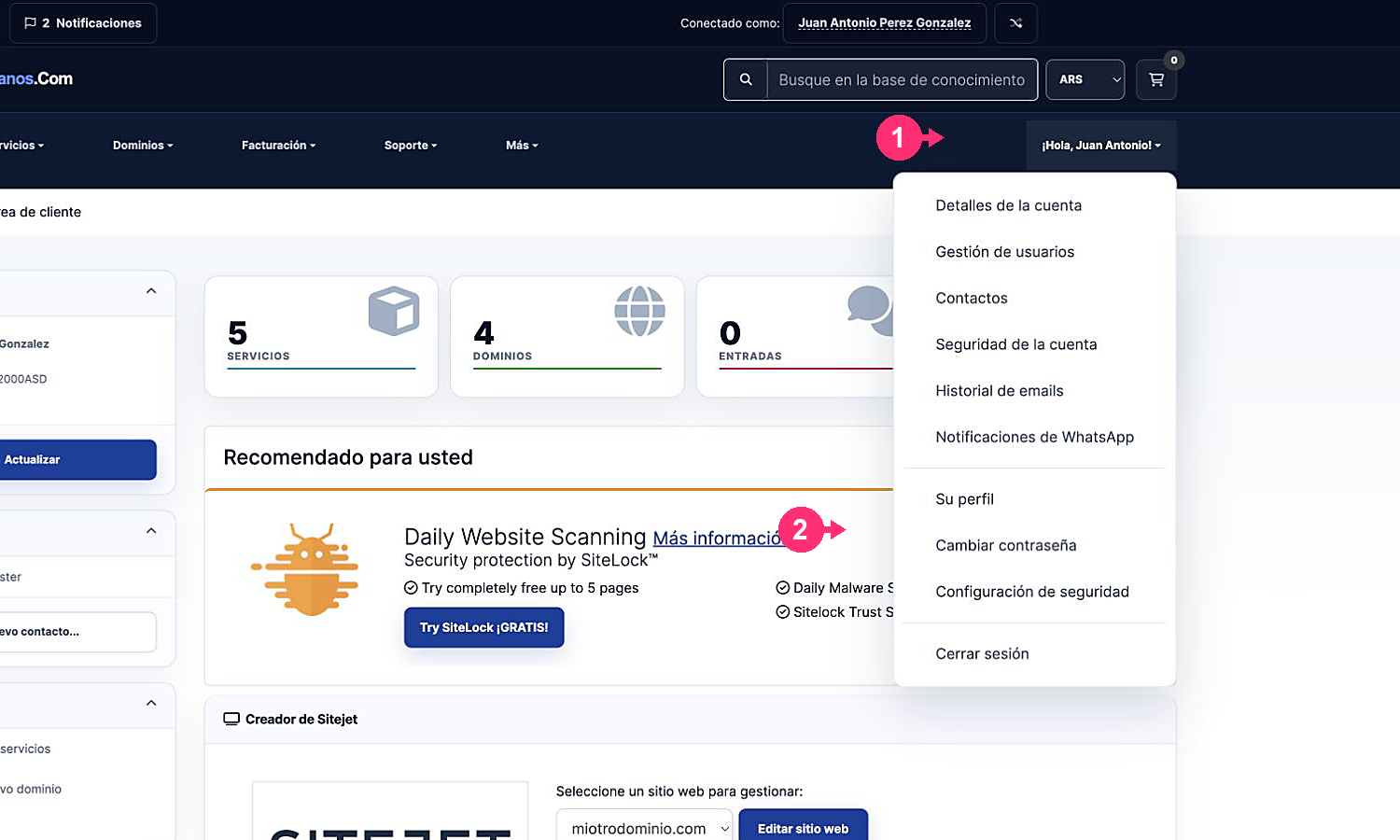
If you don’t remember how to log in follow this link: How to access the Client Area - In your Client Area, open the Hello, [your name]! menu that you’ll see at the top right.
- Select Change password.
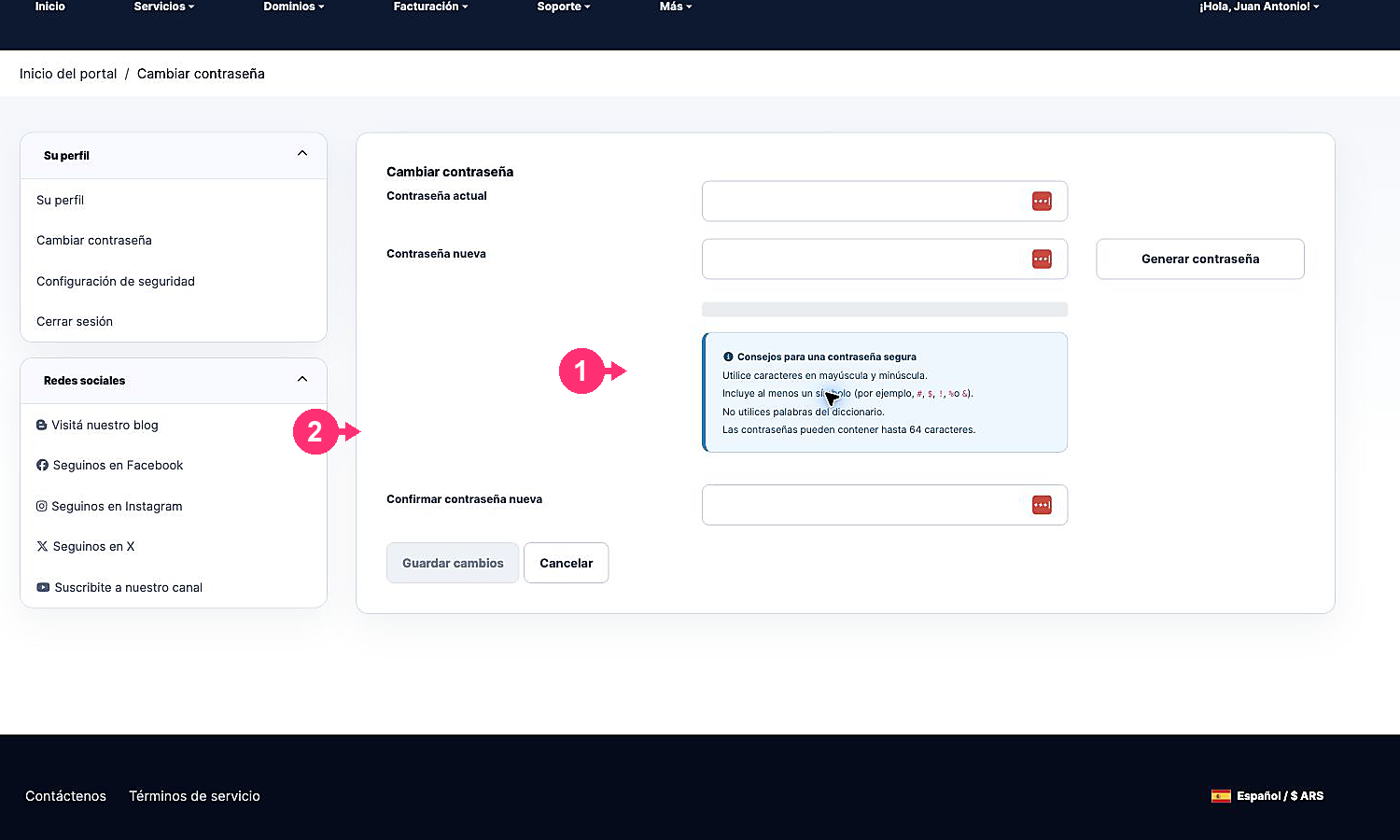
- On the new screen, enter the required information:
Current password
New password
Confirm new password
The “Generate password” button will create a random password for you. - When finished, save the changes by pressing the Save changes button.