How to create FTP Sessions in Plesk?
To connect to your account via FTP you will need an FTP client. There are several programs of this type and you can use any to connect. A popular FTP client is Filezilla.
With your FTP client open, the details to connect are:
- Host: [mydomain.com] or 69.61.28.146
- User: Plesk user
- Password: Plesk password
- Port: 21.
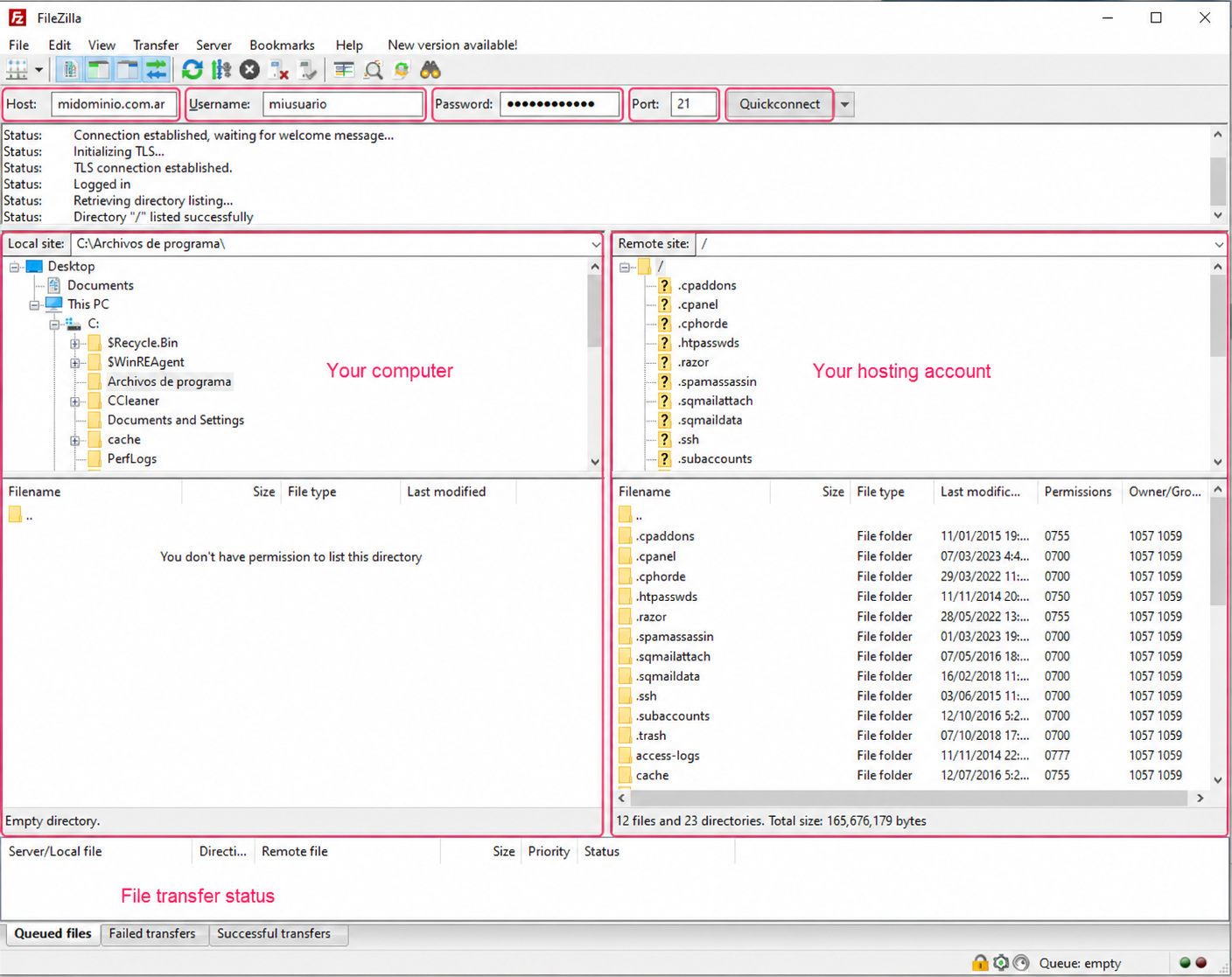
Example of a connection in Filezilla
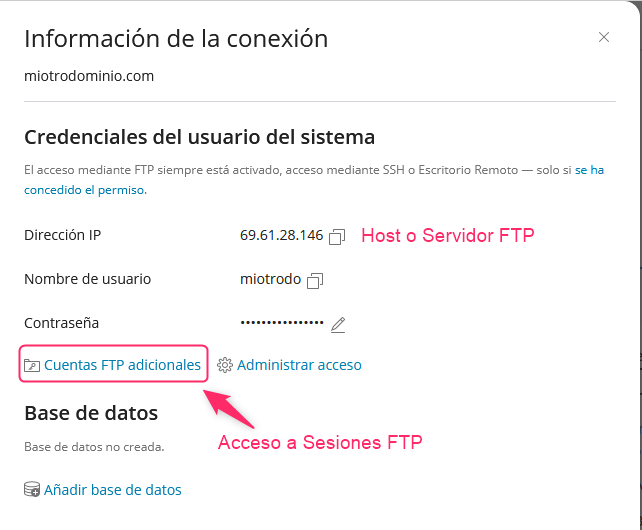
You will find the FTP connection details in your control panel under Connection Information.
Below you will see the FTP Access option, from where you can create FTP Sessions for different users.
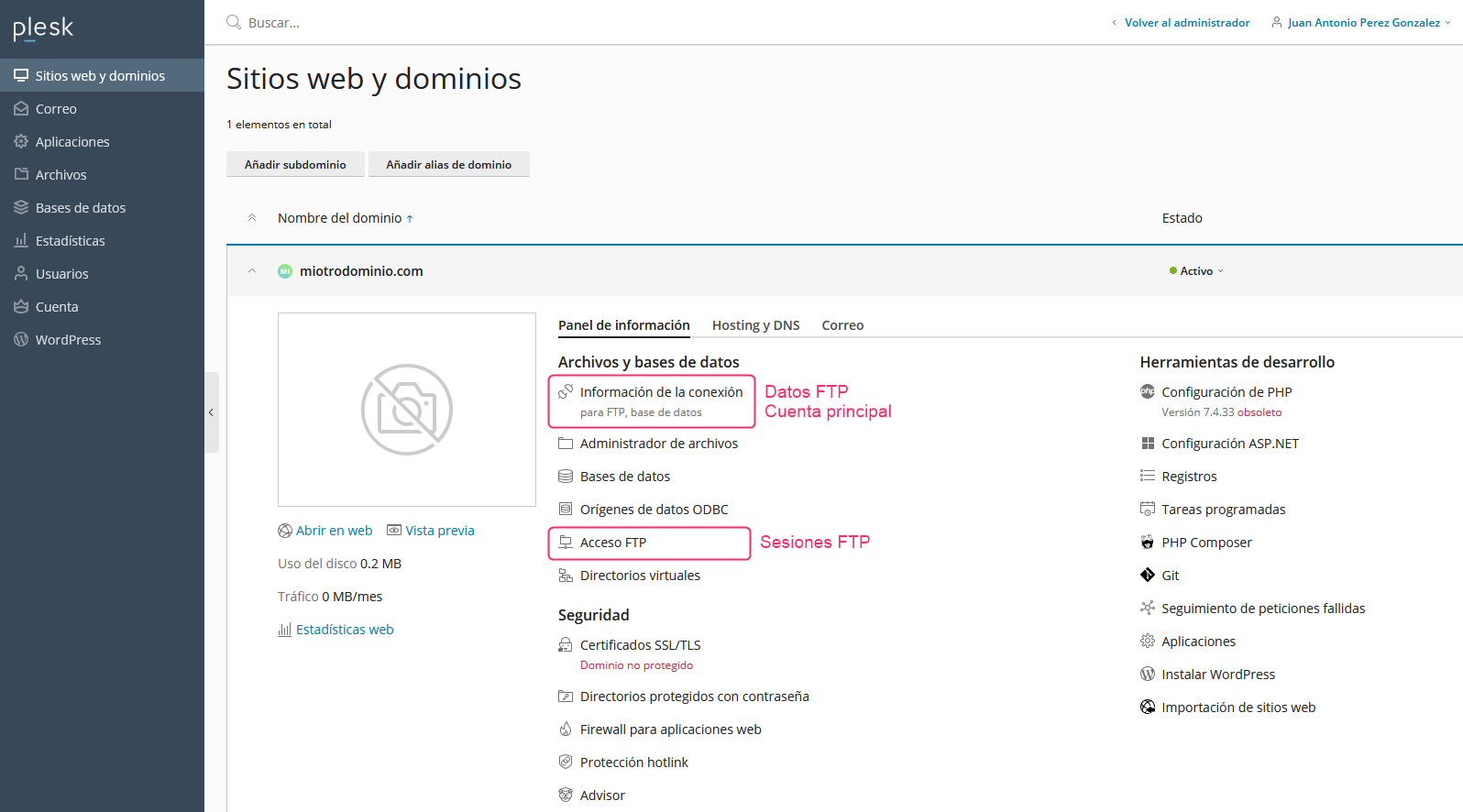
When entering Connection Information you will see a screen with the FTP connection details.
FTP Sessions
In cases where you don’t want to use your control panel login details to connect via FTP, or you want to give others access to specific directories, you can create FTP Sessions to grant individualized access.
In a previous image we showed where to find the FTP Access option. Go to that option to create FTP Sessions.
The first screen you will see will show the created FTP sessions. To create a new session press the button Add an FTP account.
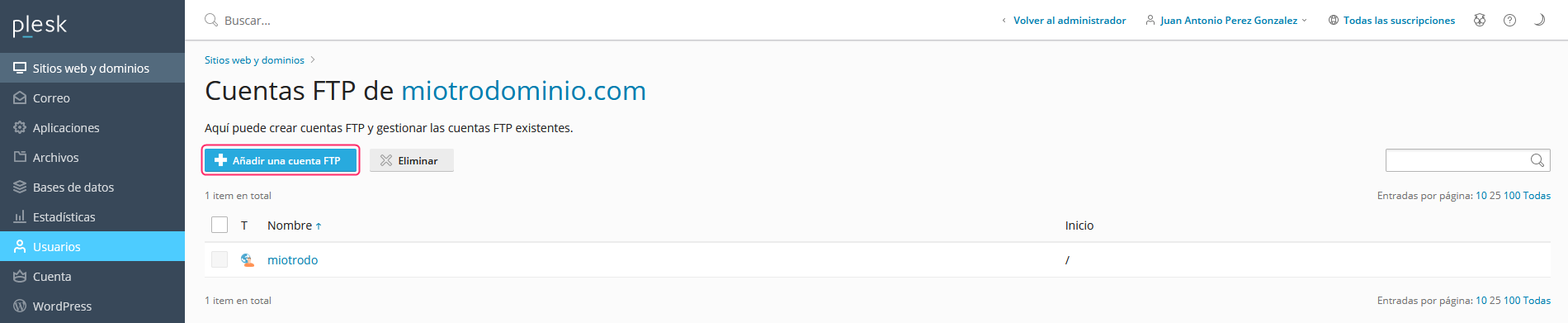
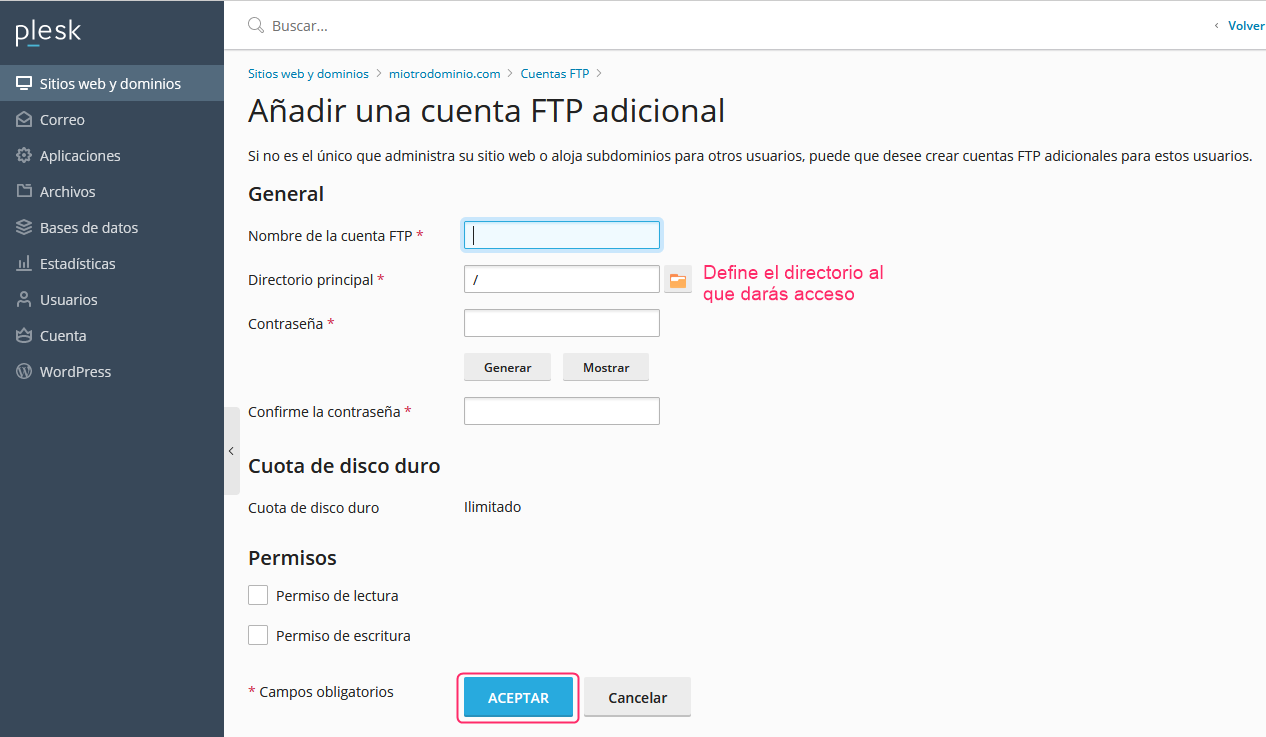
The form to create the FTP session is quite simple; it will ask for a username, a password and a directory to give this new user access to. Then, you must save the session with the OK button.