

How to validate a domain in Google Workspace/G Suite in cPanel
To use Google Workspace, formerly G Suite, the service will ask you to validate your domain.
This is a security step to prevent others from using your domain with Google Workspace.
Steps to verify your domain:
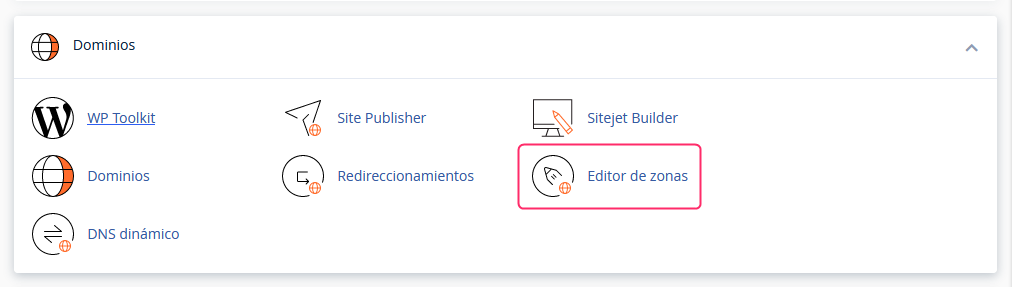
Log in to the cPanel control panel and then go to the Zone Editor option in the Domains box.
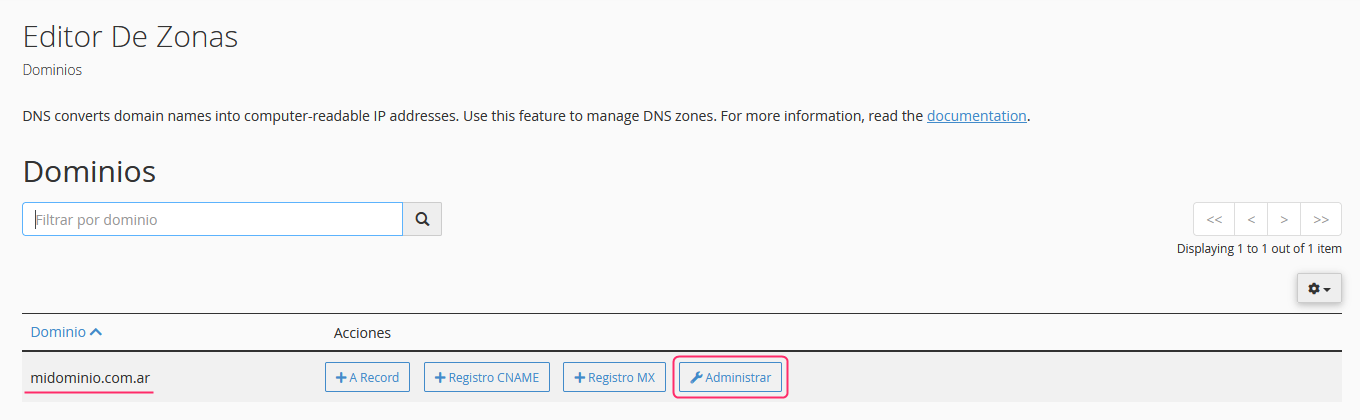
Press the Manage button on the domain you want to validate.
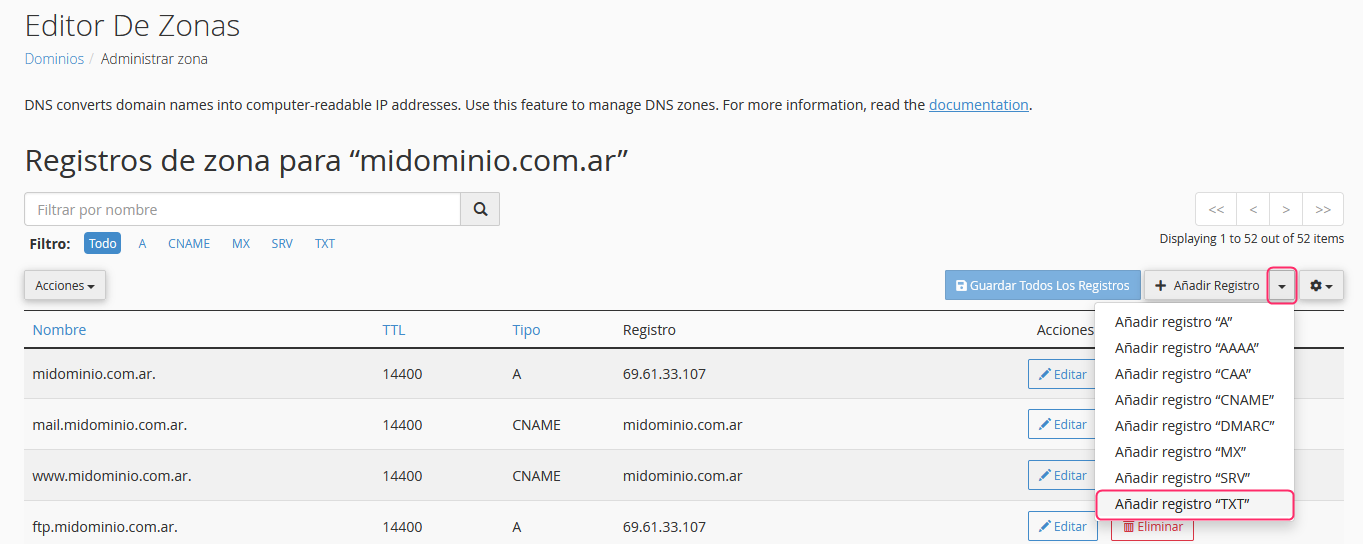
You will see the DNS Zone for your domain. Press the arrow button to the right of Add Record, and select Add “TXT” record.
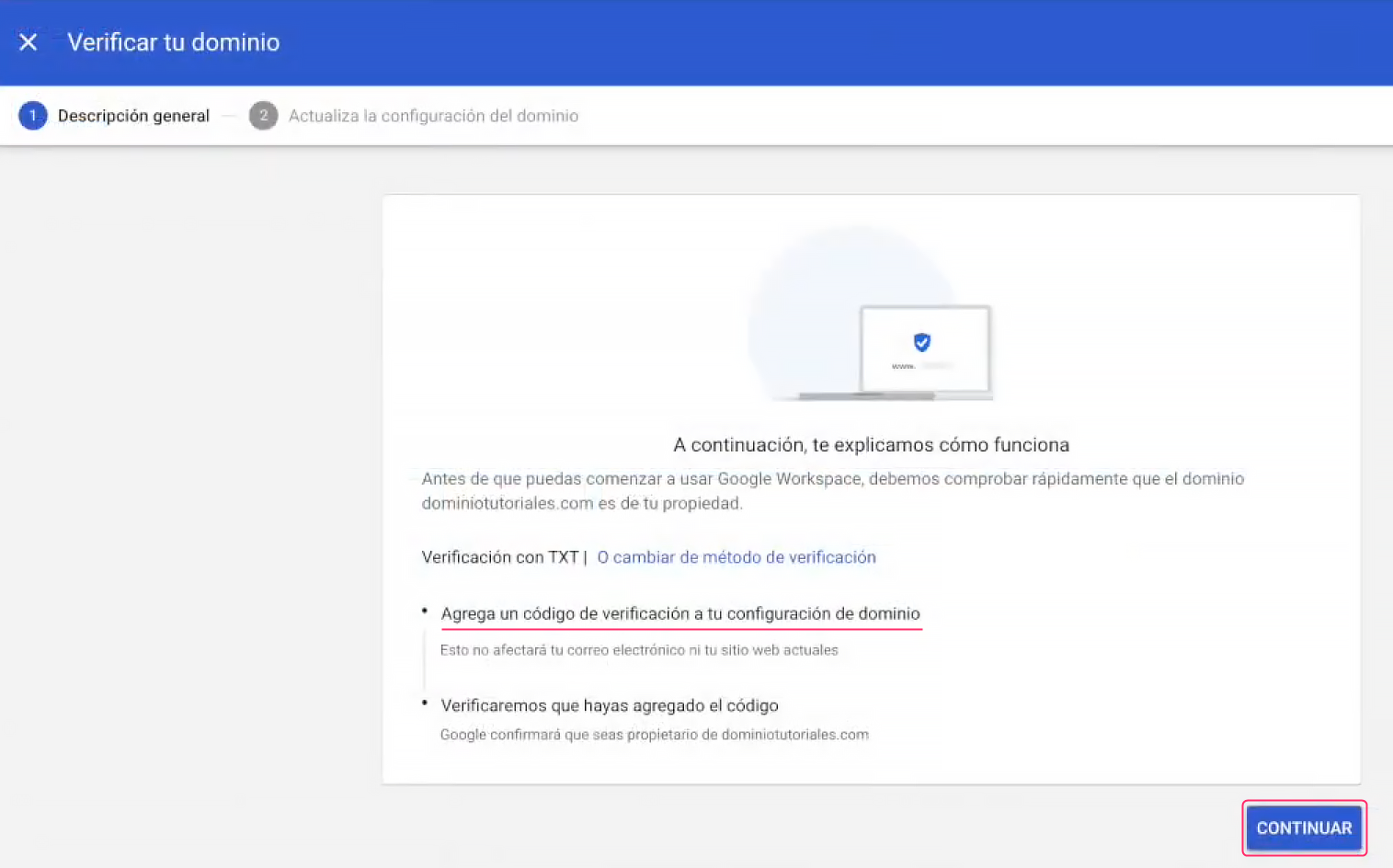
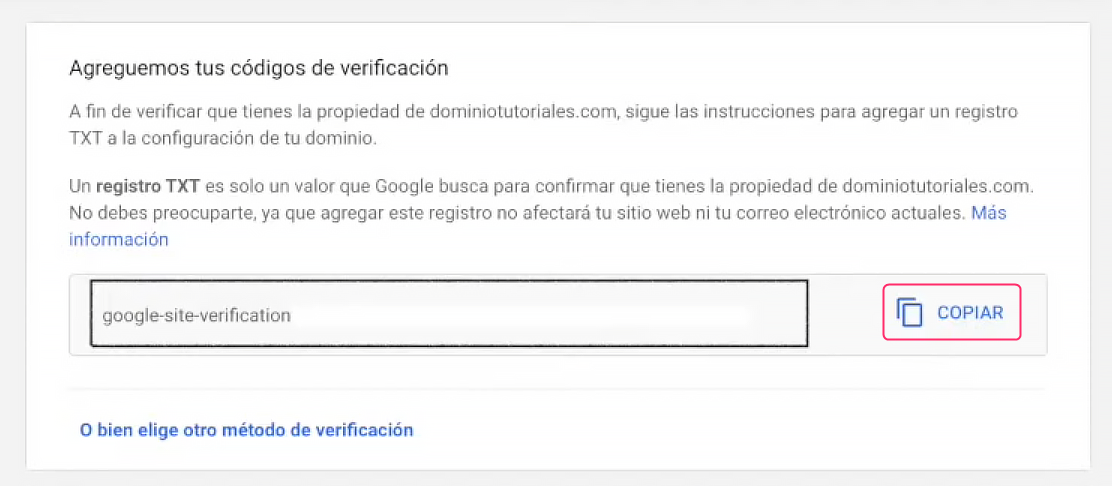
In the Google Workspace admin console find the verification code for your domain.
You should see a screen similar to the image. Press CONTINUE.
You will see the code to validate your domain. Copy the code with the COPY button.
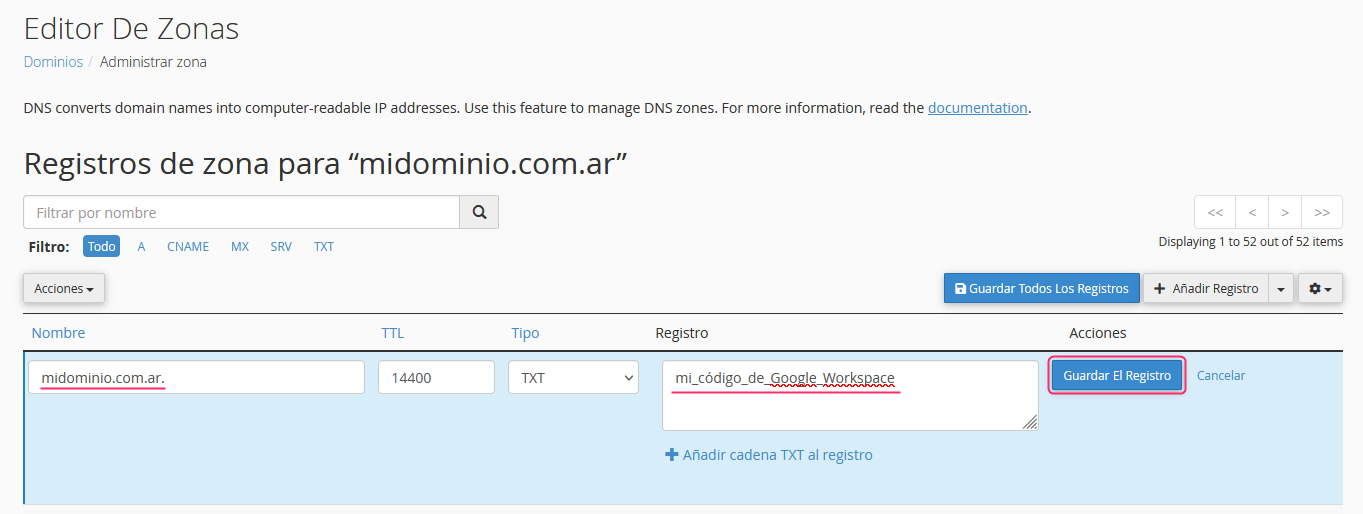
Back on the screen where you created the TXT record, in cPanel, you must configure the record as follows:\
- Fill the first field with your domain, adding a dot at the end.\
- In the Record field paste the verification code provided by Google Workspace in its admin console.\
- Save the TXT record by pressing the Save The Record button.
This domain verification record can take up to 72 hours to propagate. However, while you finish configuring the following steps in the Google Workspace admin console, Google will begin looking for your new verification record.
You will find these same steps in this video on our YouTube channel:
These steps and the subsequent steps can be found in Google’s guide to set up the service in their admin console:
https://support.google.com/a/answer/60216?hl=es&ref_topic=9196&sjid=21619422865989428-SA